Key Points
A common Record Affinity example is a participant who needs female-only support staff. You set it up with two lookups and a rule that matches them.
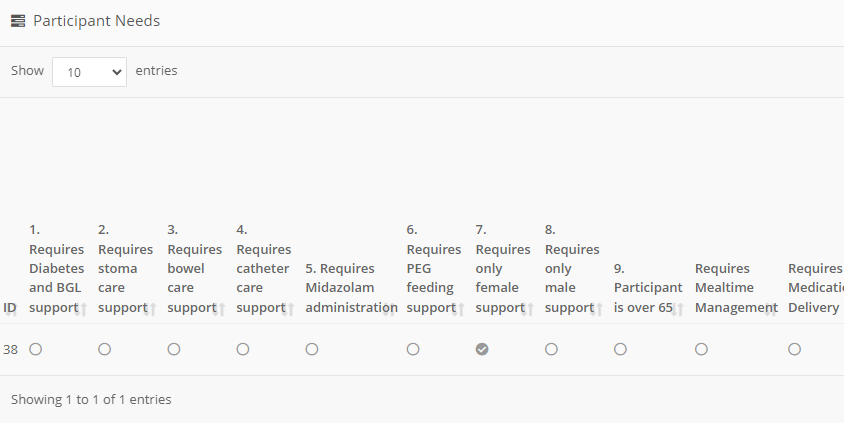
First, record the participant's needs on a Form. FlowLogic already has a Participant Needs Form for this, commonly found on the participant record's Health tab.
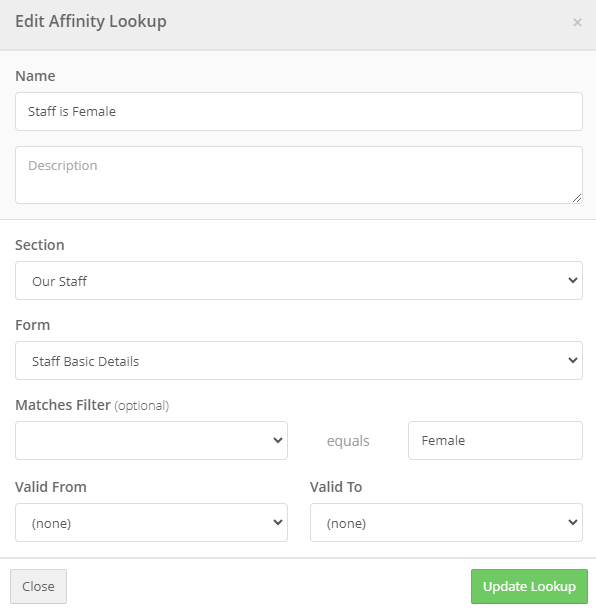
In the Record Affinity settings (in the Records Management menu), go to Lookups and create one entry for the field on the Participant Needs Form and one that checks the staff member's gender. Then create the rule that matches the participant with the staff member.
When doing a lookup on a Checkbox field, the correct equals match is "yes", with a lowercase y.
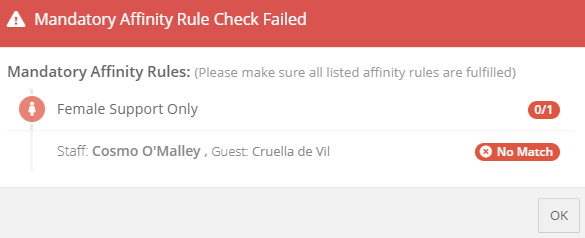
To check the rule, create a shift with the participant and staff member. A green icon next to the participant's name means the staff member matches, and a red icon means they don't. If it doesn't match, you'll see a warning when you save the shift.
The FlowLogic Record Affinity feature is a handy way to ensure that the correct staff are allocated to a participant with specific needs. An example of this is where a particular Participant requires Female only support staff.
An example of how to set up the Record Affinity for Female Support Staff only is shown below:
Setting up the lookups
1. Create or Edit a form that specifies the requirements that a specific Participant needs. There is a form already in FlowLogic for this purpose, called the "Participant Needs" form, and is commonly found under the Participant record, on the Health tab, as shown below:
2. Under the Record Affinity settings, which can be found in the Records Management menu, select Lookups, and create an entry to look for the field on the Participant Needs form, as below:
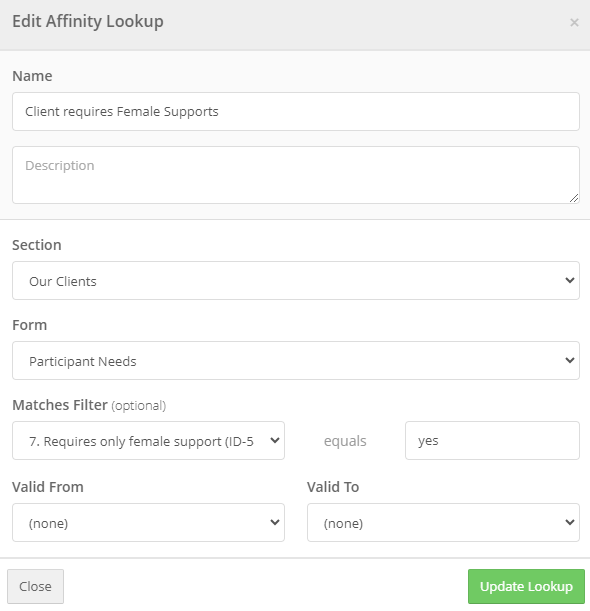
NOTE: if performing a lookup on a Checkbox field type, the correct entry for the equals Match is "yes". Please note the lowercase y.
3. Also under the Lookups in Record Affinities, create an entry to check the gender of the Staff member, as shown below:
Creating the rule
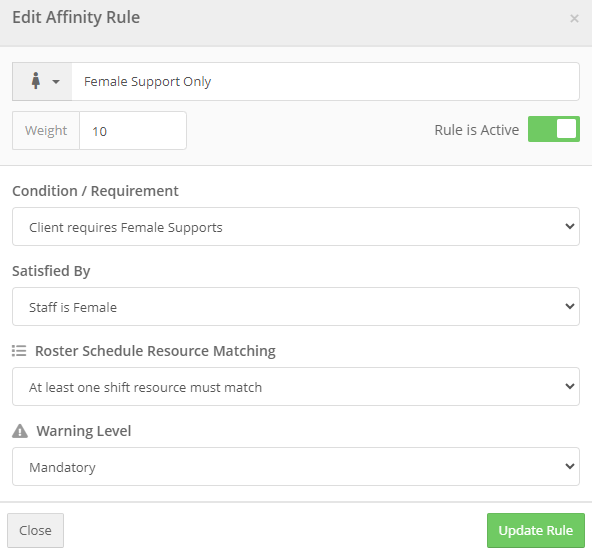
4. Now create the Rule to match the Participant with the Staff member, as shown below:
Checking the rule on the roster
5. To check the rule is correct, create a new shift in the FlowLogic Roster, and select the Participant and Staff member. You will now see an icon appear next to the Participants name, indicating that the Affinity Rules are in place, and indicating if the Staff member matches the Participants requirements. If the Staff matches the requirements, the icon will be Green as shown below:

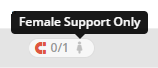
If the Staff member selected doesn't match, the icon will be red, as shown below:
When you attempt to save the shift, and the Affinity does not match, you will be presented with a warning screen advising such, as shown below: