
Key Points
-
The Plan Management tab centralises all plan-managed activity.
-
You must set up a funding allocation before processing claims.
-
Claims are created through the PM Claimable form.
-
Claims automatically flow to the Funding Exchange for portal submission.
-
Spend updates appear in Tracking & Utilisation and financial reports.
-
The section can be customised to match your organisation’s workflow.
Accessing the Plan Management Tab
To begin:
-
Navigate to the Participants section.
-
Open the participant profile.
-
Select the Plan Management tab at the top of the screen.
This tab contains everything related to plan-managed funding.
Service Agreements
At the top of the Plan Management tab, you will see the Service Agreement section.

Here you can:
-
Upload the participant’s plan-managed service agreement.
-
Store documentation securely within their profile.
Plan Details Form (Optional)
You may also see a form for uploading plan details.
This form:
-
Can be customised.
-
Can include additional fields.
-
Can be adjusted to suit your organisation’s workflow.
Funding Allocation Setup
Before you can process claims:
-
A funding allocation must be added.
This works the same way as other participant funding setups in FlowLogic.
Without a funding allocation:
-
Service items will not appear in the claim form.
Creating a Plan Management Claim
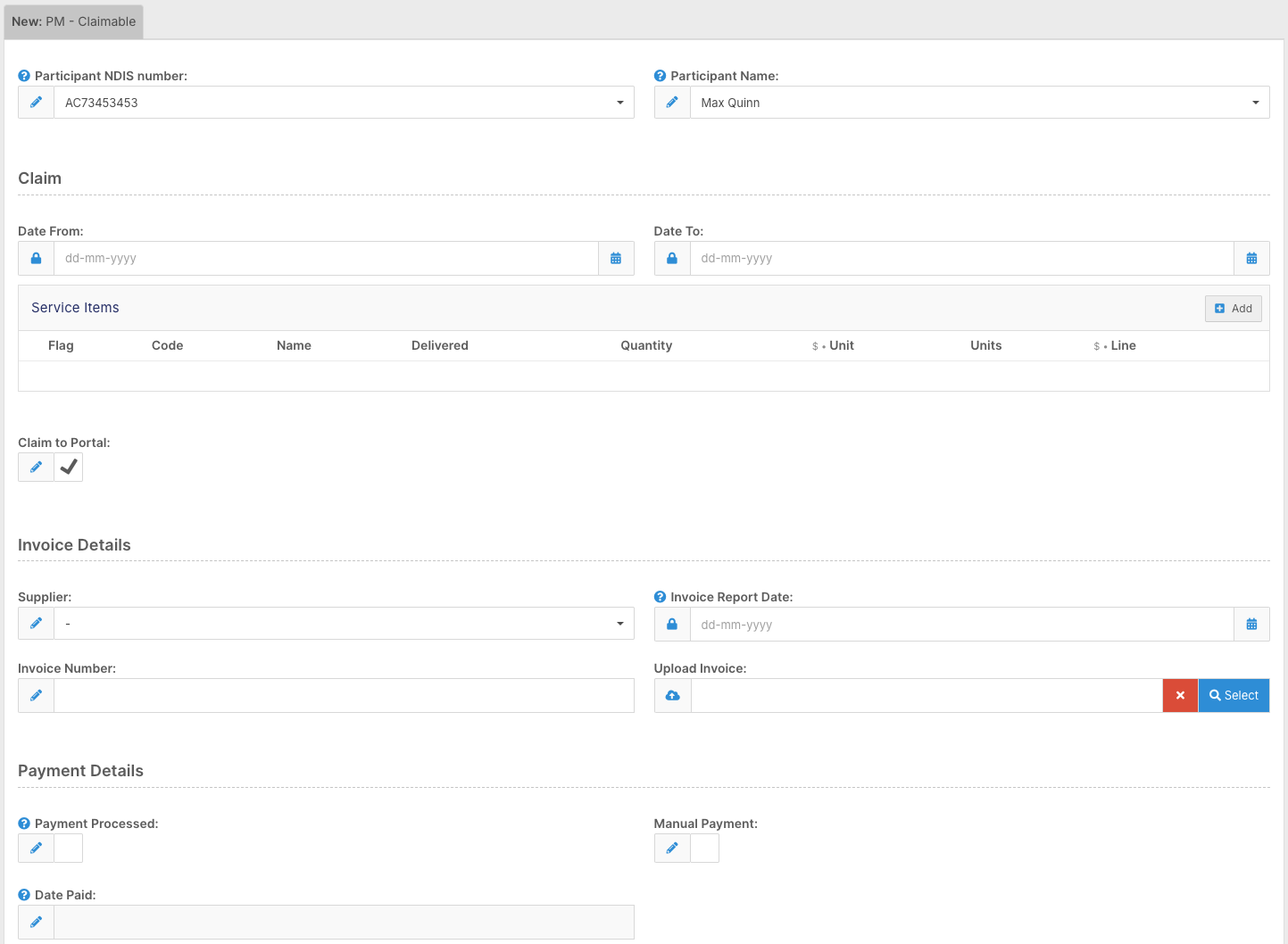
Once funding is set up:
-
Click Add New in the PM Claimable form.
-
Open the claim entry screen.
The layout is similar to:
-
Single Claim form
-
Support Coordination claim form
Confirm Participant Details
The participant’s:
-
Name
-
NDIS number
will prefill automatically.
Select Claiming Period
Choose:
-
A date range (if grouping invoices)
-
The same date for both fields (for single service dates)
Select Service Item
Choose the relevant support item.
If no items appear:
-
Check the participant’s funding allocation.
Enter Quantity
Enter the quantity using standard unit structure.
Examples:
-
1 hour = 1 unit
-
Partial hours entered as decimals
Additional Service Details
You may also:
-
Set a billing flag (if used internally)
-
Enter delivery dates
Portal Claiming
By default, claims are prepared for portal submission.
If the claim should not go through the portal:
-
Untick the claim through the portal option.
Invoice Details
Below the service section, complete invoice information:
-
Invoice provider
-
Invoice date
-
Invoice number
-
Upload invoice file
Mandatory fields must be completed before saving.
Payment Tracking
You can also record:
-
Whether payment has been processed
-
If the payment was manual
-
Date paid
-
Comments
-
Additional site export code (if required)
This supports financial tracking and reporting.
Saving and Processing the Claim
Click Save and Close.
If required fields are missing:
-
The system will prompt you.
Once saved:
-
The claim automatically flows to Funding Exchange.
-
It is ready for export and portal submission.
Tracking & Reporting
After submission:
-
Spend updates in Tracking & Utilisation.
-
Activity appears in financial reports.
-
Plan balances are automatically updated.
This keeps FlowLogic aligned with portal claiming.
Meeting Minutes
At the bottom of the Plan Management tab, you will find the Meeting Minutes form.
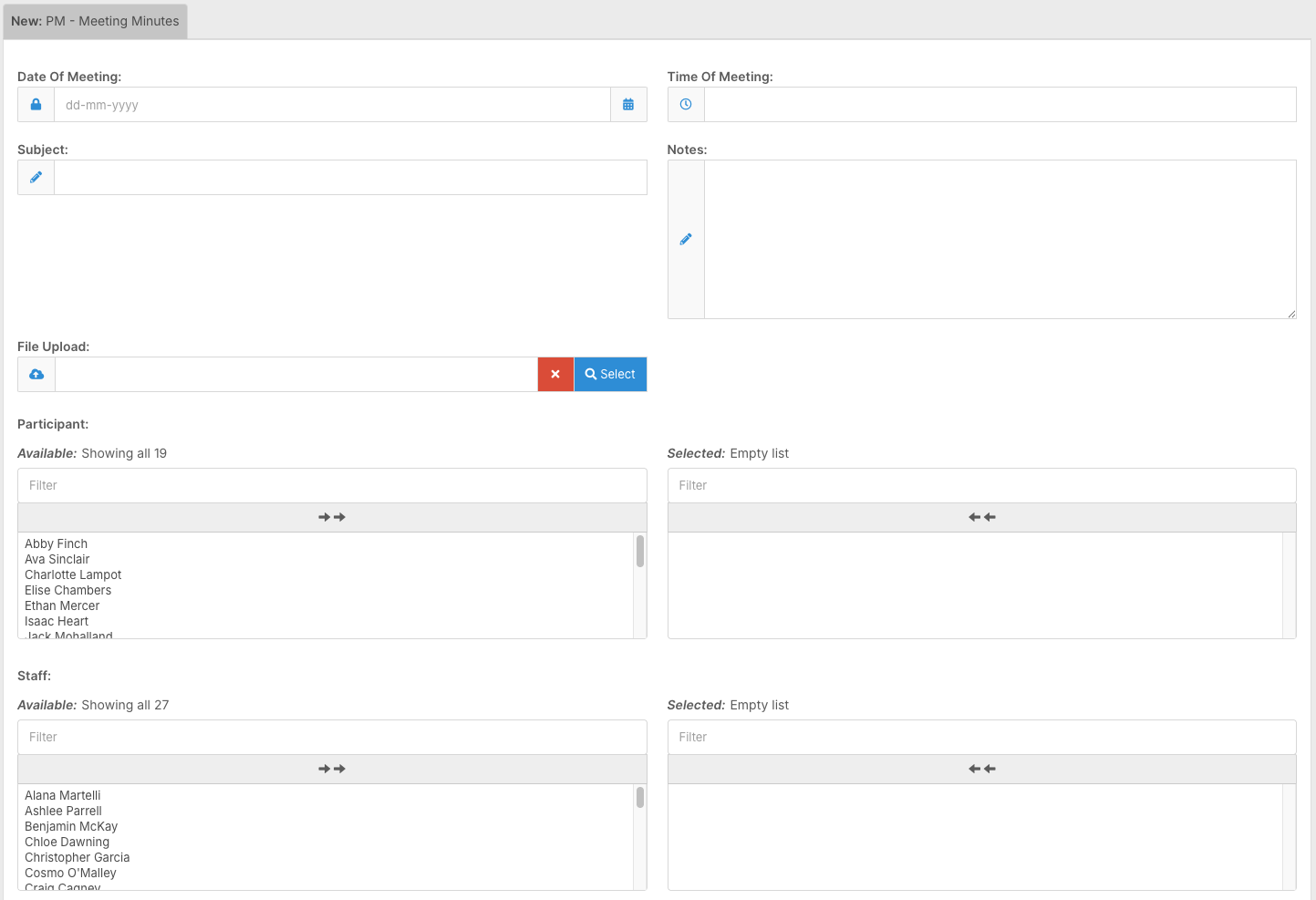
This allows you to record:
-
Plan-related meetings
-
Attendees
-
Discussion points
-
Follow-up actions
This creates a structured communication record.
Customising the Plan Management Section
You can:
-
Add additional forms
-
Remove unused forms
-
Tailor the layout to match your workflow
This flexibility allows you to build a plan management process that suits your organisation
You now understand:
✔ How to access the Plan Management tab
✔ How to upload service agreements
✔ How to set up funding allocations
✔ How to create and submit PM claims
✔ How claims flow to Funding Exchange
✔ How spend updates in reports
✔ How to record plan-related meetings
The Plan Management section provides a structured and efficient way to manage plan-managed funding from setup through to claiming, reporting, and record keeping.