
Key Points
In the FlowLogic Workforce mobile app you can view your shifts and clients, clock on and off, add shift notes, and add timesheets and leave requests.
The home screen shows your upcoming shifts, messages and any missing timesheets. Tap the red banner to go straight to a missing timesheet.
The navigation bar along the bottom has Home, Shifts, Clients and Menu.
The Menu gives access to My Profile, the Staff section, incident reporting, vehicles, feedback and complaints, terms and privacy, and logout.
The Home Screen
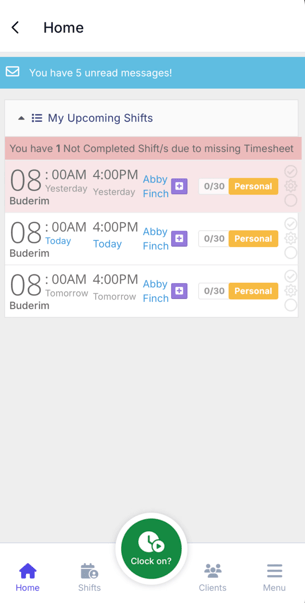
- Your upcoming shifts, including times, dates, who the shift is with, and any travel or kilometres associated with it
- Any messages you've received
- Missing timesheets, which appear with a red banner at the top of the screen
If you have a missing timesheet, tap the red banner to go directly to the timesheet that needs to be submitted.
The Navigation Bar
The navigation bar along the bottom of the screen is your main tool for moving around the app. It includes:
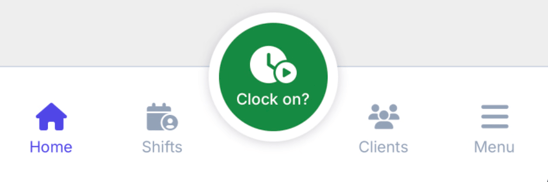
- Home - brings you back to the main screen from anywhere in the app
- Shifts - shows all your upcoming shifts organised by date
- Clients - quick access to the participants you work with
- Menu - opens additional sections of the app
Shifts
Tap the Shifts button to see your upcoming shifts. Swipe left or right to move between days, or use the calendar to jump to a specific date. Tap any shift tile to open the shift detail screen, where you can: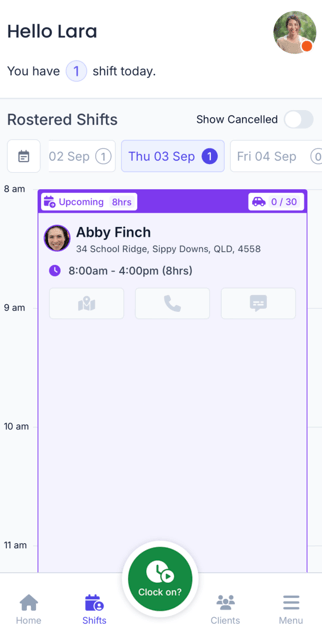
- View participant and staff information
- Read admin notes added by your rostering team
- Add shift notes
- Clock on and off
To clock on, tap the Clock On button. Once confirmed, the button will change to an orange Clock Off button ready for when your shift ends.
Clients
Tap Clients in the navigation bar to view the participants you work with. Tap a client's card to open their profile, where you'll find:
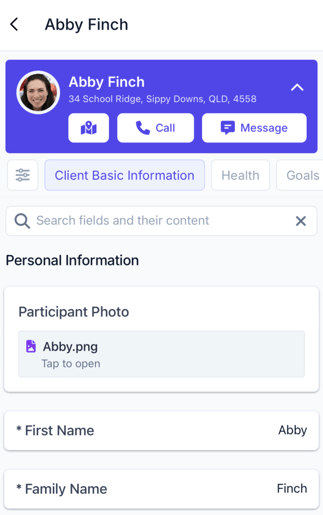
- Their basic information
- Options to call them or view their address in maps
- All tabs and forms associated with their record
The Menu
Tap the Menu button in the bottom-right corner to access additional sections, including:
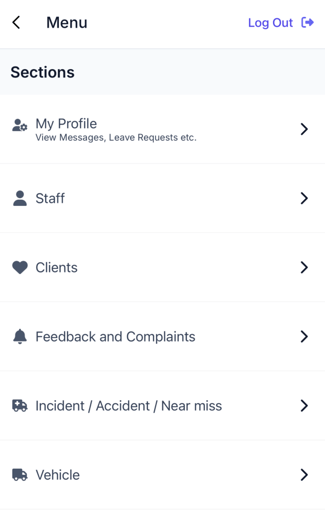
- My Profile - manage your inbox, timesheets, leave requests, password, PIN, and location settings
- Staff section - view and manage staff records
- Incident reporting - create and submit incident reports directly from the app without needing to open a browser
- Vehicles and any other sections set up for your role
- Feedback and complaints
- Terms and privacy
- Logout
My Profile
Inside your profile, you can:
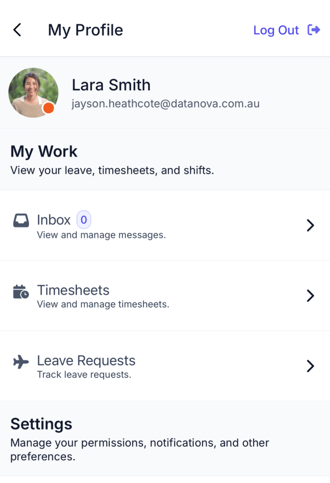
- View messages in your inbox
- Add timesheets and leave requests
- Update your password and PIN
- Manage your location services settings