
Key Points
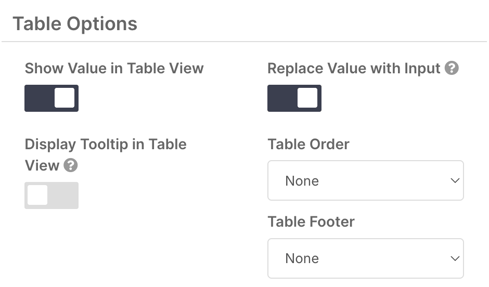
To edit records in table view, go to System Menu - Forms, edit the form, open the field on the Fields tab and toggle on Replace Value with Input under Table Options.
In-table editing works for single dropdown and checkbox fields only - not text fields or other field types.
Click Apply Settings and save the form. The change takes effect immediately.
In table view, change the value, then click Save next to that entry. Navigating away without saving discards the change.
Setup
Go to System Menu - Forms and search for the form you want to update - in this example, Staff Basic Details . Click Edit to open the form settings, then click the Fields tab in the blue banner at the top of the screen.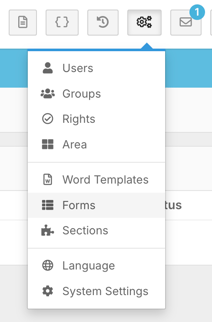 Find the field you want to enable inline editing for and click
Edit
on the right-hand side. Scroll down to the
Table Options
section and toggle on
Replace Value with Input
.
Find the field you want to enable inline editing for and click
Edit
on the right-hand side. Scroll down to the
Table Options
section and toggle on
Replace Value with Input
.
 Click
Apply Settings
, then save the form. The change takes effect immediately.
Click
Apply Settings
, then save the form. The change takes effect immediately.
Using In-Table Editing
Head back to your table view and you'll see the field now displays a dropdown selector with a small checkbox next to it. You can update the value for any record directly from this view without opening it.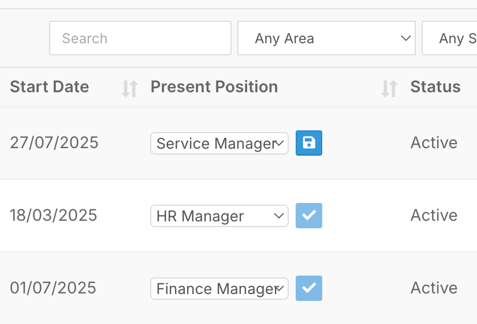 After making a change, click the
Save
button to the right of that entry to confirm the update. Navigating away without saving will discard the change.
After making a change, click the
Save
button to the right of that entry to confirm the update. Navigating away without saving will discard the change.