
Key Points
To hide the author column, go to System Menu - Forms, click Edit on the form, expand the Advanced section on the Form Details tab and tick Hide Author Column, then save.
The author column appears on the far right of table views and shows who created each record.
Hiding it frees up space and makes your lists cleaner. The change takes effect immediately.
You can use the freed-up space to add other columns through the same form settings.
The author column appears on the far right of table views and shows who created each record. If that information isn't relevant to your day-to-day use, hiding it frees up space and makes your lists cleaner and easier to read.
Steps
Go to System Menu - Forms
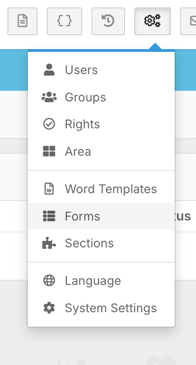
From here search for the form whose table view you want to update. In this example we're using Staff Basic Details. Click Edit to open the form settings.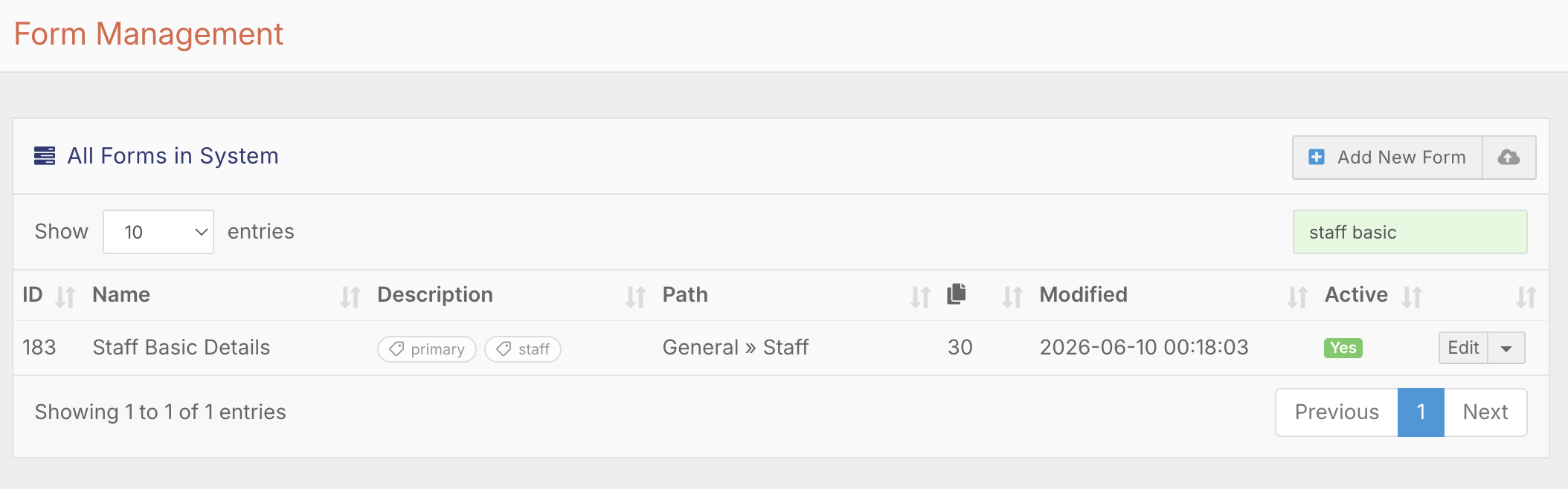
You'll land on the Form Details tab by default. Scroll down to the Advanced section and click the + button on the right to expand it. At the bottom of the Advanced section you'll find the Hide Author Column checkbox in the bottom-right corner. Tick it, then scroll down and save the form.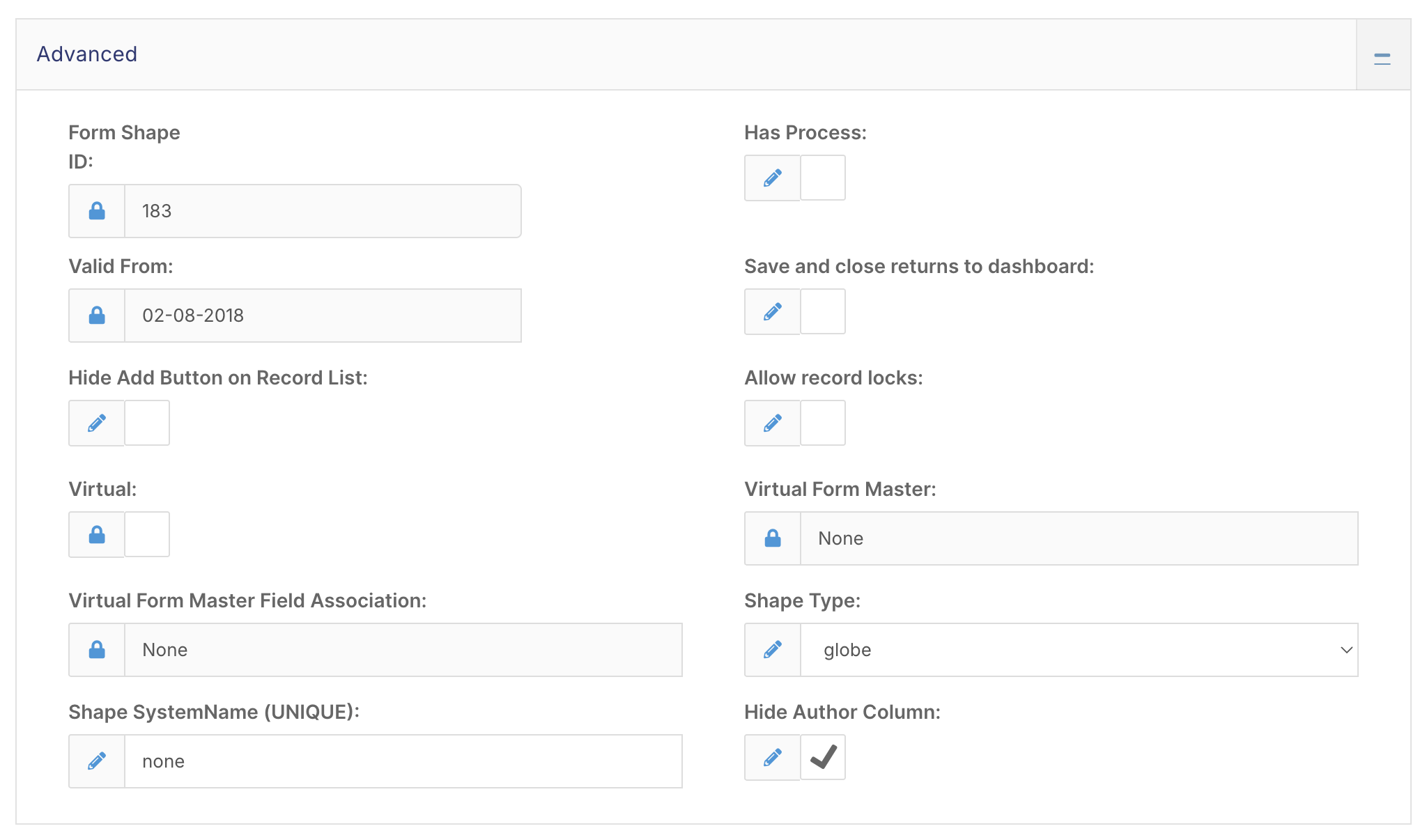
The change takes effect immediately. Head back to your list and the author column will be gone.
Adding Columns in Its Place
If you'd like to use the freed-up space to display additional information, you can add columns through the same form settings.