
Key Points
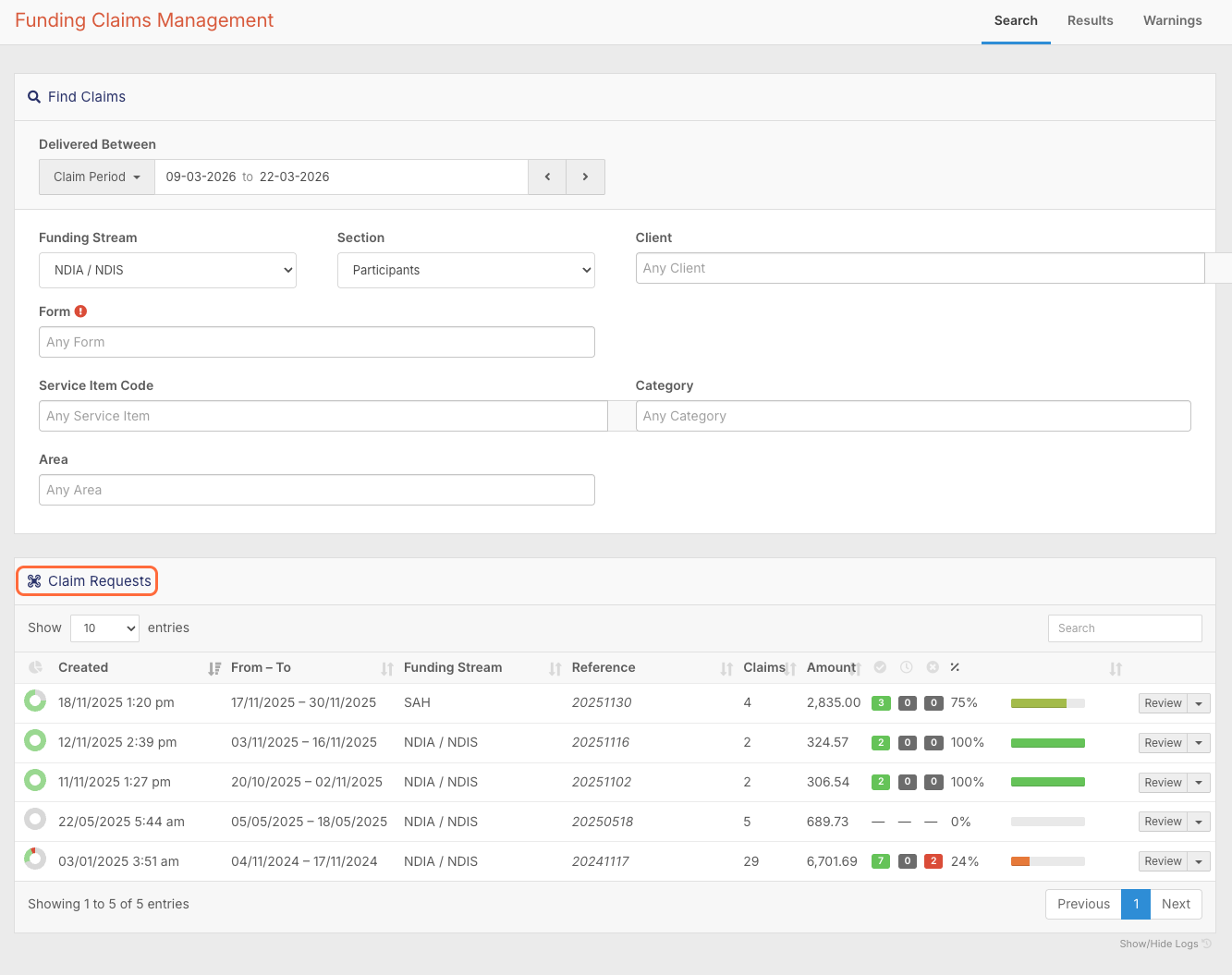
To check claim requests, go to Finance and Payroll > Funding Exchange. Every exported claim batch is listed at the bottom of the page under Claim Requests.
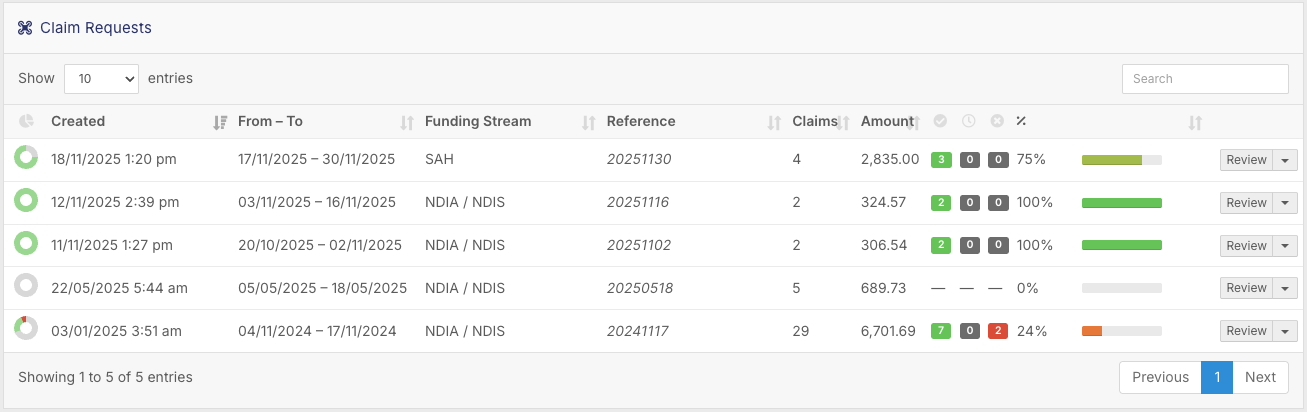
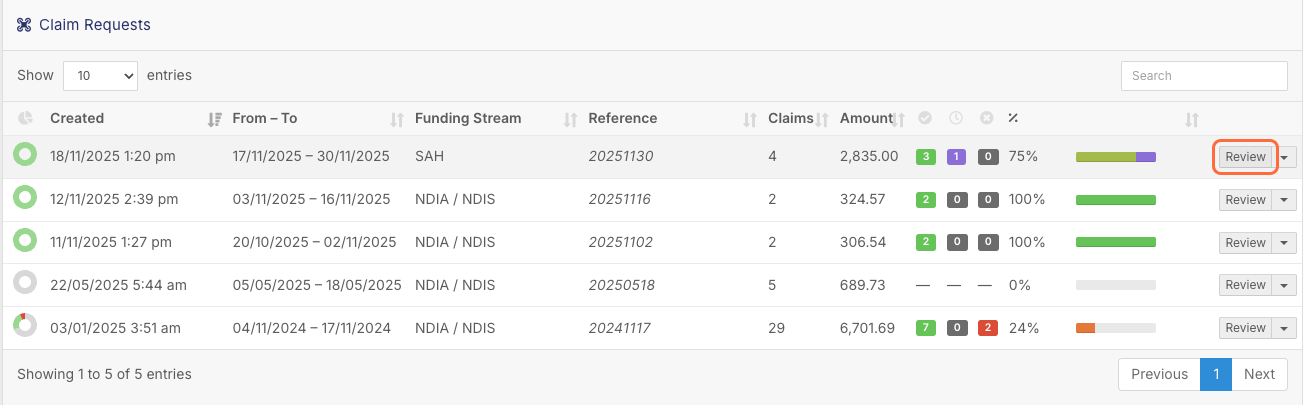
Each row is one export batch, showing its claim period, funding stream, claim reference, number of claims, total value, status and a progress bar. Click Review to see the individual claim lines.
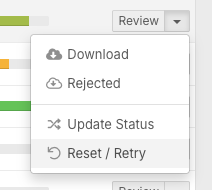
To resubmit a rejected claim, check the rejection reason, correct the issue and update the claim to Retry so it's included in your next export. Use Reset and Retry to prepare a whole batch at once.
If you use CSV exports, upload remittance advice files to update claim statuses. With an API integration this happens automatically.
Logs at the bottom of the screen show when exports were created, when statuses changed and who did each action.
The Claim Requests section is where all exported claim batches are tracked after they’ve been submitted from FlowLogic. It serves as your central dashboard for monitoring claim progress, reviewing outcomes, and managing any required follow-up actions.
Every time a claim is exported, it automatically appears in this list, giving you full visibility over your funding workflow from submission through to payment.
Accessing Claim Requests
To access this area, navigate to:
- Finance and Payroll > Funding Exchange
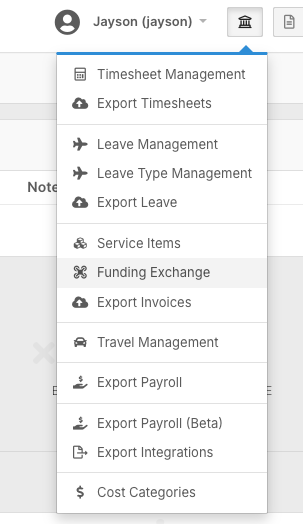
Once inside, you’ll see a list of all previously exported claim batches at the bottom of the page under 'Claim Requests'.
Understanding the Claim List
Each row in the Claim Requests screen represents a single export batch. The system provides key details, including the creation date, claim period, funding stream, and claim reference. You’ll also see how many claims were included, the total dollar value, and the current status.
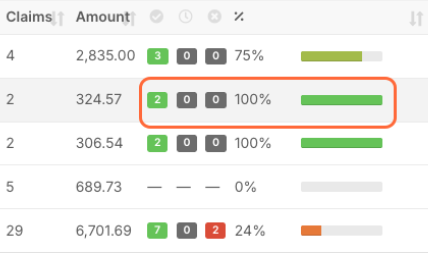
A progress bar is displayed on the right-hand side, giving you a quick visual indication of how much of the batch has been processed. This makes it easy to identify which batches are complete and which still require attention.
Claim Statuses
Claims move through a lifecycle, and understanding these statuses is important when managing funding:
- Open means the claim has not yet been processed

- Accepted confirms the funding body has approved it

- Paid indicates payment has been completed

- Processed means it has been finalised in the system

- Rejected highlights that action is required

- Retry is used when a claim is ready to be resubmitted

These statuses give you a clear picture of where each claim sits and what needs to happen next.
Reviewing Claim Details
To investigate a claim batch further, click Review on the right-hand side. This opens a detailed view of all claim lines within that batch.
From here, you can see individual service items, delivery dates, and updated statuses. This is where you confirm what has been accepted, what is still pending, and what requires follow-up.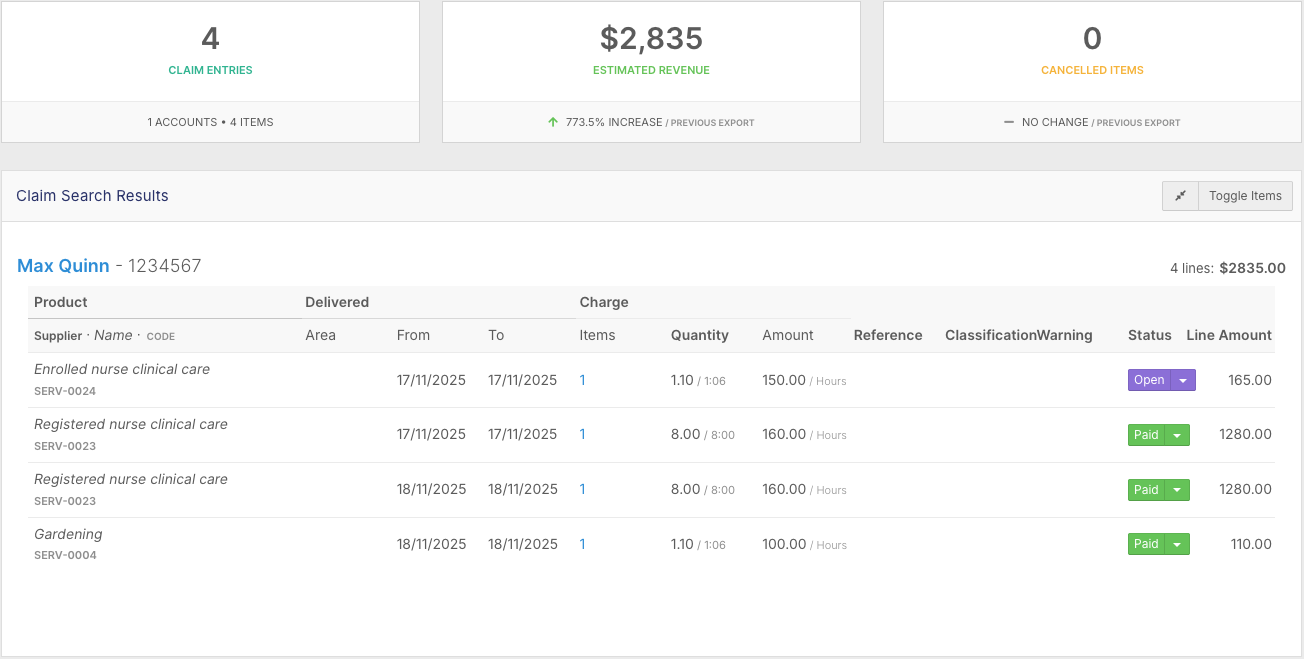
Handling Rejections and Resubmissions
If a claim has been rejected, you can click into it to view the rejection reason. This may come from a manual entry, a remittance file, or an API response from the funding portal.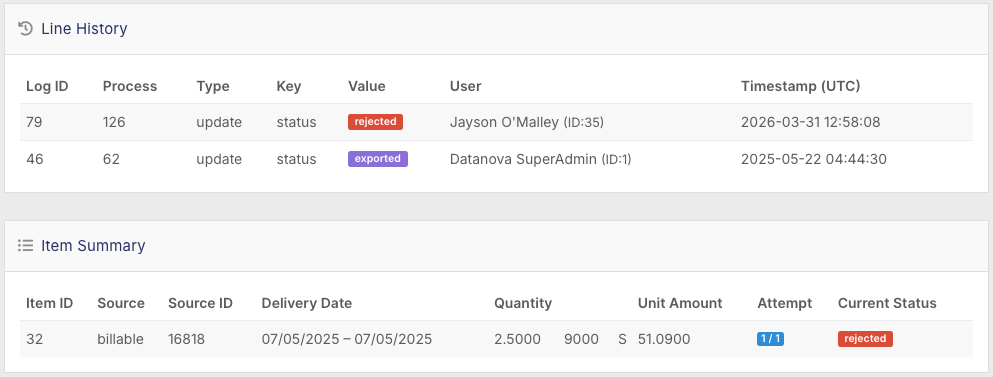
Once the issue has been identified and corrected, you can update the claim to Retry and include it in your next export.
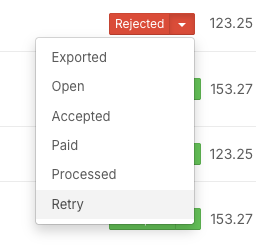
If multiple claims need to be resent, you can use the Reset and Retry option to prepare the entire batch at once.
Uploading Remittance Files
If you are using CSV exports, you will need to upload remittance advice files to update claim statuses.
To do this:
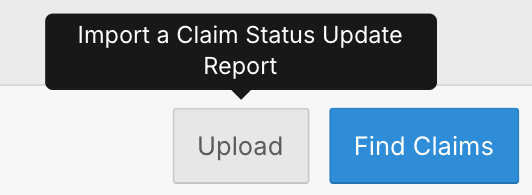
- Click Upload in the bottom right
- Drag and drop the remittance file
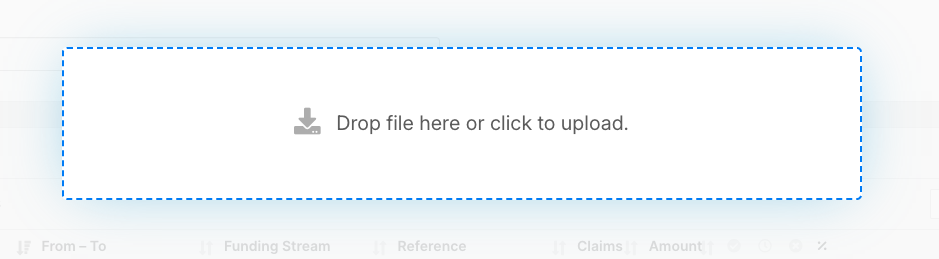
FlowLogic will automatically match the data and update claim outcomes, including accepted, rejected, and adjusted items.
For organisations using API integrations, this process is automatic and does not require manual uploads.
Logs and Audit Trail
At the bottom of the Claim Requests screen, you can access logs that track all claim activity. These logs show when exports were created, when statuses changed, and which users performed each action.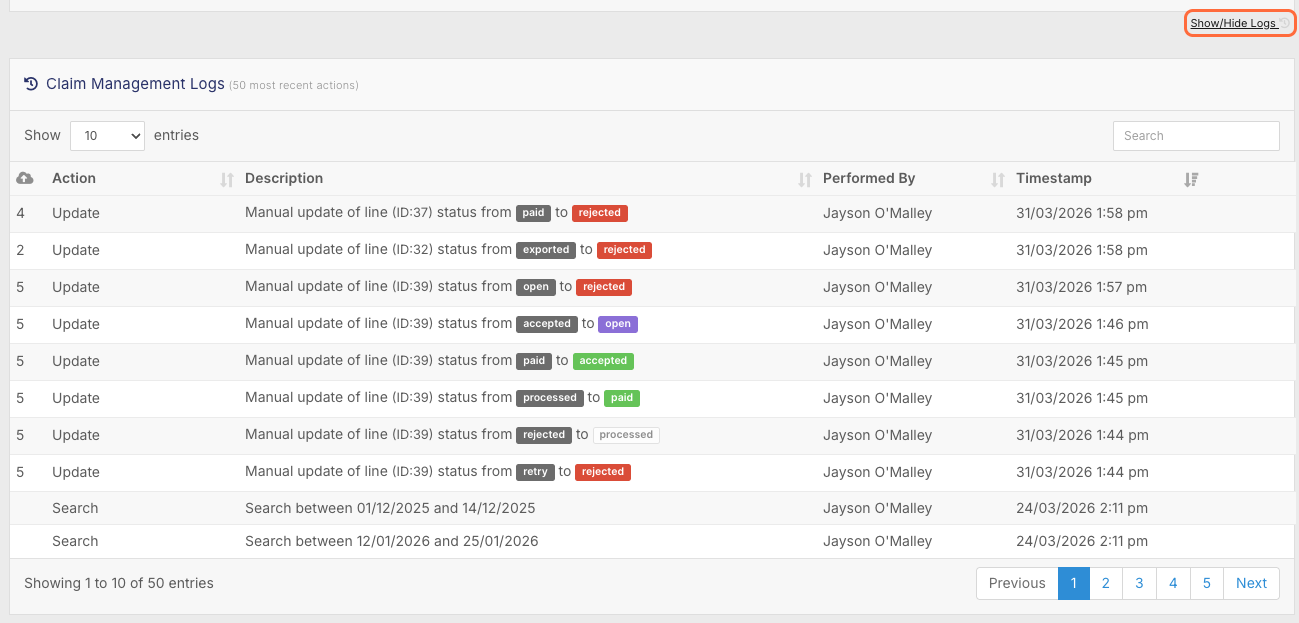
This provides a reliable audit trail for compliance, troubleshooting, and internal reviews.
Moving to the Next Step
Once claims are accepted, they are ready to move into the next stage of the workflow.
This involves exporting invoices and reconciling data with your financial system, ensuring everything aligns between FlowLogic and your accounting processes.