
Key Points
The Client Section is where you find all records for a client. It shows all the clients you have access to.
You can filter the list by status: active, applicant, referral, inactive and archived. Archived is used in place of deleting records completely, and hides the client from the roster.
In a client record you can search for other clients without going back to the table view, change the record's Area, and print, view as PDF, send or bookmark the record.
Icons on the record show record access (who has viewed it), record revisions (changes made) and record permissions (who can view it).
The Area list only shows the Areas you have access to view.
The client section
The client section is where you can find all records pertaining to a client. Here you will be able to see all of the clients that you have access to.
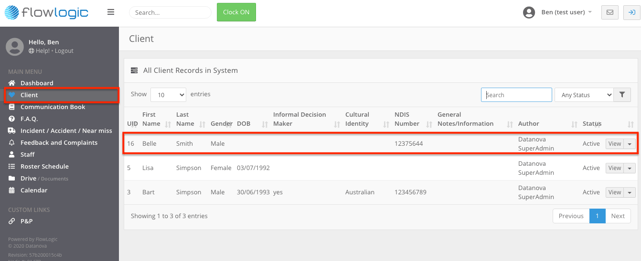
Client Filter
You can filter this list to show the clients with different status', These being; active, applicant, referral, inactive and archived. The archived status is used in place of deleting records completely.
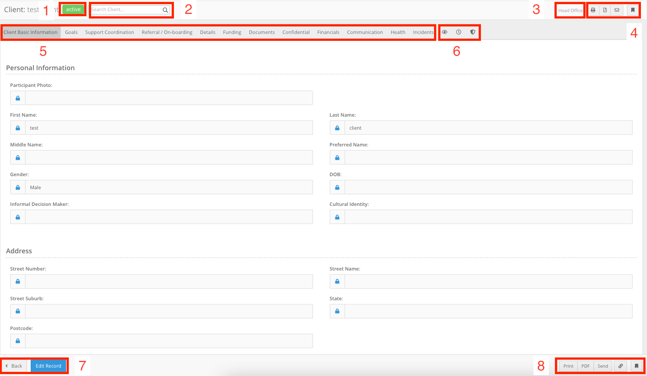
This indicates the status of the Primary Record, selecting the button will allow you to select one of several system options which cannot be edited.
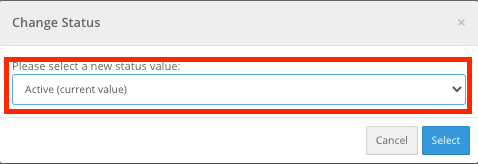
Client Status
The available options are:
Active
Inactive
Applicant
Referral
Archive -This option will ‘hide’ the client from the roster.
Client Area
These options will allow for advanced filtering using lookups which will be covered in the form management chapter.
2. This search bar will allow you to search for other clients more easily without needing to return to the table view.
3. This is the site the record has been saved in, it will allow you to change the selected area:
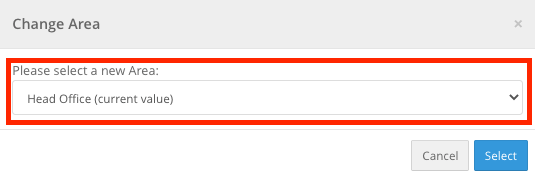
Remember - This list will only show the areas you have access to view.
Client Icons
4. These Icons will allow you to:
Print -This allows you to print the record
View PDF - Generates a PDF copy of the record
Send Record - This allows you to send a PDF copy of the record to either an external email or if the internal option is selected will allow you to choose from a list of users in the system.
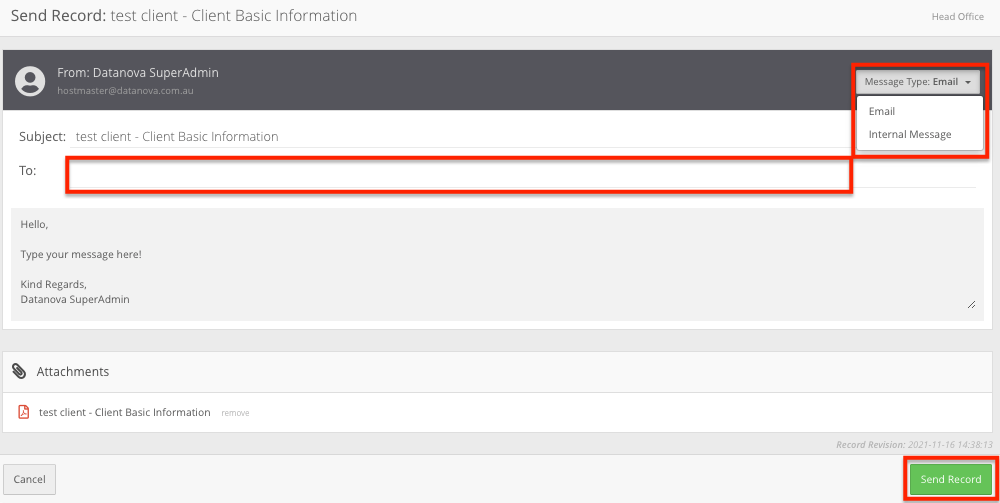
Add to Bookmark -Adds the record to your Bookmark Manager
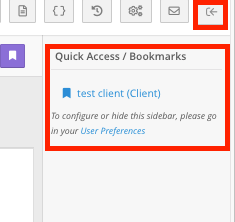
Client switching tabs
5. These are the different tabs you can switch between to see different forms.
6. These Icons represent the record access, record revision and record permission respectively.
Record access will allow you to easily see who has viewed this record and a simplified version of the user logs of what actions have occurred.
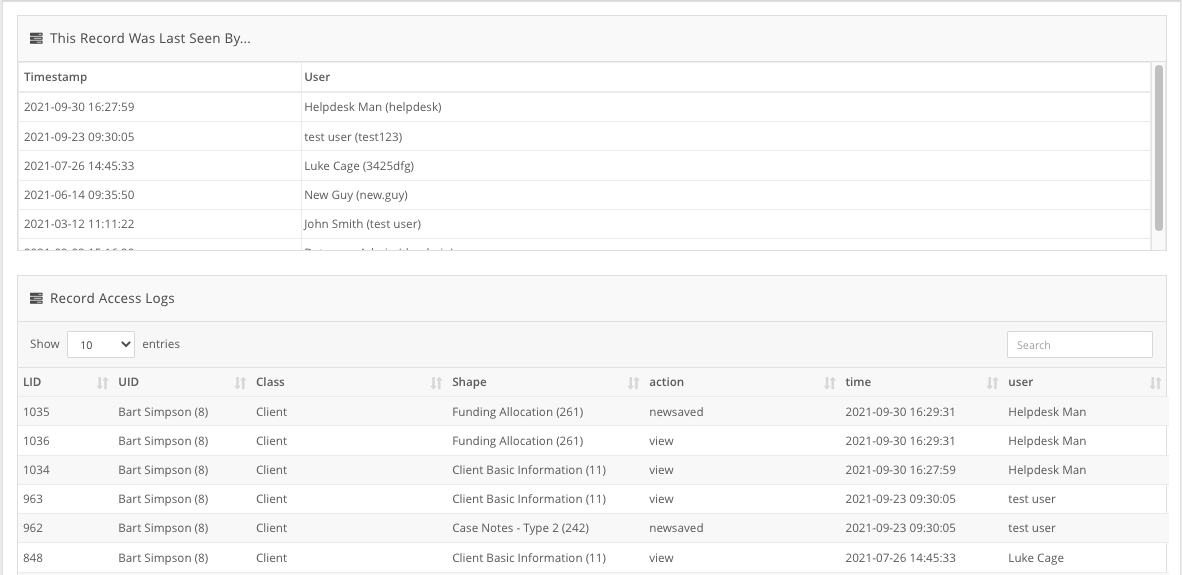
Client record revision
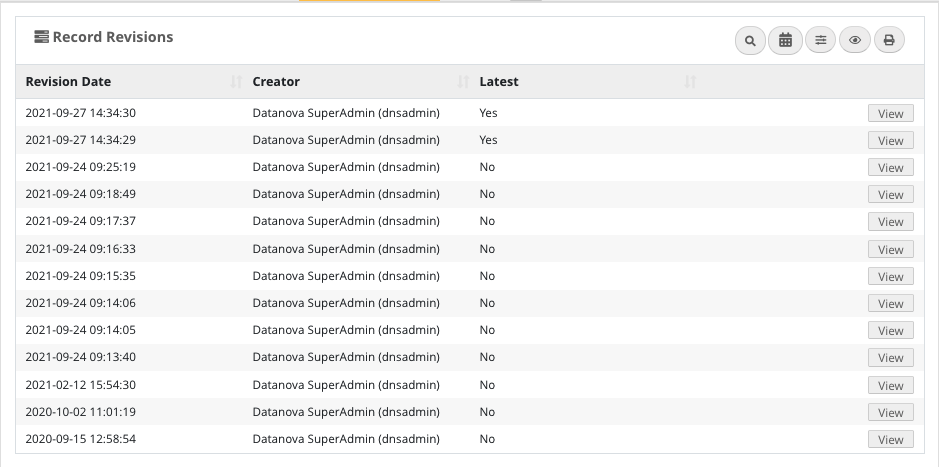
Record Revision will allow you to view and report on changes made to the record. We cover this in greater detail in our Security chapter.
Client record permission
The Record Permissions will let you know exactly who can view the record, with the legend indicating where they have been either allowed or denied access.
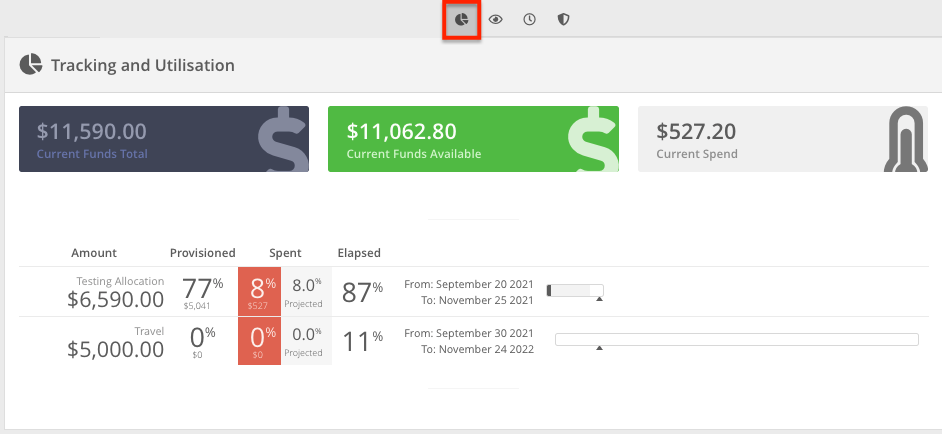
Client funding allocation
Once there are Funding Allocations in place, you will notice a fourth icon. You can find more information on this in the Funding Chapter.
7. The Back button will return you to the record table, and the edit button will allow you to edit the record you are currently viewing.
8. These are secondary locations for the print, pdf and email features.