
Key Points
Transport billing flag auto population fills in the billing code automatically when you add transport to a shift. It reduces manual selection and errors, and it's optional.
Turn it on in System Settings - Travel Tool Settings by setting Auto Populate Billing Code to Yes. Not everyone has access to these settings, so you may need FlowLogic Support.
In the Funding Allocation form, edit the Service Item field and set the billing flag to visible. Only make this one change to that form.
In the client's transport funding allocation, set the billing flag to Tran and click Save.
In the roster, the billing code fills in as soon as you add the client to the shift's travel. If it isn't right for that shift, you can change it manually.
Setup
There are three things that need to be configured before the feature will work. Not everyone will have access to these settings, so you may need to contact a FlowLogic support staff member to get them sorted.
1. System Settings
Go to System Settings - Travel Tool Settings and locate the billing codes section. Set Auto Populate Billing Code to Yes - this is required for the feature to function. There is also an option to auto populate billables for all transport items, which you can enable if that suits your workflow.
2. Funding Allocation Form
Navigate to the Funding Allocation form, open it for editing, and go to the Fields section. Select the Service Item field and click Edit, then make sure the billing flag within the Service Item table is set to visible. If this step is missed, billing flags will not auto-populate in the roster.
Only make this one change to the form. The Funding Allocation form is critical to how your system operates and any other modifications can cause issues. If you need to make additional changes, speak with the FlowLogic team first.
3. Client Funding Allocation
Open the relevant client's funding allocation and navigate to their transport allocation. Within the Service Item table, you'll see a billing flag field - set this to Tran. This is what tells the roster which billing code to pull through for transport. Click Save once updated.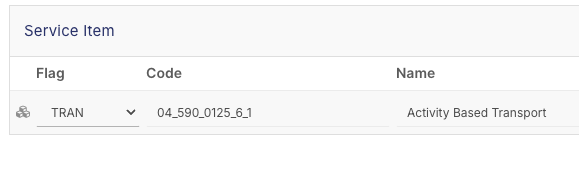
How It Works in the Roster
Create a shift in the roster schedule and add the client. Navigate to the travel section, click Add, and then click Add Client. As soon as the client is added, the billing code will populate automatically based on the Tran flag set in their funding allocation.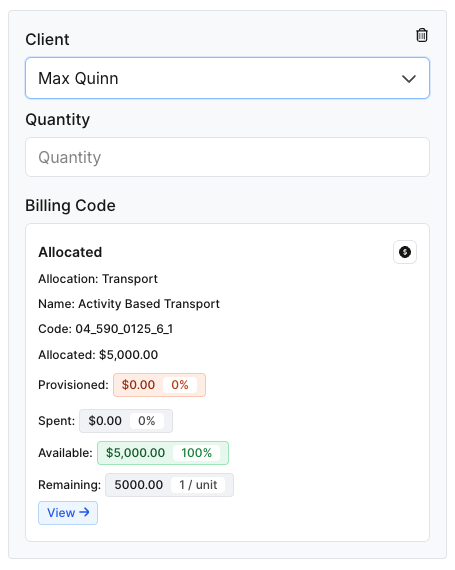
If the pre-populated code isn't the right one for a particular shift, you can change it manually. The auto population is a starting point, not a fixed value. From there, add your quantities and any other required details and save the entry.