
Key Points
Create Support at Home monthly statements from Reports: run a client-facing aged care report (for example Support at Home) in a new view, then click Show Word Documents at the bottom. You need report permissions to see Reports.
Click Create Documents, choose your statement template, select clients and click Export Templates. Each statement appears in the list with Open and Share buttons.
Statements automatically use the previous month's data. To run for another month, use filters to lock the report to a specific period.
Statements are Word documents, so you can make minor edits before sending. If you make the same edits every time, update the Word Template instead.
Click Share to email a statement to the client (they need an email address in their profile), or select several statements and click Share at the bottom of the screen to send in bulk.
Accessing the Statements Report
Go to Reports
Open the left-hand menu
Select Reports
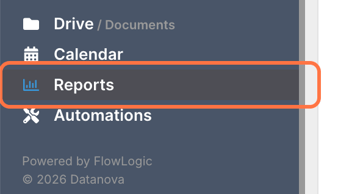
You must have report permissions to see this section
Choose the Aged Care Client Report
Look for a client-facing aged care report
Example name: Support at Home
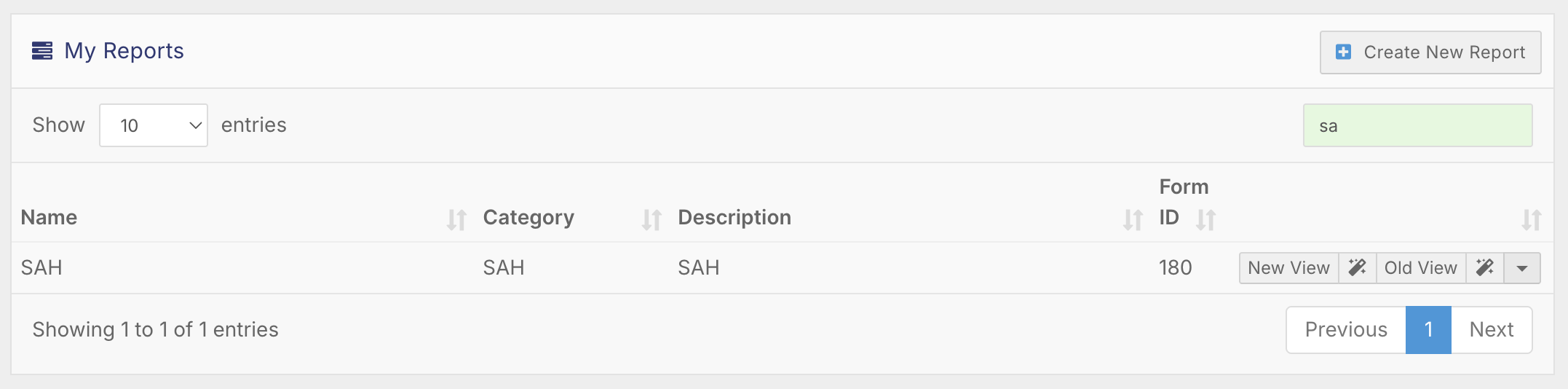
Tip: You can create a dedicated report that focuses specifically on Support at Home funding allocations for statements.
Run the report in a new view.
Opening the Statements Area
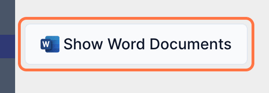
Show Word Documents
Scroll to the bottom of the report and click Show Word Documents.
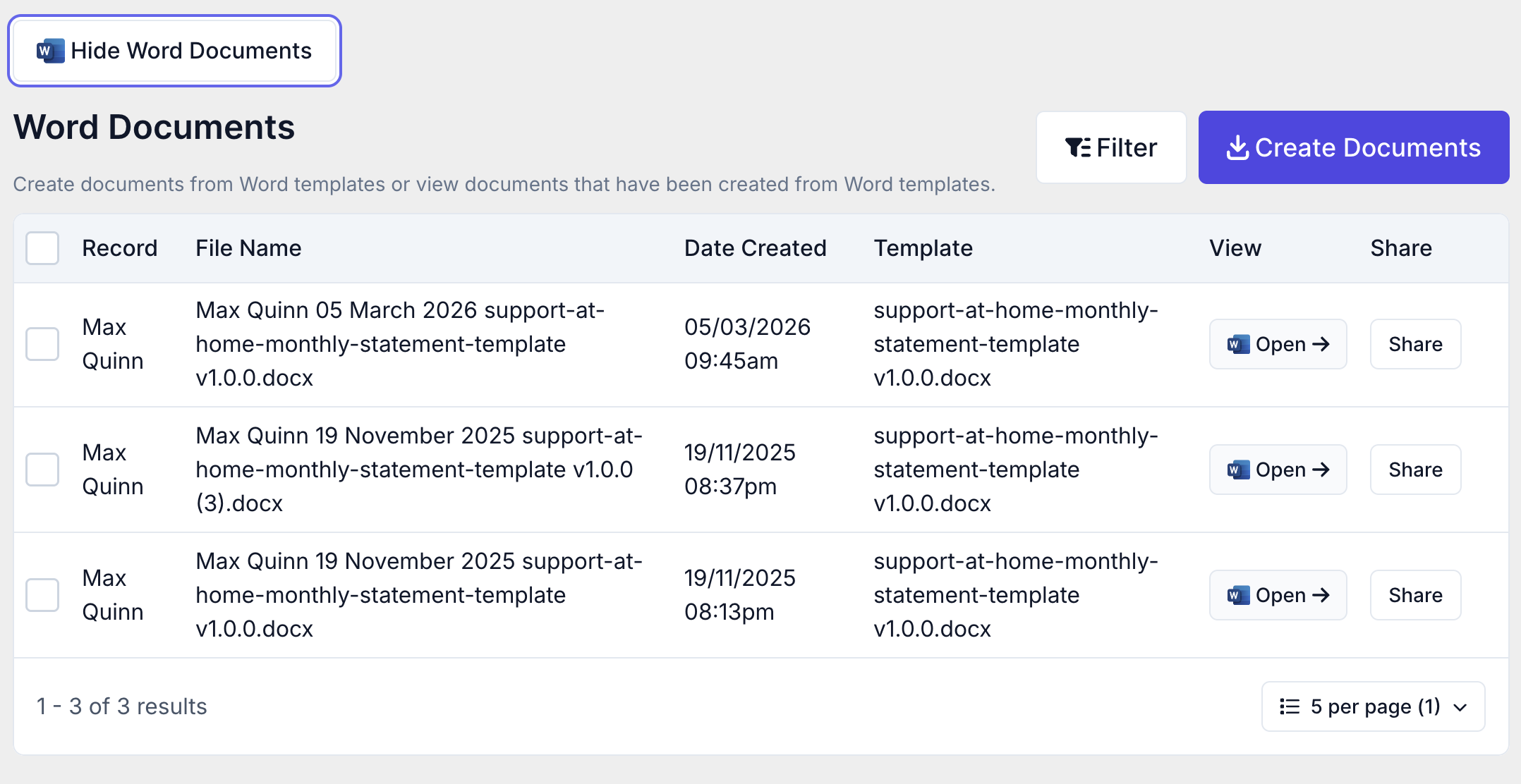
This opens the document management screen, where you can:
Create new statements
View existing statements
Export or share statements
Creating Monthly Statements (1:20)
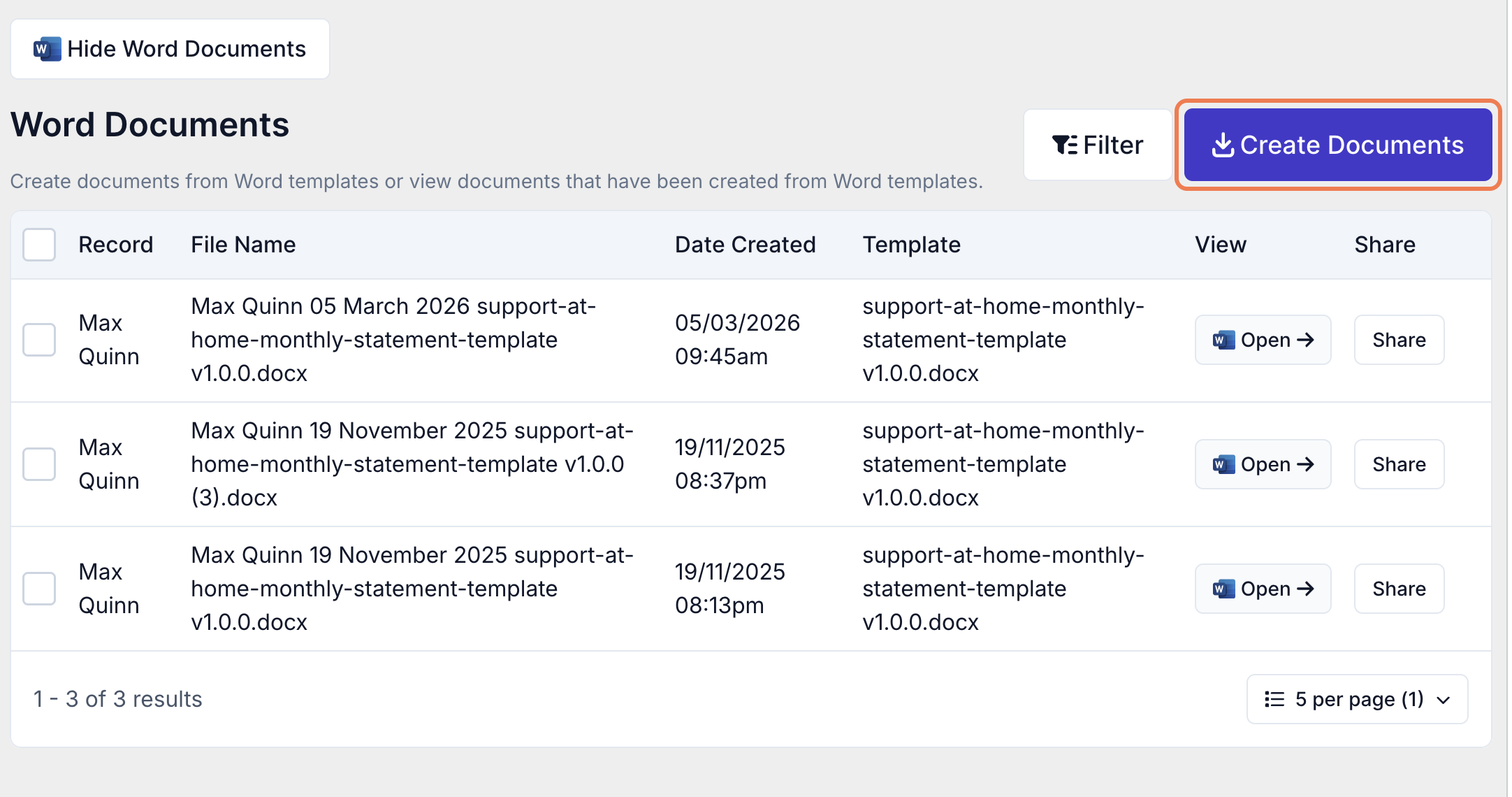
Click Create Documents
Select Create Documents in the top right.
Choose Your Statement Template
Select the correct template (e.g., Support at Home Monthly Statement).
Templates are managed in the Word Template Editor.
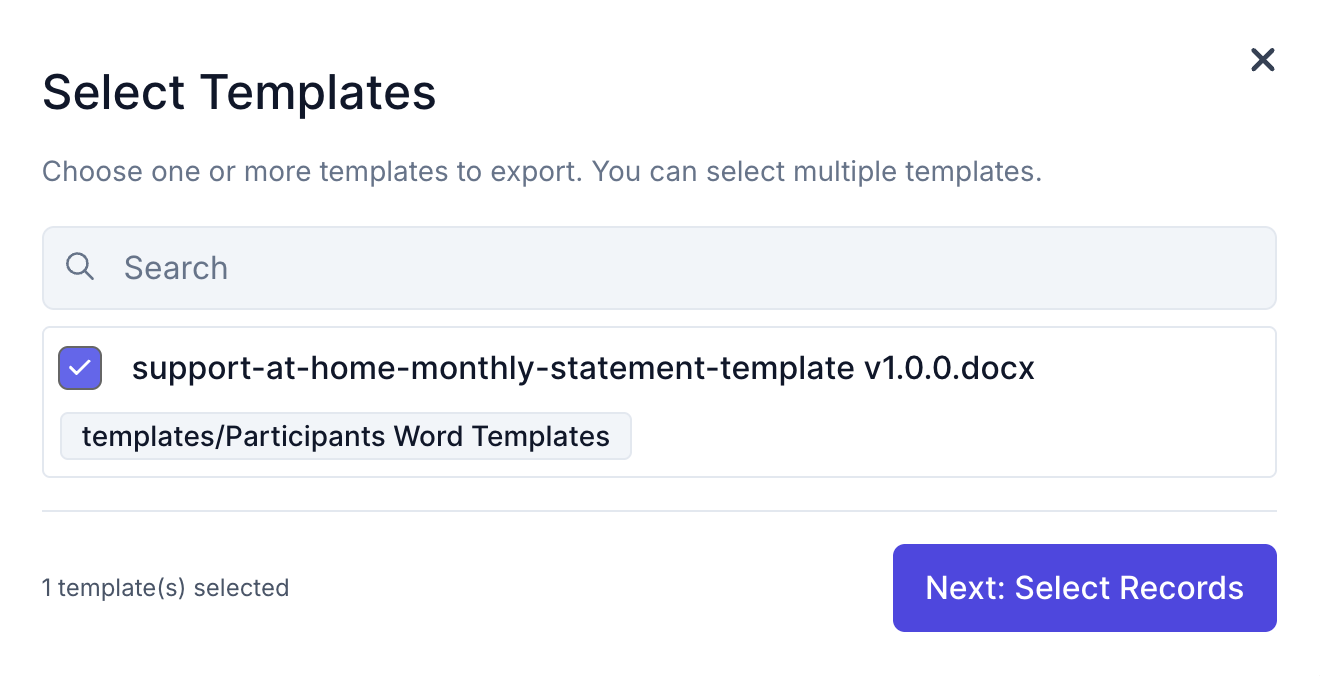
Click Next.
Select Clients
Choose who to generate statements for: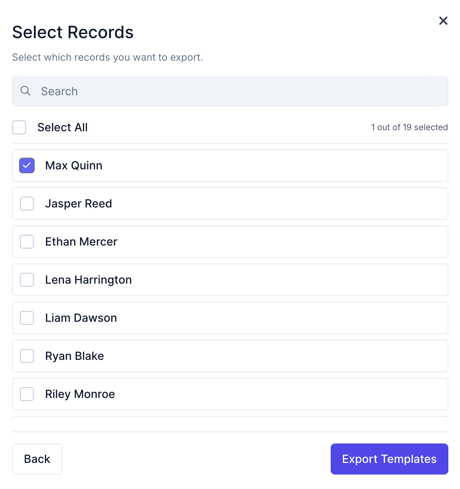
Select individual clients
Use Select All
Use the search bar
Click Export Templates.
Statement Appears in List
A new statement will appear showing:
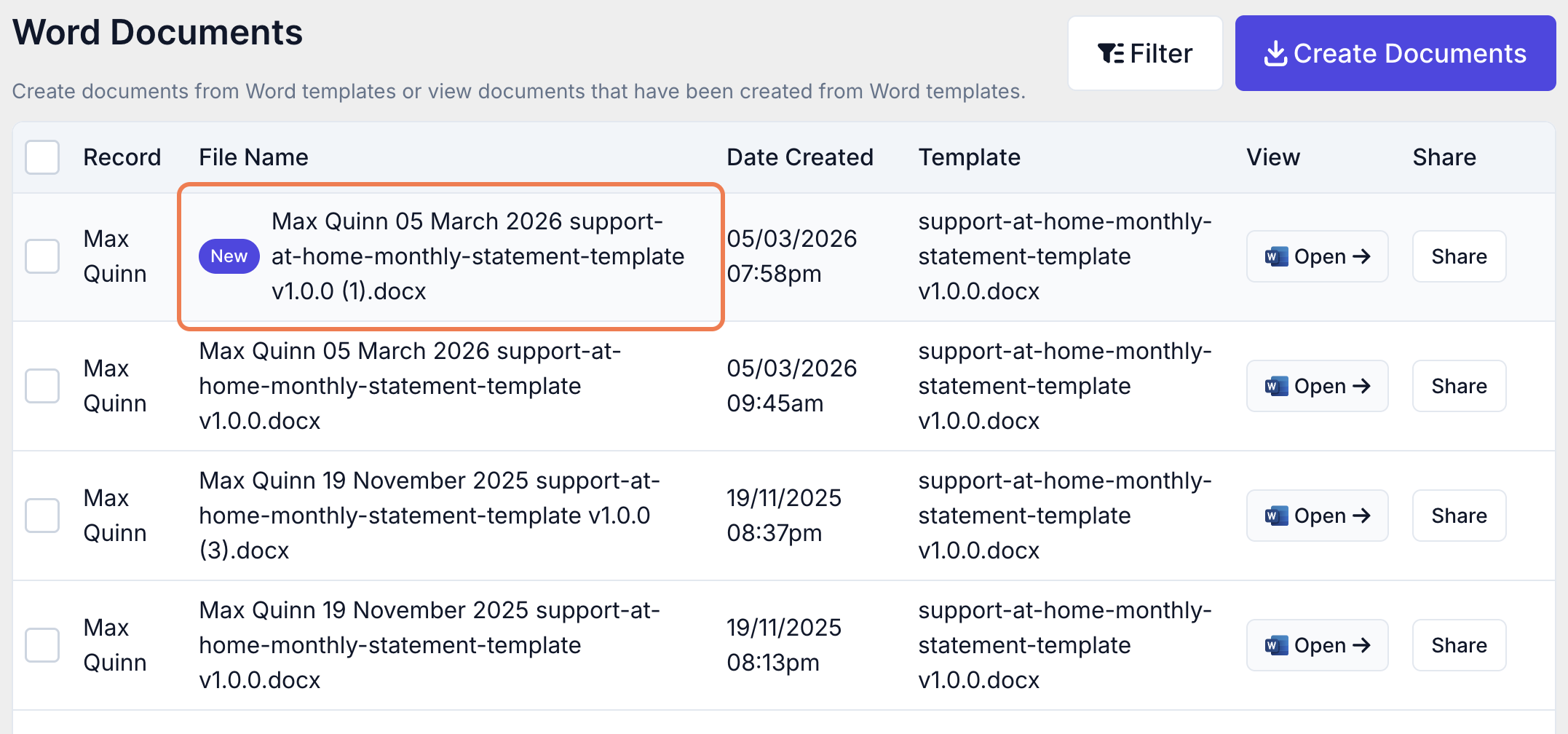
Client name
File name with generation date
Template used
Creation date
Open and Share buttons
Understanding Reporting Periods
Each time you run statements, FlowLogic automatically uses the previous month’s data.
Example:
Run in December → Statement covers November
To run for another month, use filters to lock the report to a specific period.
Reviewing the Statement
Open the Statement
Click Open to view the Word document.
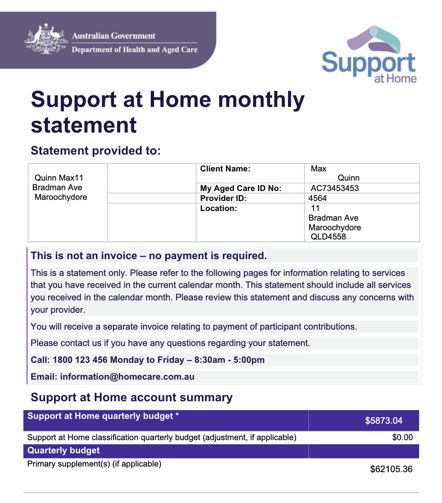
Because it’s a Word file, you can:
Adjust formatting
Make minor edits before sending
If you’re making the same edits every time, update the Word Template instead.
What Information Appears on the Statement
Statements may vary by template, but typically include:
Support at Home account summary
Quarterly budget
Accrued and carried-forward funds
Unspent Home Care Package amounts (if applicable)
Spending from previous months in the quarter
Available budget at start of month
Remaining budget at end of month
Services delivered during the period
Variations from previous months
All figures are pulled from:
✔ Support at Home allocations
✔ Rostered shifts
✔ Funding claim forms
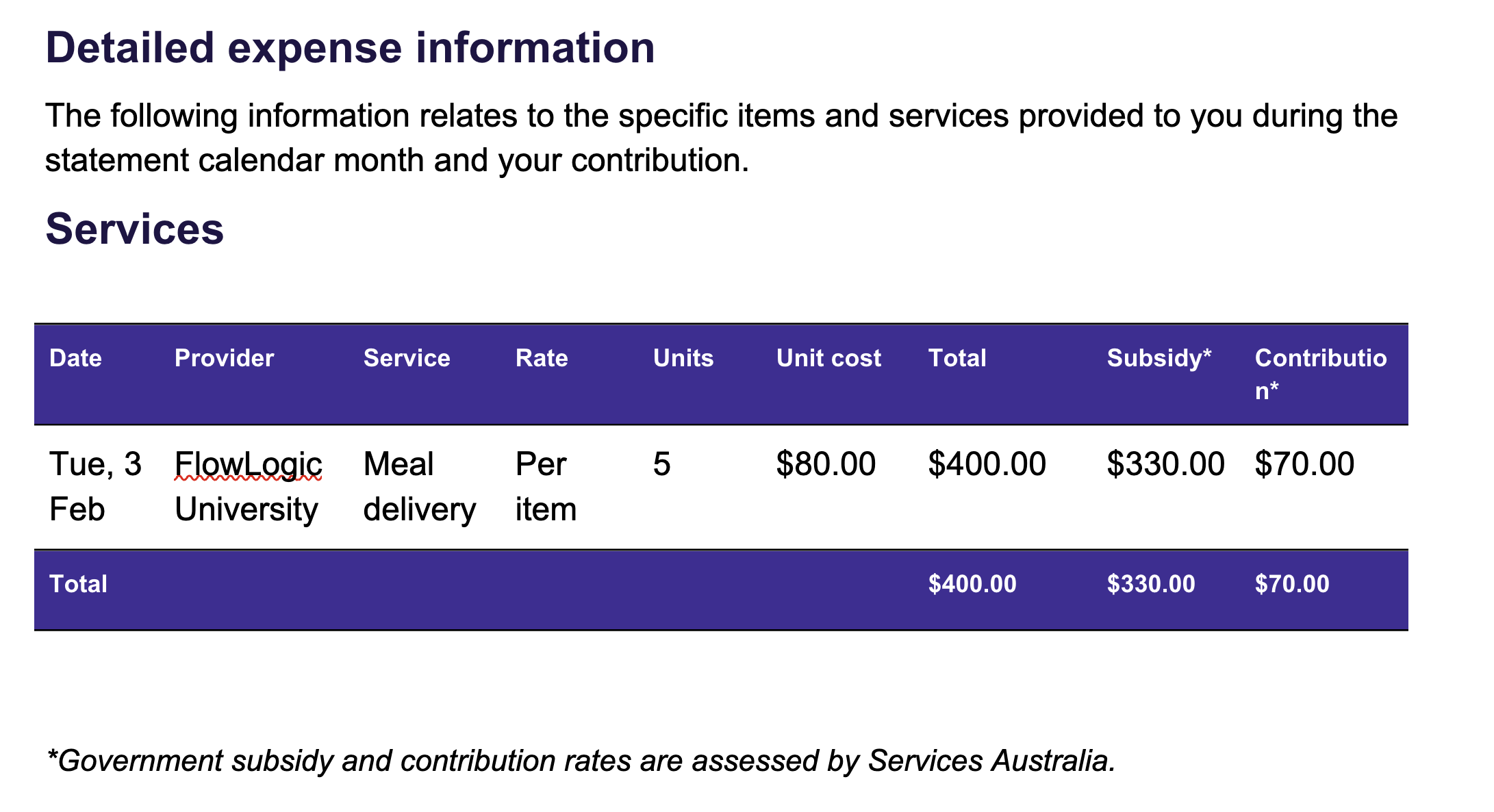
Expense Breakdown
Scrolling further shows:
Detailed list of services delivered
Client contribution amounts
Government subsidy amounts
Adjustments or refunds appear near the bottom if applicable.
Sharing Statements (5:50)
Individual Sending
Click Share beside a statement to email it directly to the client.
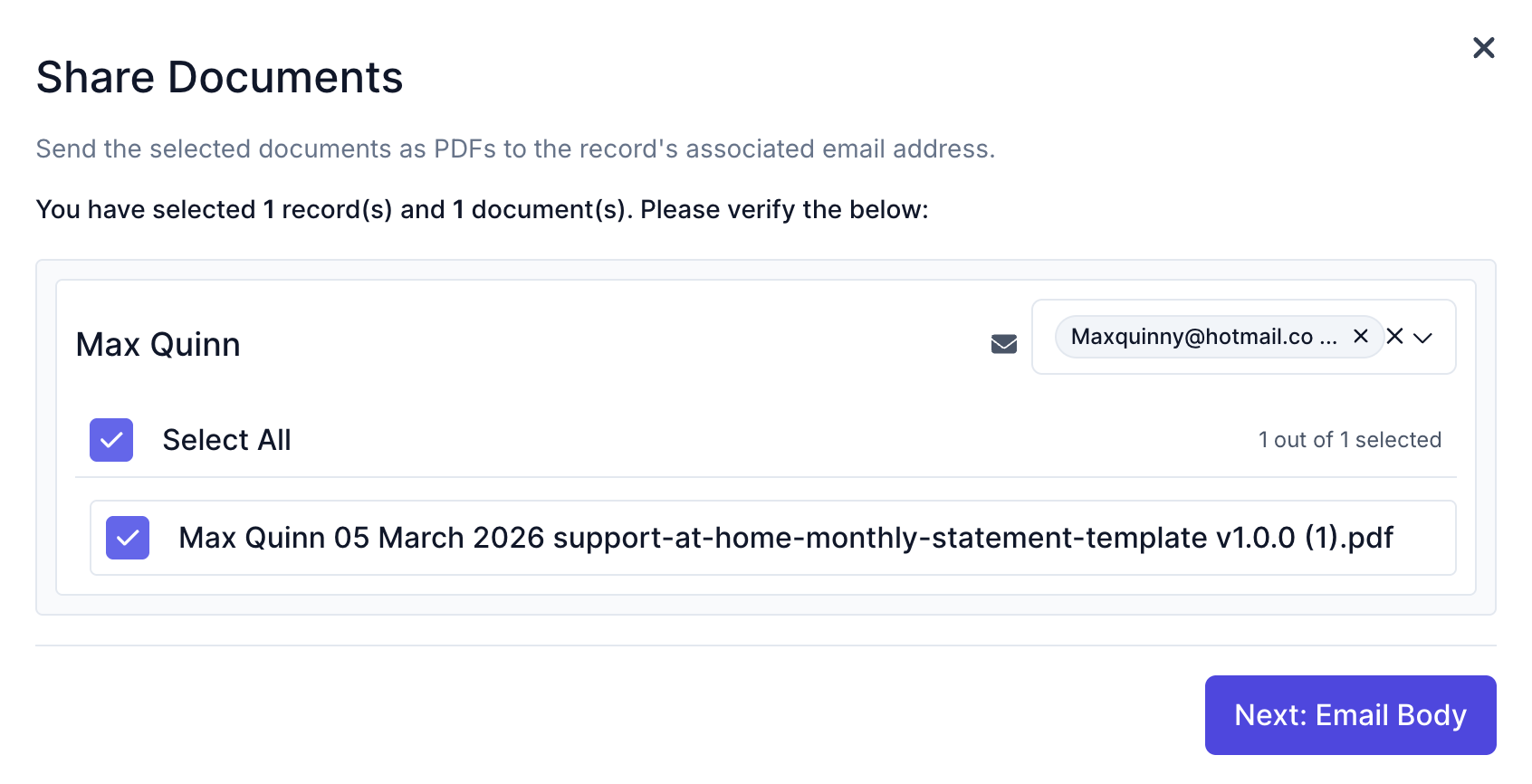
The client must have an email address recorded in their profile.
Bulk Sending
Select multiple statements → Click Share at the bottom of the screen.
Managing Statements
You can:
Use filters (top right) to find statements by client or template
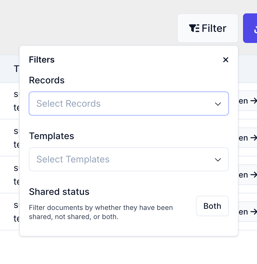
Clear and reapply filters anytime
Delete incorrect statements and rerun them
Increase the number of visible records to find statements faster
You now know how to:
✔ Access the Support at Home statements report
✔ Generate monthly statements
✔ Understand how data is calculated
✔ Edit statements before sending
✔ Send statements individually or in bulk
✔ Manage and filter existing statements
Your client statements will now be accurate, professional, and easy to distribute.