
Key Points
To claim Support at Home services, go to Finance & Payroll > Funding Exchange and set the Funding Stream dropdown to SAH (Support at Home), so the correct CSV format is generated for Aged Care instead of NDIS.
Set the claim period, apply any optional filters, then click Find Claims to see the items being claimed, estimated revenue and any cancelled entries.
Travel items may appear but can be ignored - Support at Home exports don't include travel.
Click Export Accepted Claims, enter a Claim Reference and click Export Claims to generate a CSV file, then upload it to the Aged Care provider portal.
Support at Home remittance files can't be uploaded automatically, so update claim statuses manually with Review next to the batch. For bulk updates, contact FlowLogic Support.
Support at Home Claiming via The Funding Exchange
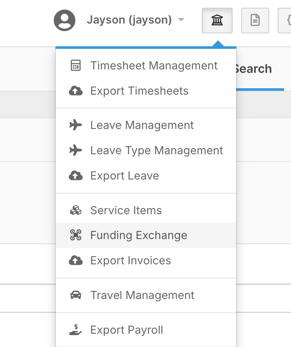
Navigate to Funding Exchange
Go to Finance & Payroll
Select Funding Exchange
Selecting the Correct Funding Stream
Change Funding Stream
Use the Funding Stream dropdown and select SAH (Support at Home).
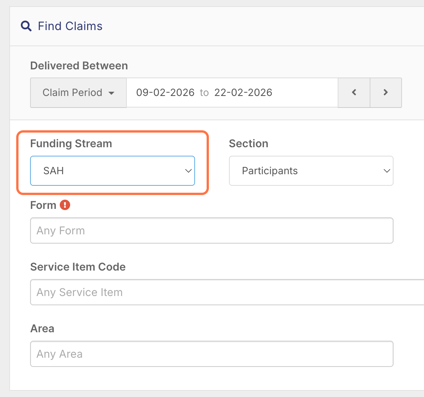
This ensures the correct CSV format is generated for Aged Care instead of NDIS.
Setting Claim Filters
Choose the Claim Period
Set the date range by:
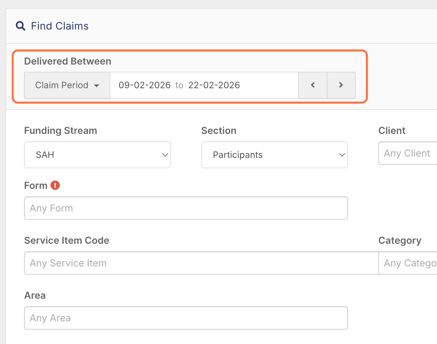
Entering dates manually, or
Using the Claim Period dropdown (fortnight/week)
Apply Optional Filters
You can narrow results by:
Client
Form
Service item codes
Categories
Areas or regions
Click Find Claims.

Reviewing Claim Results
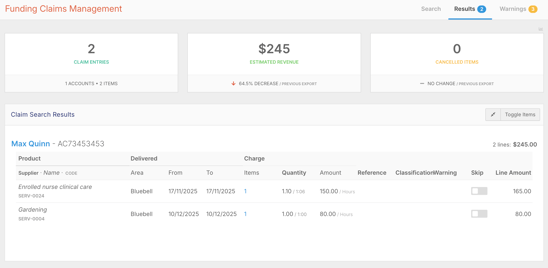
After searching, you’ll see:
Number of items being claimed
Estimated revenue
Cancelled entries (if any)
Travel Items
Travel may appear, but Support at Home exports do not include travel. These can be ignored.
Reviewing Individual Services
Each claim line shows:
Service delivered
Delivery date
Quantity
Unit amount
Total line value
Expand Claim Details
Click Toggle Items to see full details for a service.
Use the top-right Toggle Items button to expand all.
Exporting Claims
Click Export Accepted Claims
You’ll be prompted to enter a Claim Reference.
Tip: Use a naming pattern that separates Support at Home claims from NDIS claims.
Click Export Claims.
FlowLogic will generate a CSV file containing all claimable items.
Uploading to the Aged Care Portal
Upload the generated CSV file into the Aged Care provider portal.
After submission:
A new entry appears in the Claim Requests list
Shows:
Funding stream
Reference name
Total value
Submission status
Updating Claim Statuses
Currently:
Support at Home remittance files cannot be uploaded automatically
Statuses must be updated manually
Review Exported Batch
Click Review next to the batch to update claim statuses.
For bulk updates, contact the FlowLogic support team.
You now understand how to:
✔ Switch to the Support at Home funding stream
✔ Filter and review claimable items
✔ Ignore non-relevant travel entries
✔ Export claims as a CSV file
✔ Upload claims to the Aged Care portal
✔ Track and manually update claim statuses
This completes the Support at Home claiming process within FlowLogic