
Key Points
Repeat a shift from the shift screen with the Repeat button. FlowLogic creates the future shifts as a repeating series.
You choose which details are copied, how often the shift repeats (every day, week or month, on the days you pick) and when the series ends.
Where you can, repeat shifts one day at a time, and only as far ahead as the client's funding or plan.
When you change a shift in a series, FlowLogic asks whether to update only that shift or that shift and all remaining shifts. Past shifts are never changed.
A shift that's different from the rest of its series is marked Odd.
To end a series early, delete the shifts you no longer need with Delete + Future Shifts.
How to tell if a shift repeats
Shifts in a repeating series have a repeat symbol in the top right corner of the shift on the Roster Schedule. You may also see:
the word Odd, on a shift that's different from the rest of its series
a symbol on the first shift of the series (the master shift)
an end label or symbol on the last shift of the series
When you open a shift in a series, the top of the shift screen shows when the series ends, for example Repeated until 6 Jul 2029. See What do the icons on the Roster Schedule mean?
Repeat a shift
On the Roster Schedule, open the shift you want to repeat. If it's a new shift, create and save it first.
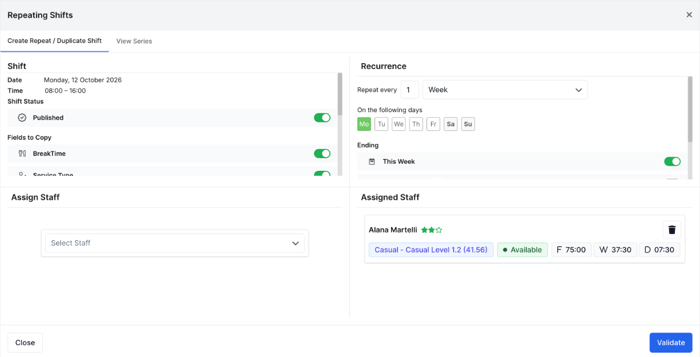
Click Repeat in the bottom right corner of the shift screen. The Repeating Shifts window opens on the Create Repeat / Duplicate Shift tab.
Under Shift Status, choose whether the repeated shifts are Published. Turn this off if you don't want staff to see shifts far into the future yet.
Under Fields to Copy, choose what is copied to each repeated shift: BreakTime, Service Type, Type, Colour, Icons, Notes, Kilometres and Billables. Everything is turned on by default. Turn off anything that changes from shift to shift, such as Notes. Billing is required on a shift, so it's always copied.
Under Recurrence, set Repeat every to a number and choose Day, Week or Month. For a fortnightly shift, choose Repeat every 2 Week.
Under On the following days, select the days the shift should repeat on.
Under Ending, choose when the series ends:
This Week: the shift only repeats in the current week. This is the default, so change it if you want the shift to repeat in future weeks.
After this plus [number] repeated week: the shift repeats for that many more weeks.
On [date]: the shift repeats until that date.
Under Assign Staff, add any other staff who will work the repeated shifts, or set the shifts as an open shift if you don't know yet who will work them. The staff already on the shift show under Assigned Staff. Changes to staff here also apply to the shift you started from.
Click Validate. FlowLogic checks the series and shows anything that needs fixing before the shifts are created.
Click Create Shifts. The new shifts appear on the Roster Schedule.
Repeated shifts always start as Auto-Uncompleted. The completion status of the original shift isn't copied.
Tips for repeating shifts
Repeat individual days rather than a whole week. Weekend billing is often different, and shifts change over time. A series for each day or for weekdays is easier to change later without affecting the other shifts.
Only repeat as far ahead as you need. Repeat for as long as the client has funding, or as far as you can plan. Series that run years ahead clutter the roster, take longer to load and usually change before they end.
Check before you repeat a shift again. Repeating the same shift a second time creates a second series, which can give you duplicate shifts. Check the View Series tab first.
One shift at a time. Each repeat applies to the shift you have open. To copy a whole week of shifts to another week, use a shift template. See How do I create and apply a shift template?
View the shifts in a series
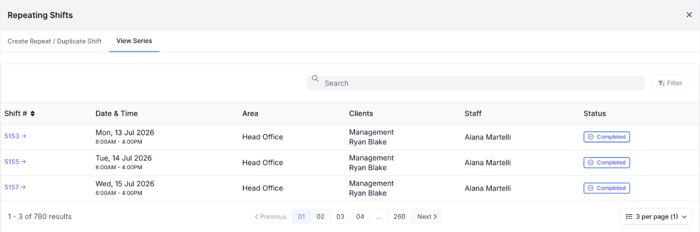
Open any shift in the series and click Repeat.
Select the View Series tab.
The table lists every shift in the series with its Shift #, Date & Time, Area, Clients, Staff and Status. Shifts that are different from the rest of the series show Odd in the Status column, for example because the staff member or the times were changed. Use the search bar and Filter at the top to find a shift, and the control in the bottom right corner to show more shifts on each page.
Change a repeating series
Open the first shift you want the change to apply from, make your change and click Save.
Work through the validation steps. For example, if you changed the times, FlowLogic asks whether the billing on the shift should change too.
FlowLogic asks whether to update all remaining shifts or only this shift. If the series has Odd shifts, you're also asked whether to update the odd shifts as well.
If you update the remaining shifts, FlowLogic asks whether to create a new shift chain. If you do, this shift and the shifts after it become a new series. The shifts before it stay in the original series, and the last of them shows the end label.
Important: choose carefully. A change to a large series can't be reversed automatically, so a mistake has to be fixed by making the change again. Only this shift and later shifts are updated. Past shifts are never changed.
When you update the remaining shifts, they are updated to match the shift you changed. If some later shifts have different staff or details on purpose, check them afterwards.
Change just one shift
To change a single shift without changing the rest of the series, make the change, click Save and choose only this shift when asked. The shift is marked Odd. Odd shifts aren't changed by later updates to the series unless you choose to update the odd shifts too.
End a series early or delete future shifts
Open the first shift in the series that you no longer need.
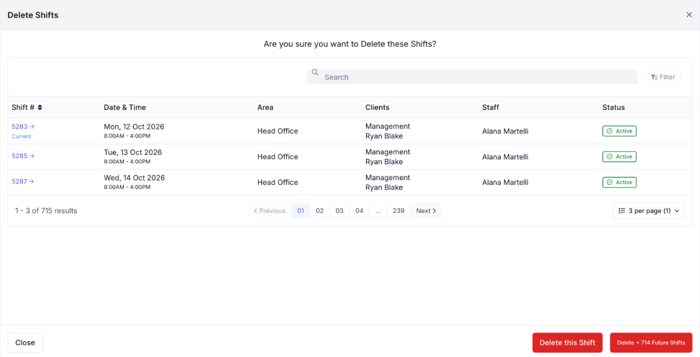
Click Delete in the bottom left corner. The Delete Shifts window lists this shift and the later shifts in the series.
Choose what to delete:
Delete this Shift: deletes only the shift you opened.
Delete + [number] Future Shifts: deletes this shift and every later shift in the series. Earlier shifts aren't affected.
If you delete shifts by mistake, you can restore them from the Deleted View on the Roster Schedule. See How do I find my way around the Roster Schedule?
To extend a series, open the last shift in the series, click Repeat and set a later ending.
To change the pattern, for example to new days or a new frequency, delete the shifts from the date the change starts, then repeat the last correct shift again with the new pattern.
Troubleshooting
Only a few shifts were created, or none
Check the Ending option. If it was left on This Week, the shift only repeats in the current week. Repeat the shift again with a later ending. If the ending was set correctly and shifts still weren't created, contact our Support team.
My change only updated one shift
This happens when only this shift was chosen, or when the shift you changed was already Odd. Open a shift that's still part of the series, make the change again and choose to update all remaining shifts.
The completion status didn't carry across
Completion status is never copied to repeated shifts. Each shift is completed when its timesheet is approved, or you can update it yourself. See What do shift completion statuses mean and how do I update them?