Key Points
To add a record table, add a Record Table field to the primary Form that points to the secondary Form, then add a Record field to the secondary Form that points back to the primary Form. Both fields must be set up correctly for it to work.
A Record Table embeds a secondary Form inside a primary record - for example, a Continuous Improvement log inside an Incident, Accident, Near Miss record. Records added show in the table and in their own nested tab.
Build both Forms first. Both field types are under Advanced Fields when you add a field in System Menu - Forms.
The Record Table only shows on the primary record once that record has been saved, and the condition filter only works when both Forms are in the same section.
The Record Table field lets you embed a secondary form directly within a primary record. Rather than jumping between different sections of the system to add related records, everything stays connected in one place. A common example is a Continuous Improvement log embedded within an Incident, Accident, Near Miss record - when a continuous improvement entry is added, it appears both within the primary record and in its own nested tab at the top of the screen.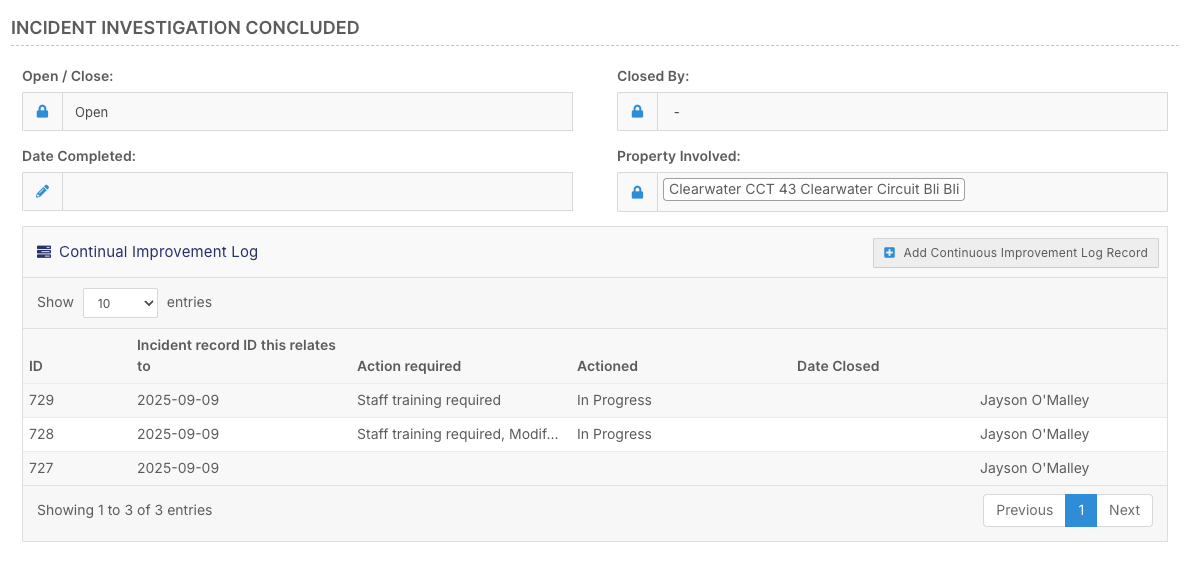
Other common uses include:
- Staff signing off a policy
- Showing which shift notes referred to a goal or medication
The secondary form doesn't have to live in the same section as the primary form - it can have its own place in the left-hand menu. However, keeping it in the same section makes the linking process easier, as explained below.
Setup
Setting up a Record Table requires changes to both the primary and secondary forms.
Before you start: build both forms first and leave only the record table setup to do. The two new fields point at each other, so both forms need to exist.
Step 1 - Add a Record Table field to the primary form
Go to System Menu - Forms and open the primary form for editing - in this example the Incident, Accident, Near Miss form. Go to the Fields tab and add a new field. Select Record Table as the field type, found at the bottom of the field type list under Advanced Fields. Then select the secondary form you want to embed - in this case the Continuous Improvement Log. Save the field and save the form.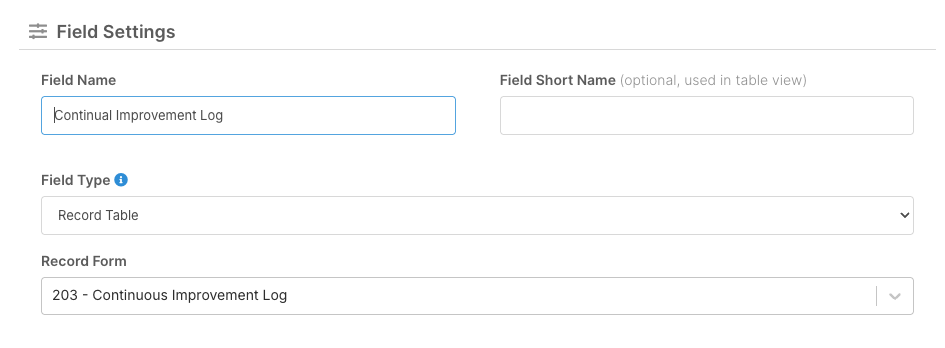
Step 2 - Add a Record field to the secondary form or another primary form
Open the secondary form - the Continuous Improvement Log - and add a new field. Select Record as the field type, found just above Record Table in the Advanced Fields section. Configure this field to point back to the primary form (Incident, Accident, Near Miss). This is what creates the link between the two forms and allows the nesting to work correctly.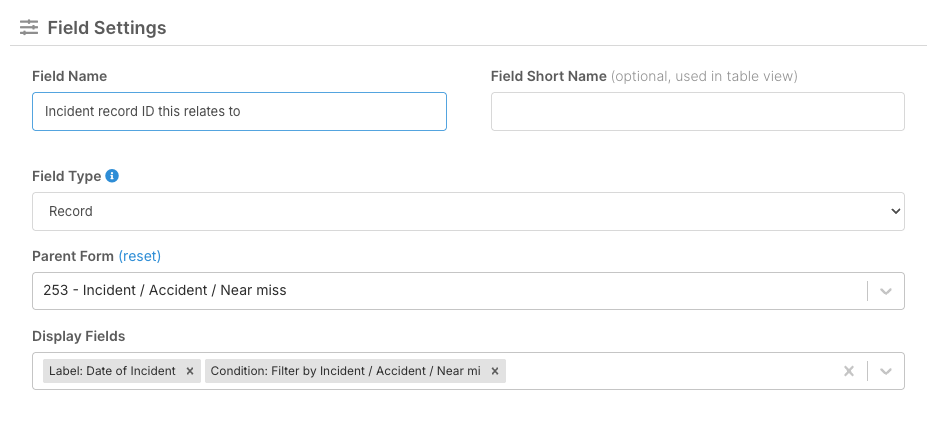
You'll also see a condition filter option on this field. When the secondary form is in the same section as the primary form, this filter can pre-populate details like the incident ID or date into the continuous improvement entry automatically. If the secondary form lives in its own standalone section, this filter won't apply and the link will need to be selected manually.
Both fields must be configured correctly for the feature to work. Once in place, secondary records added from within the primary form will appear embedded in the table and nested under the primary record in their own tab.
Things to know
- The Record Table field only shows on the primary record once that record has been saved. It needs the record's ID, which is created when you save.
- The table fills in as soon as a secondary record is saved with a link to the primary record.
- The Record field on the secondary form must be editable so it can fill in the link. If you don't want people changing it, put it at the bottom of the form or under an "Office use only" heading.
- The Record field can only link to one record. If more than one is chosen, FlowLogic uses the one with the lowest record ID.
- The condition filter only works when both forms are in the same section. Anywhere else it is ignored.
- If the secondary form is in a different section, the Record field lists every primary record. You can narrow the list with filters such as status, expiry or permissions.
- The secondary form shows as a tab on the primary record for anyone who can view, edit or add records in it. You can't turn off adding records there if you want people to be able to create them.
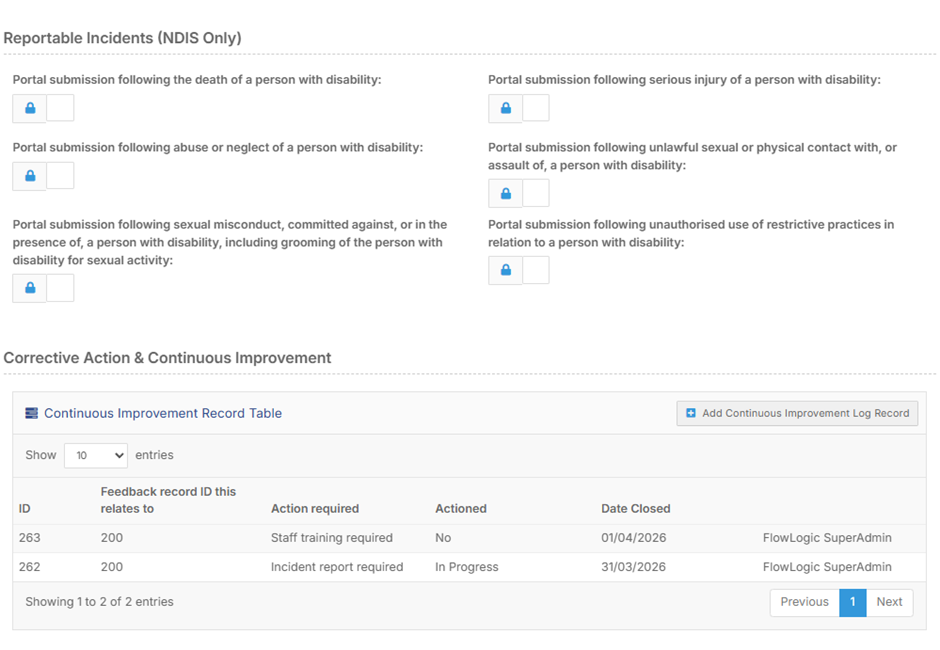
Here's an example of a finished record table: