
Key Points
To create an NDIS bulk claim file, go to Finance & Payroll > Funding Exchange, set your filters and click Find Claims, then Export Accepted Claims.
Enter a claim reference and click Export Claims to download a CSV you can upload to the Bulk Payment Request system in the NDIS myplace portal.
Claims are collected from billable items on the roster, travel items and single claim forms.
Once the claim is processed, upload the reconciliation and remittance files from myplace back into the Funding Exchange using Upload to see which items succeeded or were rejected.
Rejected items can be reset and retried. They return to FlowLogic as 'New' so you can change them and claim them again.
Claiming Process
The Funding Exchange feature is used to generate the export file necessary for using the NDIS Bulk Claim on the NDIS myplace portal. The available filters identify the period to be processed, and the data is collected from different sources within the system where Billable Items can be allocated such as;
- Roster;
- Travel Items;
- Single Claim Forms;
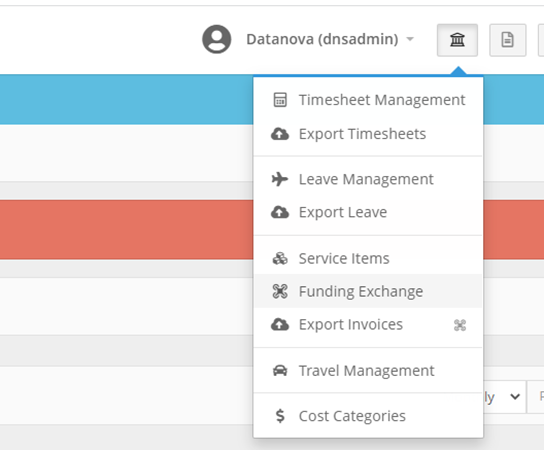
The funding exchange can be accessed by going to Finance & Payroll → Funding Exchange as seen in the below screenshot.
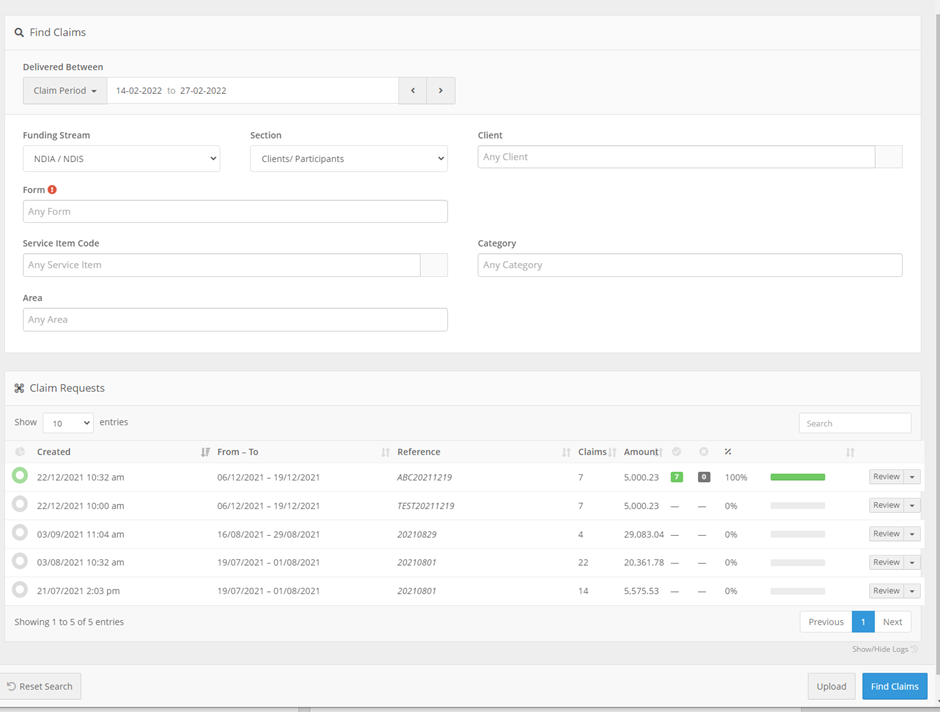
The initial view when you enter the funding exchange will show a portion at the top where specific claims or periods can be searched. The bottom half of the screen will show the previously exported claim requests and their success rates as seen in the below screenshot.
Generating Claim Files
To generate a new search ready for export:
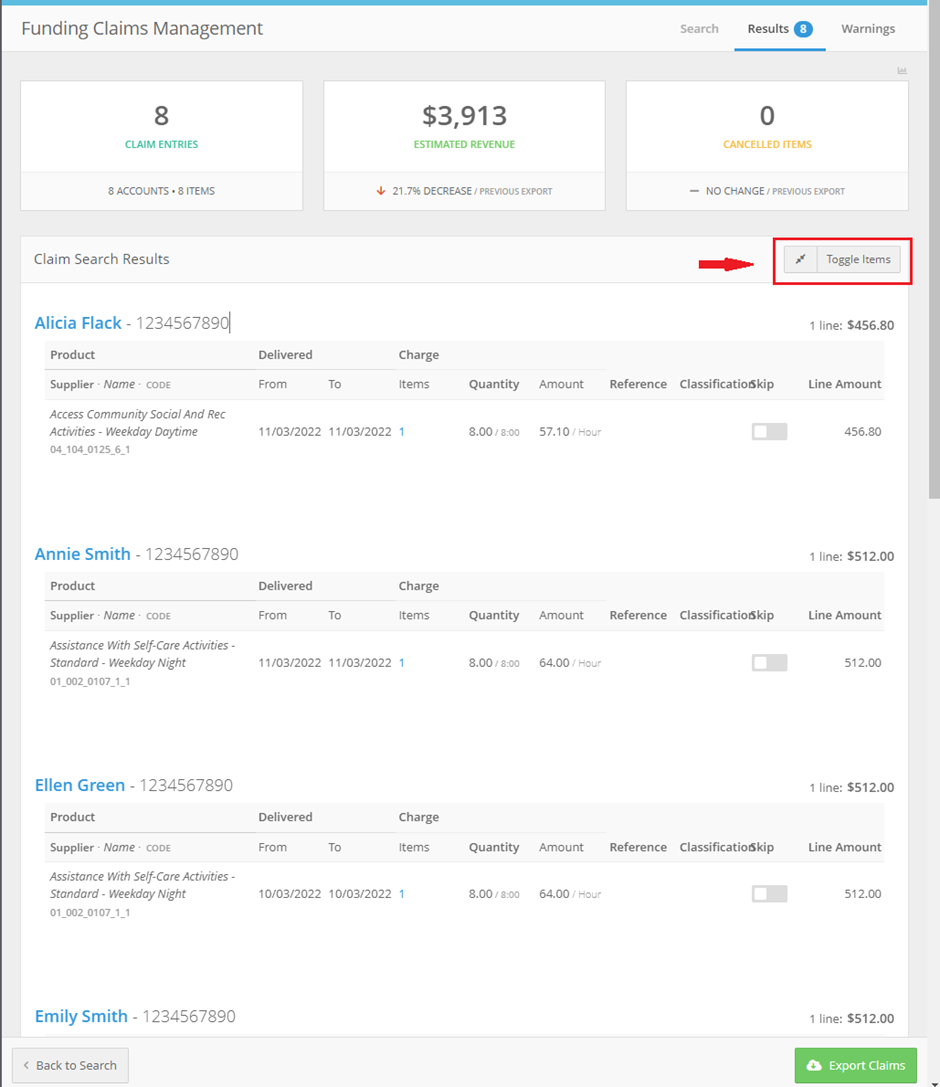
- Once the appropriate filters have been selected, select the Find Claims button to generate a preview of the data about to be exported.
- The Toggle Items button will provide a generic or detailed view of the claimable items.
- Once you are satisfied with the data, select Export Accepted Claims at the bottom right of the page.
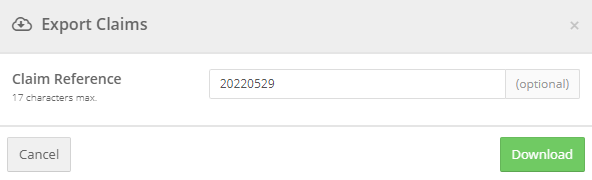
- In the Export Claims window, enter a claim reference. Please input your regular naming convention in this reference field.
- Click Export Claims and the system will download a CSV for upload to the myplace Bulk Payment Request system.
 Please Note: The system will remember the information has been exported.
Claim status updates
Once the bulk claim has been processed on myplace, the Reconciliation and Remittance reports can be uploaded back to FlowLogic. These reports can be obtained from myplace and will provide additional information about the current status of the claim.Reconciliation
Bulk claim requests can be reconciled by importing the “Payment Request” result file from your myplace portal. This file is also referred to as the “bulk reconciliation” file in the NDIS Bulk Payment Request Guide.
To download a payment request result file:
- Click on the Payment Request tile on the myplace portal homepage.
- Next, click on the View Payment Request tile.
- Change the View By search filter to Uploaded Bulk Payment File.
- Set the Search by and other filters as required to locate and load the appropriate File Name.
- Click the Download Results button.
- Click on the Finance & Payroll menu and then Funding Exchange.
- Click the Upload button located in the bottom bar.
- Upload the results CSV file downloaded in the steps above.

Remittance Advice
Claim remittance advice files can also be uploaded into FlowLogic. The process for uploading remittance files is the same as for reconciliation files.
- Click on the Finance & Payroll menu and then Funding Exchange.
- Click the Upload button located in the bottom bar.
- Upload the remittance CSV file.
Reset/Retry
Once the reconciliation and remittance advices have been uploaded back into FlowLogic it is possible to see what percentage of the claim was successful and which items (if any) were rejected. See percentage bars in the below screenshot.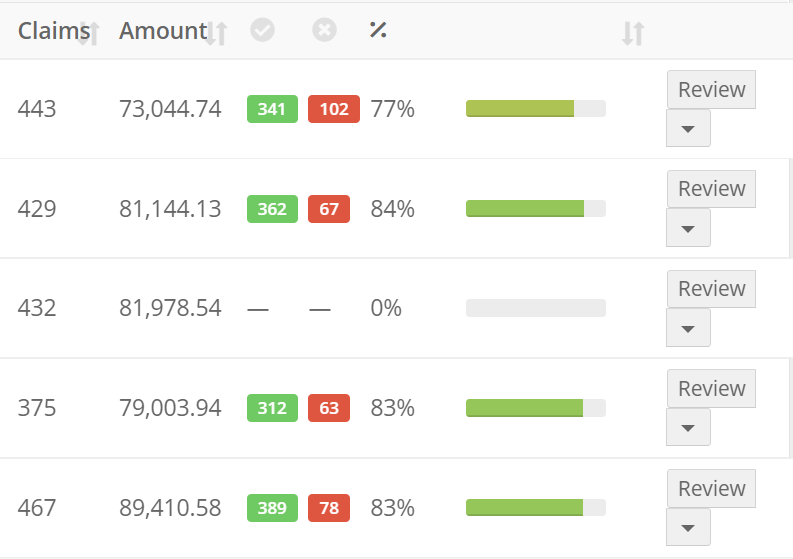 If it is determined some/or all of these items are to be reclaimed, click on the downward arrow on the right-hand side of review, next to the claim you wish to retry.
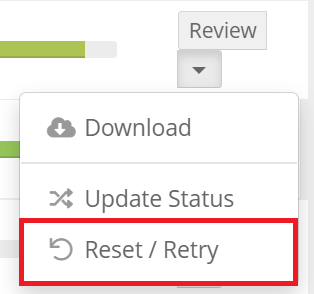 Once reset/retry has been selected, FlowLogic will advise of how many line items have been updated. These invoices are now back in FlowLogic as ‘New’ and it is possible to alter these if needed. The dollar amount of these reset invoices will be added back into the clients tracking within their funding. Once these invoices are ready to be exported again repeat the previous steps to claim from the NDIS portal.
Using the Roster NDIS Billables report
An alternative option for exporting NDIS support service claims is the Roster NDIS Billables report.
- Go to the Reports section to generate a report.
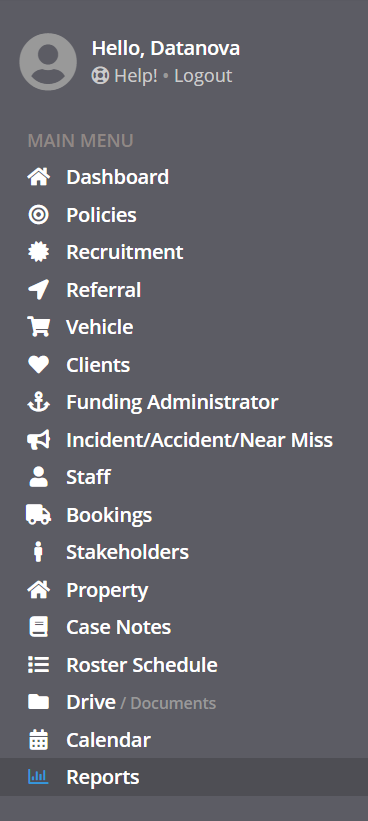
- Search for NDIS to find the Roster NDIS Billables report.
- You can now click view to generate the report with default filters, or click quick edit to customize the report filters.
 Quick Edit
- If you have chosen quick edit:
-
- Ensure you configure the appropriate dates/filters. Multiple filter options can be selected by holding the CTRL or Command keys.
- Click View Report at the bottom of the filter view to generate the report
- To export, click the CSV button at the bottom of the page.
Funding Exchange Troubleshooting
If Claims are missing
- Ensure the client’s funding allocation is set up correctly
- Ensure the date of the claim matches the allocated shift/claim form
- Ensure timesheets have been approved for the corresponding shifts
If Items are rejected
- Ensure the correct line items have been selected within the part of FlowLogic driving the invoice
- Check the client’s plan was valid for the claim period
- Ensure the line item is PRODA claimable