
Key Points
Manage Teams lets you organise staff into teams and assign managers, so leave approvals, notifications and permissions go to the right person.
You need the teams_view right to see team structures and teams_manage to edit them. Without these, the Manage Teams tab won't appear.
To set up a team, open a staff member's profile in the Staff section, select the Manage Teams tab, click Edit, assign the manager and team members, then save.
In the Section Editor, managers can be given Read, Edit or Add permissions limited to only their team.
If a manager is unavailable, edit the team, select Switch to Transfer and choose a new manager so leave approvals and notifications continue.
Manage Teams allows you to organise staff into structured groups and assign managers to those teams. This creates clear reporting lines and ensures responsibilities such as notifications, leave approvals, and permissions are handled efficiently.
This feature is key for scaling operations while maintaining clarity around who is responsible for each staff member.
Access Requirements
To use Manage Teams, specific permissions must be enabled:
- teams_view
- teams_manage
The teams_view Right lets you see team structures but not edit them.
The teams_manage Right gives full control to assign managers and update team members.
If these are not enabled, the Manage Teams tab will not appear.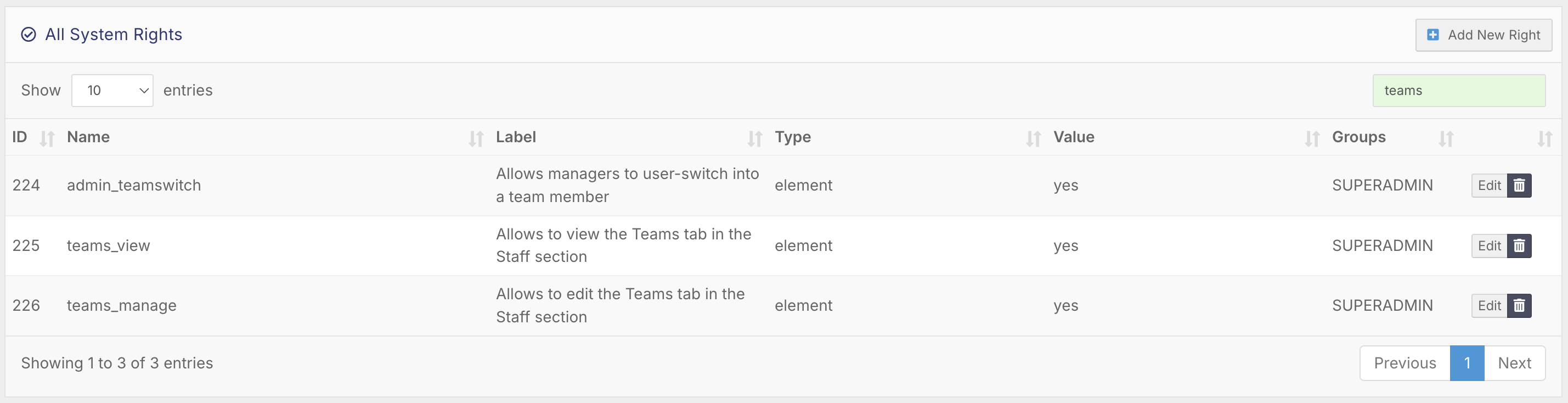
Where to Access Manage Teams
Manage Teams is accessed through a staff profile.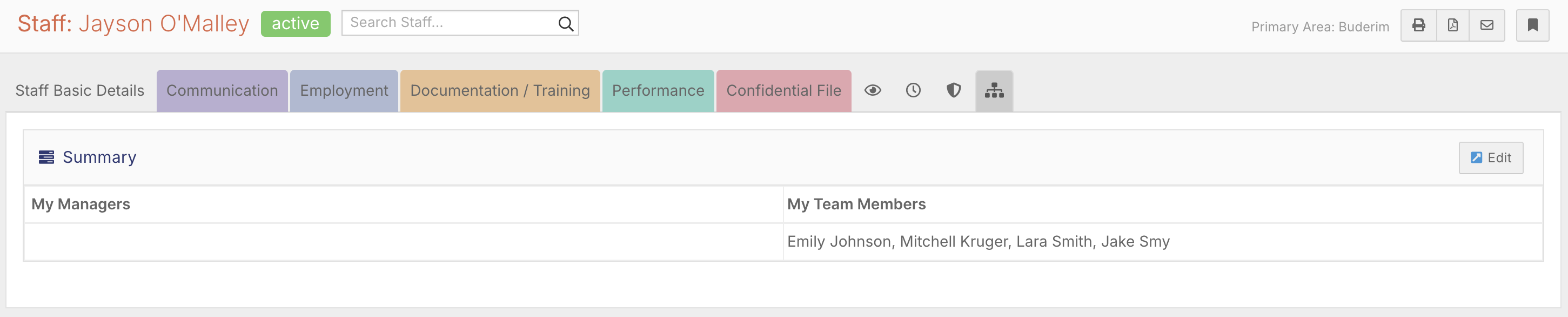
To view:
- Go to the Staff section
- Open a staff member’s profile
- Select the Manage Teams tab
This displays both:
- Who manages the staff member
- Who the staff member manages
Understanding the Team Structure
Within the Manage Teams tab, you will see two key areas:
- Manager (to whom this staff member reports to)
- Team Members (who this staff member manages)
This provides a clear hierarchy and helps visualise reporting relationships across the organisation.
Editing Teams
If you have the teams_manage Right:
- Click Edit in the top right
- Assign or change the manager
- Add or remove team members
- Save changes
If you only have teams_view, you will be able to see this structure but not make changes.
Key Use Cases
Manage Teams is mainly used for:
- Directing leave requests to the correct manager
- Controlling notification flows
- Structuring reporting lines
- Assigning responsibility for staff
For example, when a staff member submits leave:
- The notification is sent directly to their assigned manager
- This avoids unnecessary alerts to unrelated staff
- Ensures accountability is clear
Permissions Based on Teams
Manage Teams can also be used to control access within the system.
Within the Section Editor:
- Managers can be given specific Read, Edit, or Add permissions
- These permissions can be limited to only their team
This allows you to:
- Restrict managers to only their staff
- Avoid exposing unnecessary data
- Maintain clean and secure access control
Team Transfers
If a manager is unavailable (for example, on extended leave), teams can be transferred.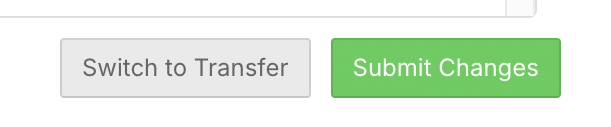
To transfer a team:
- Edit the team
- Select Switch to Transfer
- Choose the new manager
- Save changes
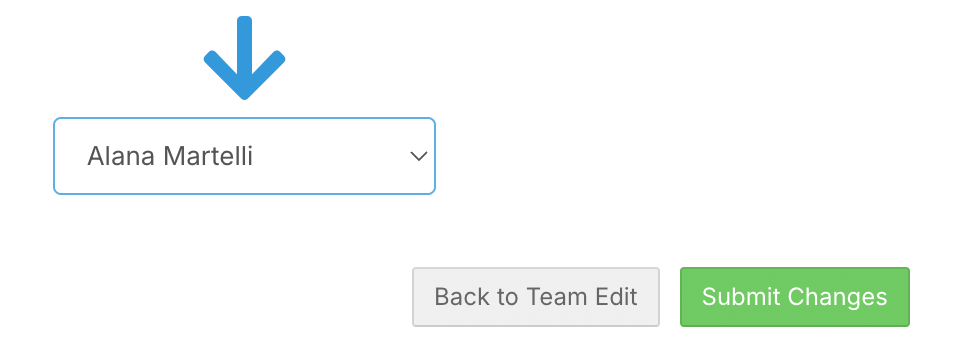
This ensures:
- Leave approvals continue without disruption
- Notifications are redirected correctly
- Responsibility remains clear
Flexibility and Maintenance
Manage Teams is designed to be flexible and easy to maintain.
You can:
- Reassign staff between managers
- Restructure teams as the organisation grows
- Update responsibilities quickly
This makes it easier to adapt to operational changes without rebuilding permissions or workflows.
Best Practices
- Keep team structures up to date
- Assign one clear manager per staff member
- Use Manage Teams to drive notifications instead of broad permissions
- Limit teams_manage access to appropriate roles
- Regularly review team assignments