Key Points
To create a single funding claim, open the client's profile in Clients, go to the Funding Claim form (usually under the Funding tab) and click Add New.
Use it for charges outside your roster, such as reimbursements, assistive technology and vehicle modifications - not support coordination claims, which have their own form.
Fill in the service date and other details, add the service item and charge amount, then save and close.
There's no approval process. Saved claims go straight to the Export Invoices screen, or can be processed through the Funding Exchange if agency managed.
For charges that repeat regularly, a repeating shift in the roster is generally the better option.
The Funding Claim form is used to process claims that sit outside of your regular roster schedule. It's useful for reimbursements, assistive technology, vehicle modifications, and any other charge that isn't attached to a rostered shift. It's not intended for support coordination claims, as there is a separate form built for that purpose.
Finding the Form
Go to the Clients section in the left-hand menu and open the profile of the client you want to create a claim for. The form is usually found under the Funding tab and is called the Funding Claim form by default, though it may have been renamed in your system. If you're not sure where to find it, ask your administrator or FlowLogic Support.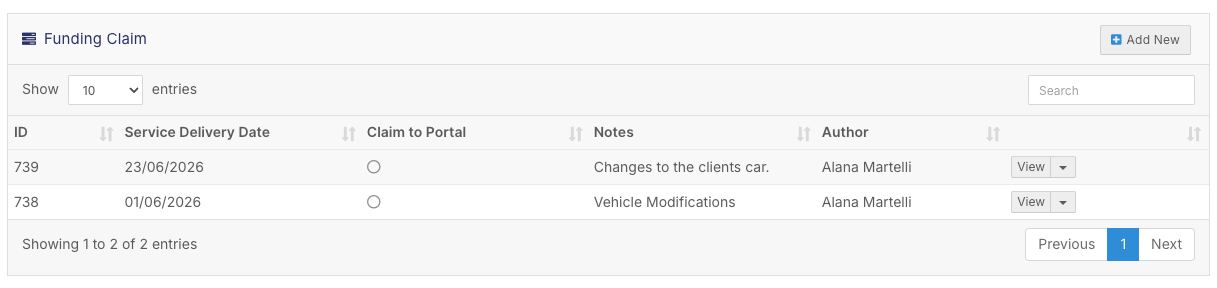
To create a new claim, click Add New on the right-hand side.
Filling In the Form
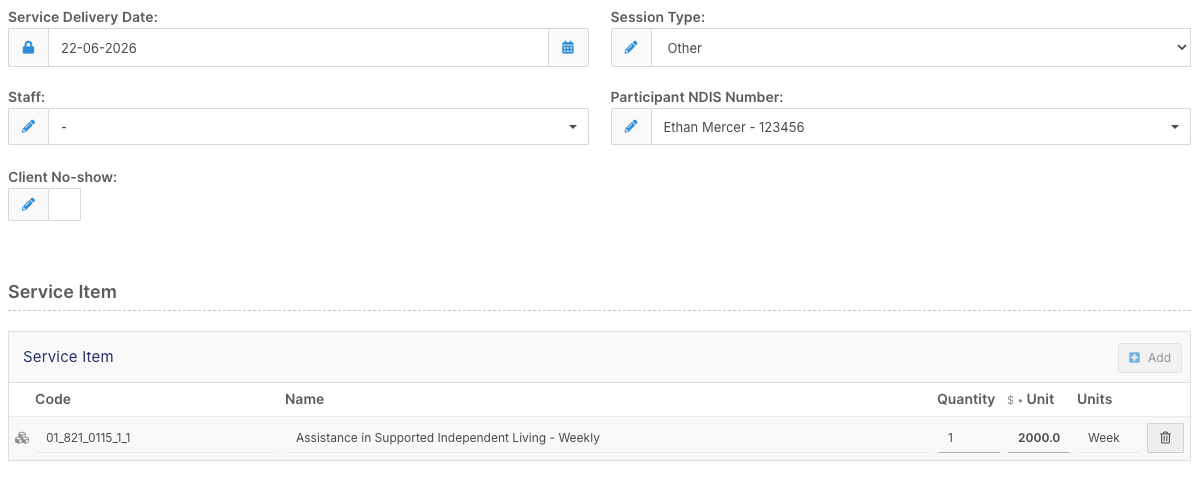
Once the form is open, fill in the following details:
- Service date - the date the service was or will be delivered
- Session type - if applicable
- Staff member - if one needs to be recorded against the claim
- No-show - tick this if the client did not attend
The client's name and NDIS number will pre-fill automatically based on the profile you're working in.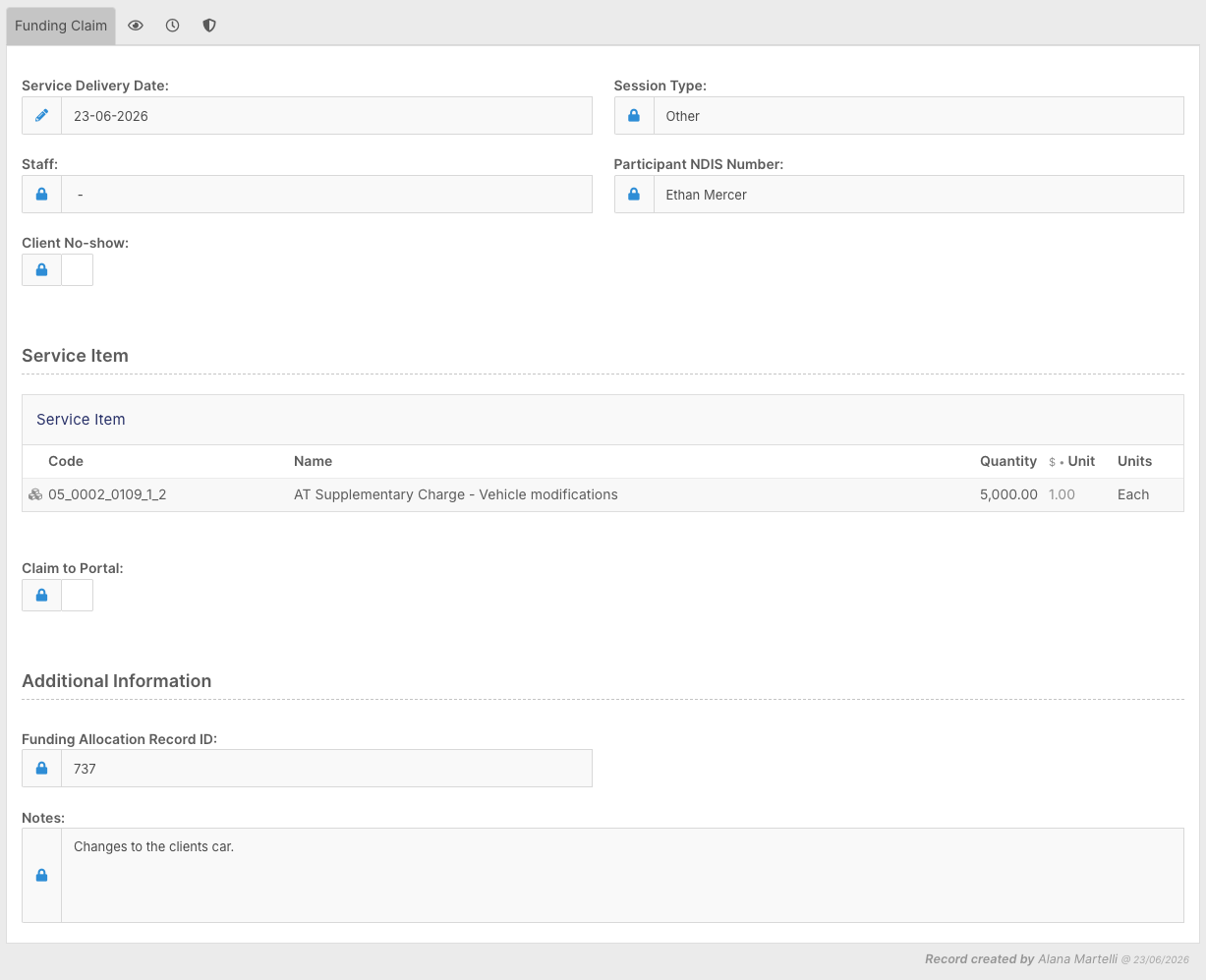
Next, add the service item you're claiming for and enter the charge amount. You can also add notes to provide any additional context. Once everything looks correct, save and close the form.
What Happens After Saving
There's no approval process required. Once saved, the claim will flow straight through to your Export Invoices screen, where it will appear ready to be sent to the relevant plan manager or funding body. If the claim is agency managed, it can also be processed through the Funding Exchange instead.
On the Export Invoices screen, the claim type is displayed on the left-hand side so you can easily identify it. If you need to make any changes, click the entry and it will take you back to the original record.
All claims you create will also remain listed under the client's Funding tab so you can refer back to them at any time.
A Note on Recurring Claims
The Funding Claim form can be used for recurring weekly charges, but if you have something that repeats regularly, setting up a repeating shift in the roster is generally the better option. It saves you from having to manually create a new claim each week.