
Key Points
A form is a collection of fields that take user input to be stored as records. Forms are the main source of data in FlowLogic, making up around 80% of all data stored in the system.
To create a form, go to System menu > Forms, click + Add New Form, enter a form name, then add fields on the Form Fields tab. A form can have up to 500 fields.
To edit a form, find it under System menu > Forms, open the Fields tab, edit or move the fields, then click Save Form. Editing existing fields incorrectly can lose stored data that can't be recovered.
A form can only be assigned to one section or tab, so duplicate it to capture the same information elsewhere, or use a virtual form to show a master form's records in another location.
Display Groups show or hide fields based on the option chosen in a dropdown field.
What is a form?
A form is a collection of fields which take user input to then be stored as records within the system. Forms are the main source of data input into the FlowLogic system making up around 80% of all data stored within the system. Due to this it is essential to understand how to not only create forms however also how to maintain and update them to best equip staff with the necessary tools to input this data effectively and efficiently.Creating a Form
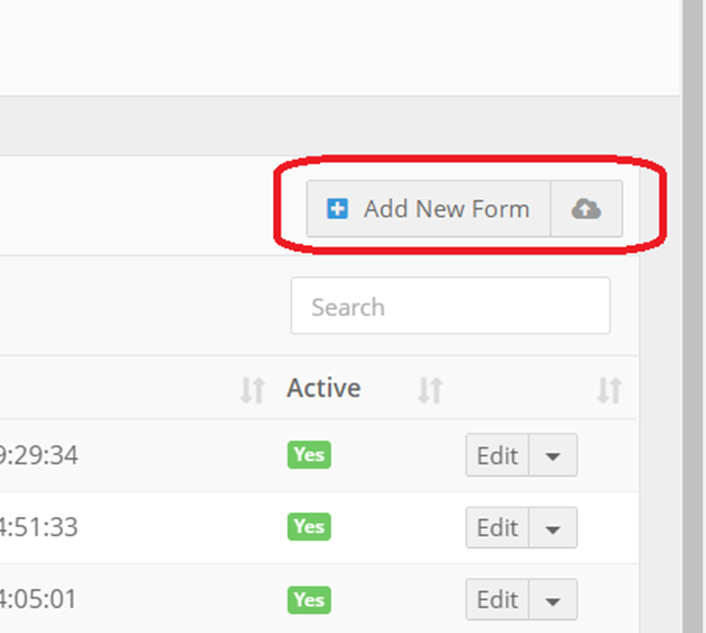
In order to create a brand new form navigate to System menu in the top right of the page > Forms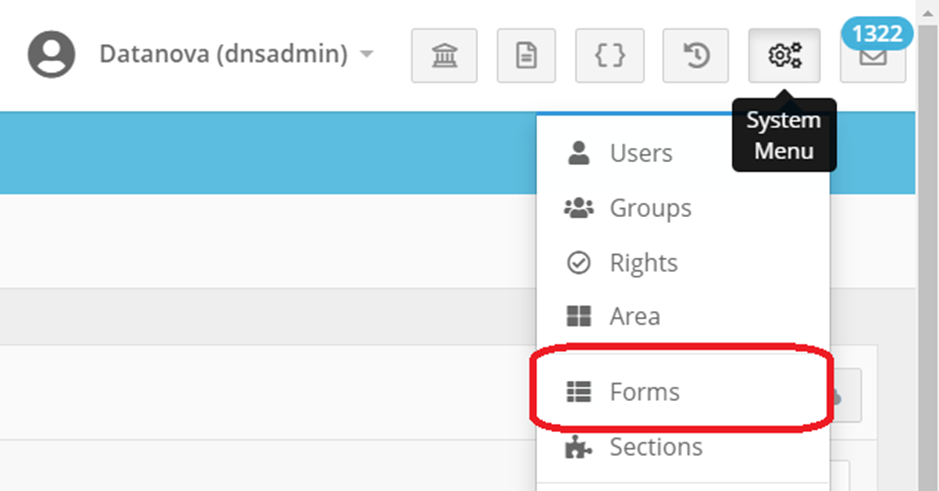 Here, you will be presented with an overview of all forms currently in the system. To add a new form, select the "+ Add New Form" button to the top right of the page.
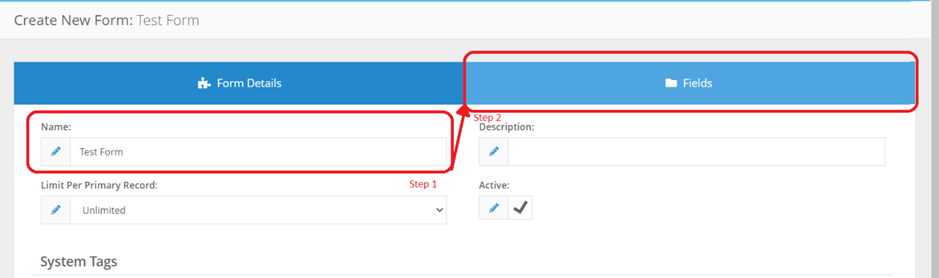
 Once in the form creation, you must specify the form name as a bare minimum. Then, navigate across to the "Form Fields" tab.
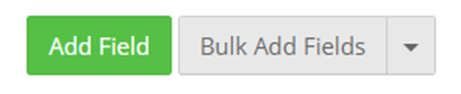
 Click the green "Add field", button to add a new field, or "bulk add fields" to add multiple fields of either the same or varying types.
 Next is to configure the fields. Specified below are the necessary sections to change within the field’s settings.
- Field name
- Field type
- “Default Value” if required.

Field Types
Below is a list of the specific field types within the form editor. There is a brief description for each however it is strongly advised you organise a training session with FlowLogic Support should you require further assistance with these.Text
- Image:

- Description: A 1 column line of free text input.
Text Box
- Image:
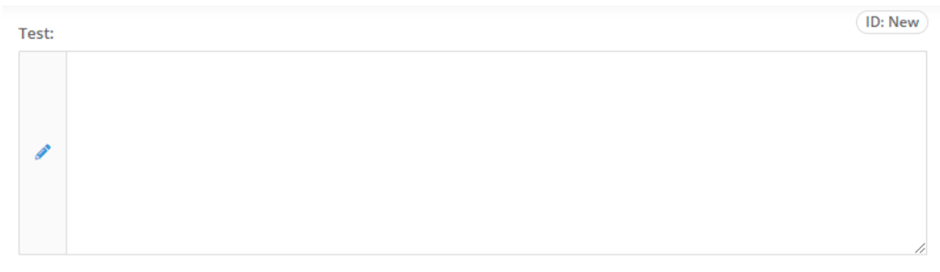
- Description: A 1 column box of free text input.
Text Box (full width)
- Image:

- Description: A 2 column box of free text input.
Rich Text
- Image:
- Description: A 2-column box of free text input with formatting tools.
Dropdown List
- Image:

- Description: A customisable dropdown menu that can be linked to existing records.
Multi-Select Dropdown List
- Image:

- Description: A customisable dropdown menu that allows the selection of multiple fields that can be linked to existing records.
Dual-Select List Boxes
- Image:
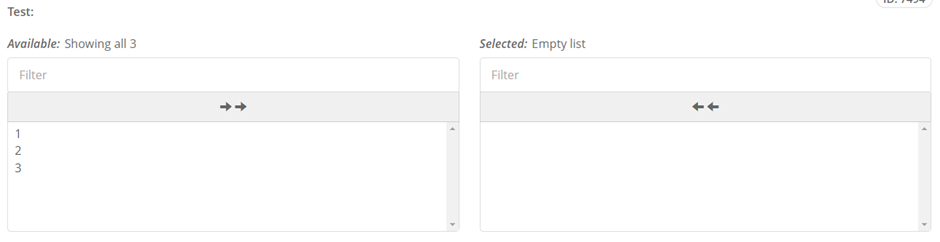
- Description: A set of two boxes with nominated values. The values can be moved from one box to another by clicking the individual items or arrows at the top.
Date
- Image:
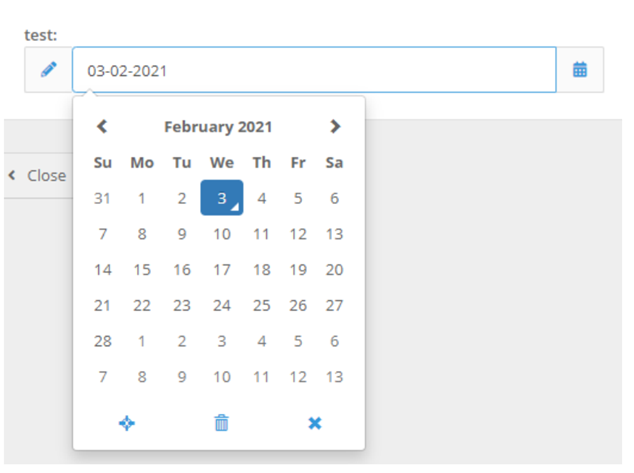
- Description: A calendar dropdown to input dates quickly whilst keeping a uniform look for all data input.
Date of Birth
- Image:

- Description: A calendar dropdown to input date of birth. Has an automatic calculation beside the field label that shows age in grey text.
Radio List
- Image:

- Description: Multiple checkboxes with an option of selecting one field only.
Time
- Image:
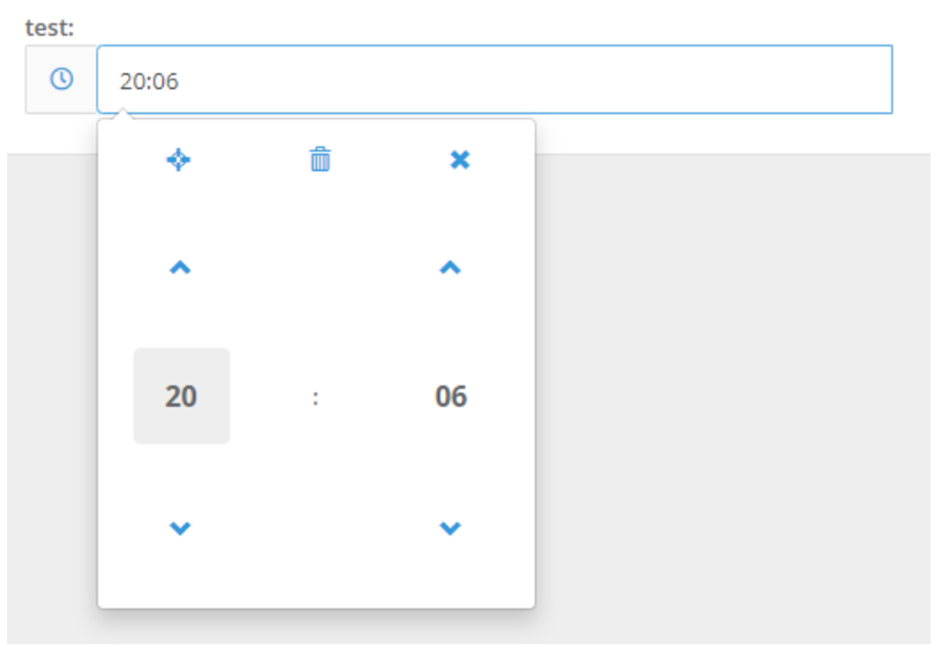
- Description: A clock dropdown to input times will always display in 24-hour time.
Checkbox (single)
- Image:

- Description: A simple heading with a box to tick by clicking.
Number (whole)
- Image:

- Description: An input for whole numbers (e.g. if a staff member has worked for 5 hours). Can be used either via free text typing in the number or using the arrows on the side to raise and lower the number.
Number (decimal)
- Image:
- Description: An input for decimal numbers (eg if a staff member has worked for 8.5 hours). As above can be used via free text or using the arrows to raise and lower the number.
Currency
- Image:

- Description: A field that allows the text input for a number value which will be prefixed by a $ sign when viewing the record.
Service Item
- Image:

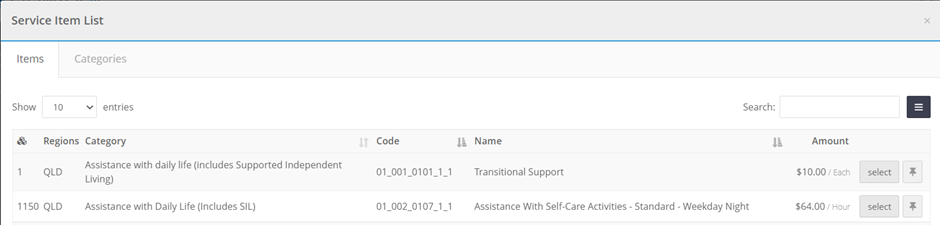
- Description: A list of service items used in funding allocation forms to select the service items. See the second image for the secondary view when selecting service items from said list. This will contain the full NDIS price guide or whichever items you’ve chosen to activate for your specific system.
File Upload
- Image:

- Description: An input field that allows files to be uploaded. Once uploaded the files can be downloaded for viewing and removed as required. Each upload field has a maximum capacity of one singular upload. Multiple File Upload fields can be attached to one form should more be required.
Headline
- Image:

- Description: A large line of heading text that cannot be edited by users
Sub-Headline
- Image:

- Description: A medium line of heading text that cannot be edited by users
On-screen Signature
- Image:
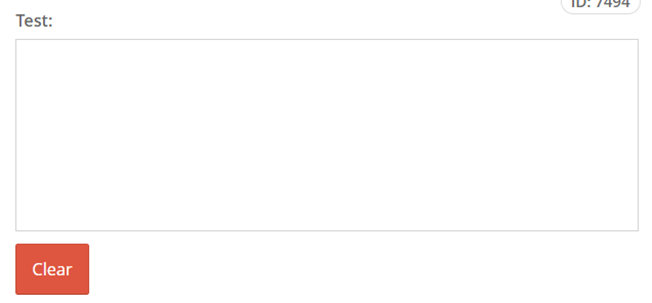
- Description: A half width box that allows the user to input their signature with a time stamp (Eg. “Signed by User on 2021-02-02 11:54:44”).
Info Box
- Image:

- Description: A half width line of text that cannot be edited by users. To display information in this field simply type your information into the “Default Value” in that field’s settings.
Info Box (full width)
- Image:

- Description: A full width line of text that cannot be edited by users. To display information in this field simply type your information into the “Default Value” in that particular field’s settings.
Single Space
- Image:

- Description: A half width empty space. This is primarily used to space out the fields in the form and fill empty spaces to prevent any fields from taking place.
Editing a Form
IMPORTANT: Please note that editing pre-existing fields in forms can cause them to lose stored data if not done correctly. Should you not be 100% sure of what you're doing please consult our support team on 1300 552 166 as this data can't be recovered once lost.- Click System menu
 > Forms
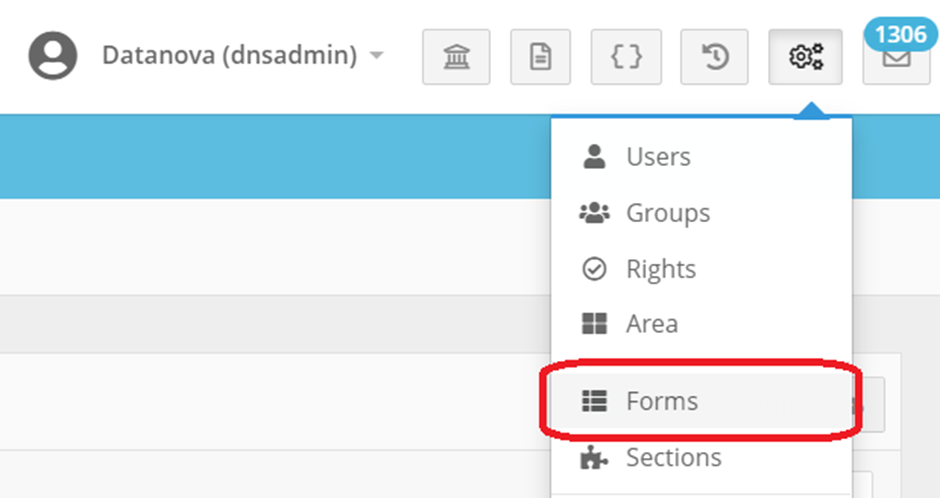
- Here, you have an overview of all forms. To edit a form, locate the form in the list (you can use the search bar).
- To the righthand side of the form listing, click the
 Button.
 - In the Form Editor, similar to the Form Creator, you can edit the basic details.
- Now you can navigate across to the "Fields" tab.

- Hover over each field to reveal a green Edit button. Here you can edit each field type, and click the arrows to re-locate the fields in the form.

- Click on the green "Save Form" button.
- The changes will then be made the second you Save the form. Please be sure to refresh the page of the form if you had it open whilst making the changes.
Duplicating a Form
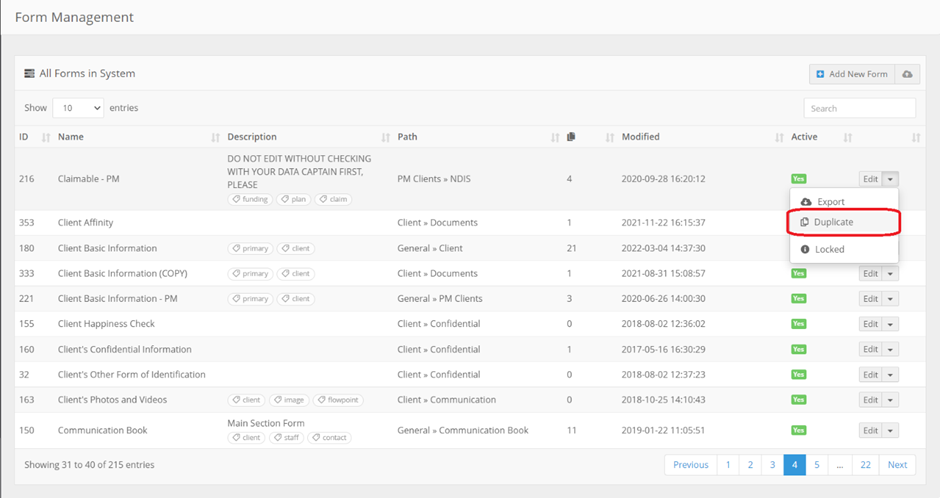
FlowLogic forms can only be assigned to a single section/tab. You will need to duplicate a form if you wish to capture the same or similar information in different sections/tabs. First Click System Menu > Forms
Here, you have an overview of all forms. To edit a form, locate the form in the list (you can use the search bar). Locate the arrow button to the right of the form listing and select the duplicate option to duplicate the form.
Creating a Virtual Form
FlowLogic allows the ability to create virtual forms to inherit the contents of its Master Form and display them in a different location. An example of this would be an incident report form, a user will submit a record in the incident report section then depending on the staff and client selected the system will automatically create a copy of this record under their file.- Locate the form and field which you would like to link to the virtual form and take note of the field ID (Located under selecting Edit on a field > Select the Advanced Tab > Note the Field ID).
- Click System menu > Forms
- Click on "Add New Form" to create a new form.
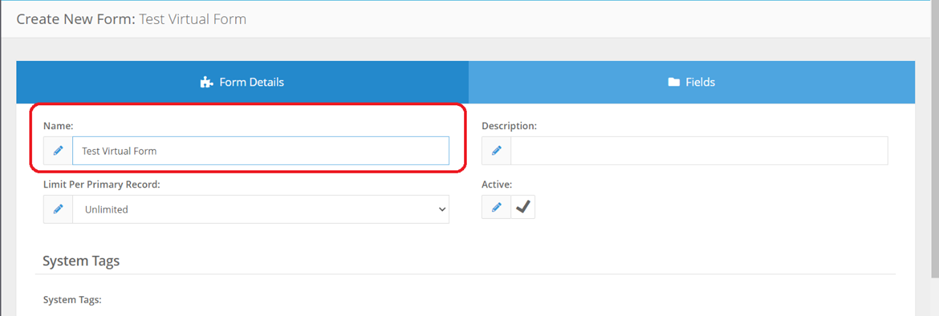
- Name the Virtual Form. Do not add any fields. Scroll down and expand the "Advanced" box to enter the linking details.
 Once in the advanced box follow the below dot point actions as indicated by the arrows.
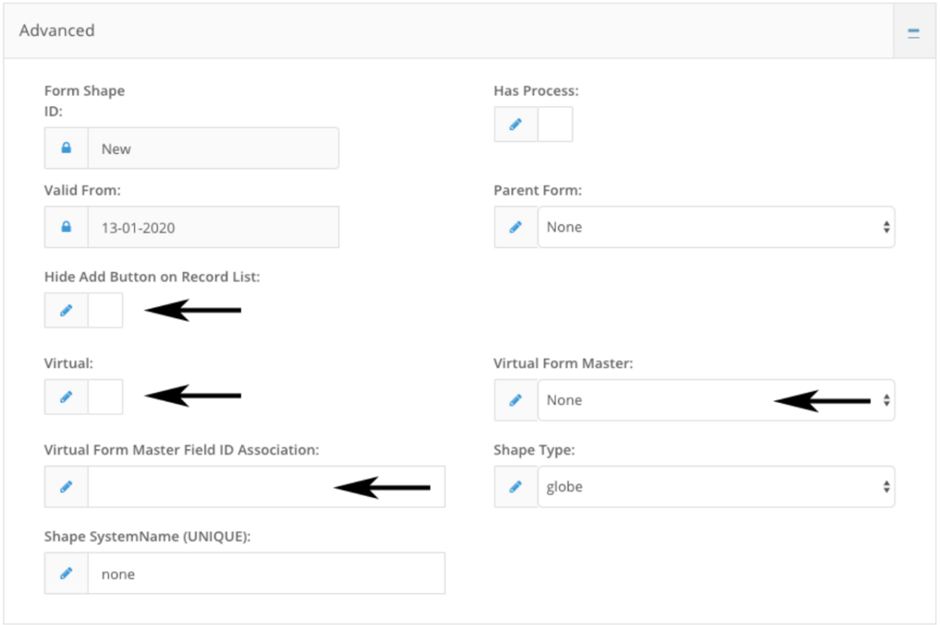
- Checking Virtual will let the system know this is to be setup as a virtual form
- Hide add button to disallow adding a record (The purpose of this form is to only replicate the submissions of the Master form)
- Virtual Form Master: Select the Master Form from which you would like this form to populate.
- Virtual Form Master Field ID Association Input the field ID noted down from Step 1 earlier. This will be where the form determines what information to populate the virtual submission under. The field this points to should be a “Record” field type. If you need any assistance with setting this field up simply call through on 1300 552 166 and our friendly staff will be sure to help out.
Display Groups
The Display Group form setting allows the hiding and displaying of one or more fields according to a selected value within a dropdown selection field. With a customised dropdown list, when the user chooses an option a set of form fields are displayed while the remaining form fields relating to different dropdown list values are hidden. Display Groups allow you to customise the form to display only fields that relate to a particular dropdown list option. For the steps, see How do I show or hide fields on a Form using Display Groups?