
Key Points
FlowLogic's main parts are the dashboard, the top bar, the left-hand menu and the core sections: Roster Schedule, Drive, Calendar, Reports and Automations.
The dashboard is the first screen you see after logging in. It's configurable, and what it shows depends on your permissions.
The top bar holds tools such as the global search bar, clock in and out, your user profile menu, and the Finance and Payroll, Record Management, Logs and System Menu tabs.
The left-hand menu has the Help and Logout buttons, the Dashboard, the Staff and Participants / Clients sections, and any sections configured for your organisation.
Permissions control which sections you see, what you can do and whether you can edit or only view data. If you need more access, speak with your system administrator.
The Dashboard
When you first log into FlowLogic, you'll land on the dashboard. What you see here depends on your permissions, so each staff member's dashboard may look different. Common items include:
- Upcoming shifts
- Notices and announcements
- Incident reports
- Calendar events
- Documentation
- KPI checklists
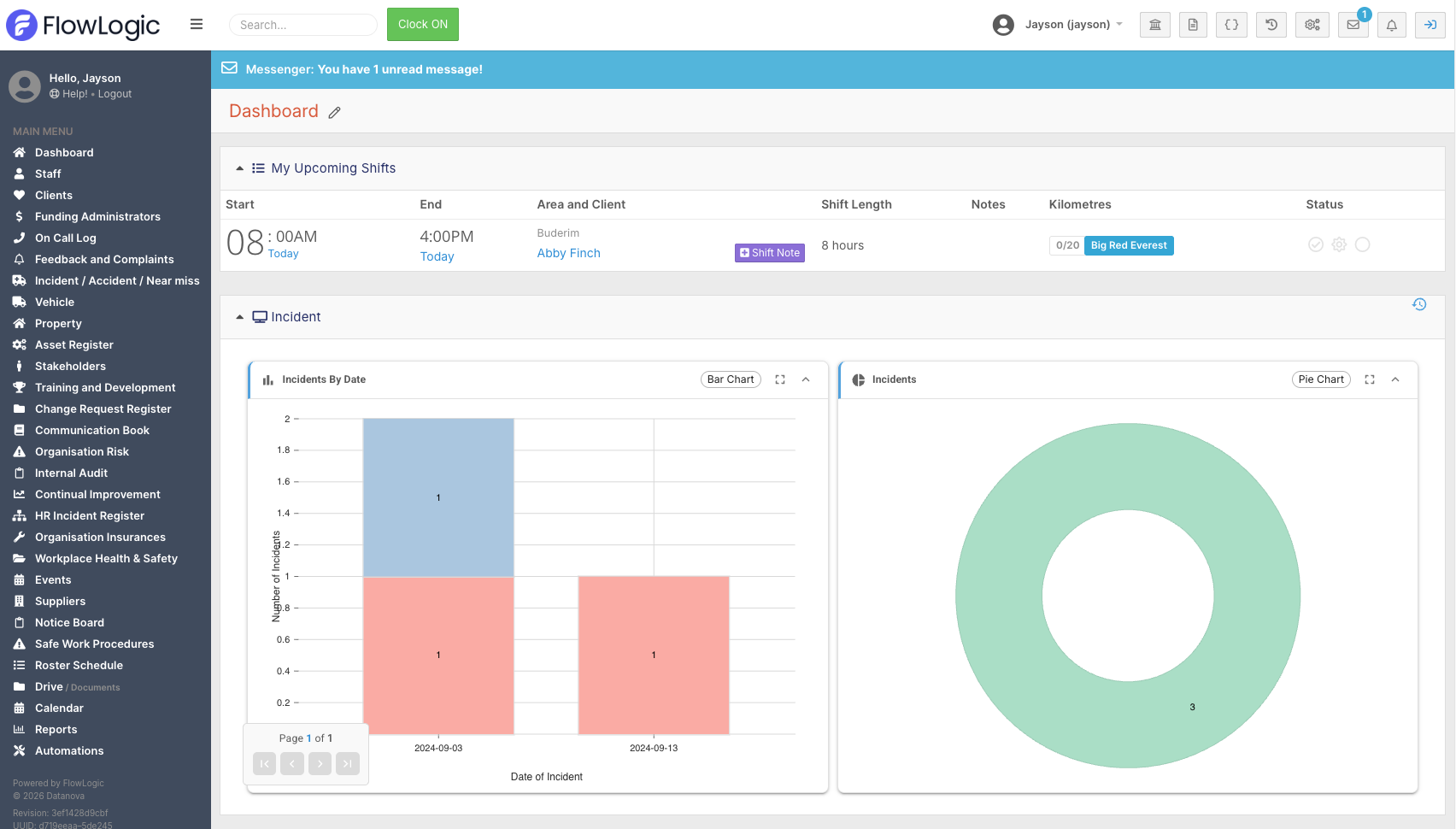
The dashboard is configurable and can be adjusted based on your role and access level.
The Top Bar
Running across the top of the screen, you'll find the following tools from left to right:
- Toggle menu button - hides or shows the left-hand menu
- Global search bar - searches for text across records and inbox messages, useful for quickly locating information without navigating through sections
- Clock in / Clock out - for recording your daily shifts
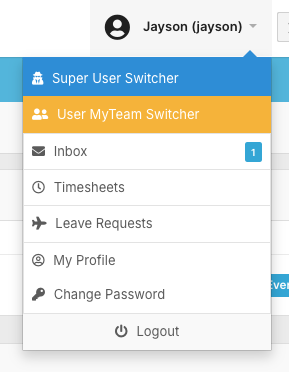
- User profile menu - gives you access to your inbox, timesheets, leave requests, profile settings, password changes, and logout
- Finance and Payroll tab - for all finance and payroll functions
- Record Management tab - for managing records
- Logs tab - for user logs, mail logs, and inbox administration
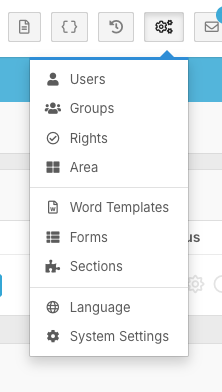
- System Menu - for accessing and changing settings including users, groups, areas, templates, forms, and sections
- Inbox preview - for viewing recent messages and notifications
- FlowLogic News - for upcoming updates and announcements
Depending on your preferences, you may also have a bookmarks menu for quick access to frequently used sections. This is especially helpful for staff who perform repetitive tasks and want to navigate the system faster.
All tabs in the top bar are permission-based, so you may see more or fewer options depending on your access level.
The Left-Hand Menu
Working down the left-hand side of the screen: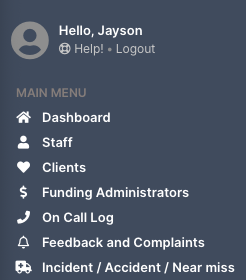
Help button - found in the top-left corner, this links to the FlowLogic online guide which includes training materials, step-by-step instructions, and self-learning resources. It's a great starting point if you want to find answers to common questions without needing to contact support.
Logout button - also found here. Always log out if you're leaving your workstation or using a shared device.
Dashboard button - brings you back to the main dashboard at any time.
Staff section - for viewing and managing staff records.
Participants / Clients section - for viewing and managing all participants and clients in the system.
Below are configured sections that vary depending on your organisation. You may have more or fewer depending on your setup. Common examples include:
- Funding Administrators - for managing plan managers
- On-call section
- Incident, Accident and Near Miss - for logging and managing incidents
- Vehicles, Properties, and Asset Register - if your organisation manages these
- Internal Audits, Continual Improvement, and HR Incident Registers
- Organisational Insurance and Workplace Health and Safety
- Events page and Notice Board - for keeping staff informed
Core Sections
Every FlowLogic system includes the following sections at the bottom of the left-hand menu: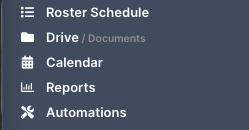
- Roster Schedule - for managing staff and client shifts
- Drive - for uploading documents and building folders
- Calendar - for viewing upcoming dates and events
- Reports - for building and viewing reports
- Automations - for setting up automatic messages and notifications when certain events occur
Understanding Permissions
Permissions control what you can see and do within FlowLogic. They determine:
- Which sections are visible to you
- What actions can you perform
- Whether you can edit data or only view it
This ensures data security, role-based access, and reduces the risk of accidental changes. If you think you need additional access to do your job, speak with your system administrator.