
Key Points
- The FlowLogic Open API lets your own systems and developers read your FlowLogic records directly and securely, without exporting files.
- You create and manage your organisation's API key under System Menu > Developer. You need the Developer settings right to see it. If you can't see it, contact our Support team.
- The full key is shown only once, so copy it and store it somewhere secure straight away. Nobody can retrieve it later, including FlowLogic.
- Your organisation can have one active key at a time. Rotate it to get a new key, or revoke it to switch it off permanently.
- The API is read-only. It returns your Sections, records and forms and the fields they contain.
What is the FlowLogic Open API?
The Open API is a secure way for other software, such as a reporting tool, data warehouse, your own system or AI tools, to request data from FlowLogic. Your developer or IT team uses your API key to connect. The key tells FlowLogic which organisation the request comes from and what it's allowed to access.
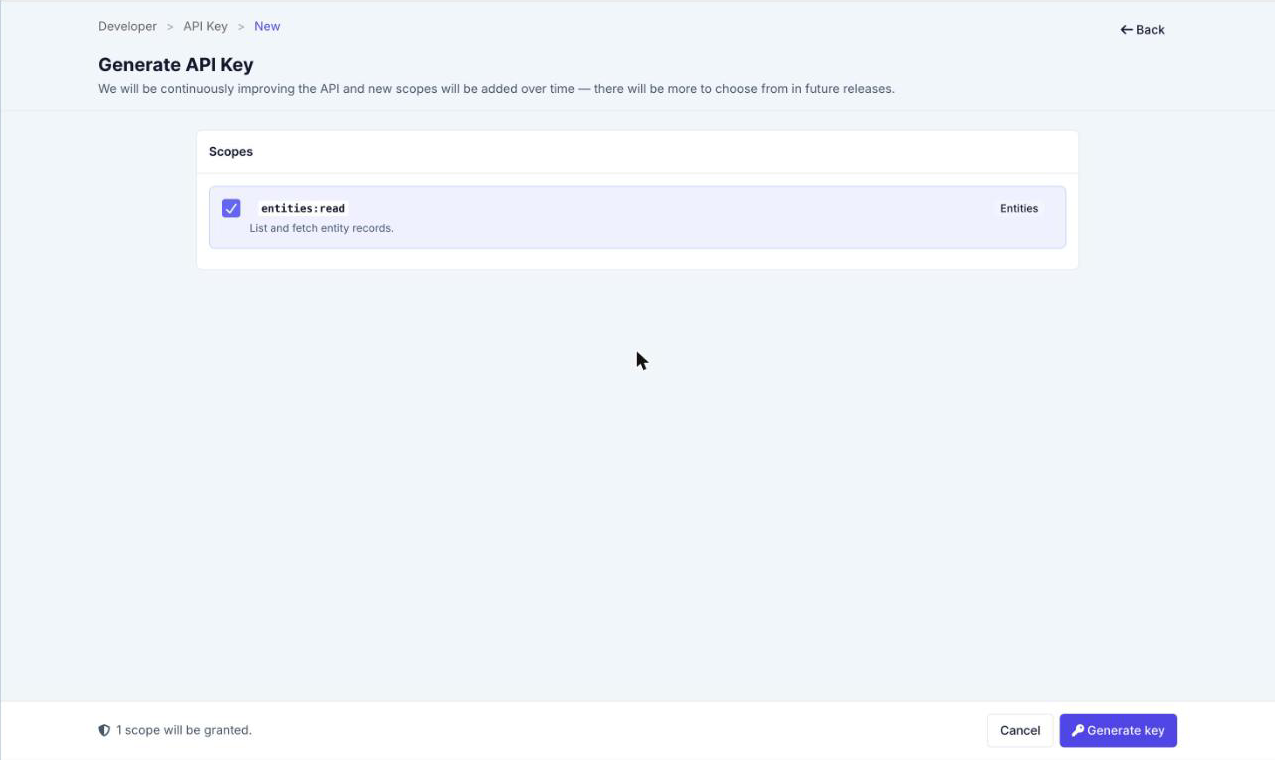
Each key has one or more scopes, which control what the key can do. At the moment there is one scope, entities:read, which lets the key list and read records. It can't create, change or delete anything in FlowLogic. More scopes will be added in future releases.
Requests are sent to https://public-api.flowlogic.com.au/v1/ over HTTPS, with the key in an Authorization: Bearer header. Keys start with flk_live_. For example:
curl https://public-api.flowlogic.com.au/v1/entities \
  -H "Authorization: Bearer YOUR_API_KEY"
Your developer can find full technical details, including every request and its options, in the FlowLogic API documentation.
Who can create an API key?
Only users with the Developer settings right can see the Developer option in the System Menu and manage the API key. If you can't see Developer in the System Menu, contact our Support team at support@flowlogic.com.au.
How do I create an API key?
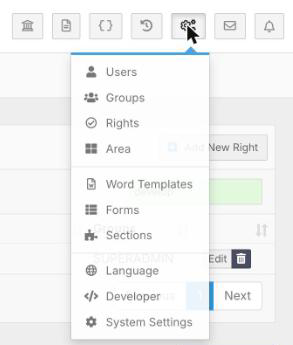
- Click the System Menu (the cogs icon at the top right) and select Developer.
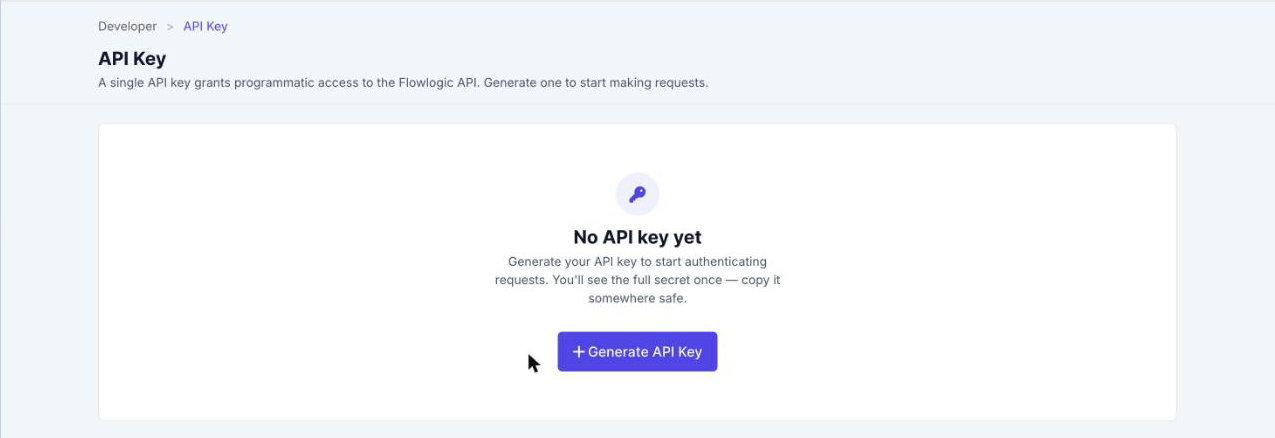
- On the API Key page, click Generate API Key.
- Under Scopes, check that entities:read is ticked, then click Generate key.
- On the Save your new API key screen, click Copy and store the key in a secure place, such as your organisation's password manager. Click Reveal if you want to see the key on screen. The screen also shows an example request your developer can use.
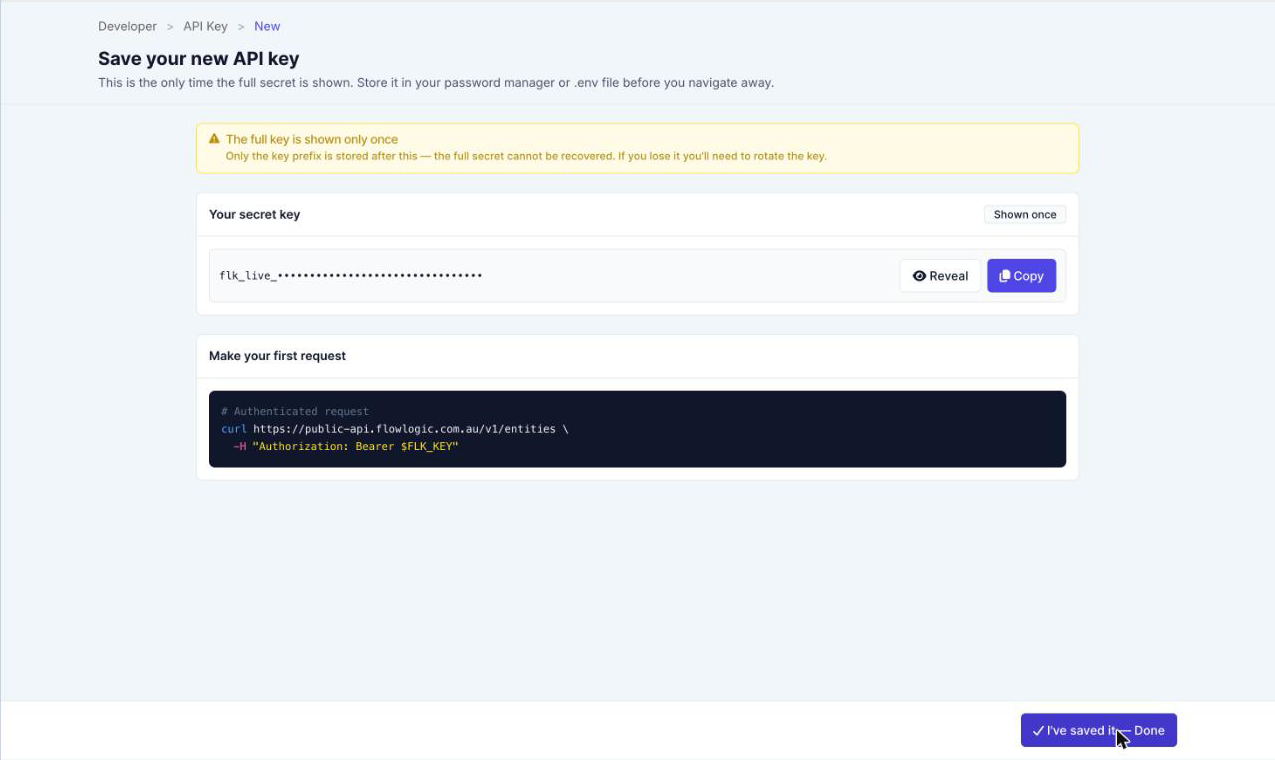
- Click I've saved it - Done. The full key is removed from the screen permanently, and you'll see your Active key.
API keys don't have a name or an expiry date. A key keeps working until you revoke it. Treat it like a password: don't email it or save it in a shared document.
How do I check my API key?
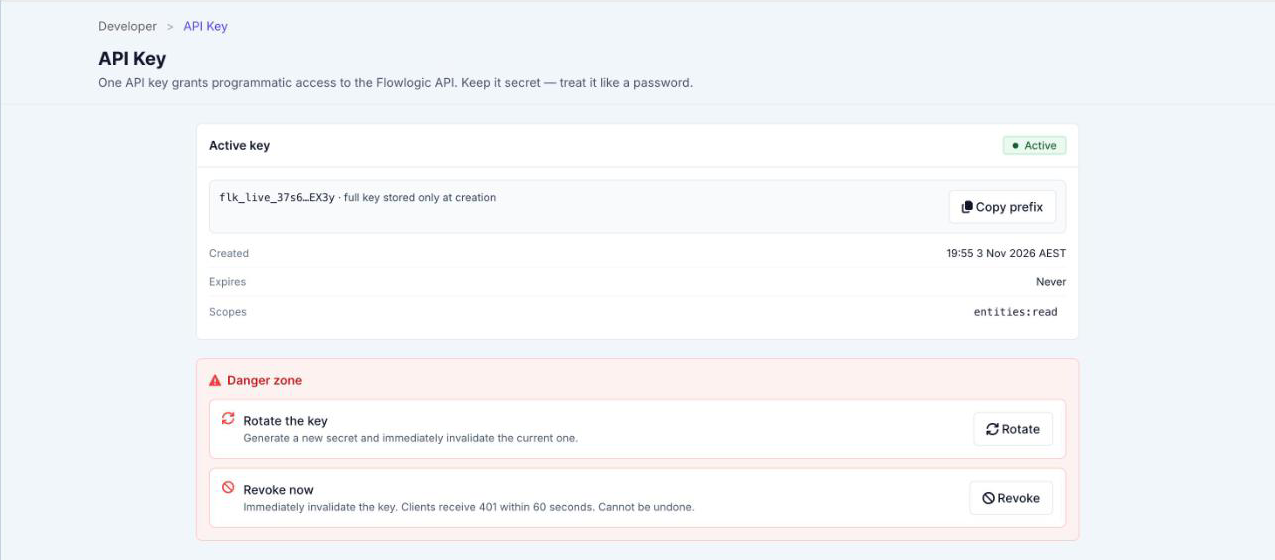
Go to System Menu > Developer. The Active key panel shows:
- the start and end of the key, so you can tell which key your systems are using. Click Copy prefix to copy it.
- when it was created
- when it expires (always Never)
- its scopes
The full key is never shown again.
What data can I access with the Open API?
The API works with your Sections, such as Staff, Clients or Incidents. Each Section's main form (for example, Staff Basic Details) is its primary record.
| What you get | Request |
|---|---|
| A list of your Sections, with each one's Key, name and number of records. This is usually the first request a developer makes. | GET /v1/entities |
| All records in a Section, showing the fields on the main form. Results come back 50 at a time, or up to 200 per page. | GET /v1/entities/{section_key} |
| One record, with every form on it. | GET /v1/entities/{section_key}/{id} |
| Every entry of one form on a record, for example all of a staff member's addresses. | GET /v1/entities/{section_key}/{id}/forms/{form_key} |
| A Section's structure: its forms and fields, and each field's type. It contains no record data. | GET /v1/entities/{section_key}/schema |
When requesting a list of records, your developer can choose which fields to return and filter by exact field values. Results can be sorted by when records were created or last updated, so an integration can pull only what has changed since its last sync.
Each key can make up to 200 requests a second, with short bursts of up to 400. If it goes over, the API returns a 429 error saying how many seconds to wait before trying again.
How are Sections, forms and fields named in the API?
Every Section, form and field has a Key, which is the name the API uses for it. FlowLogic creates the Key automatically from the name. For example, a field called First Name has the Key first_name. Keys use only lowercase letters, numbers and underscores. Section and Form Keys must be unique across your system, and Field Keys must be unique within their form.
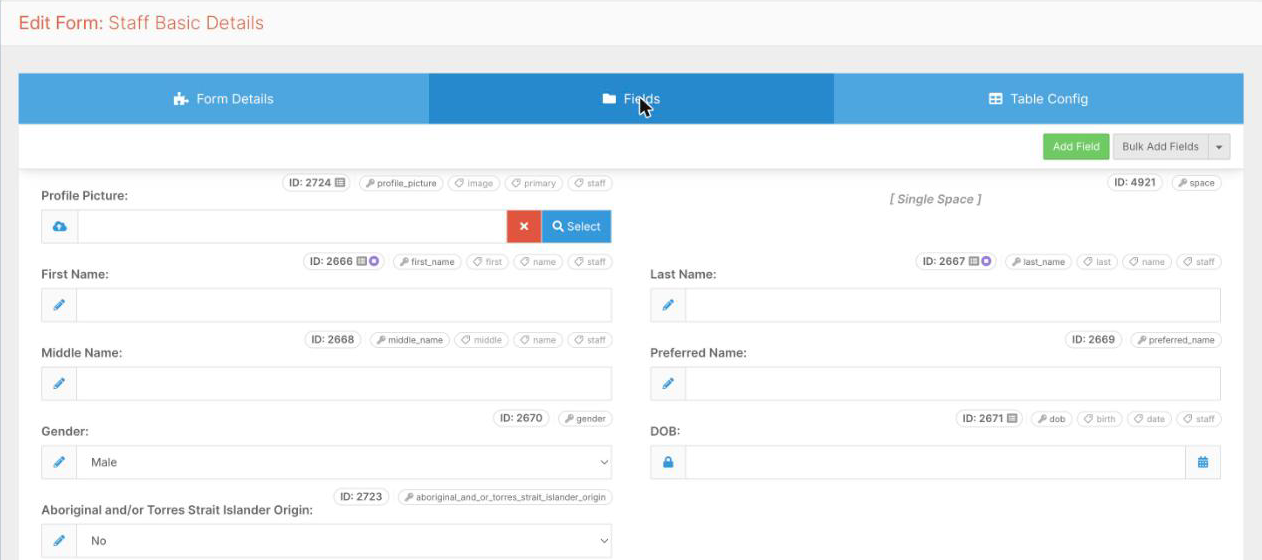
To see a form's Field Keys, open the form in System Menu > Forms and go to the Fields tab. Each field's Key shows as a tag with a key icon above the field.
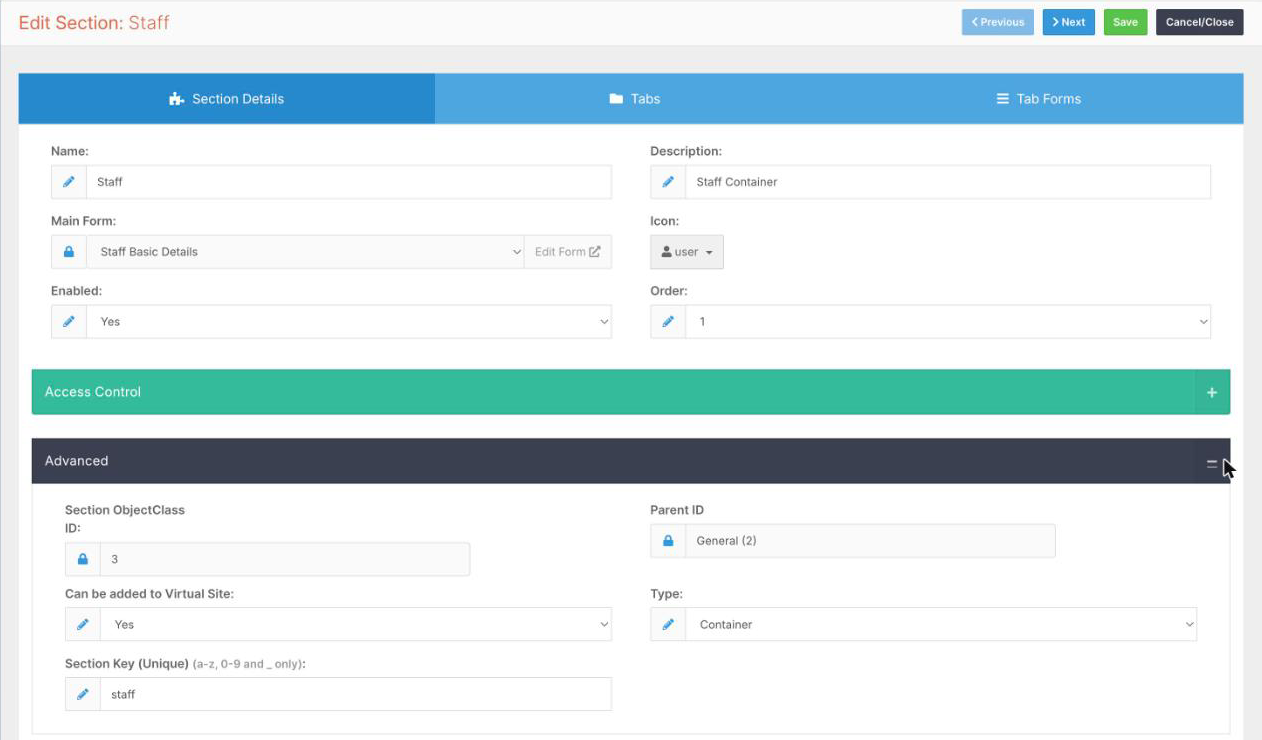
Users with the API System Settings right can change Keys. By default, only the Superadmin group has this right. Each Key is in an Advanced area:
- Section Key: System Menu > Sections. Click Edit on the Section and expand Advanced.
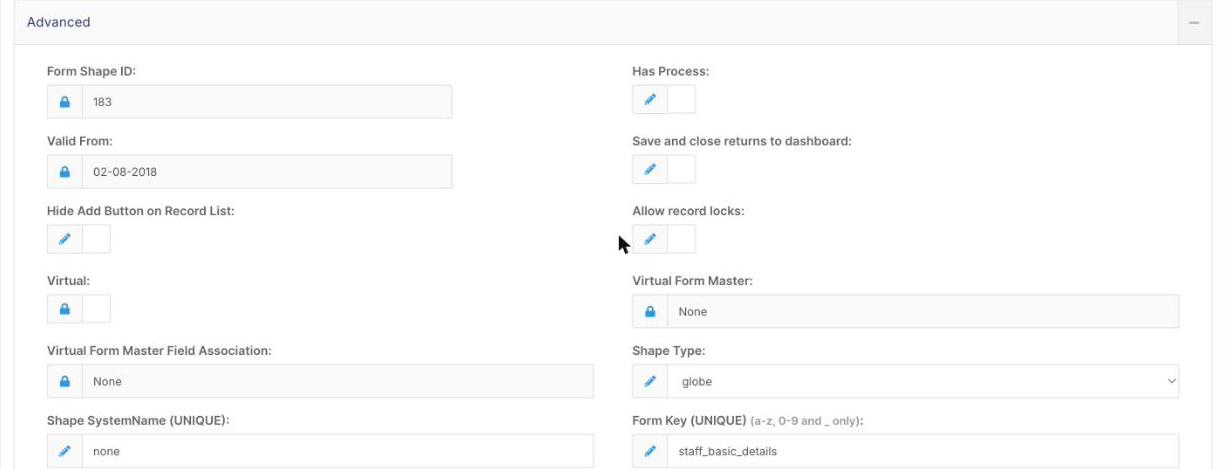
- Form Key: System Menu > Forms. Click Edit on the form and expand Advanced on the Form Details tab.
- Field Key: on the form's Fields tab, click the field, click Edit and open the Advanced tab.
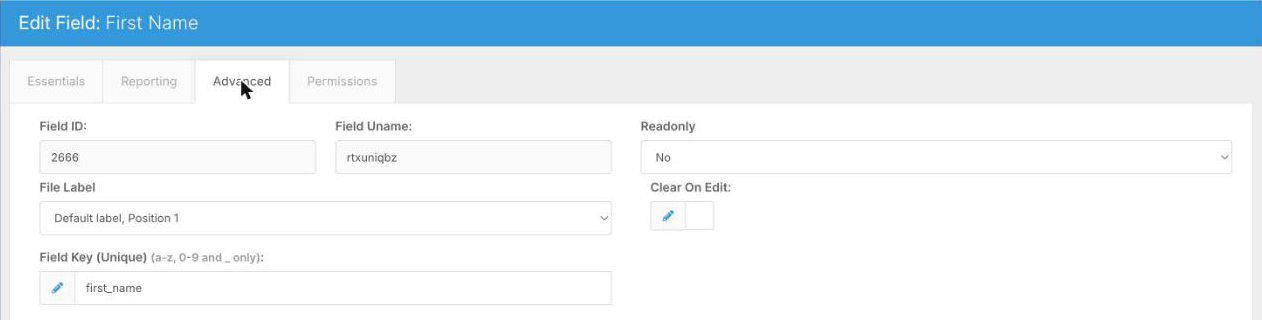
Fields are always requested as form_key.field_key, for example staff_basic_details.first_name.
Changing a Key breaks any integration that uses it. FlowLogic doesn't warn you when you change a Key. Before editing one, check with whoever manages your integrations. At the moment, the API names fields from their name, so renaming a field also changes its API name.
How do I rotate my API key?
Rotate your key if it may have been shared or exposed, or if someone who had it leaves your organisation. Rotating creates a new key and stops the old one straight away.
- Go to System Menu > Developer.
- Under Danger zone, click Rotate, then click Rotate key now.
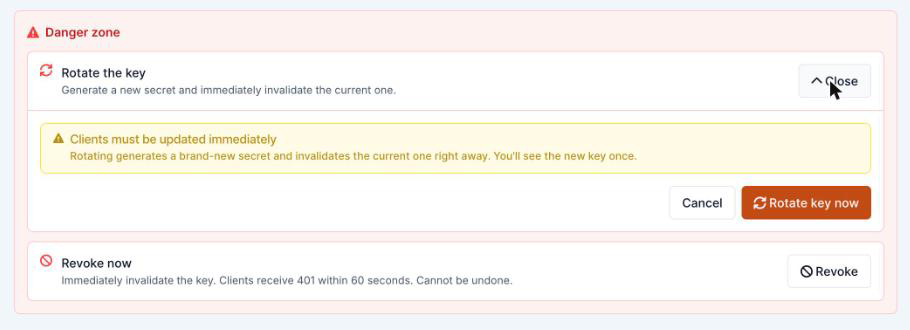
- On the Save your new API key screen, copy the new key and store it securely. As with a new key, it's shown only once.
- Update every system that uses the key. If the new key doesn't work straight away, wait about 10 seconds and try again.
How do I revoke my API key?
Revoking switches a key off permanently. It can't be undone.
- Go to System Menu > Developer.
- Under Danger zone, click Revoke.
- Type REVOKE in the box and click Revoke key.
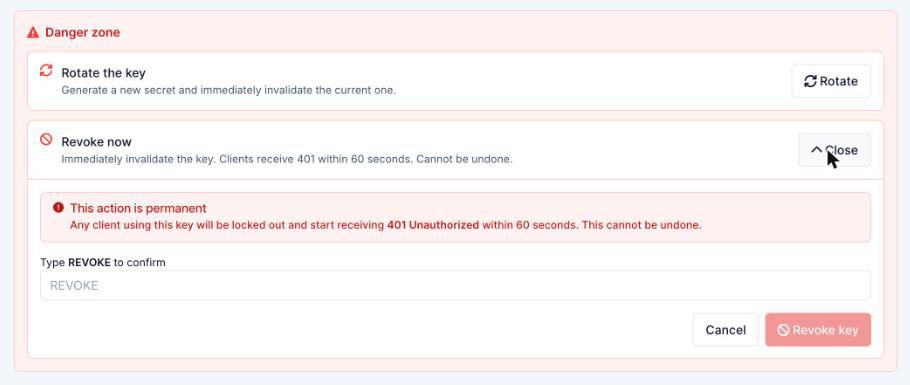
Systems using the key are locked out within a minute, occasionally up to 5 minutes. The API Key page goes back to No API key yet, and you can generate a new key when you need one.
What if I've lost my API key?
A lost key can't be recovered. FlowLogic doesn't store the full key, so FlowLogic Support can't retrieve it either. Rotate the key to get a new one, then update your systems with it.
Why is my API request failing?
| Error | Likely cause |
|---|---|
| 401 | The key is wrong or missing from the Authorization: Bearer header, or it has been revoked or rotated. |
| 403 | The key doesn't have the scope needed, or it was rotated a few seconds ago. Wait briefly and try again. |
| 400 Unknown field | The field isn't written as form_key.field_key, or the field's Key or name has changed. |
| 404 | The Section Key, record ID or Form Key wasn't found, or the record isn't visible to your organisation. Check the Keys under System Menu > Sections and Forms. |
| 429 | Too many requests. Wait the number of seconds the error gives, then try again. |
| 500 or above | A problem on FlowLogic's side. Wait a moment and try again. If it keeps happening, contact our Support team. |
If you contact our Support team about a failed request, include the X-Request-Id value from the response so we can find it.