
Key Points
A Section is an area on the left-hand side menu of FlowLogic. It holds primary and secondary records, from client profiles to internal house audits and asset registers.
To create a Section, go to the System Menu, open Sections, select Add New Section, fill in the Name, Main form (Primary Form), Icon and Order, then select Save.
A Section's Main Form can't be swapped for a different Form. Update the existing Main Form, or create a new Section with the new Form as its Main Form.
Access controls (permissions) are assigned to Groups. Set them under System Menu > Sections > Edit - in Access Control for the primary Form and Tab Forms for secondary Forms.
Any access rule can be set to Allow or Deny. If a user is in two Groups and one allows access while the other denies it, Deny always wins.
What is a "Section"?
A section is an area on the left-hand side menu of the Flowlogic system. These sections contain both primary and secondary records which make up anything from client profiles all the way down to internal house audits and asset registers. Sections can be created, edited and deleted to suit the needs of any instance setup and allows the user to have a large amount of control over what information is presented in certain areas as well as controlling who it is displayed to.Creating a Section
To create a section, you simply need to navigate to the upper right hand of the screen and select the “System Menu” which will the display the “Sections” tab.
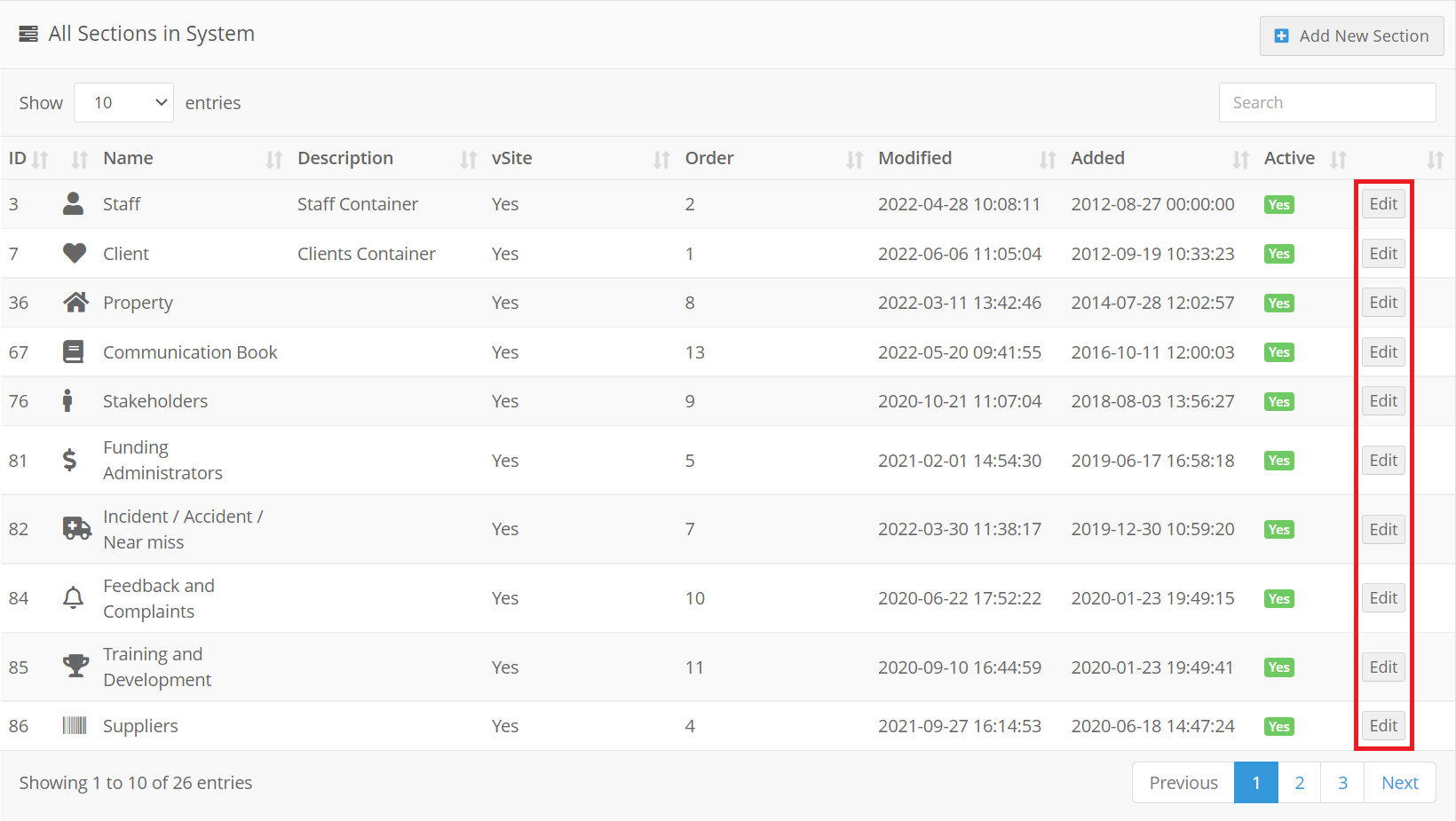
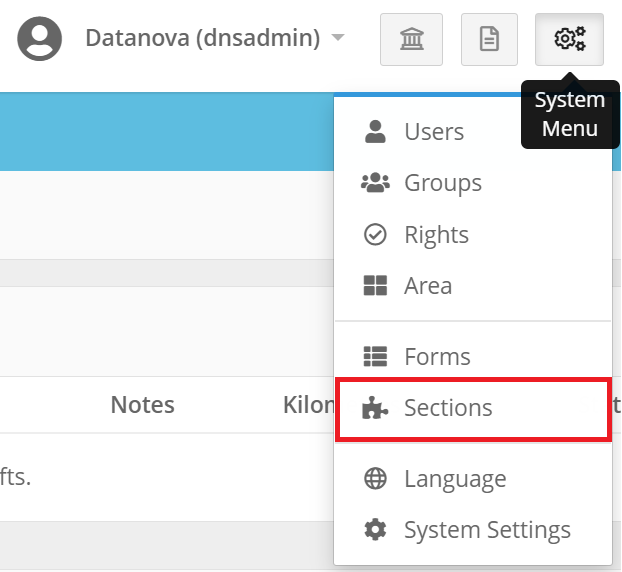 Selecting this will take you to the below view showing you all the sections in one table view.
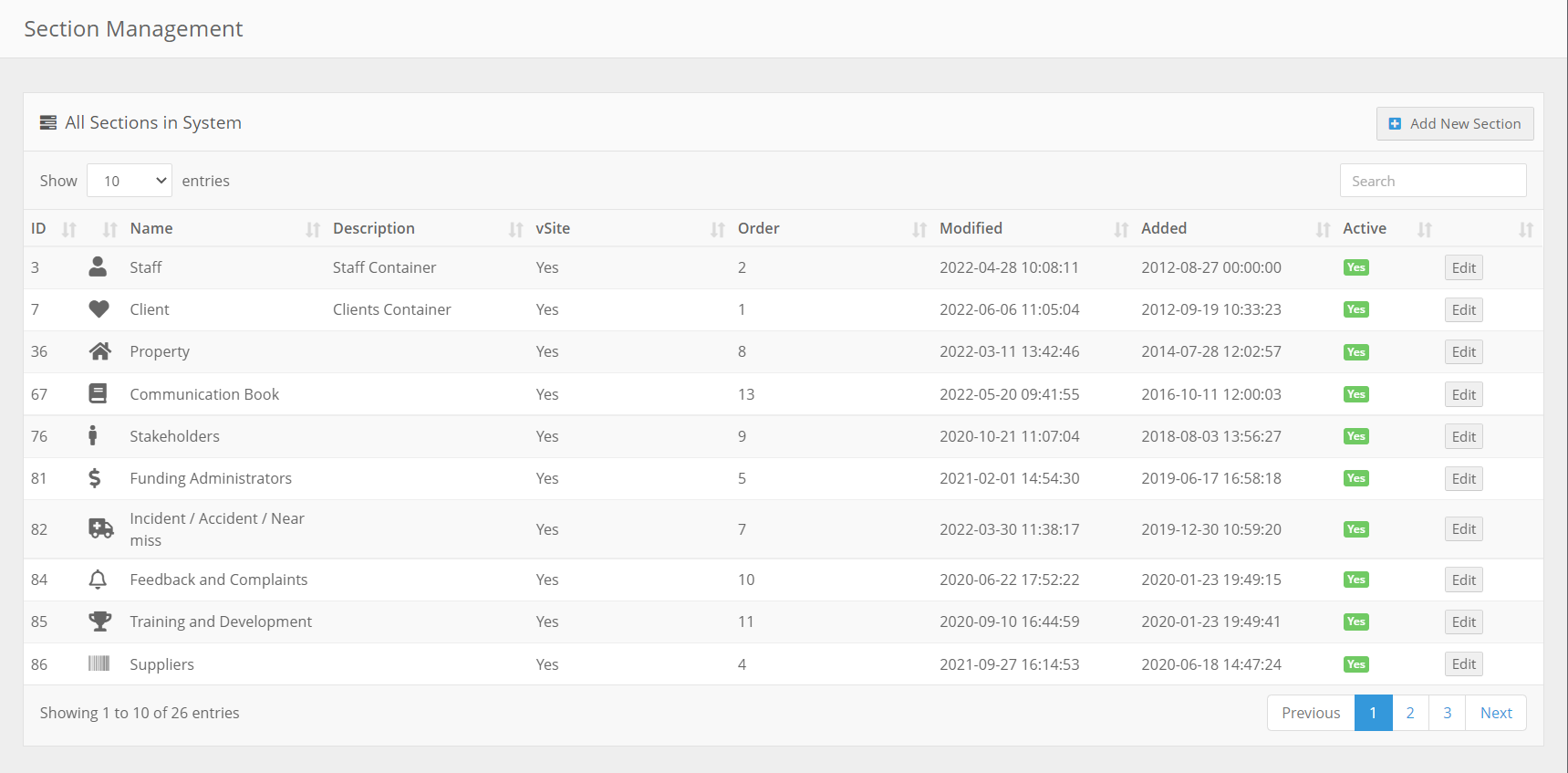 From here select the “Add New Section” button at the upper right of the screen.
 After selecting this option, you will be taken to the following screen allowing you to change the basic information of the section itself as well as setup an icon for display.
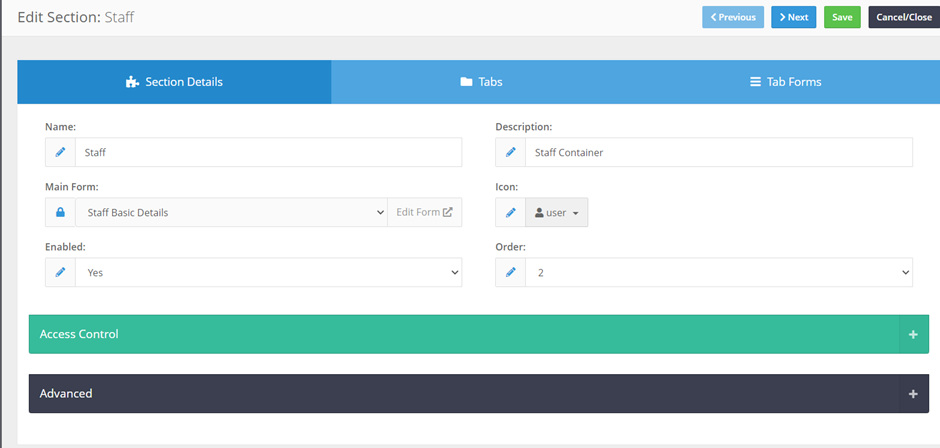 All that is required to create a section is specified below:
- Name
- Main form
- Icon
- Order
Can I change a Section's Main Form?
No. A Section's Main Form can't be swapped for a different Form, because it usually already holds your records. If your Main Form needs to change, you have two options:
Update the existing Main Form. Add the new fields to it and set the fields you no longer need to Inactive. Existing records and their data are kept. This is usually the best option.
Create a new Section with your new Form as its Main Form. Existing records stay in the old Section, because records can't be moved between Sections. You can then hide the old Section from most Groups, or give it only to the Groups that still need the history.
Section Access Controls
Access controls are also what we most commonly refer to as “Permissions” the access controls for a section deems who can and cannot see records as well as who can and cannot create / edit these records. These controls are assigned to specific groups within the system. An example is a base level staff member should be able to access the incident reports to submit a record as it comes up however that same support worker should not be able to see any other incidents unrelated to them. This is handled via access controls.Administering Admin Controls
You're able to edit access controls for both primary and secondary records within sections. Below are two separate tutorials on how to edit each option.Primary Form Access Controls
In order to create / edit access controls for a primary section you can navigate to System Menu > Sections
From here select the section you would like to alter the access controls for and select “Edit”
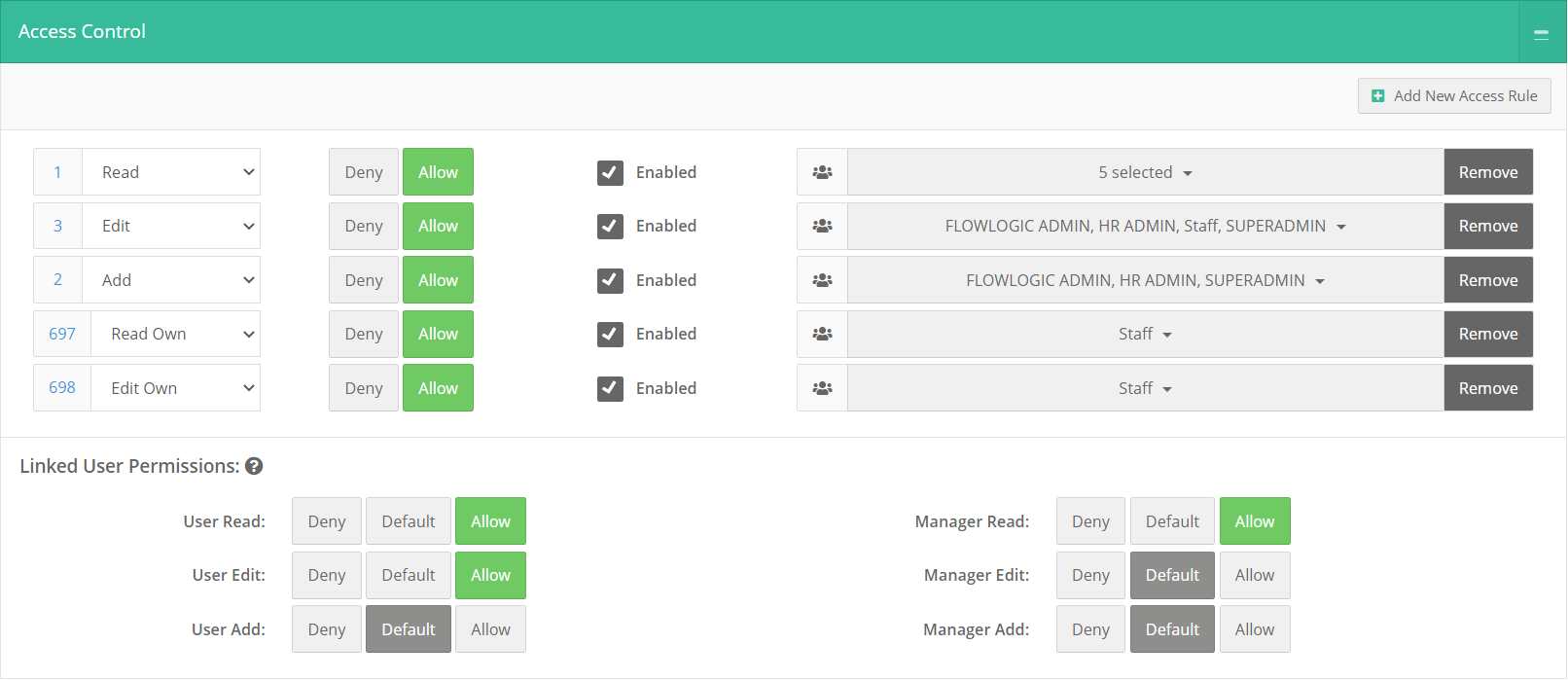
 You will then see the Green banner at the base of the screen labelled “Access Control” Select the “+” button on the right hand side to expand the view and be presented with the following.
Secondary Form Access Controls
To alter secondary from access controls you can again access System Menu > Sections
From here select the section you would like to alter the access controls for and select “Edit”
Once you've selected Edit navigate to the "Tab Forms" section of the screen.
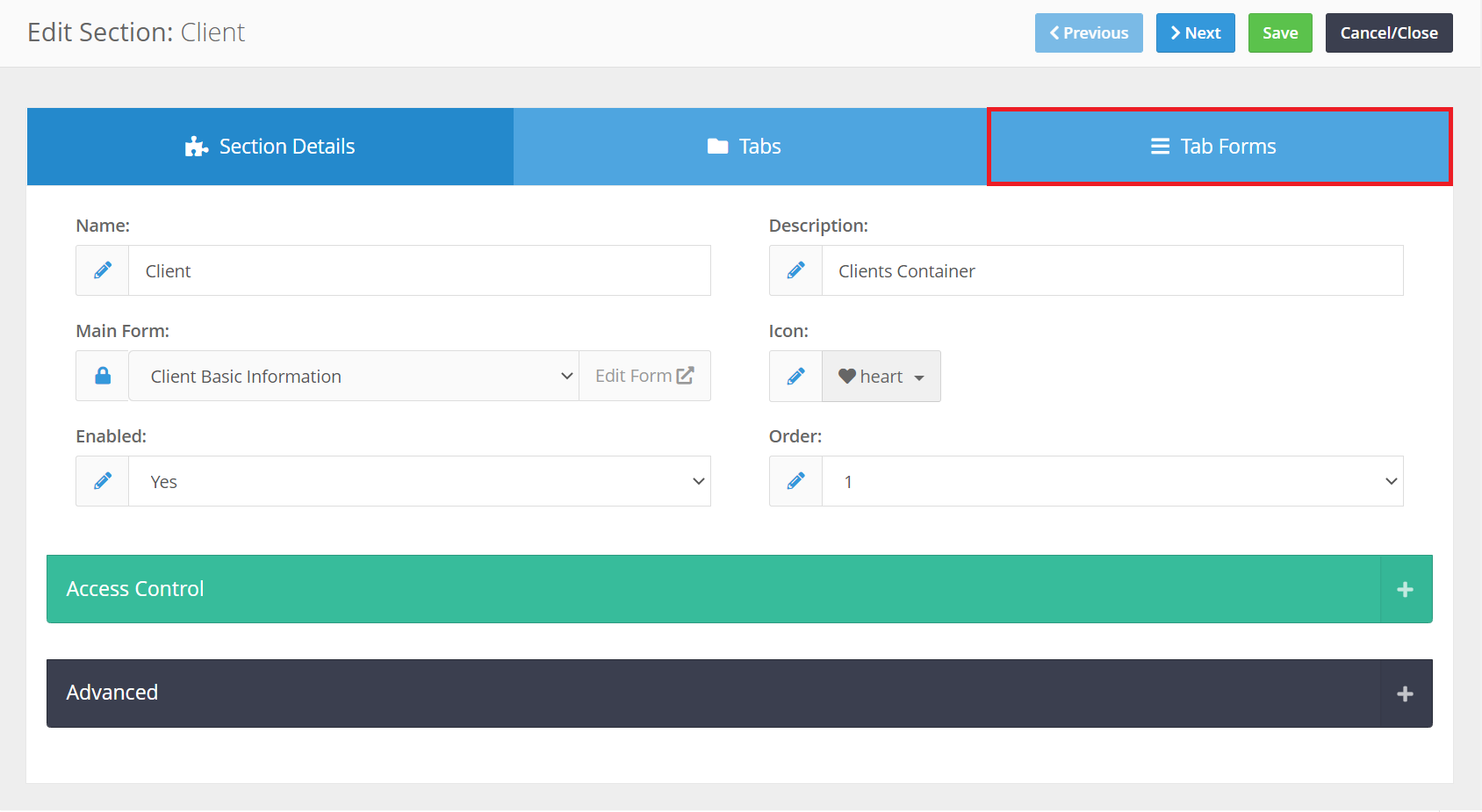 From here you can then select the “Tab” as well as the “Form” you’re wanting to alter the permissions for. You can click the ”+” beside the form name to drop down and view the permissions for said form as well.
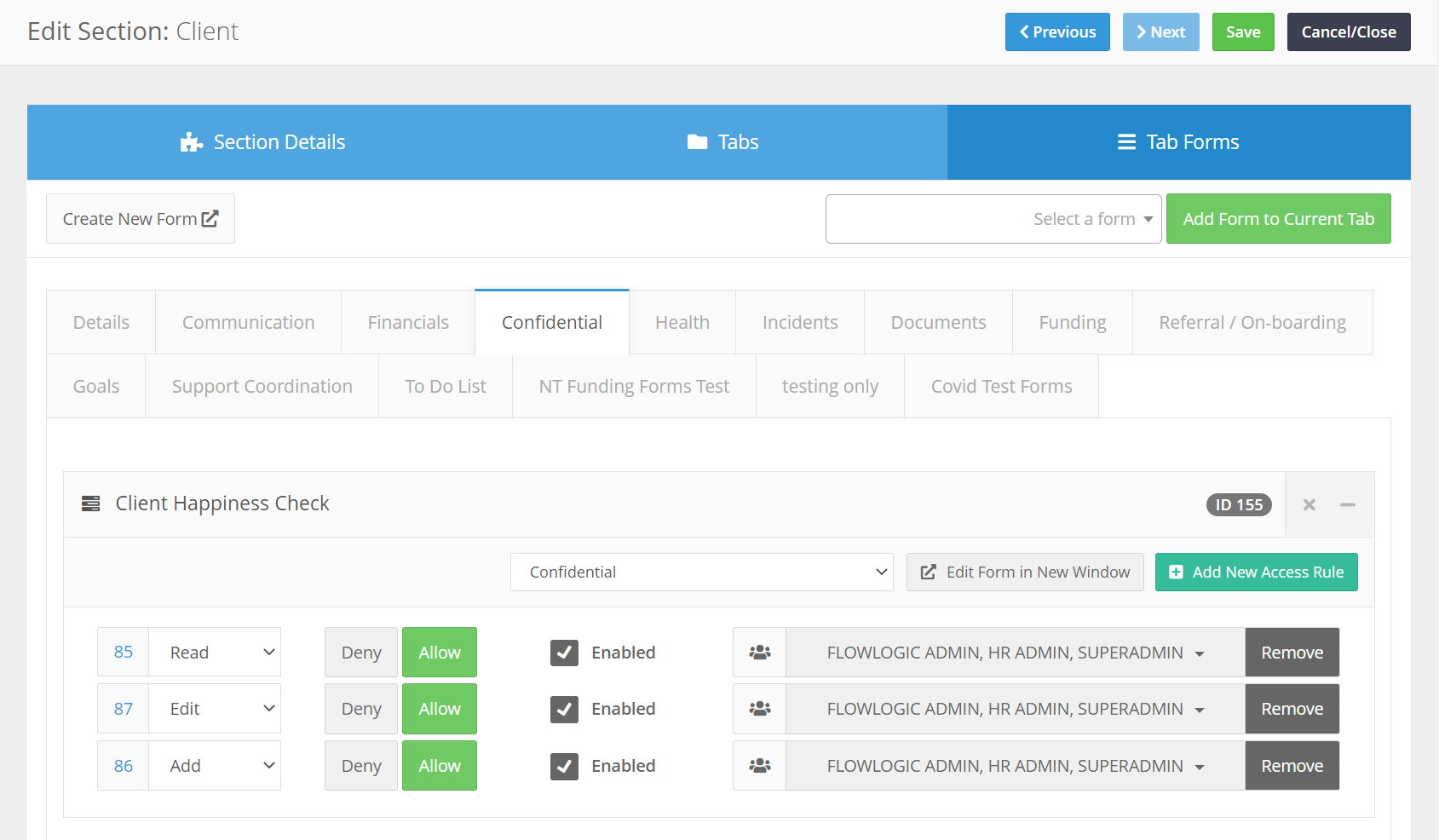
Access Rules Defined
-

This is the ability for the user to read all records that are submitted under this particular section. This would allow one user to review all information as required. -

Edit allows the user to make changes to any record under that particular section with no restrictions on who originally created the record. -
This is the rule that allows staff to generate a record under this particular section. -
Read own is the ability for the user to read any record that they themselves have submitted. If the user is the author of the record they will immediately have access to read through what they have just saved. -
Exactly as the above the Edit Own right allows a user to make changes to any records they themselves have submitted. Again if the user is the author of the record they immediately have access to this.
Linked User Permissions
Below is a list of access rules that are only present in the “Staff Section”
- User Read
- User Edit
- User Add
- Manager Read
- Manager Edit
- Manager Add
Important
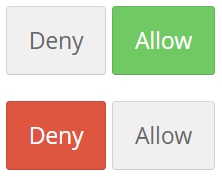 All the above access rules can be altered from “Allow” to “Deny” meaning it will then do the opposite of what was previously specified. E.g. If I “Deny” read rights it will prevent anyone in the group from reading any records in that area whatsoever. If a user is a part of two separate groups one allowing access and the other denying access this user will automatically be Denied as a deny access rule will always override an “Allow” access rule.