Key Points
FlowLogic's DocuSign integration lets you send documents for electronic signature from within FlowLogic, without switching platforms. Open the Form on the record, click E-Sign, enter each signer's email address and click Request E-Signature.
You need a DocuSign account at a compatible subscription level. The FlowLogic support or onboarding team will help you link it to your instance.
The Form needs at least a signature field for each recipient, an electronically signed document return field and an electronic signature history field.
Recipients don't need a DocuSign account. They sign in order, and each person gets their request once the previous person has finished.
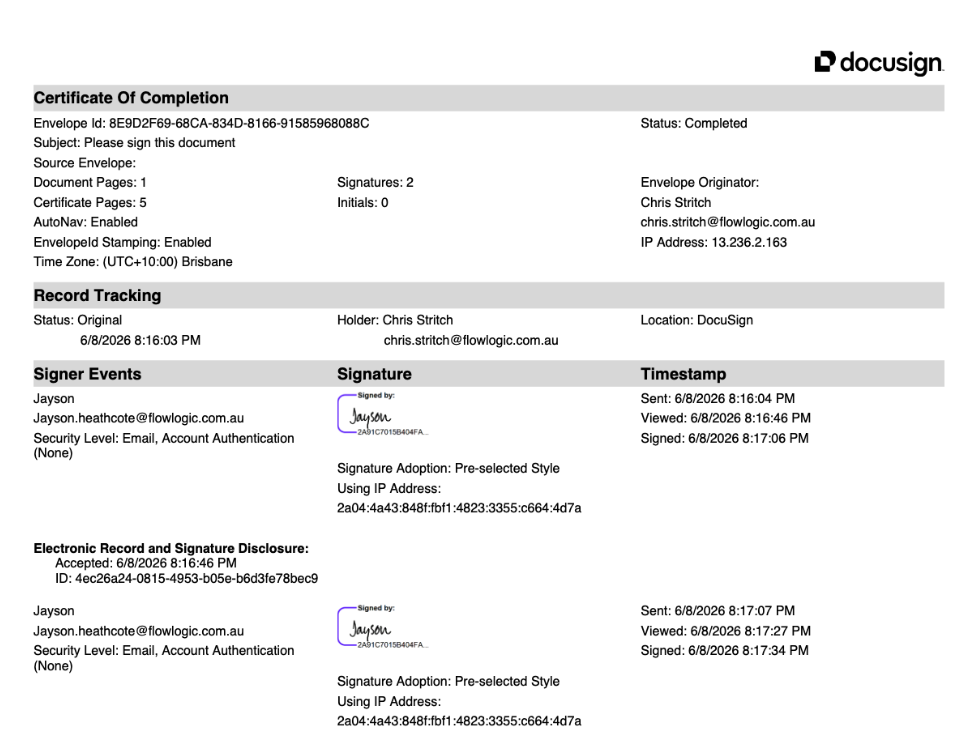
When everyone has signed, the completed document and a certificate of completion with a full audit trail are stored against the record in FlowLogic.
Setup
DocuSign requires an initial configuration before you can start using it. You'll need a DocuSign account at a compatible subscription level, and the FlowLogic support or onboarding team will help you link it to your instance. You won't need to navigate that setup alone.
Form Requirements
E-sign documents can be placed against staff members, clients, service agreements, consent forms, contracts, or other records across the system. When setting up the form, make sure it includes at a minimum:
- A signature field for each recipient
- An electronically signed document return field
- An electronic signature history field for your audit trail
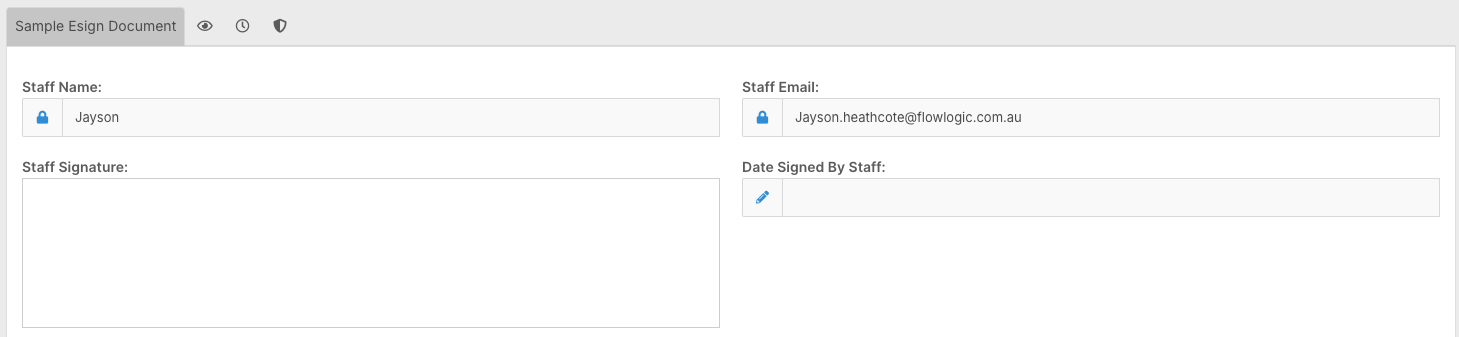
You can also include optional checkboxes or other interactive fields for recipients to complete when they open the document, depending on what information you need from them.
Sending a Document for Signature
Open the relevant record and navigate to the form you want to send. Fill in any details that need to be captured beforehand, then save and close. Reopen the document and click the E-Sign button in the bottom-right corner.
This takes you to the Request Electronic Signature screen. Enter the email address for each person required to sign - this could be a staff member and their representative, a participant and their representative, or any combination that suits your process. Then confirm the document name, subject line, and DocuSign email address before clicking Request E-Signature.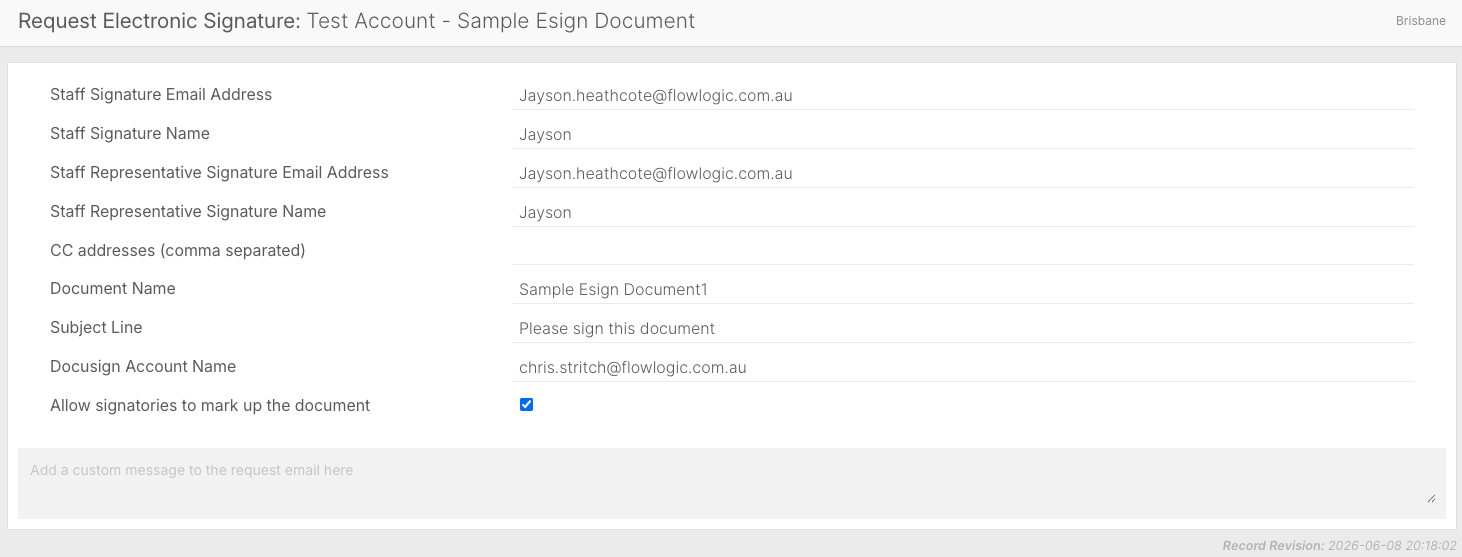
A confirmation message will appear once the request has been sent successfully.
The Signing Process
Each recipient receives an email with a link to the document. They click through, agree to the DocuSign terms and conditions, complete any fields assigned to them, and sign. Recipients don't need a DocuSign account - the entire process happens in their browser with no software or account setup required.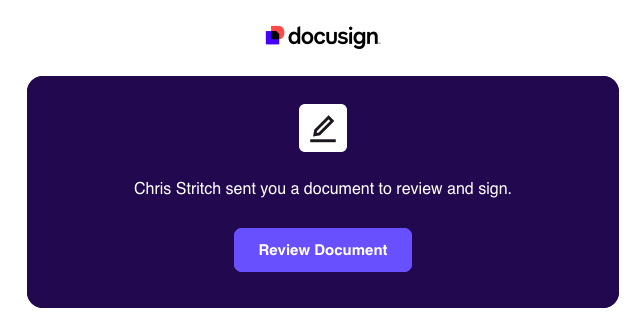
Signatures are completed in order. The document won't move to the next recipient until the previous person has finished their section. Once each person signs, the next recipient automatically receives their request.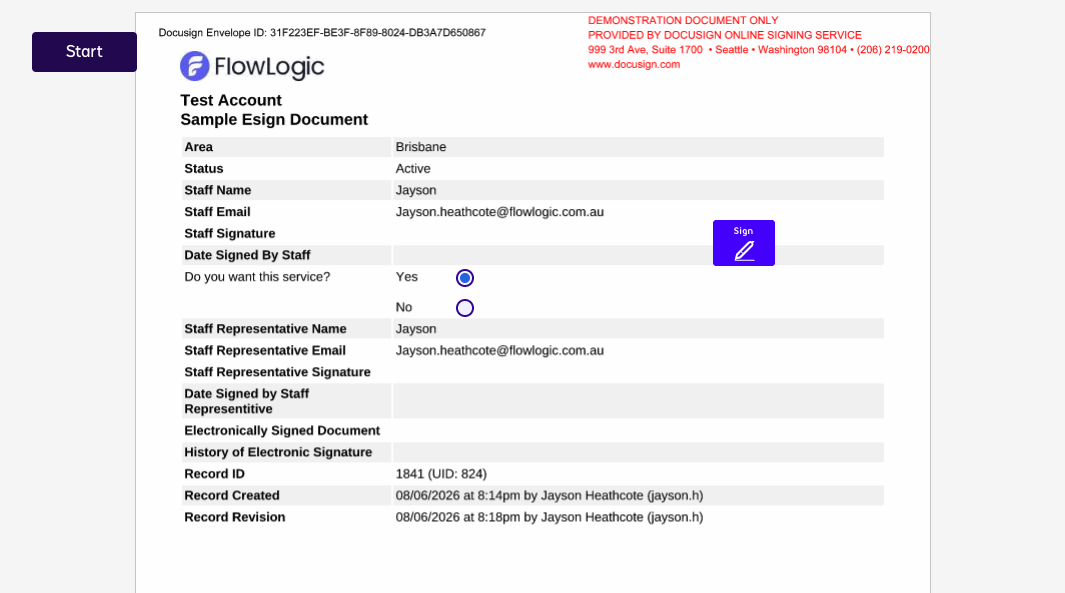
Completed Documents
Once all signatures are in place, navigate back to the relevant record in FlowLogic. You'll find the completed document along with a certificate of completion that includes a full timestamped history of who signed, when they signed, and in what order. Both the signed document and the certificate can be downloaded if you need to share them with a funding body, compliance team, or another system.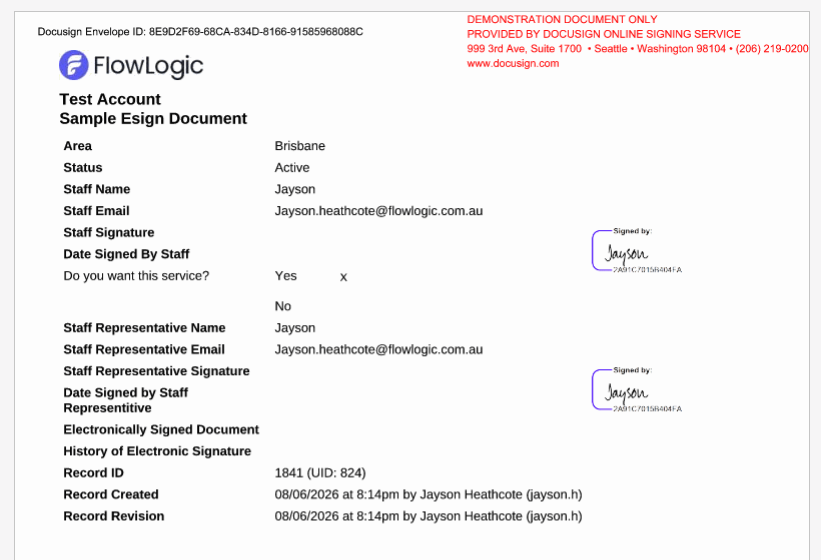
All of this is stored directly within FlowLogic, keeping your records centralised and audit-ready.