
Key Points
To create a virtual form, add a reference field to the master form, create the virtual form and link it to that field, add it to the relevant Section, then test it with a real record.
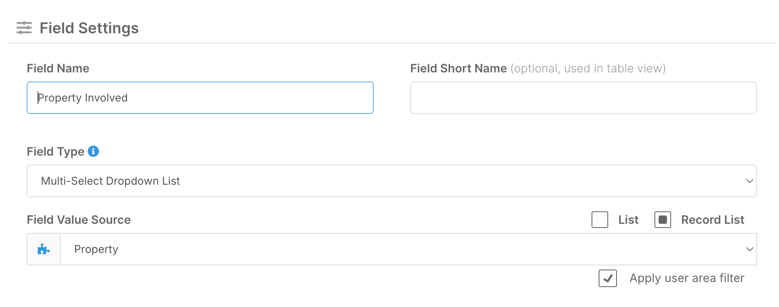
The reference field is the link between the master form and the virtual form. In the example, a multi-select dropdown on the Incident, Accident, Near Miss form references the Property section using a record list.
To make a form virtual, scroll to its Advanced section, tick the Virtual Form checkbox, then select the master form and the reference field.
A virtual form inherits all fields from the master, so its Fields tab is no longer accessible and future changes to the master flow through automatically.
Once set up, the same record is visible in the original form and in the linked profile, without any duplicate data entry.
This article walks through creating a virtual form step by step, using the Incident, Accident, Near Miss form as an example. The goal is to make incidents visible within the Property section, so any incident linked to a property automatically appears in that property's profile. The same process applies to any other form in the system.
Add a Reference Field to the Master Form
The virtual form needs a field to know which record to link to. Go to Forms, open the Incident, Accident, Near Miss form, and add a new field for Property. Since an incident may involve more than one property, use a multi-select dropdown and set it to reference the Property section using a record list. Save the form once the field is configured.

This field is the key link between the master form and the virtual form, so make sure it's set up correctly before moving on.
Create the Virtual Form
Go back to Forms and create a new form. Name it something clear like Incident, Accident, Near Miss Virtual Form and add a description to make it easy to find later.
Rather than adding fields manually, scroll down to the Advanced section and locate the Virtual Form settings at the bottom. Tick the virtual form checkbox, then select the Incident, Accident, Near Miss form as the master, and choose the Property Involved field as the reference field. Save the form.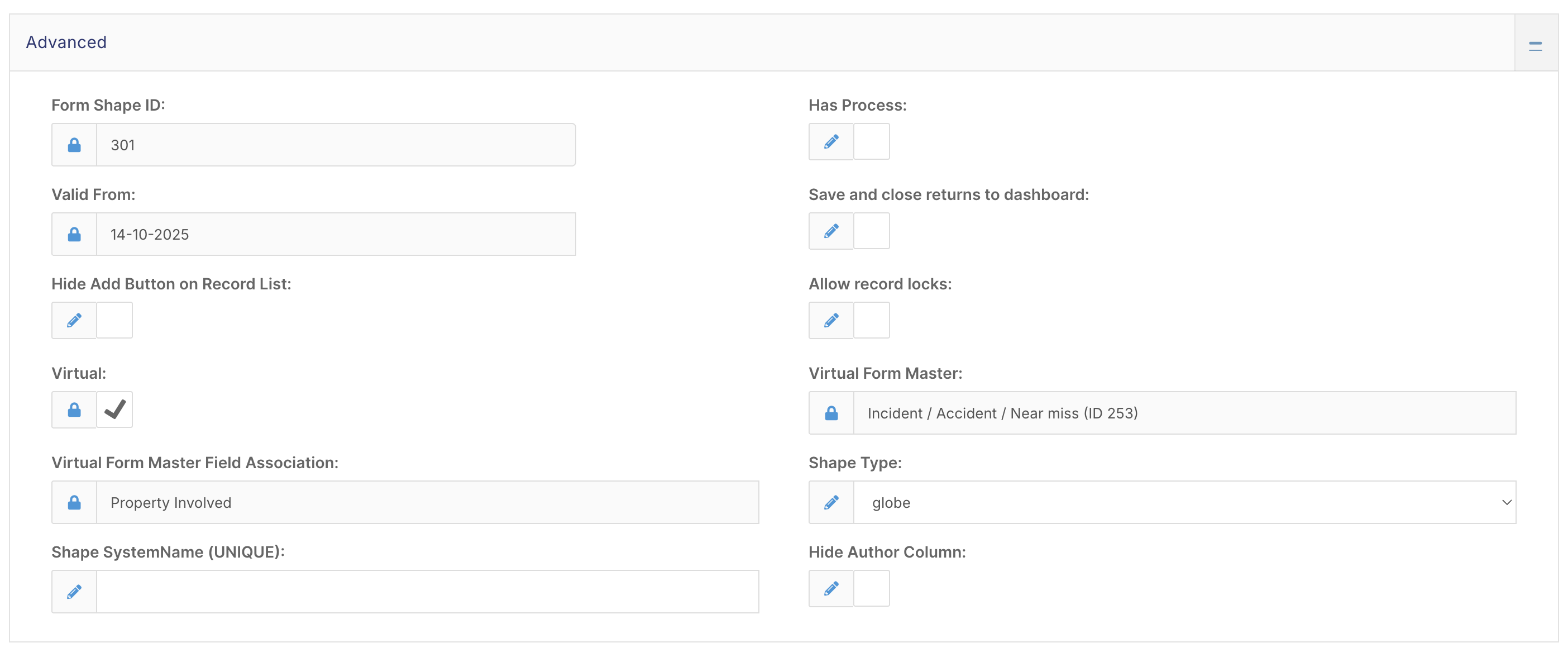
Once saved, you'll notice the Fields tab is no longer accessible. This is expected - the virtual form inherits all fields from the master automatically, and any future changes to the master will flow through to the virtual form.
Add the Virtual Form to the Property Section
Go to the Section Menu and open the Property section. Create a new tab called Incidents, then add the virtual form to that tab. Save the section.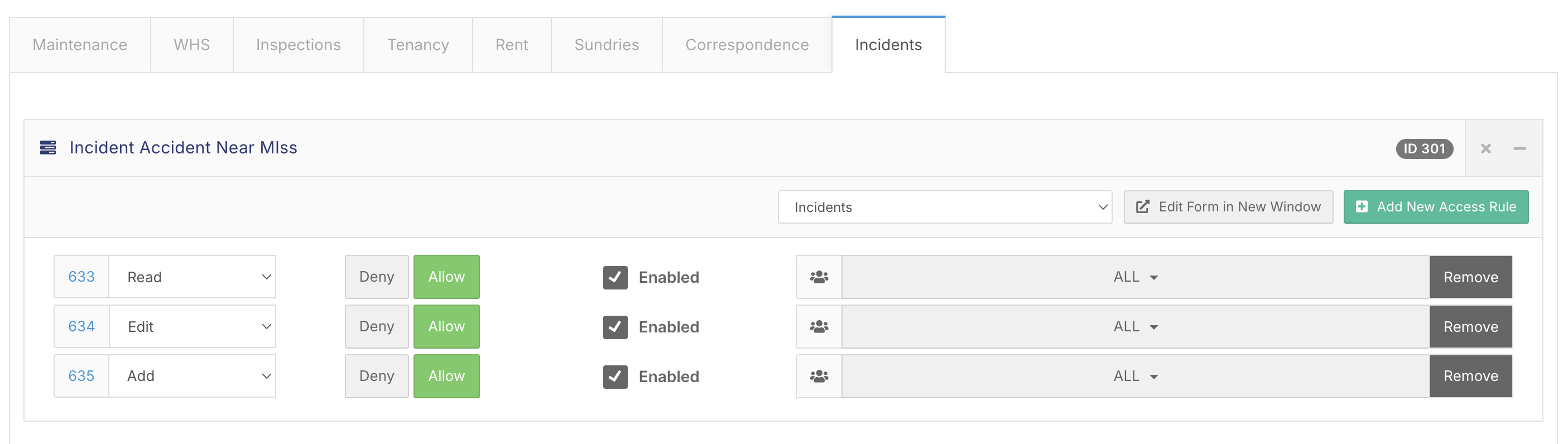
The virtual form is now integrated into the Property section and ready to use.
Test It
Open an existing incident record, edit it, and select a property from the Property Involved field - for example, Clearwater. Save the record, then navigate to the Property section and open the Clearwater property. Under the Incidents tab, you should see the incident record now appearing.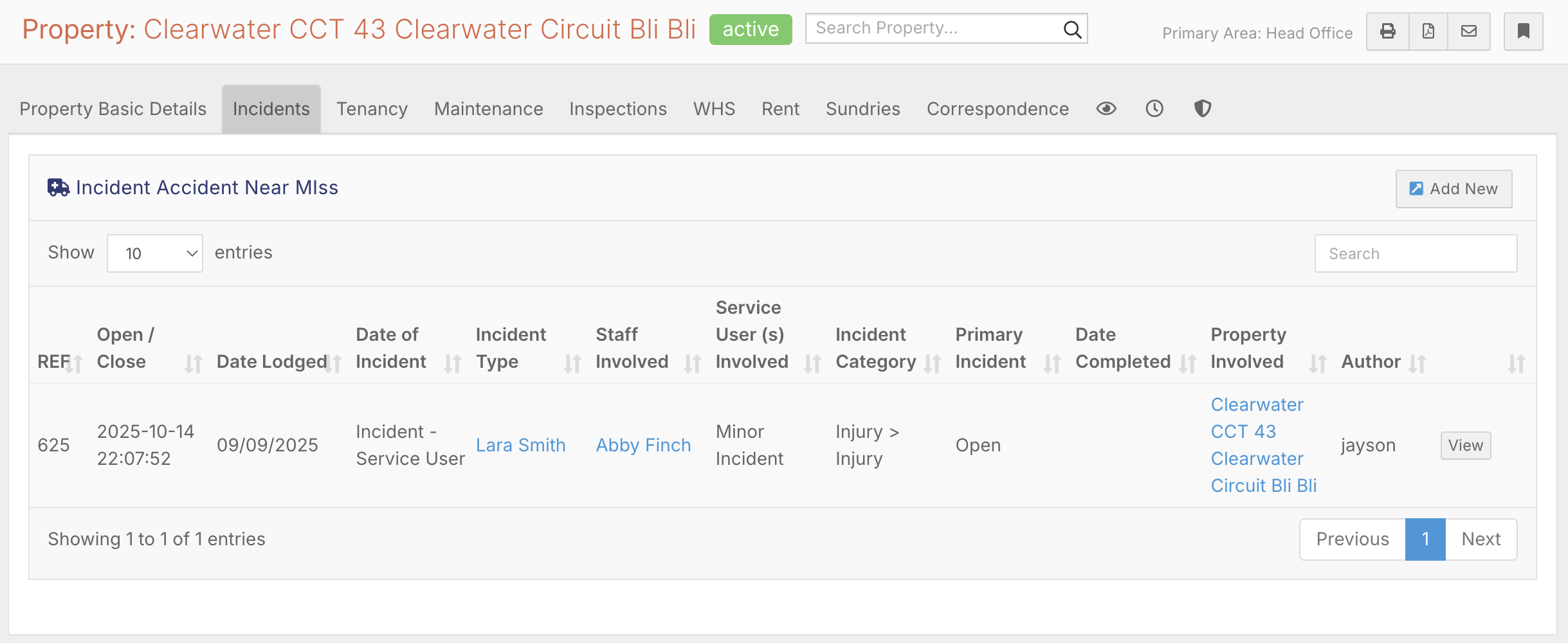
The same record is visible in the original form, in the relevant staff or client profile, and now in the property profile - all without any duplicate data entry.