
Key Points
Roster Automations can be used to identify and notify staff when shift notes are missing.
Schedule-based triggers allow automations to run after a shift has ended.
Conditions ensure notifications are only sent when shift notes have not been completed.
Internal notifications help keep communication within the system without relying on email.
This automation improves compliance, record accuracy, and reduces manual follow-ups.
Purpose of This Automation
This automation is designed to:
Identify shifts where notes have not been completed
Notify staff after a defined period
Reduce the need for manual checking and follow-ups
Ensure shift records remain complete and compliant
Creating the Automation
To create the automation:
-
Navigate to the Automations section.
-
Click the Plus (+) button in the top-right corner.
This opens the automation setup screen.
Selecting the Data Type
Choose:
Roster Automation
This ensures the automation applies to roster data and shift activity.
Naming the Automation
Enter a clear name for the automation.

Example:
Missing Shift Note
Using clear naming conventions makes it easier to manage automations later.
Setting the Trigger
Set the trigger type to:
Schedule
Then configure:
Base field: Shift End Time
Trigger timing: 1 week after shift end
This ensures staff are given time to complete notes before being notified.
Adding Conditions (If Statements)
Conditions ensure the automation only runs when required.
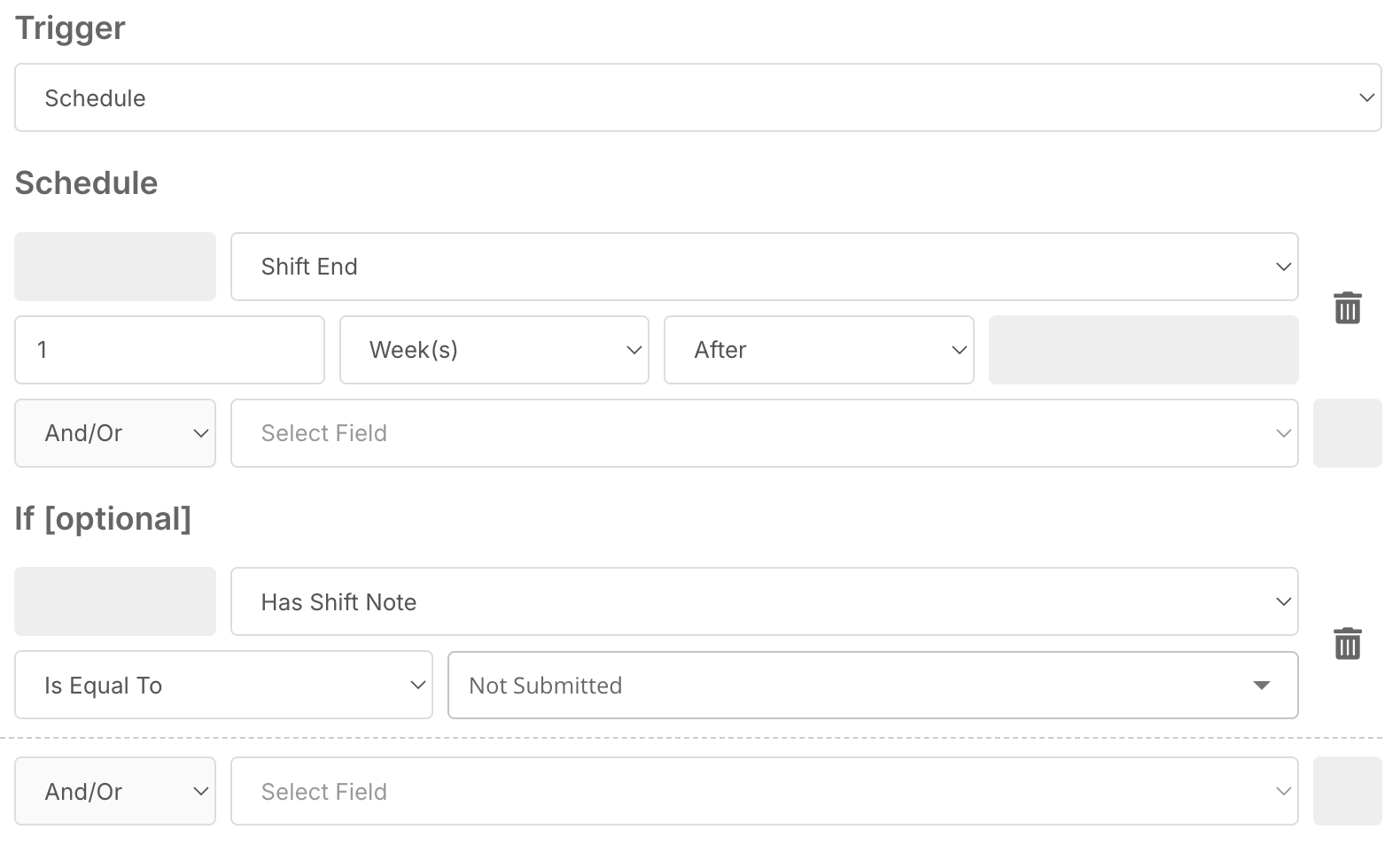
Primary Condition
Shift Note = Not Submitted
Recommended Additional Conditions
Shift is Published
Shift is Completed
These conditions help:
Avoid unnecessary notifications
Ensure the automation only targets valid shifts
Defining the Action (Do Options)
Choose the action:
Send Internal Notification
Internal notifications are useful because:
They stay within FlowLogic
They reduce email clutter
They are visible directly within the system
Selecting Recipients
Set the recipient to:
Employee on the roster
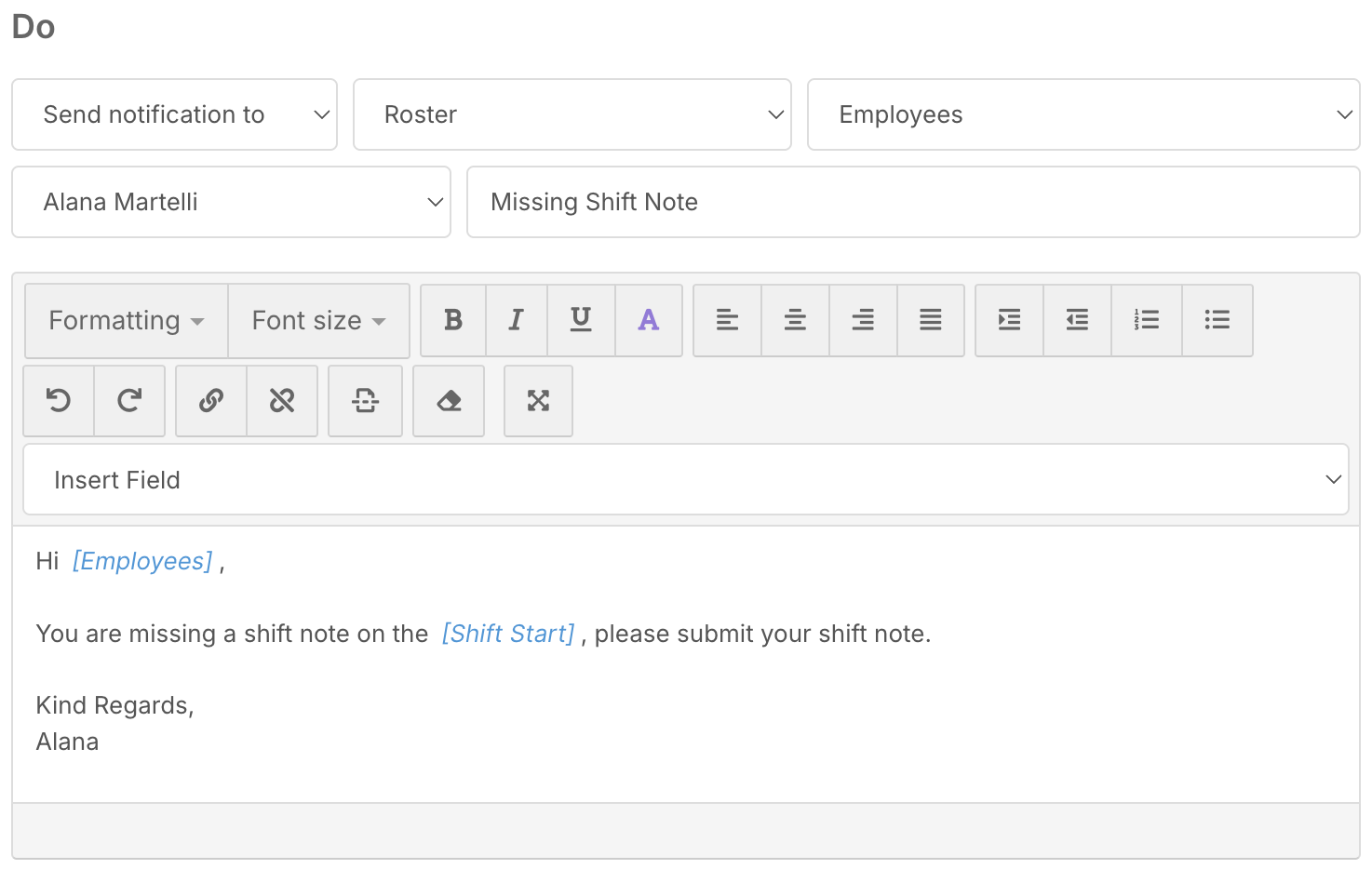
This ensures the notification is sent directly to the staff member responsible for the shift.
You can also include additional recipients if needed, such as:
Supervisors
Team leaders
Coordinators
Setting the Sender
Select a sender for the notification.
This can be:
A specific staff member
A system-based sender
Example:
Roster Manager or Team Leader
This helps make the notification clear and professional.
Configuring the Notification Message
Subject Line
Example:
Missing Shift Note
Message Content
You can include dynamic fields such as:
Staff name
Shift date
Shift details
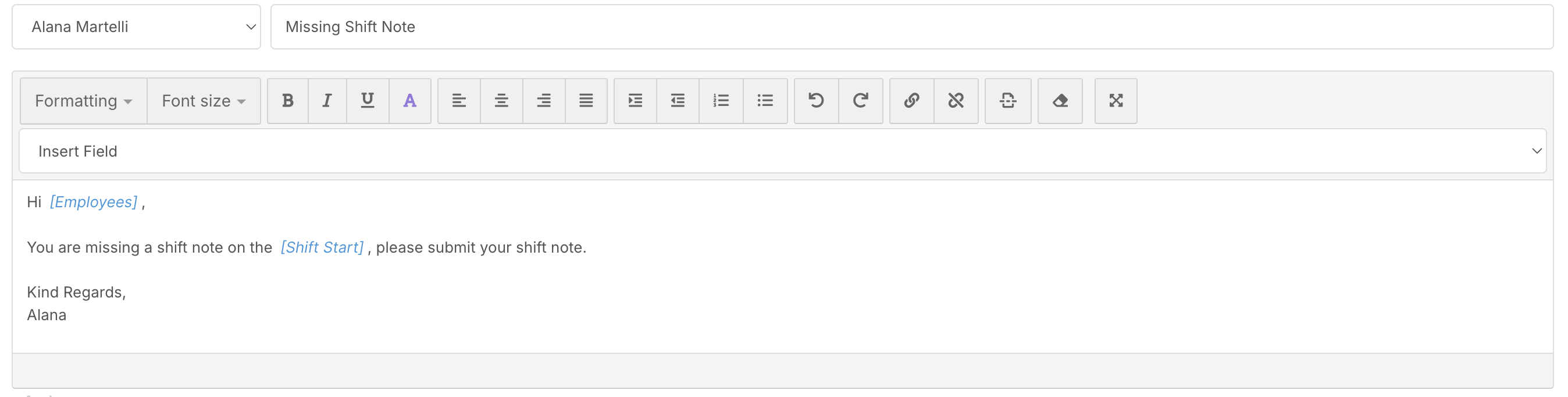
Example message:
Hi [Staff Name],
You have a missing shift note for your shift on [Shift Date].
Please complete this as soon as possible.
Dynamic fields personalise the notification and improve engagement.
Saving the Automation
Once all fields are configured:
-
Review the automation settings
-
Click Save
The automation will now appear in the Roster Automations list.
Monitoring the Automation
After saving, the automation will run automatically based on the defined schedule.
You can:
Monitor activity through Automation Logs
Edit or disable the automation if needed
Adjust timing, conditions, or recipients over time
Best Practice Recommendations
✔ Allow a reasonable delay before triggering reminders (e.g., 1 week)
✔ Use conditions to avoid unnecessary notifications
✔ Keep notification messages clear and actionable
✔ Use internal notifications to reduce email overload
✔ Regularly review logs to ensure the automation is working correctly