
Key Points
To create a risk matrix, go to Record Management > Risk Assessment Tool, create a new matrix, add risk levels, likelihood options and consequence options, then click Save.
Enable Custom Mode for full control, including setting your own risk weightings. Standard mode applies default weightings automatically.
You can create as many risk matrices as you need for different types of assessments.
To use the matrix for risk scoring, link it to the relevant Form.
Not all users have access to the Risk Assessment Tool. Viewing matrices and creating, editing or deleting them need different access levels.
Creating a Risk Matrix
This article walks you through setting up a custom risk matrix using the Risk Assessment Tool in FlowLogic. For a visual walkthrough, see the accompanying video above.
What is a Risk Matrix?
A risk matrix defines how risks are measured, scored, and visualised across your organisation. Setting one up properly ensures that risk assessments are consistent, easy to track, and meaningful to everyone who uses them.
Access the Risk Assessment Tool
Navigate to the Record Management tab and select Risk Assessment, Tool. This opens the Risk Matrices screen, where you can view, create, delete, or archive matrices.
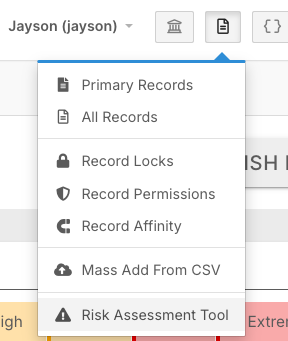
A written tutorial is also available on this screen if you need a quick reference while building your matrix.
Create a New Matrix

Click to create a new matrix and give it a clear, recognisable name.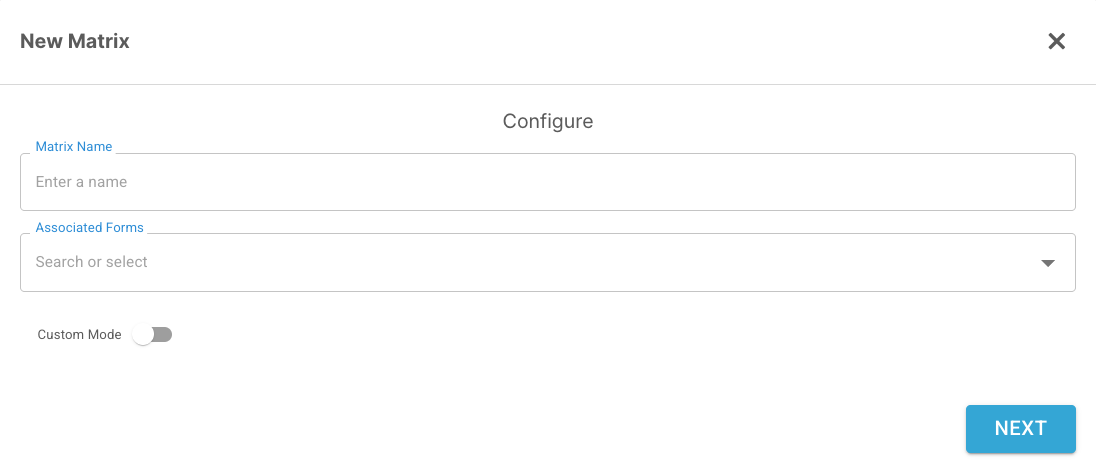
- If you have an existing form to link it to, you can do that here - otherwise, leave it unlinked and connect it later.
- Enable Custom Mode for full control over how the matrix is structured. This is recommended for organisations with specific risk frameworks. If you prefer a ready-made setup, the standard mode applies default weightings automatically.
Add Risk Levels
Add your risk levels and colours - for example: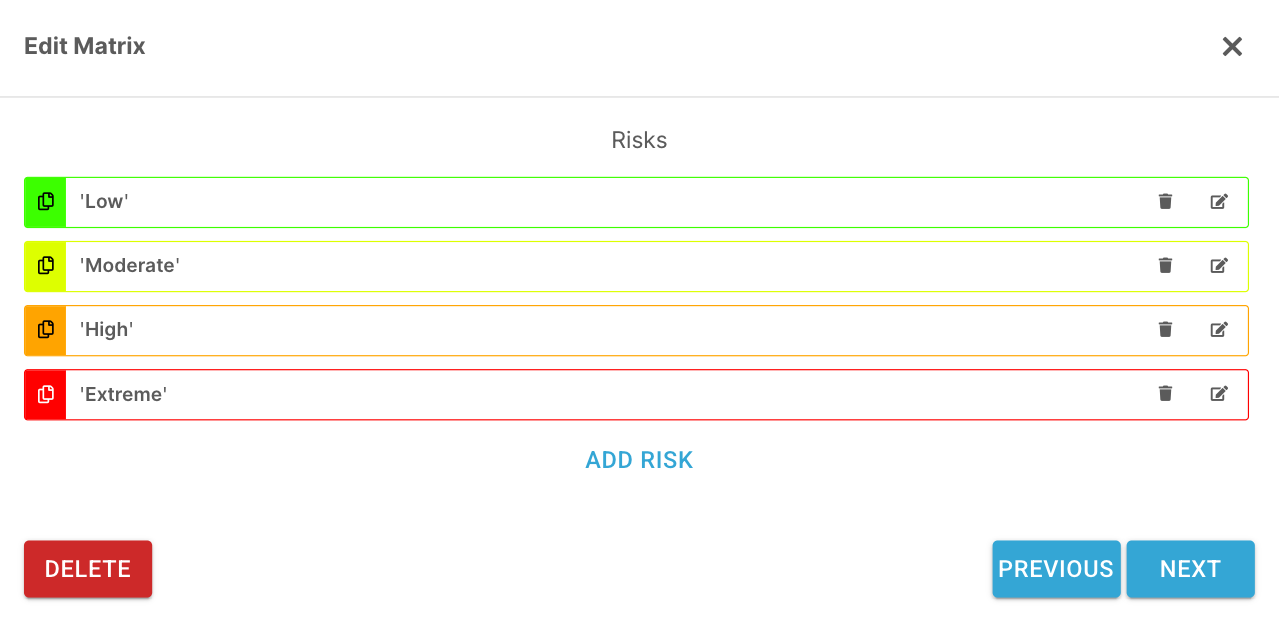
You can create multiple risk matrices for different types of assessments within your organisation - there's no limit.
Add Likelihood Options
Click Next to move to the Likelihood section. Add options that reflect how frequently a risk might occur. A common four-level setup is: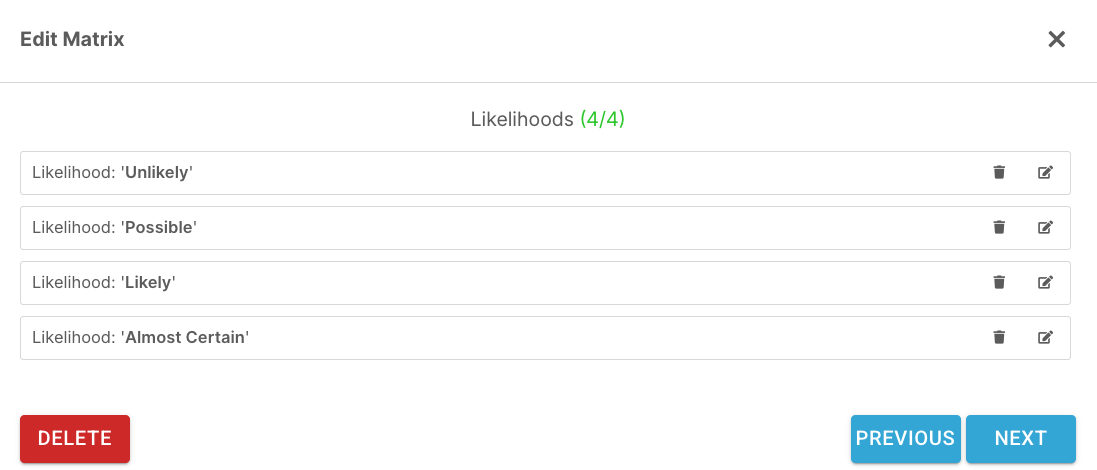
- Unlikely
- Possible
- Likely
- Almost Certain
Tip: Attach real-world definitions to each level. For example, Unlikely might mean something that could occur once every few years, while Almost Certain refers to risks that happen regularly or under predictable conditions. Consistent definitions help everyone in your organisation interpret risk the same way.
Add Consequence Options
Move to the Consequence section and add your consequence levels. A common four-level setup is: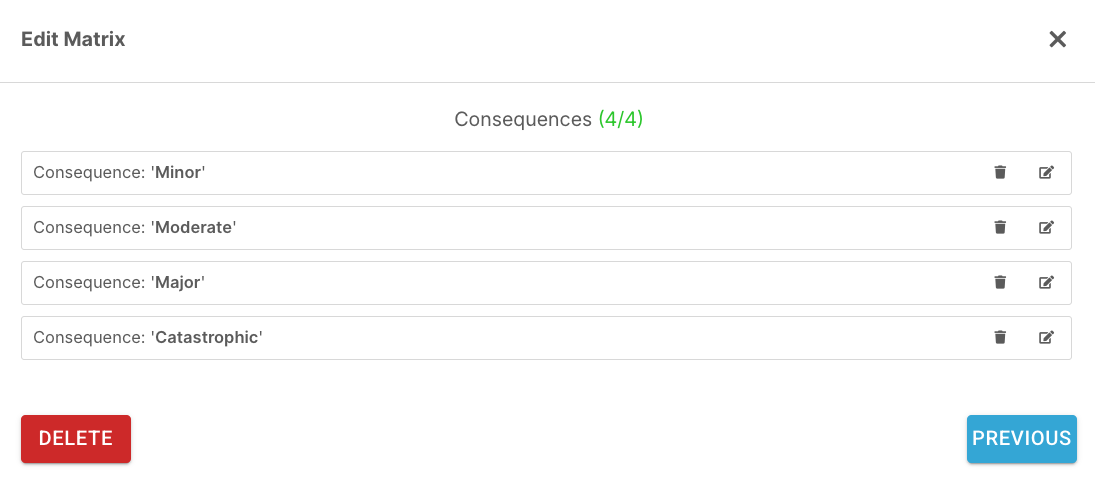
- Minor
- Moderate
- Major
- Catastrophic
Tip: Define what each level means in practical terms. Minor might refer to small inconveniences or low-cost fixes, while Catastrophic covers events that could cause harm, disrupt services, or result in significant financial loss. Clear definitions make assessments more objective and easier to justify.
Keeping the same number of likelihood and consequence options helps your matrix stay balanced and easy to read.
Set Risk Weightings (Custom mode Only)
Once your likelihoods and consequences are in place, assign the risk weightings. This determines how each combination of likelihood and consequence produces an overall risk rating.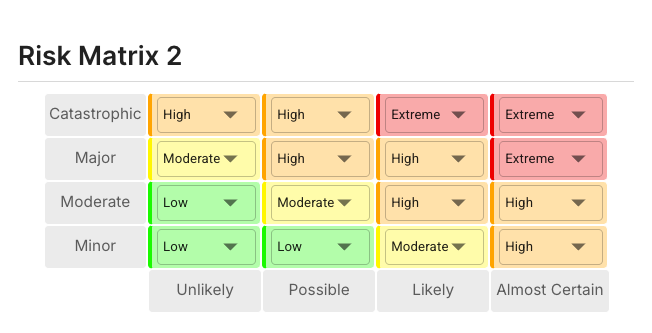
Each cell in the matrix represents a unique pairing - for example:
- Likely + Major - High
- Possible + Minor - Low
Take time to review and adjust these to align with your organisation's internal policies and risk tolerance. When configured correctly, the matrix becomes a powerful decision-making tool that helps teams prioritise what needs immediate attention.
Save and Assign
Once you're happy with the setup, click Save in the bottom right corner. You can then assign the matrix to a form to begin using it for assessments straight away, or return to this later.
Linking Your Matrix to a Form
To make risk scoring functional, go to your form layout and link your new risk matrix to the relevant form. This allows users to automatically record, calculate, and track risks during assessments.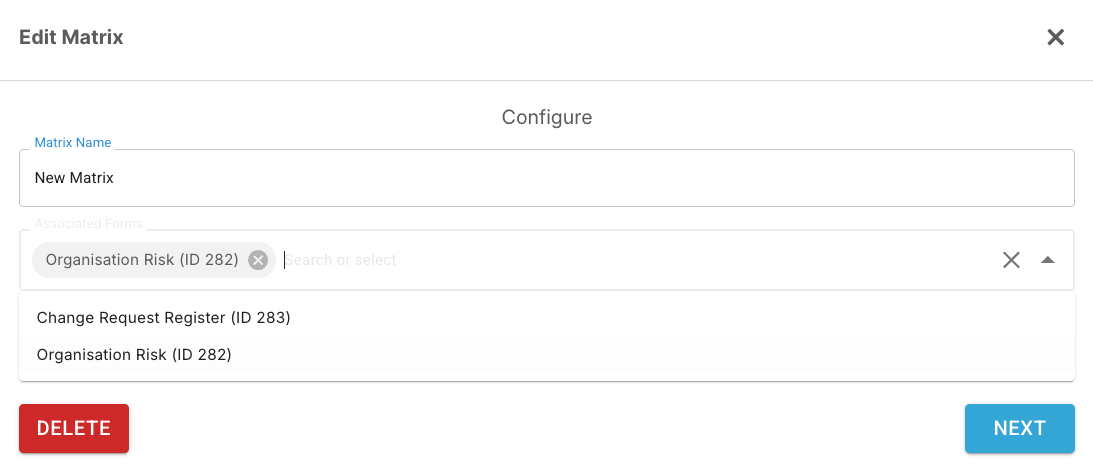
Full instructions for adding risk fields to forms and assigning a matrix are covered in a separate guide.
Permissions
Not all users will have access to the Risk Assessment Tool. Access levels vary:
- View only - can see existing matrices
- Create/Edit/Delete - available to users with elevated permissions
Check the permissions section at the bottom of the tutorial screen to confirm what access is required. Ensure the right staff have the correct permissions before assigning responsibilities.
Tips for a Useful Risk Matrix
- Test your matrix on a form before rolling it out to all staff.
- You can return to edit risk names and colours at any time.
- Build your definitions around how your team actually measures risk in practice - a matrix that reflects real workflows will be far more useful than a generic one.