
Key Points
To add a risk matrix to a Form, add Likelihood and Consequence fields, add a Risk Rating column in Table Config, then link the Form to a matrix in the Risk Assessment Tool.
FlowLogic then calculates and shows a risk rating automatically from the likelihood and consequence values entered.
Click Save Config after adding the column. If you skip it, the settings aren't applied and the Form won't appear in the risk matrix list.
Risk ratings show colour-coded (green, yellow, orange or red) in the table view, and the Risk Assessment Tool shows a Risk Summary with the average risk level.
You can use the same matrix on as many Forms as you need, or create different matrices for specific departments or risk areas.
Assigning a Risk Matrix to a Form
This article walks you through how to add consequence and likelihood fields to a form, set up a Risk Rating column, and link it to a risk matrix in FlowLogic. For a visual walkthrough, see the accompanying video above.
What This Process Does
Linking a risk matrix to a form allows the system to automatically calculate and display a risk rating based on the likelihood and consequence values entered by the user. This helps your organisation capture, monitor, and respond to potential risks directly inside a form.
Open the Form for Editing
Go to the System Menu and select Forms. Find the form you want to add the risk rating to and click Edit, then go to the Fields tab.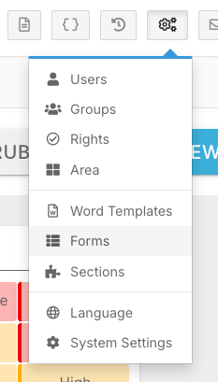
From here, you will need to add two fields if they are not already present:
- Likelihood
- Consequence

These fields are required so the system knows which values to use when calculating the overall risk rating. Once both fields are added, click Save in the bottom right corner to confirm your changes.
Add a Risk Rating Column
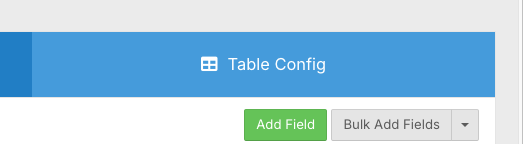
Go to the Table Config tab in the top right corner, then scroll down until you find the Custom Columns option and click Add Column.
Fill in the following:
- Give the column a name - for example, Risk Rating
- Optionally add a short description
- From the Column Type dropdown, select Risk Rating
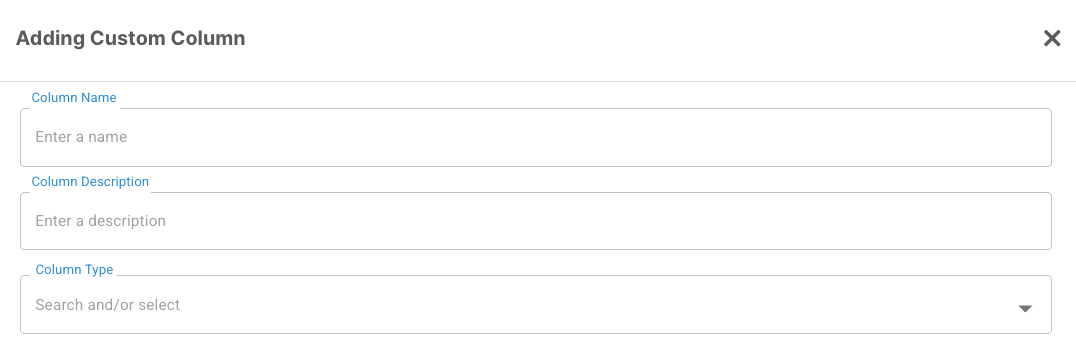
Once that is set, link your Likelihood and Consequence fields to the column by selecting them from the list. This is what connects your form data to the risk rating in the table view.
When done, click Confirm and then scroll to the top right and click Save Config.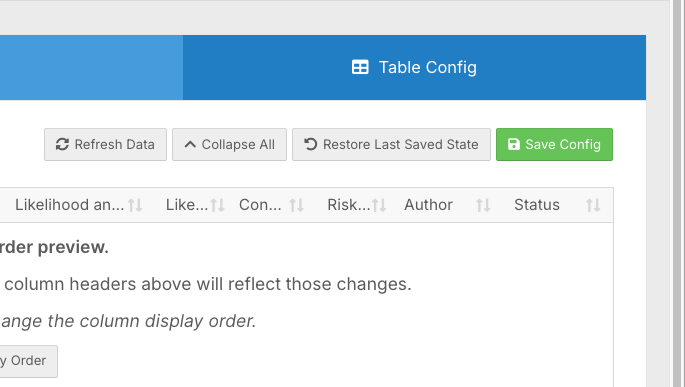
Saving the config is an important step - if you skip it, your settings will not be applied and the form will not appear in the risk matrix list.
Link the Form to a Risk Matrix
Go to Record Management and open the Risk Assessment Tool. Find the matrix you want to use and associate it with the form you just set up. The form should now appear in the linked section of that matrix.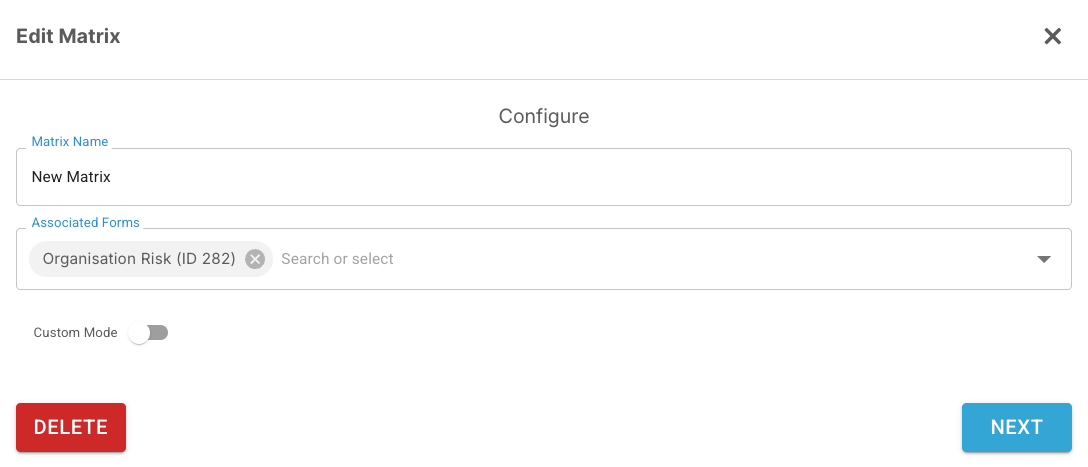
If your form does not appear here, check the following:
- Both the Likelihood and Consequence fields have been added to the form
- Risk Rating was selected as the column type in Table Config
- You clicked Save Config before exiting that screen
Test the Setup
Open the form from the left-hand side menu and add a new record. Scroll to the bottom to fill in the Likelihood and Consequence fields, then save the form. A risk rating will be generated automatically.
Viewing Risk Ratings
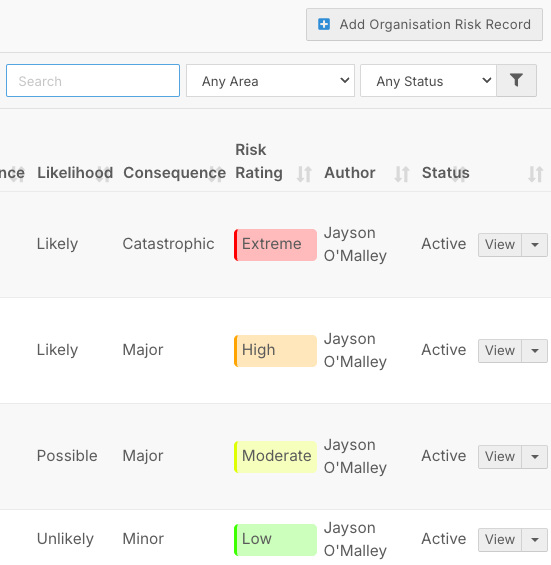
Once records are saved, risk ratings are visible directly in the table view without needing to open each form. Colour-coded ratings - green, yellow, orange, or red - give admin staff and managers a quick overview of risk levels across multiple entries.
From the Risk Assessment Tool, you can also click on the form to view all ratings in one place. A Risk Summary at the top displays the average risk level across all records, helping you identify patterns or recurring issues that may need further attention.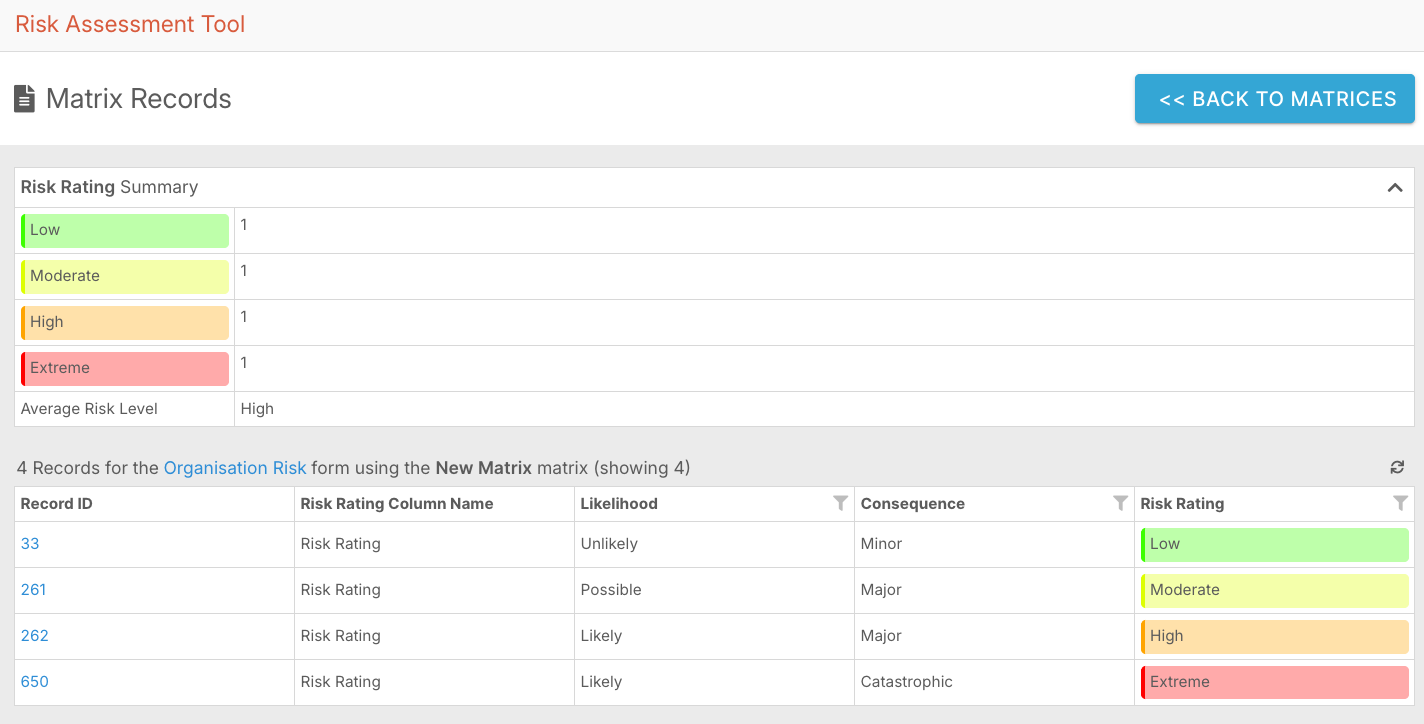
Using Multiple Forms and Matrices
You can apply this setup to as many forms as needed, using the same matrix or creating different ones for specific departments or risk areas. Over time, this builds a complete picture of organisational risk across your business, improving decision-making and compliance.