
Key Points
Sections organise forms within the left-hand menu.
Each section must contain a Primary Form.
Sections can also include Tabs with additional forms.
Icons, order, and visibility can be customised.
Tabs help organise related forms within the same section.
Preparing Your Forms
Before creating a section, you must first create the form(s) that will belong to that section.
For more information on creating forms, click here
At minimum you need:
One Primary Form
Optionally, you can also create:
Secondary Forms
Secondary forms can be placed inside tabs within the section.
In this example we created:
A Primary Form
A Secondary Form
This allows us to demonstrate how tabs work.
However, a section can function perfectly with only a primary form if additional tabs are not required.Accessing the Sections Menu
To create a new section:
Go to the System Menu.
Select Sections.
This opens the Section Management Page.
Understanding the Sections Page
Here you will see a list of all sections in the system.
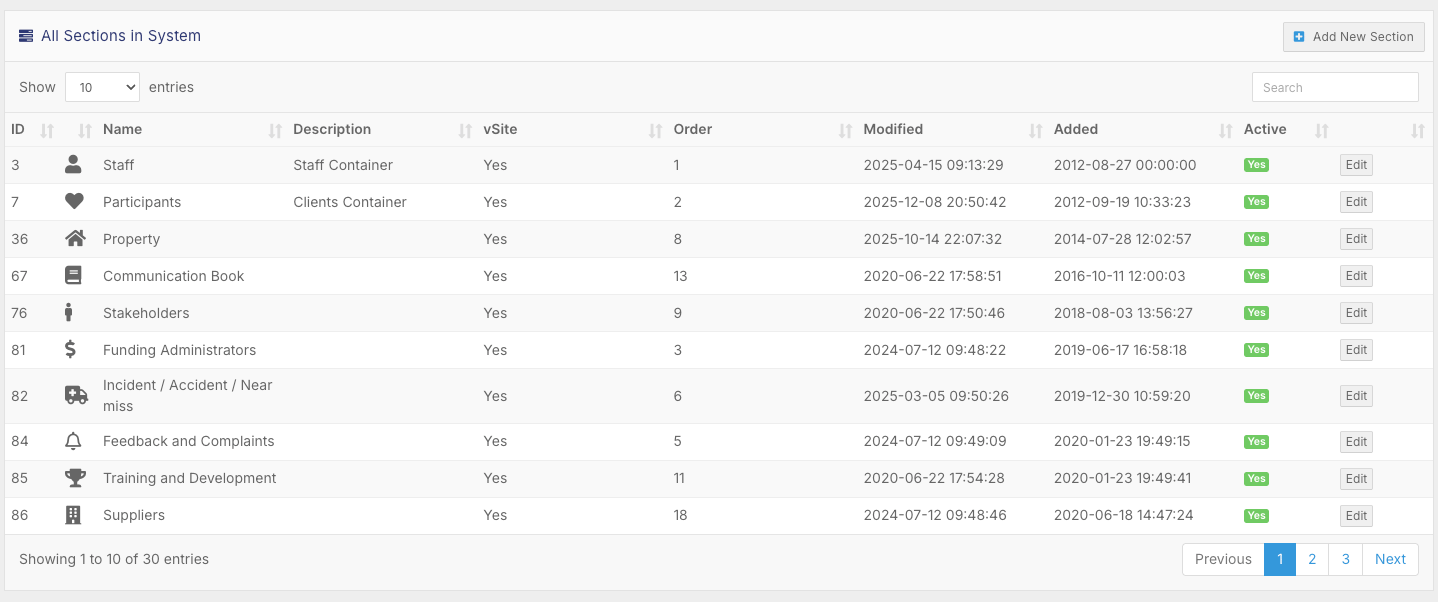
Information displayed includes:
Section ID
Icon
Section Name
Description
VSite Status
Menu Order
Last Modified Date
Date Added
Active / Inactive Status
From this page you can:
Search for sections
Adjust section order
Activate or deactivate sections
Change icons
Review section configuration
Creating a New Section
Click Add New Section in the top right corner.
This opens the Section Details page.
Name the Section
Enter a clear section name.

Example:
Participant / Client Section
Choosing a descriptive name helps users easily identify the section in the left-hand menu.
Add a Description (Optional)
Descriptions are optional but can help explain the purpose of the section.

Select the Primary Form
Choose the form that will act as the main form for this section.

This is the form users will interact with when they open the section.
Choose an Icon and Enable or Disable the Section
Select an icon from the available list.
Icons help users visually identify sections quickly.
Choose something meaningful to the section’s purpose.
You can choose whether the section should be:

Enabled → Visible to users
Disabled → Hidden until ready
Set Section Order
The Order determines where the section appears in the left-hand menu.

Example:
0 places it at the top of the list.
Adjust this depending on where you want the section to appear.
Save the Section
Click Save.
Your section is now created and will appear in the left-hand menu.
Adding Tabs to a Section
Tabs allow you to organise multiple forms within the same section.
This keeps related forms grouped.
Creating a Tab
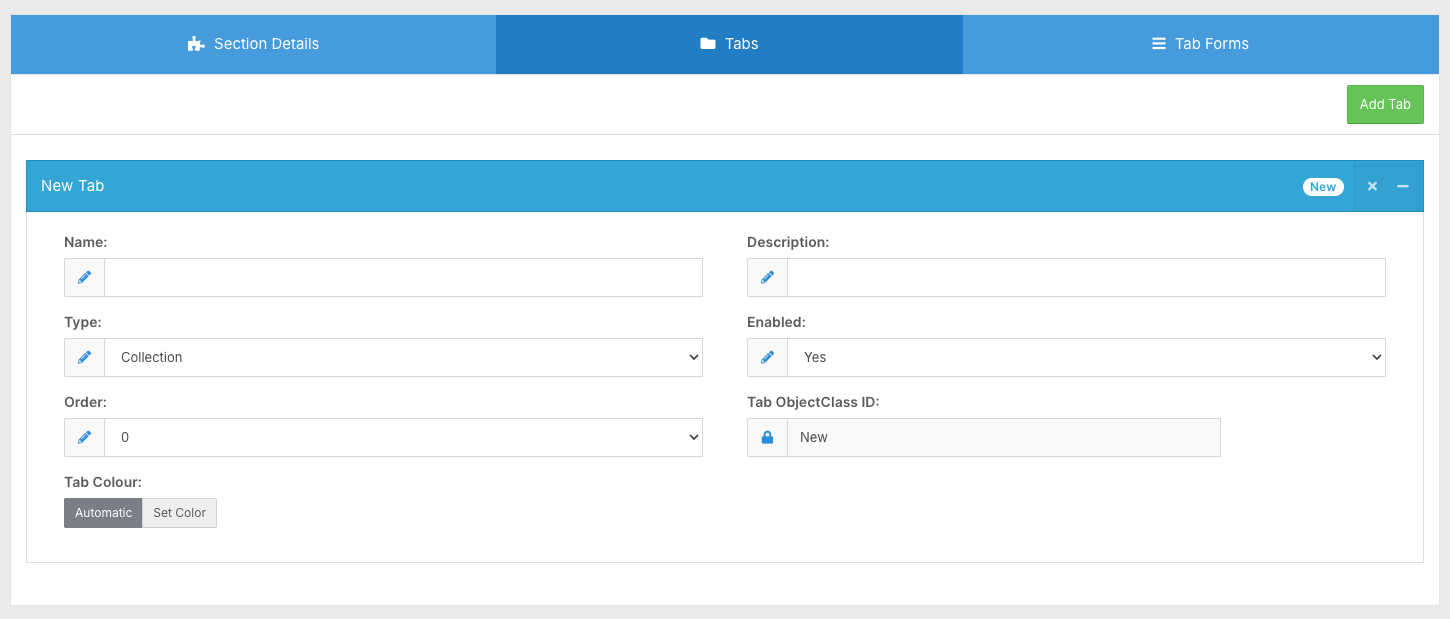
Open your section.
Click the Tabs tab at the top.
Select Add Tab.
Configure the Tab
Enter the following details:
Tab Name
Example: Test Tab
Description
Optional description explaining the tab.
Tab Type
Always set to Collection.
Enable / Disable
Leave enabled to make the tab visible.
Order
Controls tab position if multiple tabs exist.
Tab Colour
Choose a colour to distinguish the tab visually.
Example used: Pink
Click Save.
Your tab is now created.
Assigning Forms to Tabs
Once a tab is created, you can add forms to it.
Adding a Form to the Tab
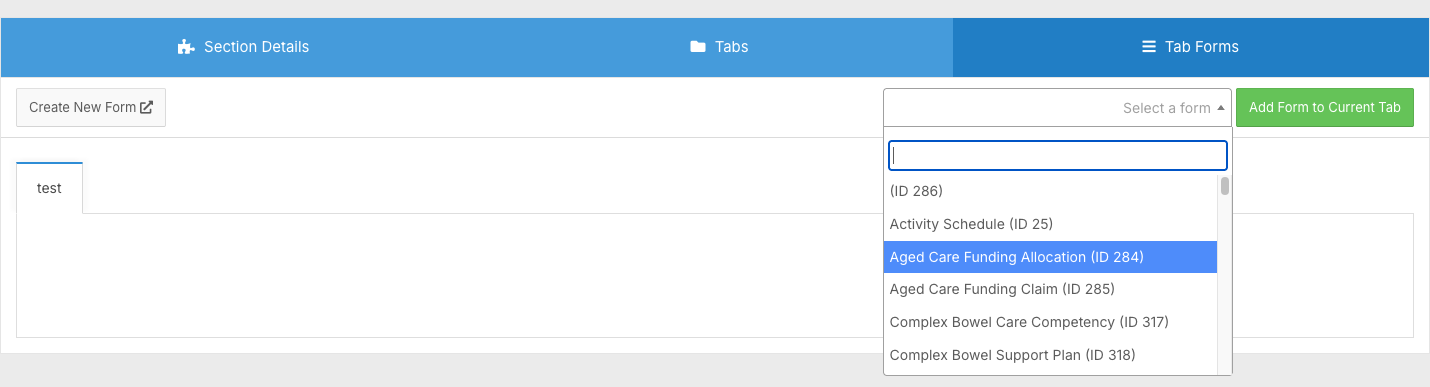
Go to Tab Forms.
Select your tab (e.g., Test Tab).
Choose the form you want to add.
Click Add Form to Current Tab.
Click Save.
The form is now linked to the tab.
Testing the Section
After setup, open the section from the left-hand menu.
You should see:
The Primary Form
The Tab
The Secondary Form inside the tab
Create a test record to confirm everything works correctly.
Section Permissions
For more information on Section and Form Permissions, click here