
Key Points
Allowances are additional payments or entitlements staff receive on top of their base pay, such as travel, meal, sleepover and overtime-related payments. They're set up in each Cost Category.
To set them up, go to Finance and Payroll > Cost Categories, find the Cost Category and click Allowances in the Actions panel. Click Save when you're done.
Each allowance's Export Code must match your payroll system exactly (for example pay items in MYOB or Xero), or allowances may not be paid correctly.
Once saved, allowances apply automatically during rostering and timesheets and flow through to payroll exports, reducing manual payroll adjustments.
Each Cost Category has its own allowances, so they can reflect the real-world entitlements of different employment types. With a payroll integration, you may need to sync allowances via the Actions button.
Allowances are used to define additional payments or entitlements that staff may receive on top of their base pay.
These can include things like:
- Travel allowances
- Meal allowances
- Sleepover payments
- Overtime-related payments
Allowances are configured within each Cost Category and play a key role in ensuring payroll is accurate and aligned with your organisation’s award or policy.
Accessing Allowances
To access allowances:
- Go to Finance and Payroll
- Select Cost Categories
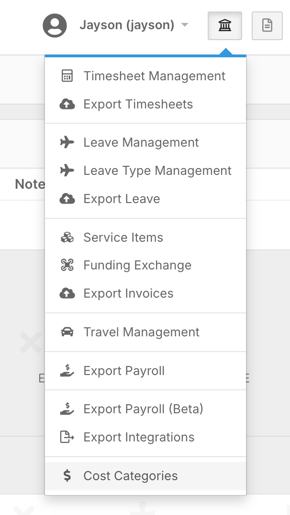
- Locate the relevant Cost Category
- Click Allowances in the Actions panel
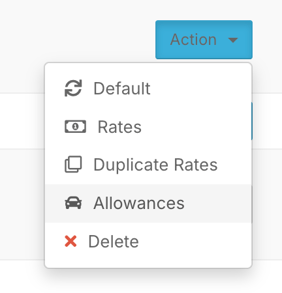
This opens the allowance management screen, where all allowances for that category are displayed and managed.
Each Cost Category has its own allowance setup, meaning allowances can vary depending on employment type or pay structure.
Understanding the Allowance Table
When you open the allowances screen, you’ll see a structured table of settings.
Each row represents an allowance, with key fields that control how it behaves.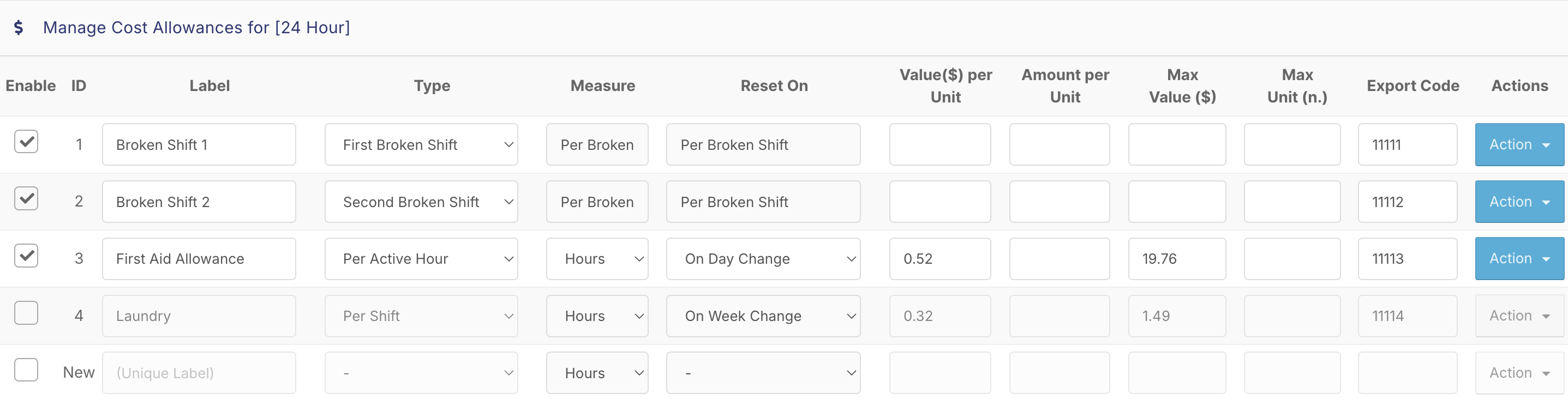
Key Columns Explained
- Enabled
Controls whether the allowance is active for this cost category - ID and Label
Identifies the allowance and describes its purpose - Type of Allowance
Defines how the allowance is applied
(e.g. per hour, per shift, per day, sleepover, overtime, etc.) - Measurement and Reset
Controls how the allowance is calculated and how often it resets
(e.g. daily or weekly) - Value and Limits
Includes:
- Value per unit
- Amount per unit
- Maximum value
- Maximum units
These fields determine how much is paid and any limits applied.
Export Codes (Critical)
Each allowance includes an Export Code, which links it to your payroll system.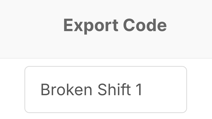
This must:
- Match your payroll system exactly
- Align with pay items in systems like MYOB or Xero
If export codes are incorrect, allowances may not be paid correctly during payroll export.
Creating a New Allowance
To create a new allowance:
- Click Enable next to “New” at the bottom of the list

- Enter a Label
- Select the Type of Allowance

- Configure:
- Measurement
- Reset period
- Value and limits
- Add the correct Export Code

Once created, the allowance will appear in the list and can be edited at any time.
How Allowances Are Used
Allowances are applied based on the Cost Category.
This means different categories can have different setups. For example:
- Full-time staff may have:
- Travel allowance
- Meal allowance
- Overtime allowance
- Casual staff may only have:
- Travel allowance
This flexibility allows you to tailor payroll behaviour to different employment types.
Payroll Integration
If your organisation uses a payroll integration:
- You may need to sync allowances after setup
- This is done via the Actions button
If no API integration is used, this step is not required.
Best Practice Recommendations
- Keep allowance labels clear and consistent
- Ensure export codes match your payroll system exactly
- Test allowances before running payroll
- Limit unnecessary allowances to reduce complexity
- Work with a payroll or onboarding specialist for setup
Small configuration errors can impact payroll results, so accuracy is important.
Finalising Changes
Once complete:
- Click Save in the bottom right
Your allowances will now:
- Apply automatically during rostering and timesheets
- Flow through to payroll exports
- Appear in reporting where relevant