
Key Points
To add a Cost Group or Cost Category, go to Finance and Payroll > Cost Categories and click the plus (+) button in the Cost Groups or Cost Categories panel.
In most cases it's best practice to duplicate an existing category using Duplicate Rates and modify the copy, rather than starting from scratch.
Cost Groups organise your pay structures and Cost Categories define how staff are paid. Set up correctly, they apply accurate pay rules, correct award interpretation and consistent rostering and costing.
The Default Rate is the base rate. Rate multipliers scale pay across different conditions and update automatically when base rates change.
Click Save and Close when you're done. The Cost Category then appears under its Cost Group, ready for rostering, timesheets and payroll exports.
Cost Groups and Cost Categories are the building blocks of payroll in FlowLogic.
- Cost Groups organise your pay structures
- Cost Categories define how staff are paid
Setting these up correctly ensures:
- Accurate payroll calculations
- Correct award interpretation
- Consistent rostering and costing
Creating a Cost Group
To begin:
- Go to Finance and Payroll
- Select Cost Categories
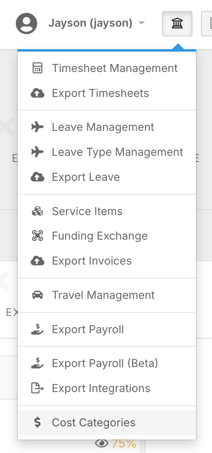
From here:
- Click the plus (+) button in the Cost Groups panel
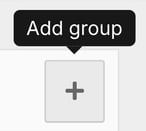
- Enter a name (e.g. Full-Time)
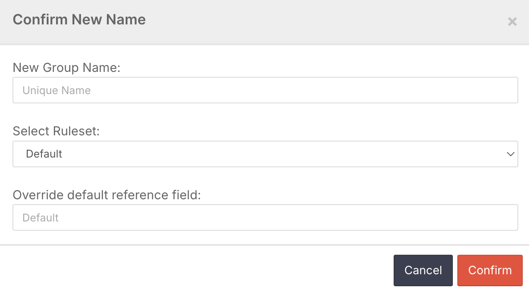
Cost Groups are used to organise similar pay categories, making larger payroll setups easier to manage.
You may also see advanced options such as rule sets or reference overrides, but these are typically only used in more complex configurations.
Creating or Duplicating a Cost Category
To add a Cost Category:
- Click the plus (+) button in the Cost Categories panel
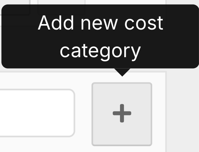
In most cases, it is best practice to:
- Duplicate an existing category using Duplicate Rates
- Modify the copied version instead of starting from scratch
This ensures consistency and reduces setup time.
Basic Configuration
Inside the Cost Category:
- Assign a label (e.g. Permanent Level)
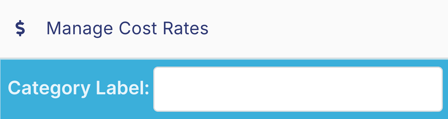
- Select the Cost Group (e.g. Full-Time)

- Below is the Rates section, which is where you will begin configuration
The Default Rate is the starting point and applies when no other conditions are triggered.
Understanding Rates and Multipliers
Each Cost Category includes multiple rate lines.
The Default Rate:
- Acts as the base rate
- Does not require time ranges
- Drives other rate calculations

The Rate Multiplier:
- Scales pay across different conditions
- Updates automatically when base rates change
- Reduces admin effort during wage increases
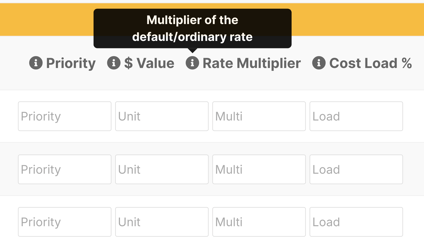
You can also configure:
- Cost load percentages (for reporting)
- Minimum and maximum shift durations
- Custom labels for reporting and exports
Export Codes and Payroll Integration
Export Codes are critical for payroll.
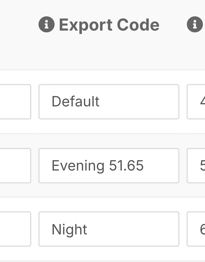
They:
- Tell your payroll system how to interpret each pay item
- Ensure correct payment mapping
- Must align with your payroll software (e.g. MYOB, Xero, etc.)
Incorrect export codes can result in payroll errors, so it’s important to validate these during setup.
Weekday and Time-Based Rates
You can define different rates across the day, such as:
- Ordinary hours
- Evening shifts
- Night shifts
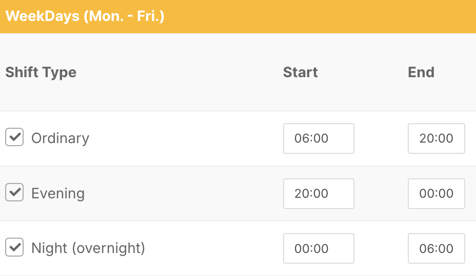
Each rate can include:
- Start and end times
- Priority levels
Priorities determine which rate applies when shifts overlap.
Avoid overlapping time ranges, as this can cause incorrect pay calculations.
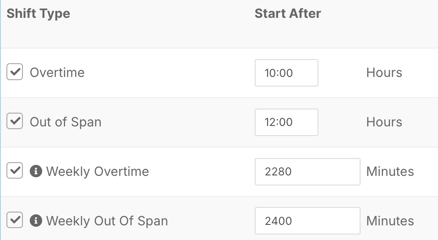
Overtime Configuration
Overtime rules allow you to:
- Define when overtime begins
- Set daily or weekly limits
- Apply automatic rate changes
FlowLogic:
- Automatically handles fortnight calculations
- Applies correct multipliers based on your setup
This removes the need for manual payroll adjustments.
Weekend and Public Holiday Rates
Weekend rates are typically simpler:
- Usually higher base rates
- Often no need for multiple time bands
Public holidays can be configured with:
- Unique multipliers
- Dedicated export codes
These ensure compliance with award requirements.
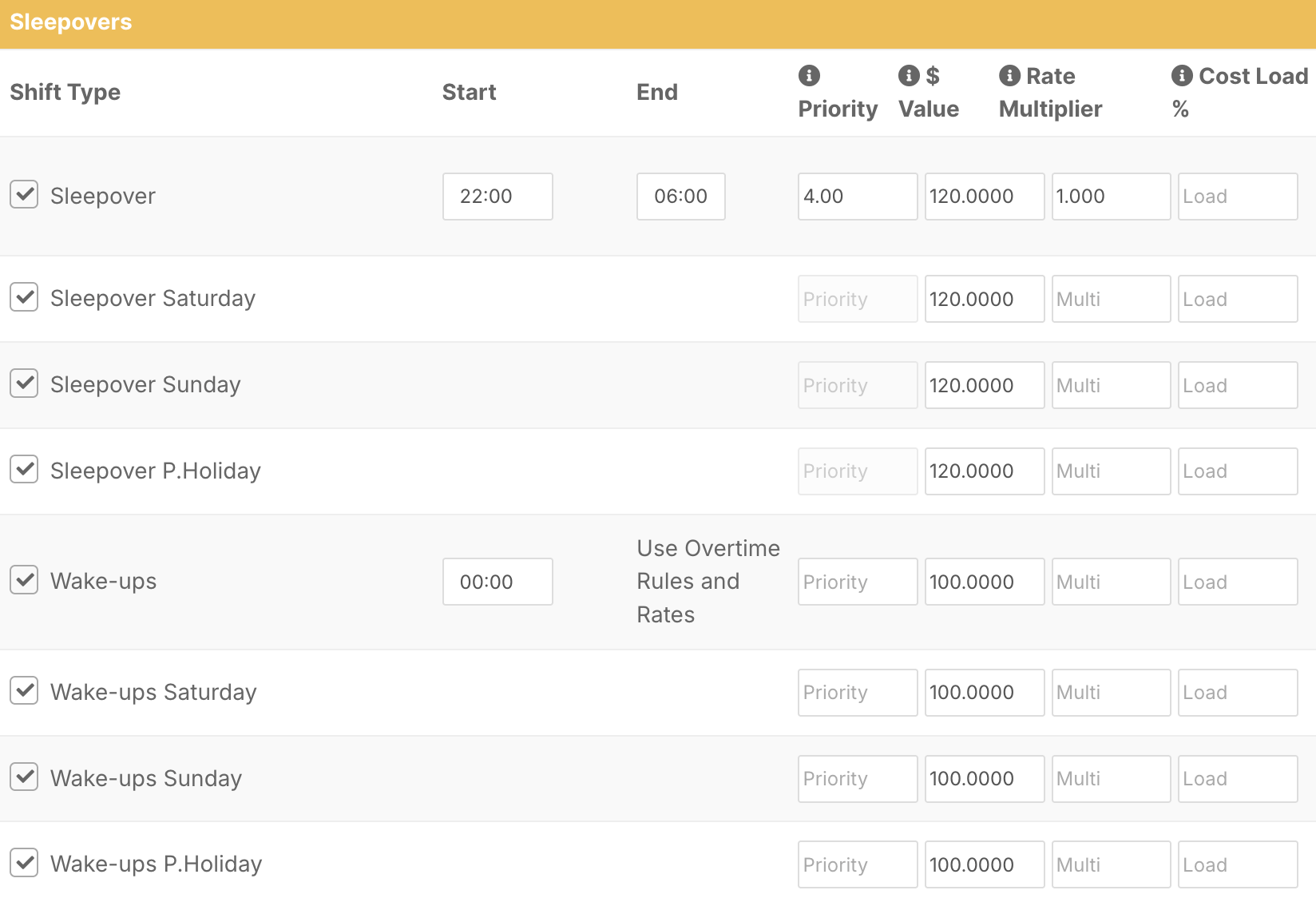
Sleepovers and Wake-Ups
For organisations with overnight support:
- Define sleepover time ranges
- Configure wake-up rules
- Apply specific export codes
You can also:
- Set thresholds for wake-up payments
- Apply different rules across weekdays, weekends, and public holidays
Additional Settings
Other configurable options include:
- Breaks and travel (kilometres)
- Minimum shift durations with filler codes
- Out-of-span and overtime rules
- Leave settings and loading
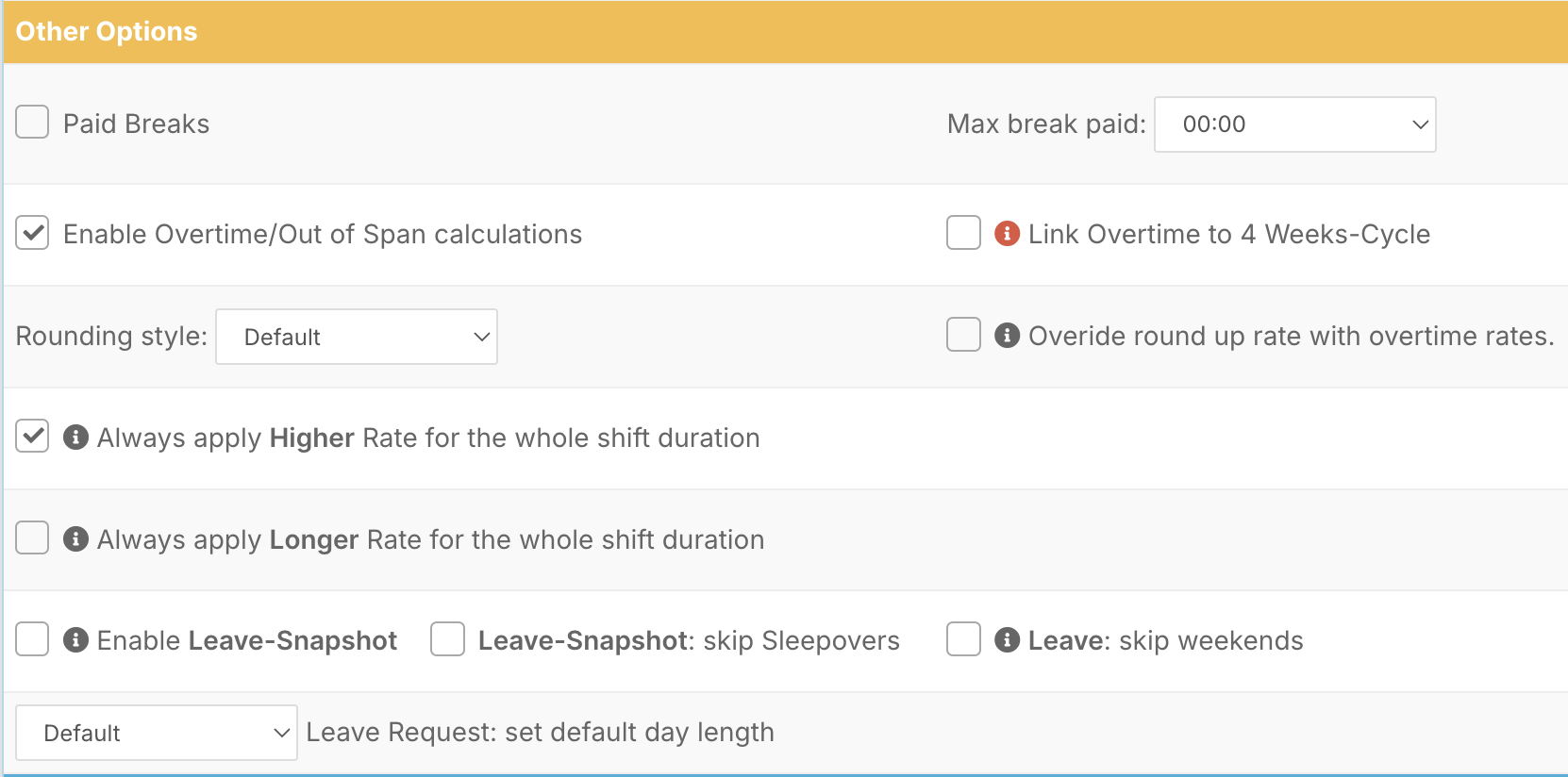
These settings help fine-tune payroll behaviour and reduce manual corrections.
Finalising the Setup
Once complete:
- Click Save and Close
- Confirm your changes
Your Cost Category will now appear under its assigned Cost Group and be ready for use in:
- Rostering
- Timesheets
- Payroll exports