
Table of Contents
1.0 Creating a PRODA Device.
1.1 Navigate to Organisation Management.
1.2 Add the NDIS API Service Provider.
1.3 Start New B2B Device Registration.
1.4 Complete New B2B Device Registration.
1.5 Record Device Details
1.6 Assign Device Attribute.
2.0 Registering your PRODA Device in FlowLogic
3.0 Claiming via the NDIS API
4.0 Renewing the PRODA API device.
1.0 Creating a PRODA Device
1.1 Navigate to Organisation Management
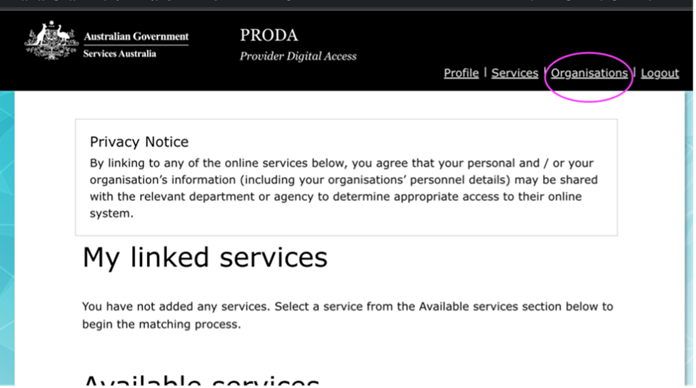
Once logged into the PRODA portal, click on “Organisations” and then select your organisation from the list.
1.2 Add the NDIS API Service Provider
From the “Manage my organisation” screen: expand the “Service Provider” area.
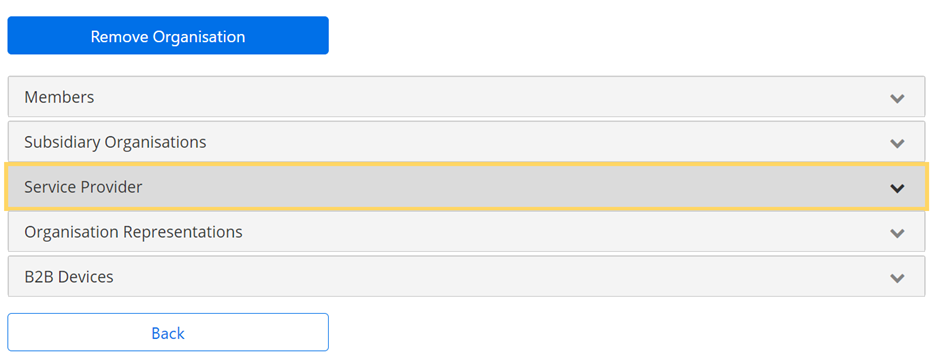
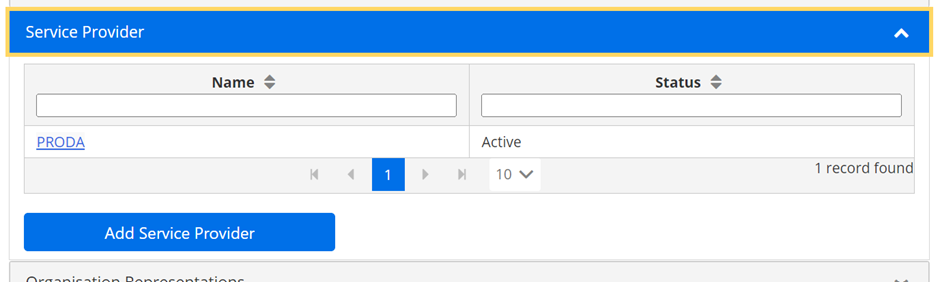
If you see “NDIS API” already listed then continue on to step 1.3, otherwise click “Add Service Provider”.
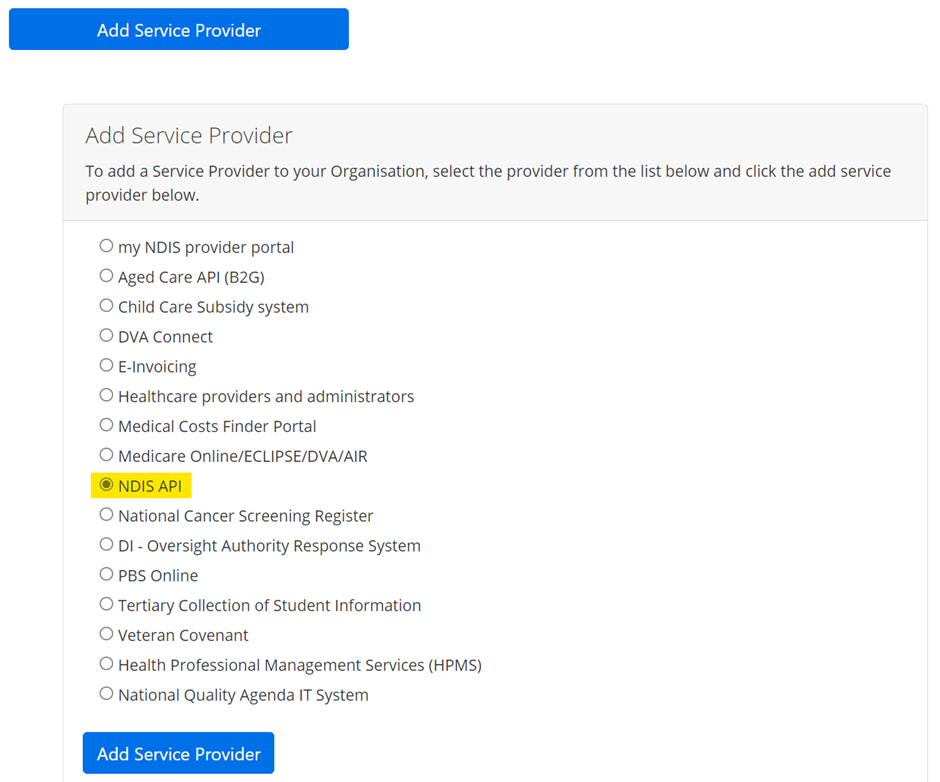
Select “NDIS API” and click on “Add Service Provider”.
1.3 Start New B2B Device Registration
From the “Manage my organisation” screen: expand the “B2B Devices” area and click “Register New B2B Device”.
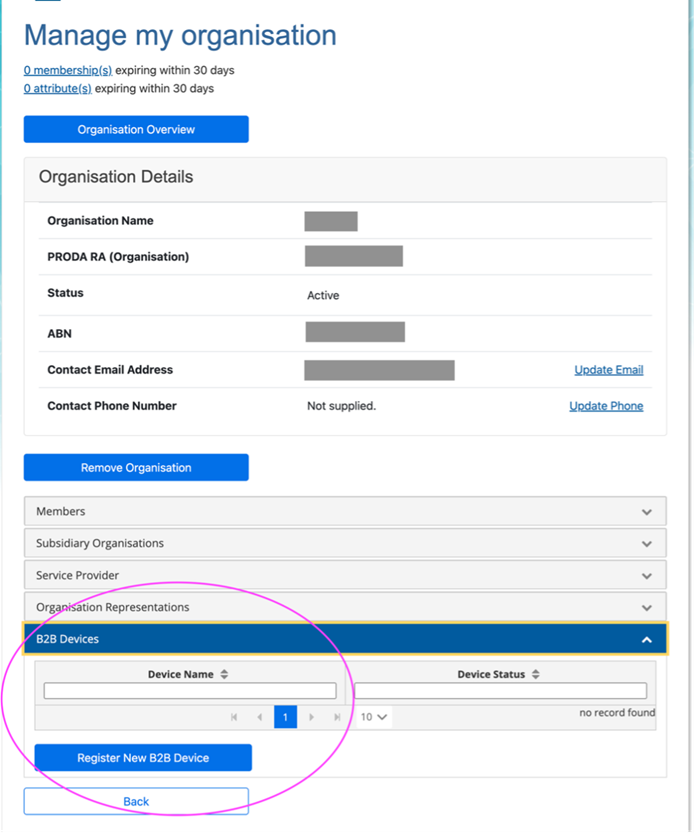
1.4 Complete New B2B Device Registration
On the “Register New B2B Device” page, enter “FLOWLOGIC” as the device name, add a description if you would like to do so and then click “Register Device”.
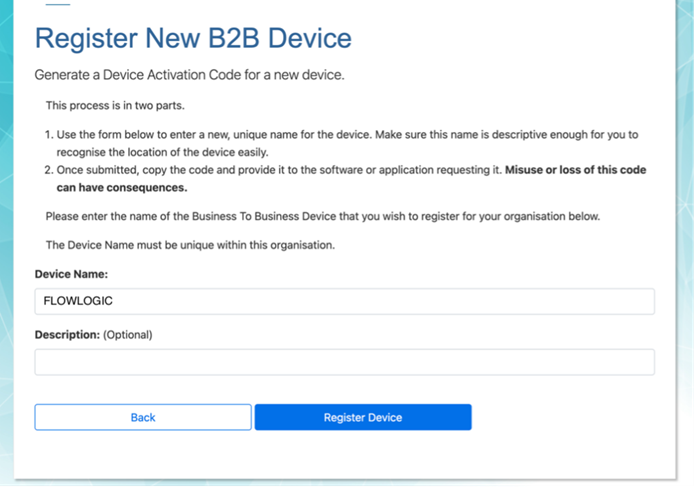
1.5 Record Device Details
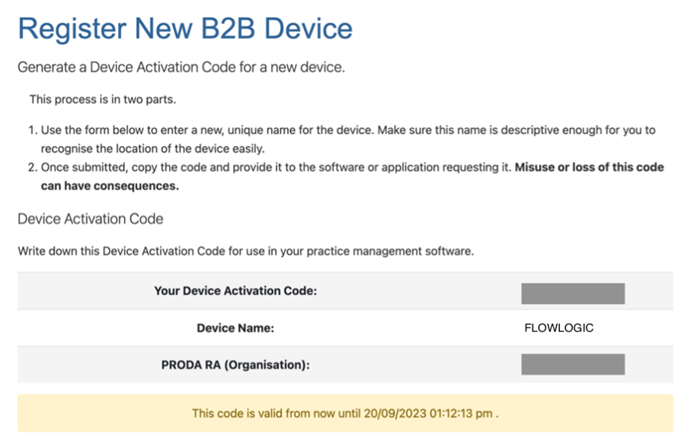
Note down all three pieces of information shown on the confirmation screen: the Device Activation Code, the Device Name, and the PRODA RA #.
When you are ready, click on the “View Device Details” button.
1.6 Assign Device Attribute
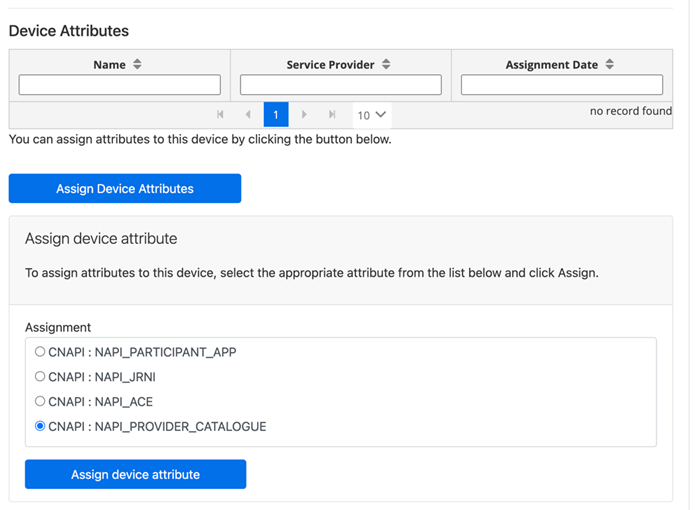
From the “Device details” screen, click the “Assign Device Attributes” button. Select “CNAPI : NAPI_PROVIDER_CATALOGUE” from the list and then click “Assign device attribute”.
2.0 Registering your PRODA Device in FlowLogic
2.1 Register B2B Device in FlowLogic
Open the Funding Exchange, click on the API badge and click “Register New Device”. Fill in the three fields and click “Create”.
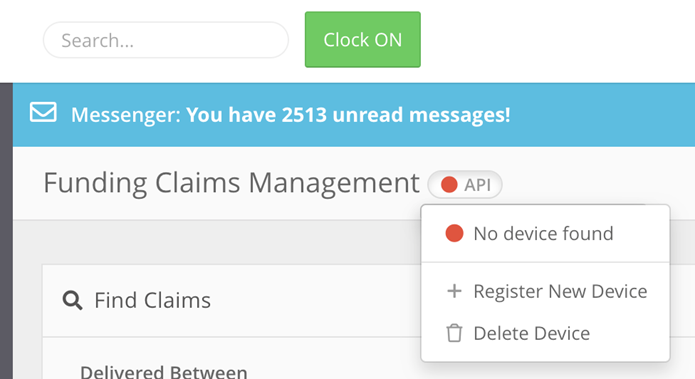
Once registration has completed, the status of the API badge should change to “green”.
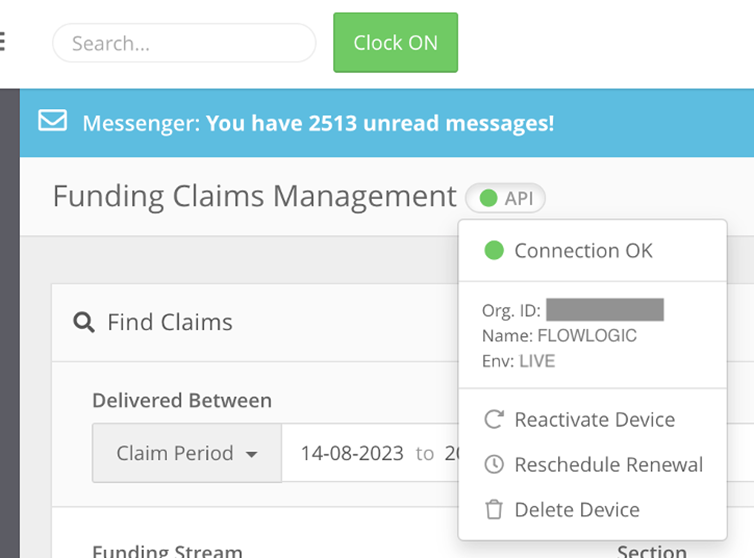
Note: If you cannot see the API badge, please contact support and ask them to ensure the NDIS API has been enabled. The setting can be found under System Settings -> Funding -> NDIS -> API -> Status.
3.0 Claiming via the NDIS API
The claiming process is almost entirely the same as the existing CSV export process. The main difference is that the “Export Claims” confirmation dialog will now show a “Use API” toggle that will allow you to send the bulk claim request via the NDIS API. FlowLogic will revert to generating a CSV file if the “Use API” toggle is switched off.
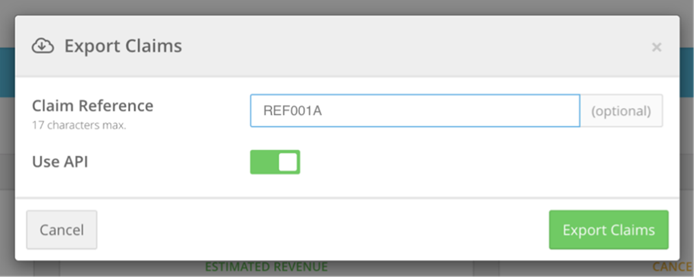
A single FlowLogic bulk claim request can only be submitted via the NDIS API once. Any subsequent requests to export the same bulk claim from FlowLogic will result in a CSV file being generated.
Note: The NDIS bulk claims API operates asynchronously and will always return a successful response if the previous configuration steps have been followed.
4.0 Renewing the PRODA API device
PRODA requires renewal of your device every 6 months. When you get the notifications that the device is expiring, go into PRODA to complete the following steps for the device:
- Extend B2B Device Expiry
- Disable B2B Device
- Generate New Code
Screenshots found here referencing the end of step 3:
https://www.servicesaustralia.gov.au/managing-b2b-devices-proda?context=33786
If this fails, recreating the device has then corrected the issue. If this still does not work, please contact support@flowlogic.com.au