
MFA Mandatory requirements:
Effective 1 July 2025, Multi-Factor Authentication (MFA) will be automatically enabled for all users with access to Payroll and/or Finance functions in FlowLogic. This update is being applied to ensure compliance with Australian Taxation Office (ATO) requirements.
-
Acquire an Authenticator App
If you do not already have one, please acquire an app such as Microsoft Authenticator, Google Auth or Authy on your phone or desktop computer.
-
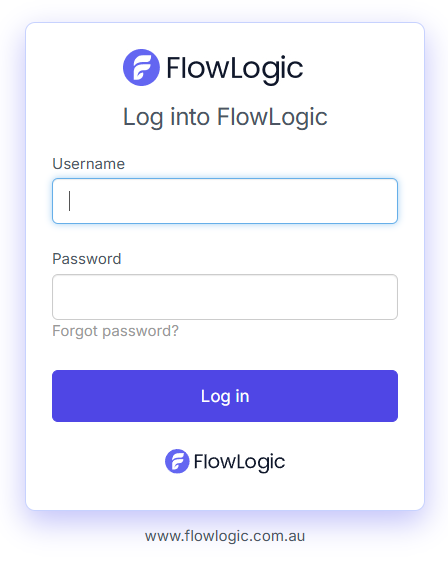
Log into your FlowLogic instance. Note that there may be logo or message variations based on your organisation
- Scan your code with a mobile device OR press and hold the manual Key to copy
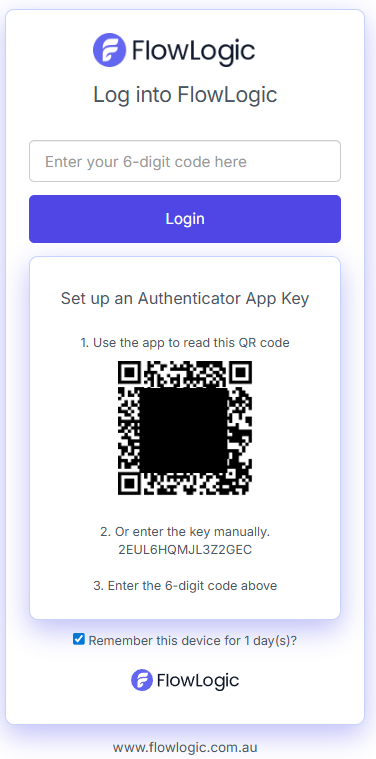
- Create new MFA login using the instructions. Note that Android and iPhone have different views.
- Microsoft Authenticator App
Note: You will press the + button to add a new account and choose 'other' unless you have your own account you wish to use. Views differ from iPhone OS and Android OS - Google Authenticator App
Note: You will press the + button to add a new account. Views differ from iPhone OS and Android OS - Authy Authenticator App
- Microsoft Authenticator App
-
When you have created a new account, you can press + hold to copy the 6-digit code, then paste into your FlowLogic screen to access FlowLogic.