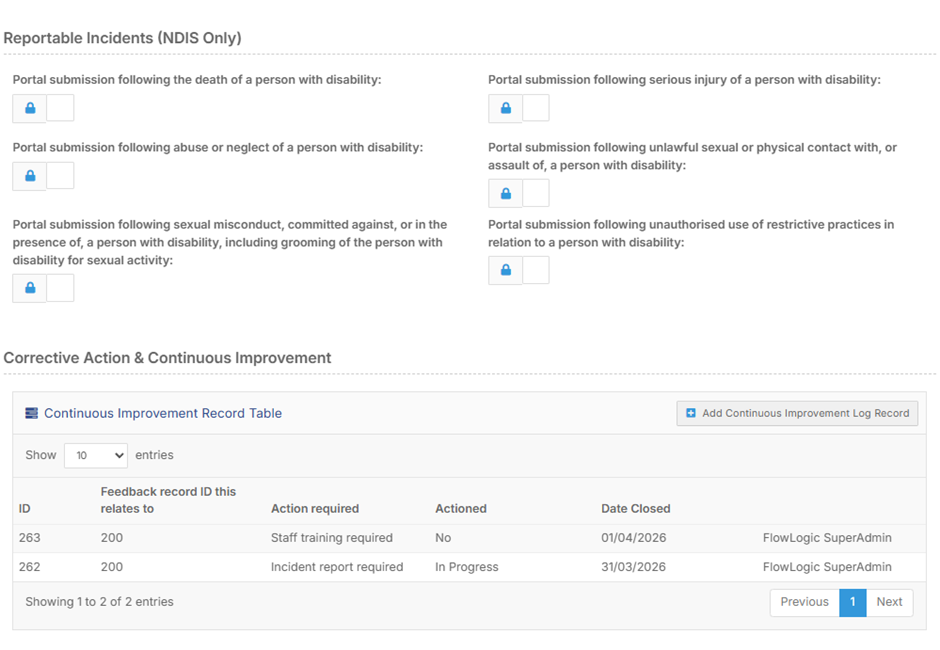
A record table is designed to pull in a list of records from anther form, that maintain an association with the Parent form. As such, this setup then requires 2 forms to construct. These will be labelled the Parent form and the Child form, which are distinctly different from primary and secondary form terminology used elsewhere.
The most common example for this is the Incident / Accident / Near Miss report, where Continuous Improvement Logs can show up in the record itself for a complete export. Other common scenarios are:
- Sign off of a policy
- Show which shift notes a goal or medication was referenced
To start, it’s recommended to have both forms completed except for the record table setup. These fields reference other forms so they need to exist for proper setup.
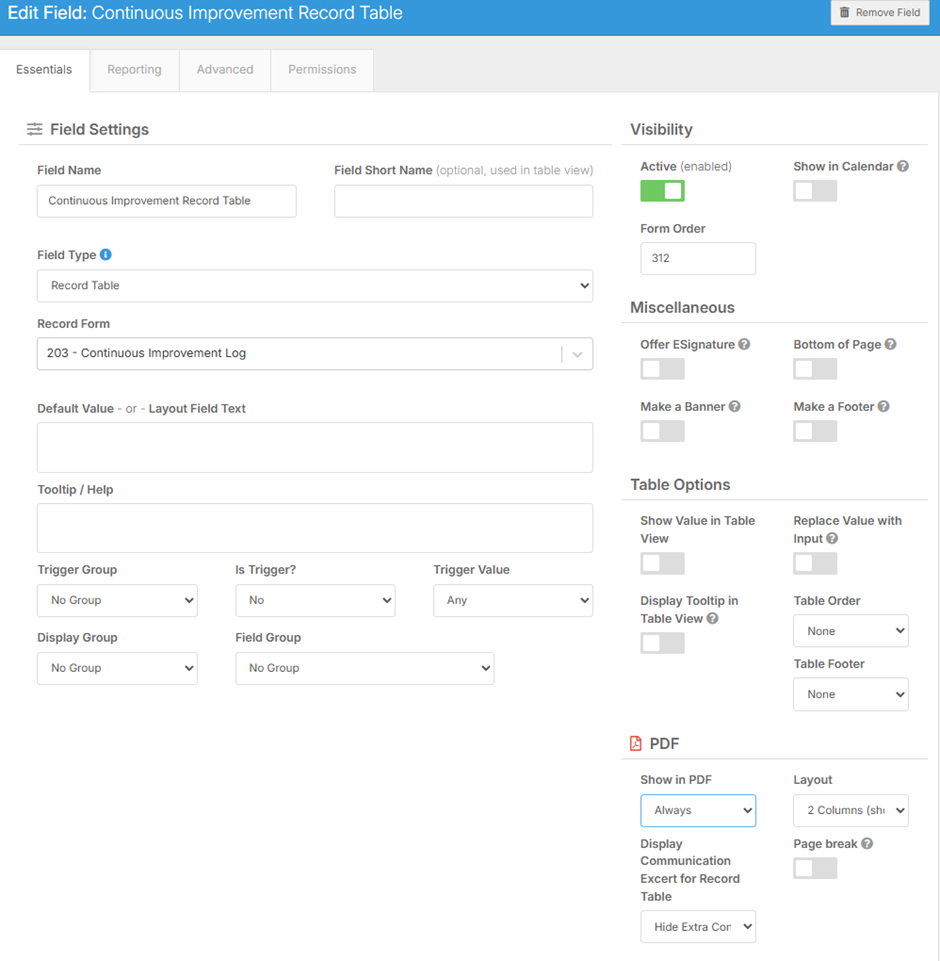
Parent form (In this example Parent form ID is 253 - referenced on Child form)
- Record table
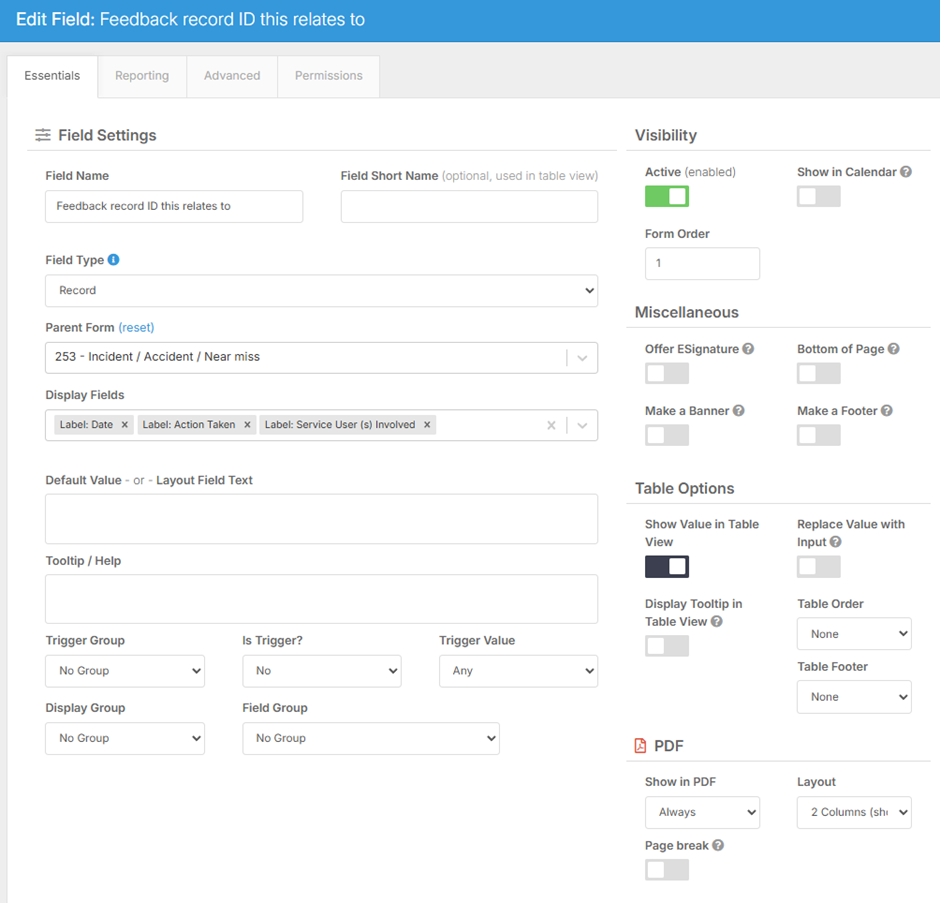
Child form (In this example Child form ID is 203 - Referenced on Parent form)
- Record ID
If your Parent and Child form are set up as a primary and secondary record in the same section, then you can also add ‘condition: filter by…’ to automatically populate.
Some notes:
- Child form:
- You cannot stop the add record option the child form if you want people to make a record.
- The child form will be visible within a tab if people have access to view, edit or add records to the child form
- If the child form is not in the same section as the parent form, the ‘record ID field’ of every record will appear. There are some filters that can be applied to mitigate this (status, expiration, permissions)
- Record ID field:
- The Record ID ‘Condition: filter by…’ will only work if both the parent and child forms are in the same section. If you apply it outside of this scenario, that filter will not apply
- The Record ID field must be editable, so that it can populate with the record details. You can put the field at the bottom or under an 'office use only' header to symbolise not to touch it if required
- You can only link to one ID. If you choose multiple, it will look at the record ID with the lowest value
- Parent form:
- You cannot see the record table field on the parent form if the parent record has not been saved – This field requires an ID to function, which is created on save.
The record table should populate automatically as soon as the Child record is saved with a reference to the ID of the parent.
Here is an example of a successfully implemented Record Table: