
Key Points
If your organisation uses auto-approval, a timesheet is approved automatically when it's submitted, as long as nothing on it needs a manager to check it.
Auto-approval is only checked once, when the timesheet is first submitted. Changing the roster or leave afterwards doesn't re-check it.
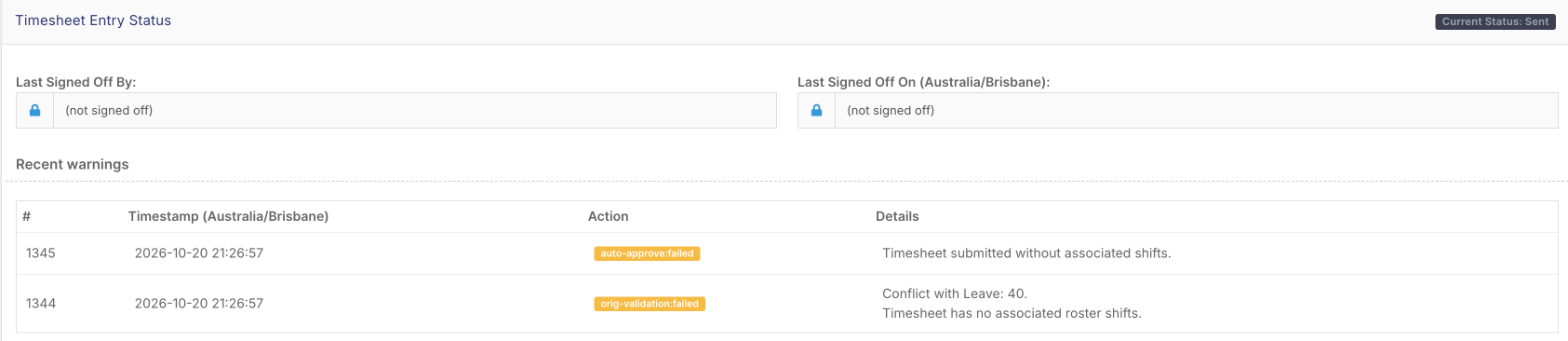
The reason a timesheet wasn't auto-approved shows at the bottom of the timesheet in Timesheet Management.
A timesheet that isn't auto-approved isn't lost. It stays at Sent so a manager can review and approve it.
Your organisation chooses which checks apply. Contact our Support team to change them.
Find out why a timesheet wasn't approved
Go to Timesheet Management.
Search for the staff member and date.
Click View on the timesheet and scroll to Timesheet Entry Status at the bottom. Under Recent warnings, the line marked auto-approve:failed gives the reason it wasn't approved, for example "Timesheet submitted without associated shifts".
If you're happy with the timesheet, approve it as normal.
Common reasons a timesheet isn't auto-approved
Depending on your organisation's settings, a timesheet goes to a manager instead of approving itself when:
No shift is attached. Timesheets without a rostered shift are never auto-approved.
The times are too far from the roster. Clock on or off was outside the number of minutes your organisation allows. A time exactly on the limit counts as outside it.
The hours are too long compared with the rostered shift, or longer than your maximum timesheet length.
Shift notes aren't finished. Your organisation may require every shift note to be completed first.
There's awake time recorded on a sleepover.
Kilometres are higher than rostered, or travel was added that wasn't on the roster.
No location was captured when the staff member clocked on or off.
It was added manually instead of by clocking on and off.
There's no signature, if your organisation requires one.
It overlaps another timesheet or approved leave, or shares a shift with another timesheet.
The shift hasn't happened yet, for example a timesheet attached to a shift later in the week.
Why a timesheet was approved even though the roster changed
Auto-approval happens once, when the timesheet is first submitted. If the shift or leave is changed afterwards, the timesheet stays approved. Check the timesheet in Timesheet Management and change it if needed.
Change what is checked
Your organisation's auto-approval rules are set by FlowLogic. To turn auto-approval on or off, or change which checks apply or how many minutes are allowed, contact our Support team.
Related articles
Why have my timesheet times changed to the rostered times?