
Key Points
Export timesheets from Finance & Payroll > Export timesheets. This is the final checkpoint before payroll data leaves FlowLogic - all approved timesheets are reviewed here and sent to your payroll system via API or CSV.
Use the filter panel to narrow results by payroll period, staff member, client or status, then click Search. The results also help you confirm all staff have submitted timesheets for the period.
Before exporting, run the built-in reports to validate your data. Fix any missing data or incorrect rates in timesheet management first.
Click Export timesheets at the bottom-left. With an API connection (Xero, MYOB, etc.) the data is sent automatically. With CSV, a file downloads for you to upload into your payroll platform.
To correct an export, search for the same payroll period and click Revert to approved. If your payroll system already received the data via API, delete those entries there first.
Exporting timesheets is the final checkpoint before payroll data leaves FlowLogic. All approved timesheets are reviewed here and sent to your payroll system - either via API or CSV.
Getting there
Go to Finance & Payroll in the top-right menu and select Export timesheets.
Filtering and searching
At the top of the page, you'll find the filter panel. Use it to narrow results by payroll period, staff member, client, or status. Once your filters are set, click Search to load the matching timesheets.
Reading the results
Each entry in the results list shows a summary row for that staff member:
Staff name
Total shifts for the period
Kilometres - total travel
Hours worked for the period
Sleepovers, if applicable
This view also helps you confirm that all staff have submitted timesheets for the selected payroll period.
Expanding records
Click a staff member's name or blue summary box to expand their record. Use Expand all (top-right of results list) to open every record at once. Click the blue header bar again to collapse.
When expanded, each shift shows its date, client name, pay rate, hours, breaks, total unit count, and any allowances applied - for example a first aid allowance. Overtime, sleepovers, and other custom pay types appear further down, calculated automatically from your award or enterprise agreement setup.
Available reports
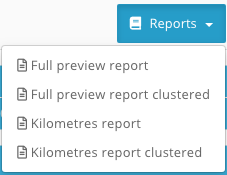
Before exporting, run any of the built-in reports to validate your data:
Full preview - every detail of the pending export
Full Preview Clustered - results grouped by staff or client
Kilometres Report - travel data breakdown
Overtime/overtime clustered - review of extended shifts
Timesheet billable (client) - staff timesheets compared with client billing
Timesheet billable (staff) - the same comparison from the staff perspective
If a report flags missing data or incorrect rates, fix those issues in timesheet management before proceeding.
Exporting
Once you're satisfied everything is correct, scroll to the bottom-left and click Export timesheets. What happens next depends on your integration:
API connection (Xero, MYOB, etc.)
Export begins automatically. A loading screen confirms data is being transmitted directly to your payroll software.
CSV export
A file is generated and downloaded from your browser, ready to upload manually into your payroll platform.
After the export completes, you'll see a confirmation message. To view completed exports, change the status filter to Processed and search again - successful batches appear in green.
Reverting an export
If a correction is needed after exporting, search for the same payroll period and click Revert to approved. This pulls the records back into FlowLogic and sets them to an approved state, ready for re-export.
Reverting only affects FlowLogic. If your payroll system has already received the data via API, delete those entries there first to prevent duplicate or conflicting records.