Key Points
To send SMS from FlowLogic, your organisation needs an account with ClickSend or Sinch MessageMedia. Send FlowLogic Support your API details and they turn SMS on for you.
Your organisation buys SMS credits from the provider directly. FlowLogic doesn't charge for SMS.
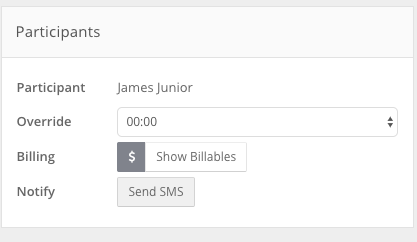
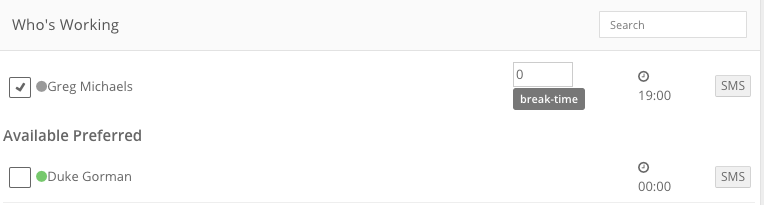
Once SMS is on, use the SMS button in places such as Roster Shift details and your Inbox. Automations can also send SMS.
You need the right to send SMS. An administrator can add it to your Group, otherwise ask FlowLogic Support.
Replies go to your SMS provider account, not to FlowLogic. Messages longer than 160 characters are sent in several parts and use more credits.
Activating SMS
- Set up an account with one of the SMS providers that works with FlowLogic: ClickSend or Sinch MessageMedia.
- Send FlowLogic Support the API details from your provider account. See How do I set up the SMS gateway? for what to send.
- FlowLogic Support turns on SMS in your FlowLogic system and lets you know when it's ready.
Your organisation holds the account with the SMS provider and buys SMS credits from them directly. FlowLogic doesn't charge for SMS.
If your organisation used Wholesale SMS, your account was moved to Sinch MessageMedia in September 2025 and your existing details still work.
Sending Messages
Once SMS is turned on, you'll see an SMS button in places such as Roster Shift details and your Inbox. Automations can also send SMS.
To send an SMS, you need the right to send SMS. An administrator can add it to your Group, otherwise ask FlowLogic Support.
Keep in mind:
- FlowLogic only sends SMS. Replies go to your account with the SMS provider, not to FlowLogic.
- Messages longer than 160 characters are sent as several parts, which uses more credits.