
Key Points
To create a secondary record, open the staff member's or client's record, open the tab you need, click the add button above the record list (usually Add New), fill in the Form and click Save & Back or Save & View.
A secondary record sits inside an existing staff member's or client's record, such as a performance review in a staff member's record.
Secondary records are listed in the tabs of the primary record, so the primary record has to exist first.
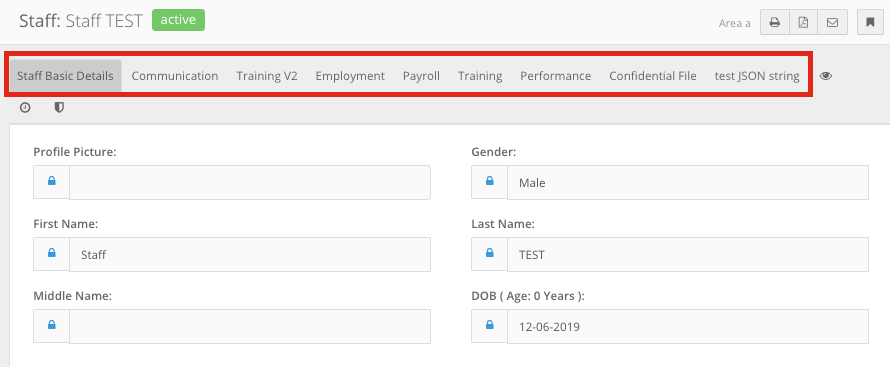
Tab names depend on how your organisation has set up FlowLogic, so your tabs may differ.
A secondary record is a record that sits inside an existing staff member's or client's record, such as a performance review in a staff member's record. Secondary records are listed in the tabs you see when you open the main (primary) record, so the primary record has to exist first.
How do I create a secondary record?
- Open the staff member or client the record belongs to, then open the tab you need. For example, Staff > John Smith > Performance. For a client, open the client's record and the tab in the same way.
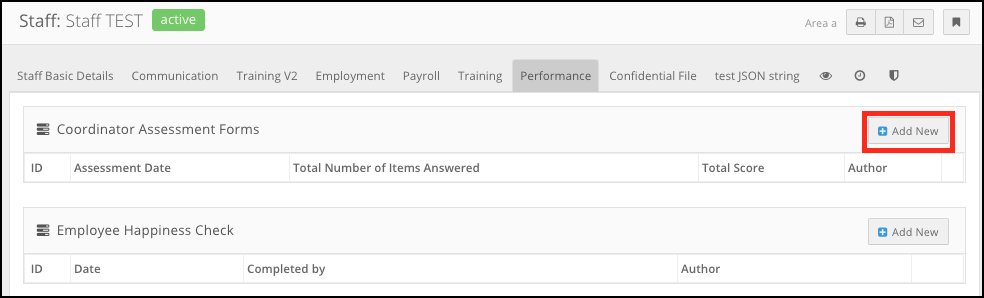
- Click the add button just above the record list, on the right. It's usually called Add New.
- Fill in the form, then click Save & Back to go back to the list, or Save & View to open the record you just saved.
Tab names depend on how your organisation has set up FlowLogic, so the tabs you see may be different.