
Key Points
Rights control what users can see and do in FlowLogic - each Right unlocks a specific feature. Groups bundle Rights together for teams or roles, so you assign Rights to a Group and then add users to it.
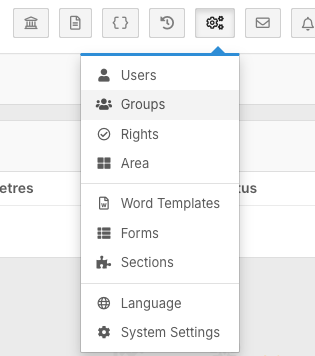
The full list of Rights is under System Menu > Rights. Most users won't have access to this area, which is intentional.
Create or edit a Group in System Menu > Groups (Add New Group or Edit), set the name, description, users and Rights, then click Save.
Changes to a Group apply to everyone in it, so if one person needs different access, create a separate Group for them. After setting up a Group, switch into a user to test what they can see.
Groups also form the foundation for Section Permissions and Form Permissions.
Rights & Groups in FlowLogic
What Are Rights?
Rights control what users can see and do in FlowLogic. Each right unlocks access to a specific feature, such as:
- Viewing the Roster Schedule
- Creating or editing shifts
- Accessing Reports
- Managing the Drive
- Editing documents
- Using Risk Assessment tools
Rights are granular, meaning each one controls a very specific action. To view the full list, go to System Menu > Rights. Note that most users won't have access to this area - this is intentional, as it's a powerful and complex part of the system.
A detailed Rights List is also available in the FlowLogic Online Guide.
What Are Groups?
Groups bundle rights together for teams or roles. Instead of assigning rights to individual users one by one, you assign rights to a group and then add users to that group - making permission management much more efficient.
Common group examples include:
- Super Admin
- FlowLogic Admin
- HR Admin
- Roster Manager
- Finance Admin
- Team Leaders
- Support Staff
Higher-level groups typically have broader access, while operational groups have more restricted access.
Creating a Group
- Go to System Menu > Groups and click Add New Group
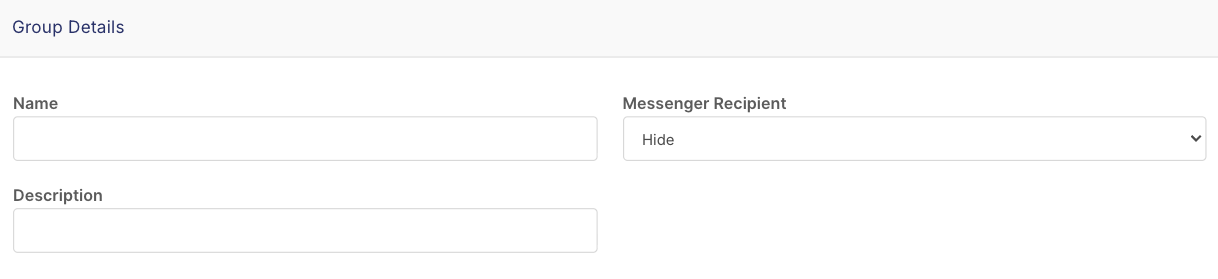
- Enter the group name, description, and messenger recipient option (if required)
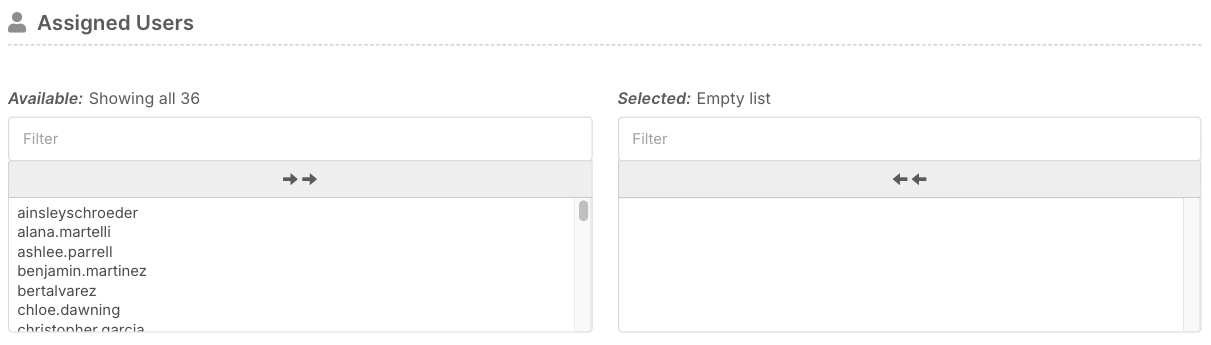
- Assign users by clicking their name, using the arrows to move all users at once, or searching for specific staff
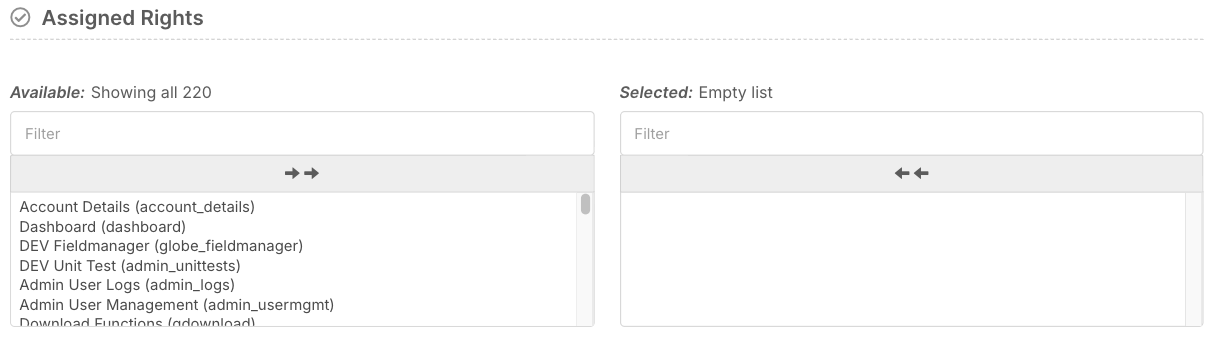
- Assign rights to the group (if you have permission)
- Click Save
Editing a Group
- Go to System Menu > Groups
- Locate the group and click Edit
- Update the group name, description, assigned users, or assigned rights as needed
- Click Save
Best Practices
- Changes to a group apply to everyone in it. If one person needs different access from the rest of their group, create a separate group for them rather than removing access from the shared group
- Plan your group structure before creating groups
- Avoid creating a separate group for every small role
- Combine roles where access requirements are similar
- Keep the number of groups manageable - the more groups you create, the more maintenance is required
Testing Permissions
After setting up a group, it's strongly recommended to:
- Add a staff member to the group
- Switch into that user
- Confirm what they can and cannot see
Testing ensures your permissions are working as intended.
How It All Fits Together
Groups also form the foundation for Section Permissions and Form Permissions. A well-planned group structure keeps your entire permission system secure, efficient, and easy to manage as your organisation grows.