Key Points
Permissions in FlowLogic can be applied at seven levels: Areas, Rights, Groups, Sections, Forms, Records and individual fields.
Areas control where records are stored and who can access them. Rights control access to system features, settings and tabs.
Rights are typically assigned to Groups, such as HR Managers or Team Leaders, and then apply to every user in that group.
Sections and Forms each have their own permissions, and access can also be set on individual records and fields for more granular control.
Permissions are flexible - you can start with default settings and refine access as your organisation grows.
Permissions in FlowLogic are highly configurable. Every organisation can structure them differently, and access can be as broad or as granular as required. Permissions can also evolve as your organisation grows.
Permission levels
Permissions can be applied at seven levels within FlowLogic:
Areas
Rights
Groups
Sections
Forms
Records
Individual fields
Areas
Areas control access to specific sets of records. They determine where records are stored and who can access them. This is useful for separating records by teams, locations, departments, or service types.
With areas you can:
Assign an area to a record
Give users access to specific areas
Restrict visibility to certain groups
Read more about Area permissions Rights Rights control access to system features, settings, and tabs. They are typically assigned to groups rather than individual users. Examples include access to the Roster Schedule, Reports, System Settings, Record Revisions, and Record Access Logs.Groups and users
Groups represent categories of staff such as HR Managers, Finance Teams, Admins, and Team Leaders. Rights are assigned to groups and then apply to every user within that group.
In the Users section, you can see which groups a user belongs to and which areas they are assigned to, providing a clear picture of each person's permissions.
Read more about Rights and GroupsQuick recap
Areas Where records are stored and who can see them Rights Access to features and system areas Groups Collections of users who share permissions Users Assigned to groups and areasSection permissions
Each section in FlowLogic (such as Participants, Staff, and Incidents) has its own permissions controlling whether a user can read records, add new records, edit existing records, or delete records.
Form-level permissions
Within each section, individual forms also have their own permissions. For example, a user might be able to access a participant profile but not edit a specific form within that profile. Permissions become more granular at this level.
Read more about Section and Form permissionsRecord-level permissions
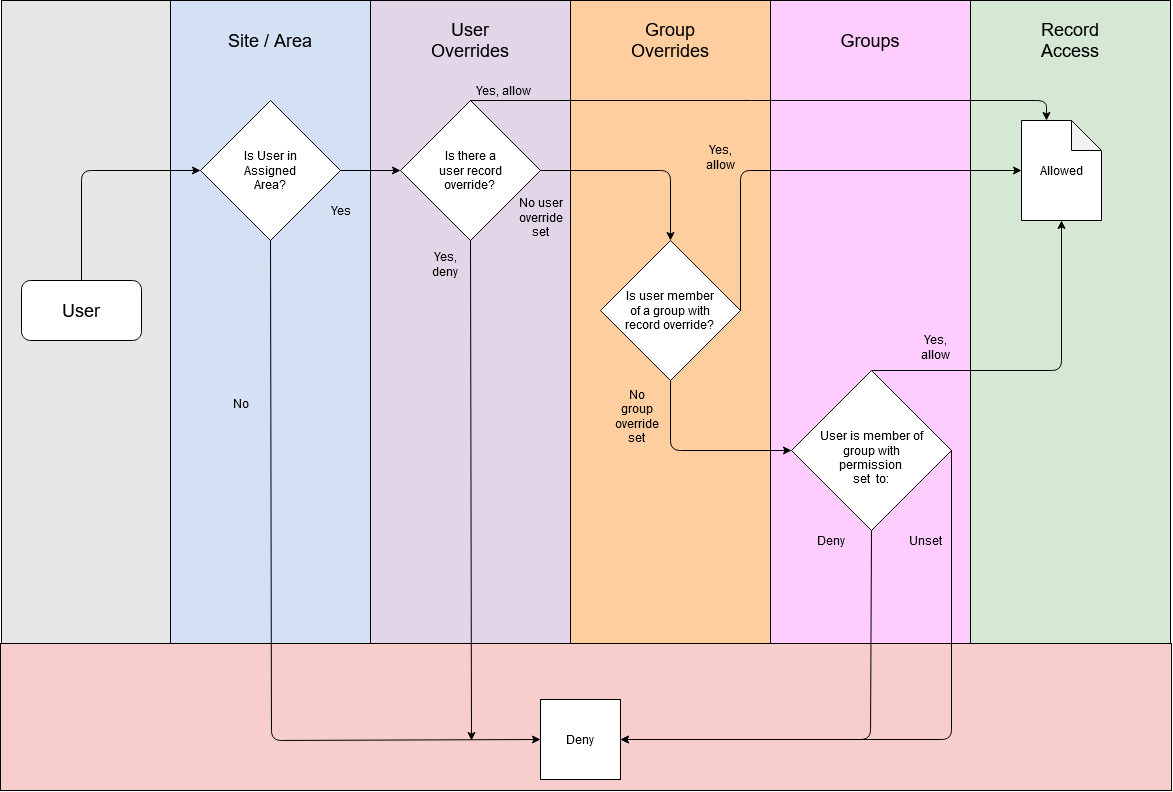
When opening an individual record, additional permissions may apply. Record access can be assigned automatically (for example, via roster assignments) or adjusted manually, allowing control over who can view specific participant or staff records.
Read more about record-level permissions Field-level permissions FlowLogic also supports permissions at the individual field level, giving you control over who can read or edit a specific field. This provides extremely detailed control over sensitive information.Evolving permissions
Permissions are flexible and can change over time. You can start with default settings, adjust as your organisation grows, and refine access as roles and responsibilities evolve.
If you need help configuring permissions, reach out to the FlowLogic onboarding or support team.
✔ The different types of permissions in FlowLogic✔ How Areas and Rights work together
✔ The role of Groups and Users
✔ How permissions apply to sections, forms, and records
✔ That field-level permissions offer granular control
✔ That permissions can evolve with your organisation
FlowLogic's permission structure gives you full control over visibility, editing rights, and system access, ensuring your data stays
secure while remaining flexible for operational needs.