
Key Points
My Team Switcher lets a team manager temporarily view FlowLogic as a staff member they manage, without needing that person's login details.
You must be a team manager with staff assigned to you in Manage Teams, and have the teams_manage and admin_teamswitch Rights. Otherwise the feature won't be visible.
To switch, click your name in the top menu, select My Team Switcher from the profile dropdown, then select and confirm a staff member from your team.
While switched, you see the system exactly as they do and any actions use their access level, so avoid unnecessary changes.
To return to your own account, open the profile menu, click My Team Switcher and select the option to switch back.
The My Team Switcher allows managers to temporarily view FlowLogic from the perspective of staff members they manage. This makes it easier to support users, troubleshoot issues, and understand exactly what a staff member can see and access within the system.
It is a powerful feature designed to reduce back-and-forth when resolving day-to-day issues.
Access Requirements
To use the My Team Switcher, a few conditions must be met:
- You must be a team manager with staff assigned to you (Manage Teams)
- The correct system rights must be enabled
Required permissions include:
- teams_manage
- admin_teamswitch

If these are not enabled, the feature will not be visible.
Where to Find the My Team Switcher
The My Team Switcher is located within your profile menu.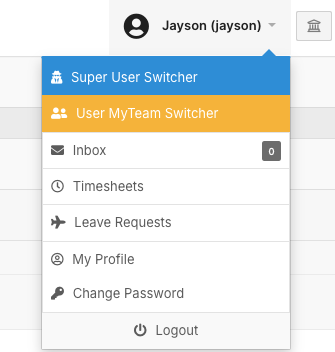
To access it:
- Click your name in the top menu
- Open the profile dropdown
- Select My Team Switcher
This will open the staff selection screen.
Switching Into a Staff Member
Once inside the My Team Switcher:
- Select a staff member from your managed team
- Confirm your selection
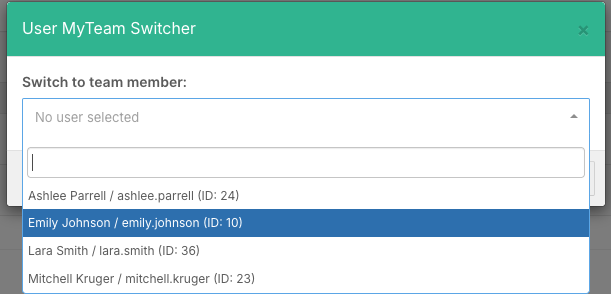
FlowLogic will then switch your view to that staff member’s account.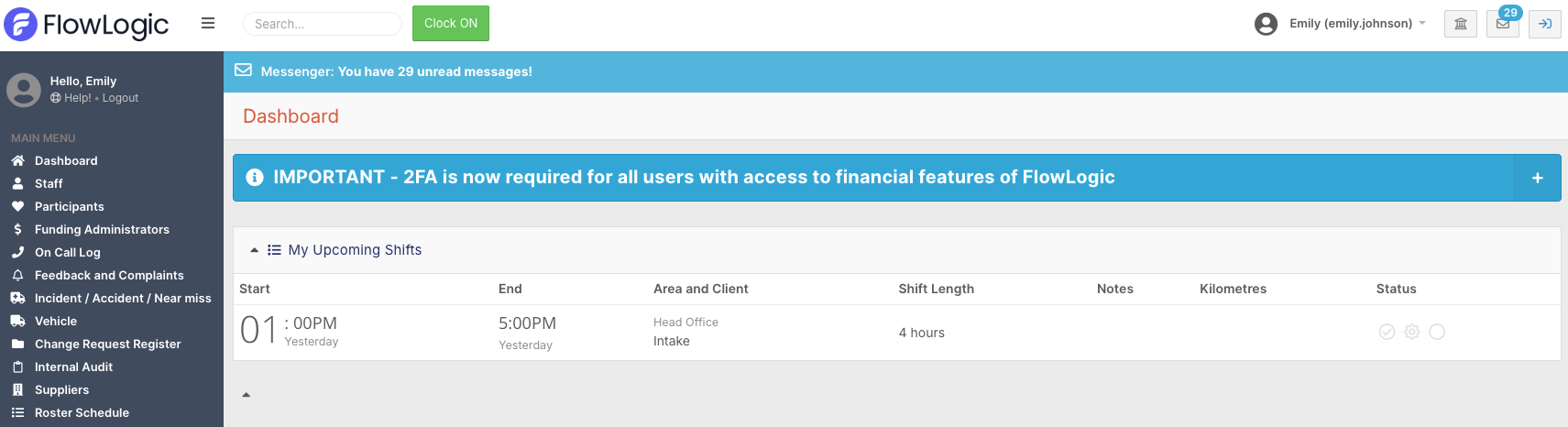
While switched:
- You will see the system exactly as they do
- Permissions, access, and layout will match their profile
- You do not need their login details
Common Use Cases
The My Team Switcher is most commonly used for:
- Troubleshooting access or permission issues
- Assisting staff with timesheets or workflows
- Investigating why data is not visible
- Guiding users through specific tasks
Because you are viewing the system as the user, it removes guesswork and speeds up issue resolution.
Returning to Your Account
When you are finished:
- Open the profile menu again
- Click My Team Switcher
- Select the option to switch back
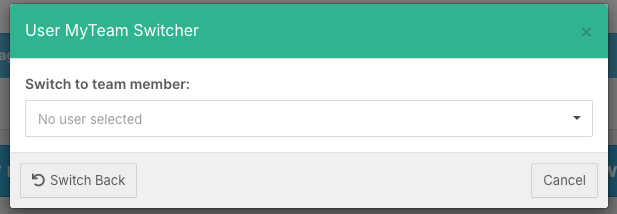
You will immediately return to your own account and permissions.
Important Considerations
This feature provides full visibility into another user’s system experience, so it should be used carefully.
Keep in mind:
- You are operating within another user’s permissions
- Any actions taken will reflect their access level
- Changes made may impact their data or workflow
Because of this, access should be limited to appropriate roles only.
Best Practices
When using My Team Switcher:
- Use it primarily for support and troubleshooting
- Avoid making unnecessary changes while switched
- Always switch back after completing your task
- Ensure only authorised managers have access