
Key Points
To export leave, go to Finance and Payroll and click Export Leave, select the payroll period, set your filters and click Search Entries.
Leave exports separately from timesheets as its own CSV file. Approve or decline all leave requests for the period before you start.
Check the entries, then click Export Requests. With an API integration the data may send automatically - otherwise a CSV file downloads for you to upload into your financial software.
To fix a mistake, roll entries back from Processed to Approved and export them again. Entries already in your payroll software must be deleted there manually first.
Leave in FlowLogic exports separately from timesheets as its own CSV file. This keeps leave data clean and distinct, making it easier to manage in your payroll software. Before starting, make sure you have approved or declined all leave requests for the period you're exporting.
Running the Export
Go to Finance and Payroll in the top-right corner and click Export Leave. 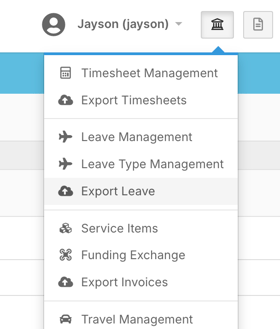
From here, select your payroll period, and use the filters to narrow results by staff member, leave type, and approval status. Once your filters are set, click Search Entries to load the relevant leave requests.
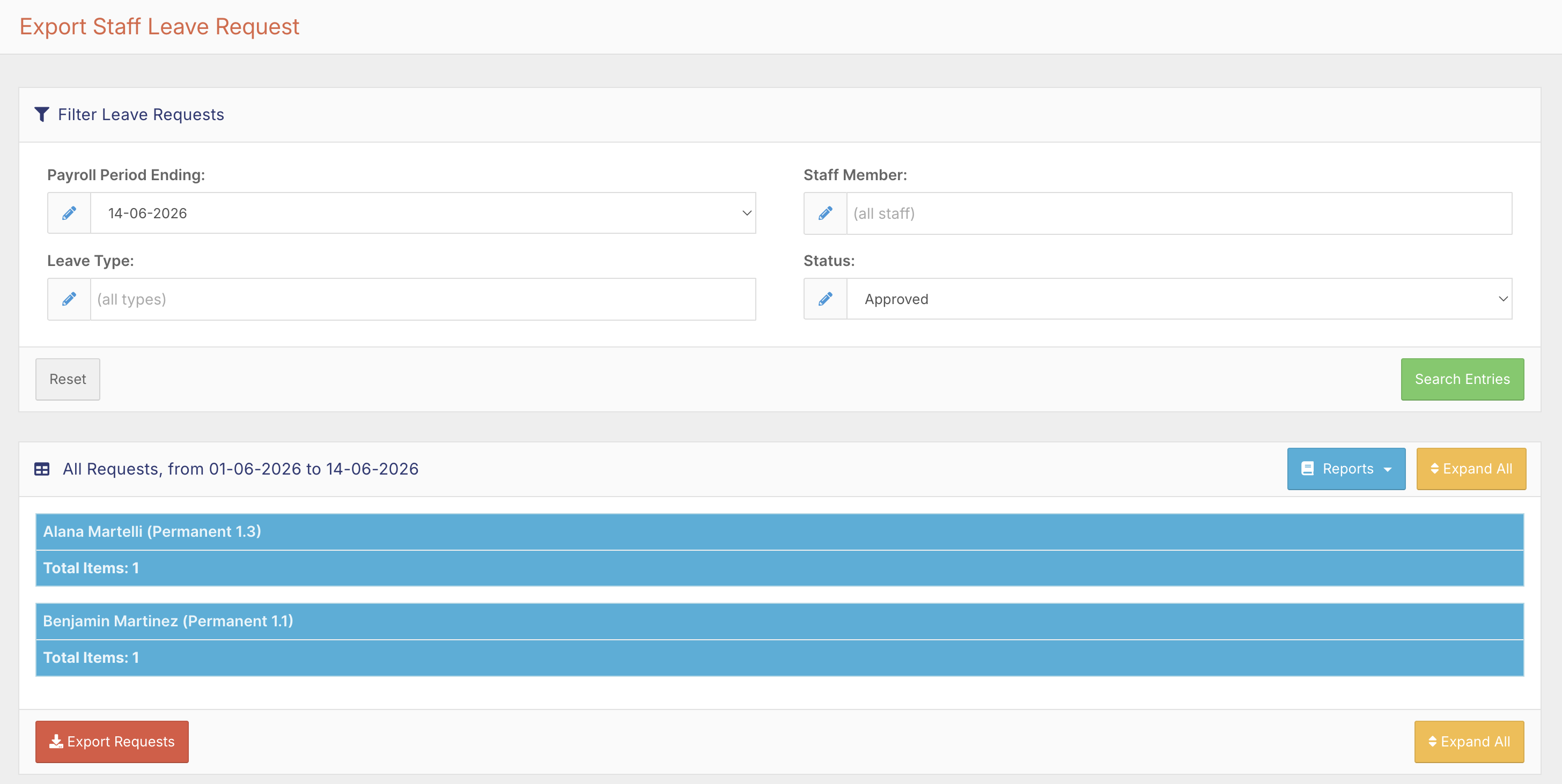
Before exporting, it's worth running the available reports in the top-right corner to check everything looks correct. You can expand all entries at once or click individual leave banners to collapse and expand them. Each entry shows the submission date, leave type, leave period, from and to dates, times, and duration in both days and hours. Totals appear on the far right for easy reference.
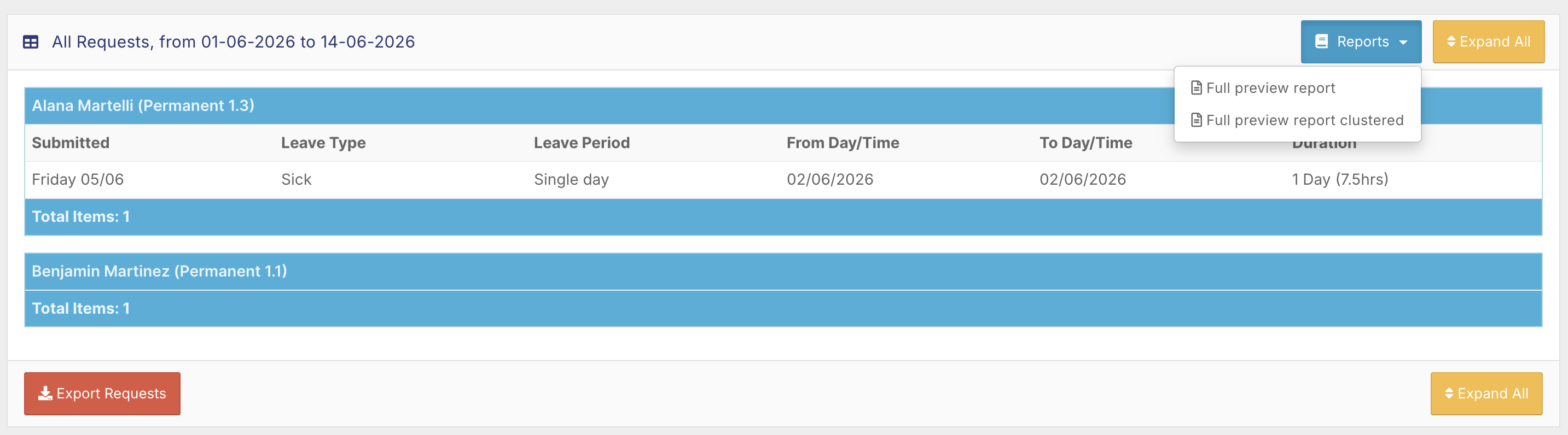
Leave may calculate differently depending on a staff member's cost category, which is listed next to their name. FlowLogic supports different rates across different pay levels - for example, 7.5 hours per day.
When you're satisfied that everything is correct, click Export Requests. If you're using an API integration the data may send automatically. For CSV exports, the file will download for you to upload into your financial software.

Rolling Back Entries
If you need to correct a mistake after exporting, you can roll entries back. Change the status to Processed, search for the relevant entries, and revert them to Approved. They'll then appear when you search for Approved entries and can be exported again.
Keep in mind that rolling back in FlowLogic won't remove entries from your payroll software if they've already been uploaded or sent via API - you'll need to delete those manually from your payroll system first. Make sure both systems are in sync before reprocessing.