
Key Points
To search across FlowLogic, click the global search bar in the top-left corner, type a search term and press Enter to go to the search results screen.
By default, search applies two filters: Primary Records and a Created Date Range. Add filters such as Record Fields or Inbox Messages, then click Search again.
Click a result to jump to that record, sort the results, or search within your results to narrow them down.
Search covers staff records, primary records, secondary records and inbox messages. It doesn't search the roster or areas like the funding exchange - use reports for those.
The global search bar lets you find records and inbox messages quickly across FlowLogic. It's located in the top-left corner of your instance - click it, type any search term, and press Enter to be taken to the search results screen.
The Search Results Screen
The first time you land here, you'll see a guided tour option. You can follow along or close it by clicking the cross above the displayed field. It's a helpful resource when you're getting started but entirely optional.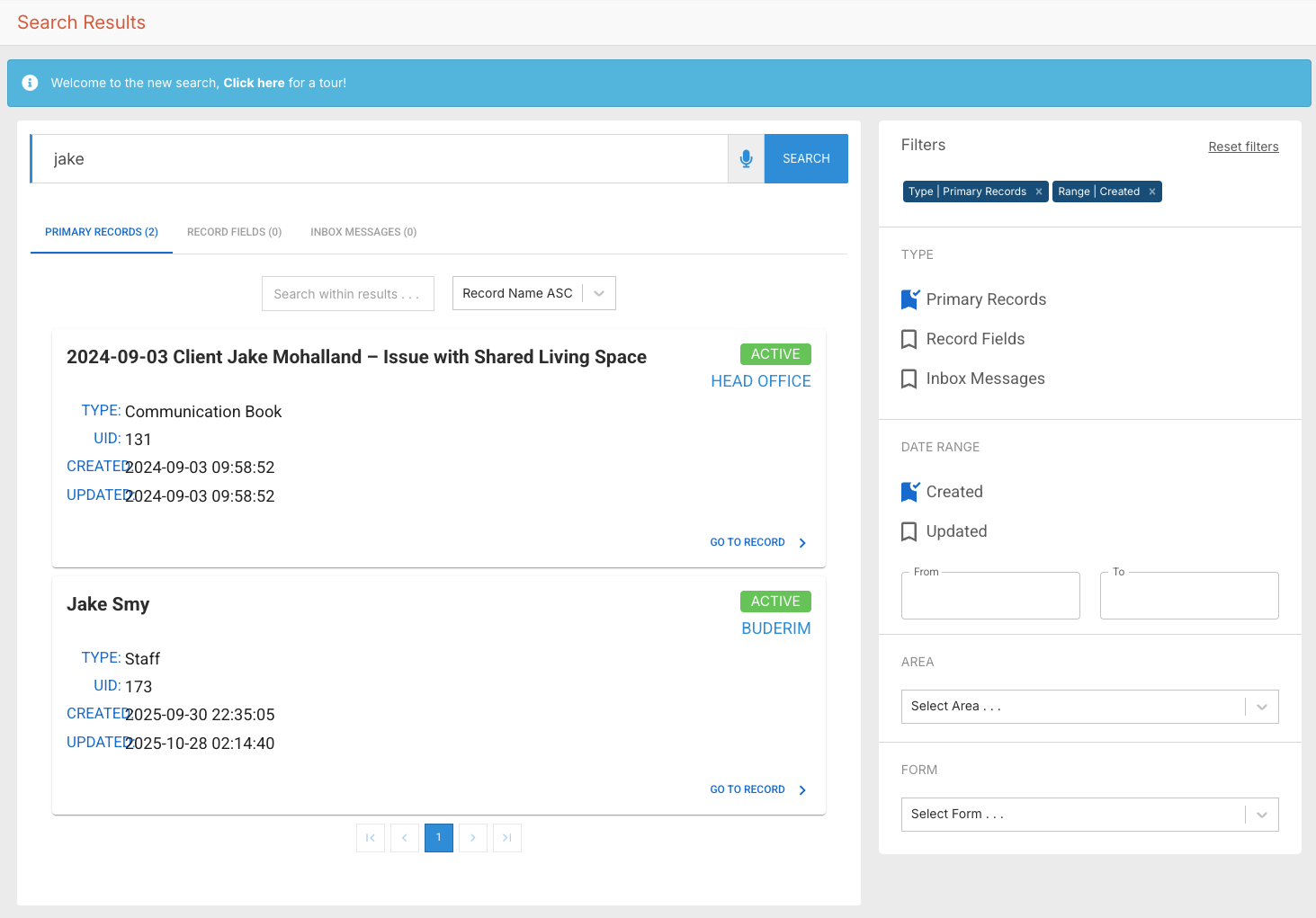
Below the tour is a search bar where you can update or refine your query. Use this instead of the top navigation bar when you're already on the results screen — it refreshes only the results rather than reloading the entire page. Voice-to-text is also available if you prefer. Click Search to run your query.
Default Search Behaviour
By default, the search applies two filters automatically: Primary Records and a Created Date Range. It won't scan the entire system straight away, which keeps results relevant and fast.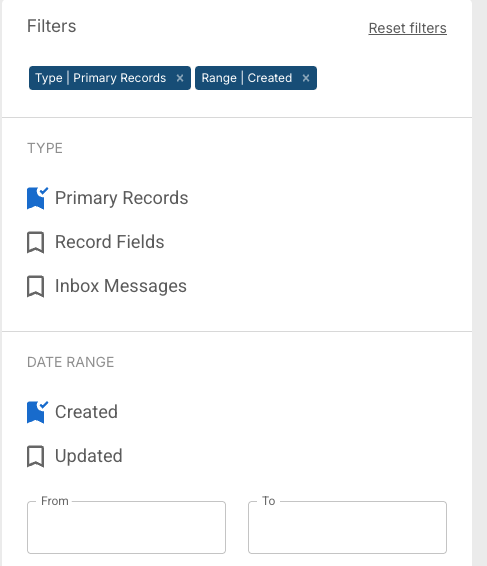
You can add or remove filters using the options on the right-hand side. For example, selecting Record Fields will include field-level data in your results, and you can add Inbox Messages the same way. Remember to click Search again after changing any filter to refresh the results.
Reading Your Results
Results appear on the left-hand side showing the record name, type, record ID, and creation date. If there's more than one page, pagination appears at the bottom. Tabs at the top of the results let you switch between different record types.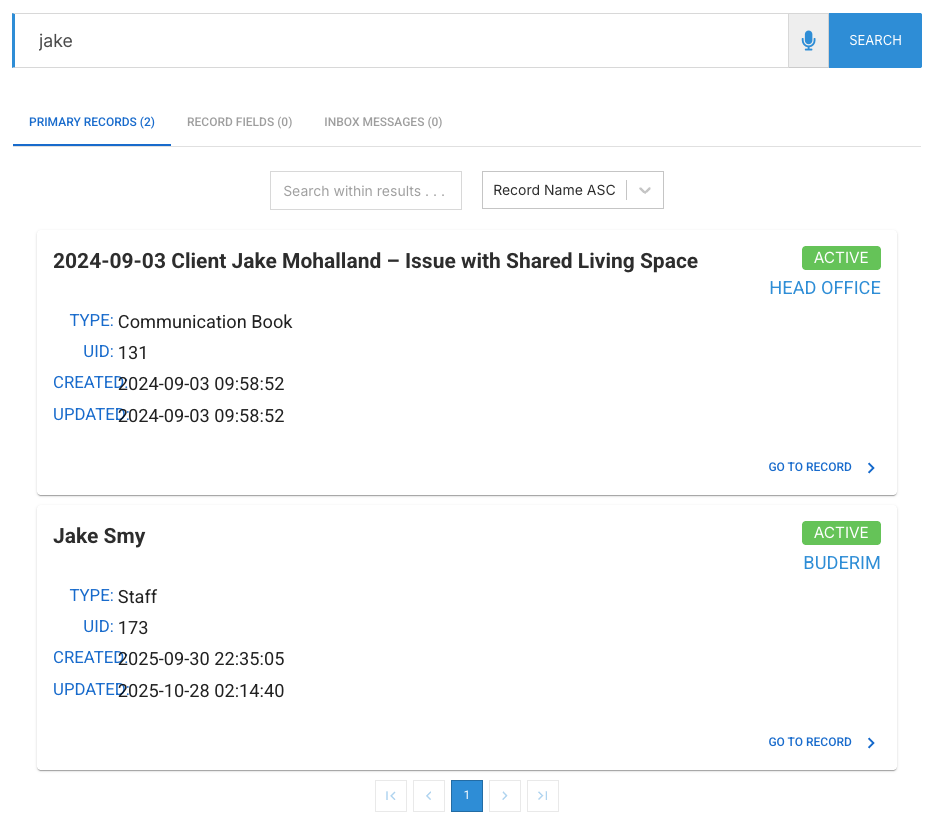
Click any result to jump straight to that record. For primary records, use the Go to Record button in the bottom-right corner of the result. For record fields, you have the option to navigate to either the primary record or the record itself. For inbox messages, you can jump directly to the message.
Sorting and Refining Results
At the top of the results, you can sort by name, creation date, and more in ascending or descending order. You can also search within your existing results - useful when you're dealing with a large number of matches and need to narrow things down quickly with a second term.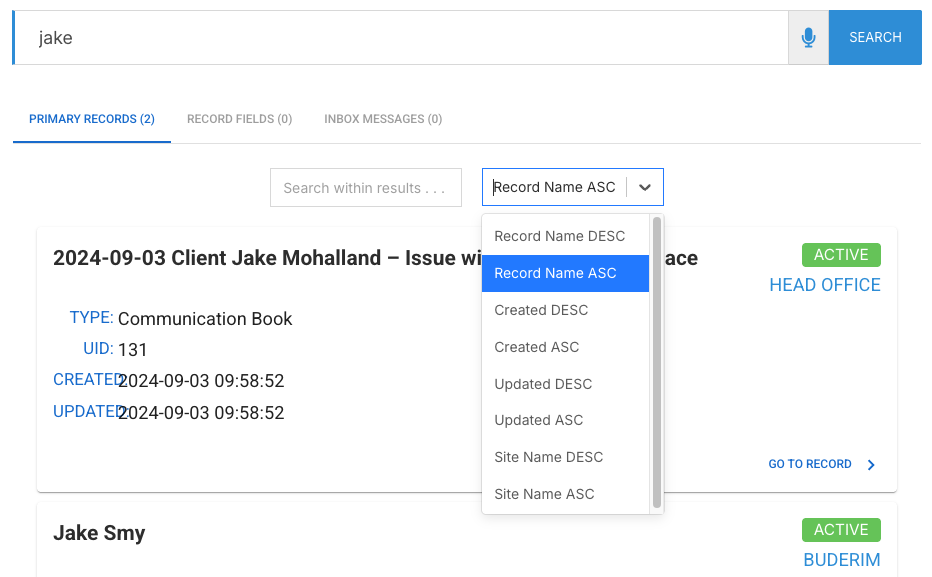
Additional Filters
On the right-hand side, you can also filter by date range based on when a record was created or last updated, as well as by specific areas or forms within the system. Applied filters appear at the top of the filter panel and are removed from the list to avoid duplicates. To start fresh, click Reset Filters in the top-right corner, or remove individual filters one at a time.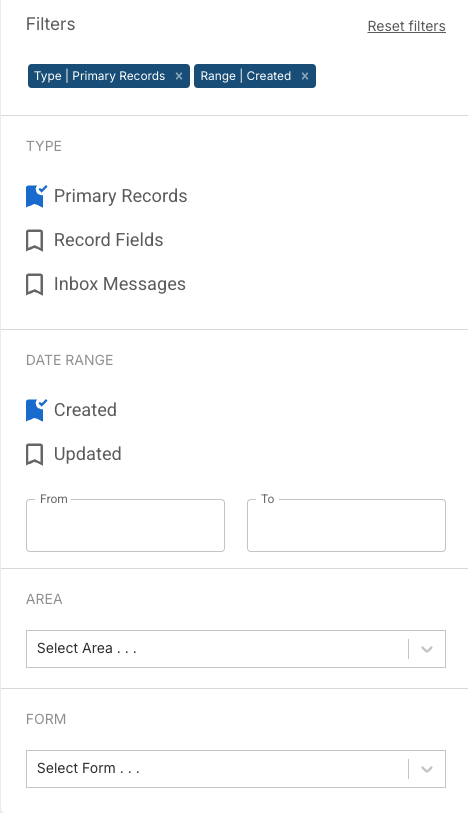
What the Search Bar Doesn't Cover
The global search works across staff records, primary records, secondary records, and inbox messages. It does not search the roster or areas like the funding exchange — for those, reports are a better option.