Key Points
To create a folder, open the Drive from the bottom-left of the section menu, click (+) New Folder, enter a name, then click Create or Create and Open.
Inside a folder, click Upload to add a file. It's available straight away to anyone with access to that folder.
To set permissions, click Actions on the folder and select Permissions. Choose the groups under Allow Access or Deny Access, then click Update Permissions.
Users with the Drive Admin right bypass all deny rules and can see every folder, so assign this right carefully.
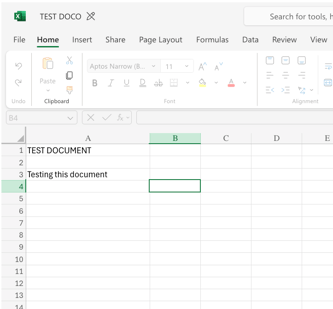
The Actions menu also lets you rename, move or delete folders and files. Word and Excel files can often be opened and edited directly in the Drive.
Setting up folders and permissions
This guide covers how to create folders in the FlowLogic Drive, upload files, apply permissions to control who has access, and use the key folder and file actions available.
Creating a folder
Navigate to the Drive from the bottom-left of the section menu. Once inside, click (+) New Folder in the top-left corner and enter a name for your folder.
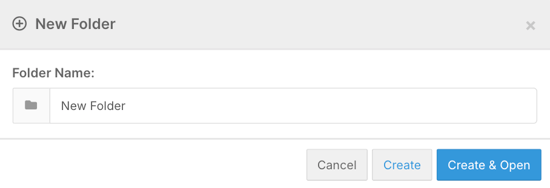
You'll have two options once the name is entered:
Create
Creates the folder and returns you to the current directory.
Create and Open
Creates the folder and takes you straight into it, ready to upload files.
Uploading a file
Once inside a folder, click Upload and select the file you want to add. A tick icon will appear once the upload completes successfully. The file is then immediately available to anyone with access to that folder.
Setting folder permissions
To set permissions, return to the main Drive directory by clicking Up (one level) or Home (top level). Locate the folder, click Actions on the right-hand side, and select Permissions.
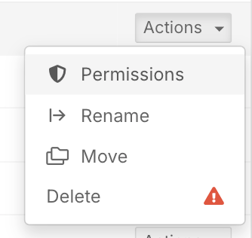
Inside the permissions screen, you will see two options:
Option What it does Allow Access Grants specific groups the ability to view and use the folder Deny Access Blocks specific groups from accessing the folder, useful when only one or two groups should have visibilityUsers with the Drive Admin right bypass all deny rules and can always see and access every folder. Be careful when assigning this right, as those users have full overarching control of the Drive and all its permissions.
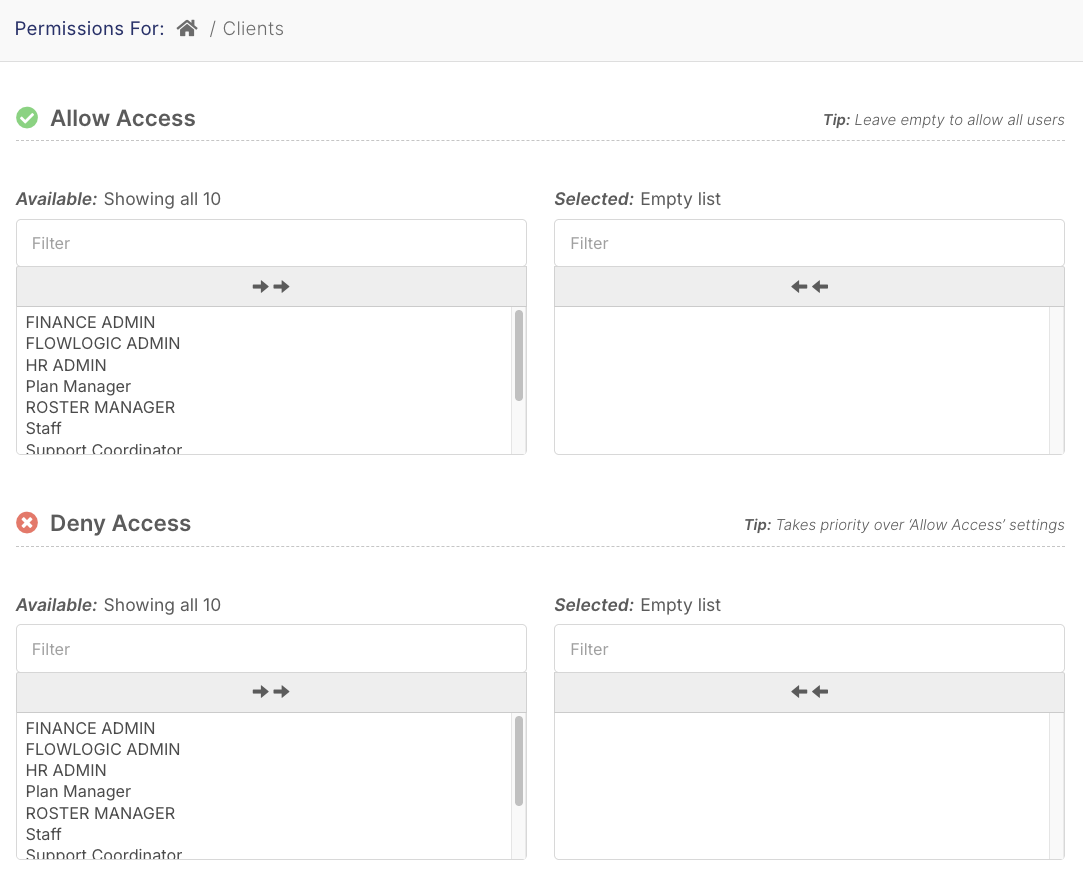
Once you have selected the groups to allow or deny, click Update Permissions in the bottom-right corner to save.

Folder actions
Clicking Actions on any folder also gives you these options:
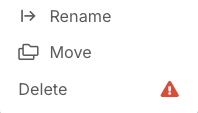
Rename folder
Update the folder name to keep naming consistent
Move folder
Relocate the folder if your Drive structure changes
Delete folder
Remove the folder when it is no longer needed
File actions
Opening a folder and selecting a file gives you a similar set of actions for individual documents:
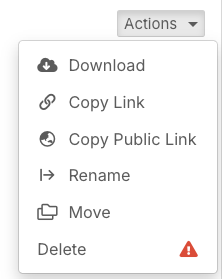
Download
Save the file to your device
Copy link
Share an internal link to the file
Copy public link
Paste into a form or share with someone who needs direct access
Rename
Update the file name
Move
Relocate the file to a different folder
Delete
Remove the file when it is no longer needed
Microsoft 365 compatibility
The FlowLogic Drive is Microsoft 365 compatible. Word documents and Excel files can often be opened and edited directly inside the Drive, without needing to download, edit locally, and re-upload. This keeps version control cleaner and makes document management much simpler.