
Key Points
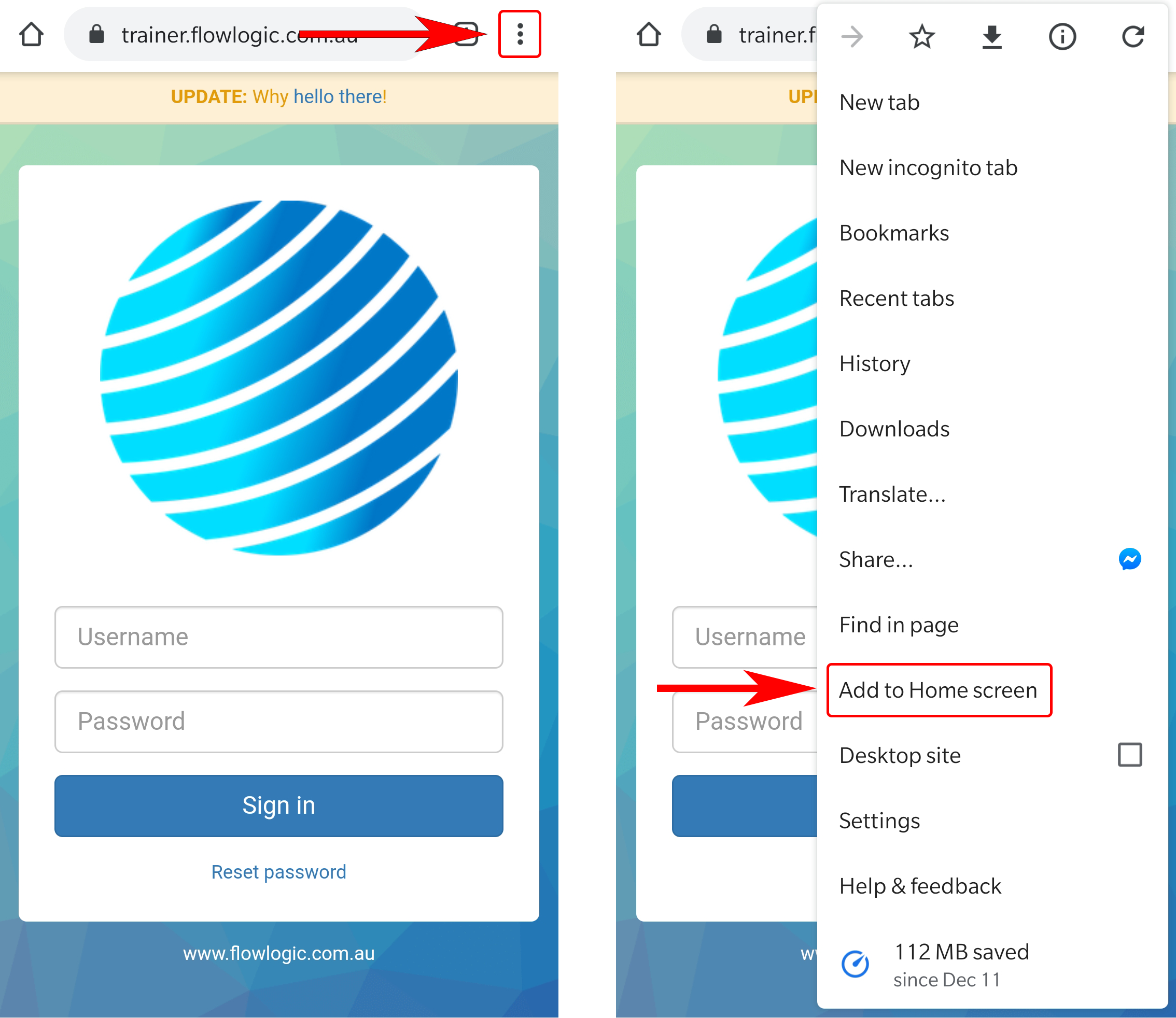
To add FlowLogic to your phone's home screen, open the FlowLogic login screen in your phone's browser, tap the browser's Settings button, then tap Add to home screen.
The Settings button is usually three dots or lines in the top right corner. On iPhone/Safari, it may be a Share icon at the bottom of the page.
This creates a shortcut icon to the page you're on (for example, businessname.flowlogic.com), so you can open FlowLogic with one touch alongside your other apps.
Add a FlowLogic icon to your phone's home screen so you can easily access your system with one touch.
Adding the shortcut
- While on the FlowLogic login screen on your mobile device, click the browser's “Settings” button, usually displayed as three dots or lines in the top right corner of your screen. For iPhone/Safari, this may be a Share icon at the bottom of the page.
- Now, click "Add to home screen". This will take the current internet page you're on (businessname.flowlogic.com, for example) and create a direct shortcut icon on your mobile home screen.
Done! A FlowLogic Icon should now appear on your mobile home screen, along with your other applications.