
Key Points
Go to the System Menu (top right) - Users. CSV Update adds new users or updates existing users from a spreadsheet. Bulk Edit changes settings for the users you select, without a file.
You need access to the Users page plus the rights for CSV Update and Bulk Edit. If you can't see these buttons, ask your admin team or FlowLogic Support to add the rights to your account.
Download your current users as a CSV to start from a file that's already in the right format. Each file can have up to 1,000 rows, and the username column is used to match existing users.
Before anything is saved, the CSV preview shows which rows have changes, have no change, weren't found or can be created as new users. New users get one shared password or a unique generated password each.
Bulk Edit replaces the selected users' Groups, Areas and Sites or cost categories - it doesn't add to them. Always check the preview before you confirm.
Before You Start
To open the user list, go to the System Menu in the top right and select Users.
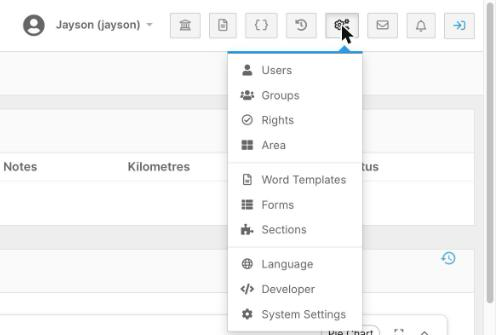
The Bulk Edit and CSV Update buttons sit at the top right of the All Users in System list.

If either button is missing, the rights haven't been added to your account yet. Your admin team or FlowLogic Support can add them. See What does each Right in FlowLogic do?
Adding or Updating Users with a CSV File
Use CSV Update to create several new users at once, or to change details for existing users from a spreadsheet.
Preparing Your File
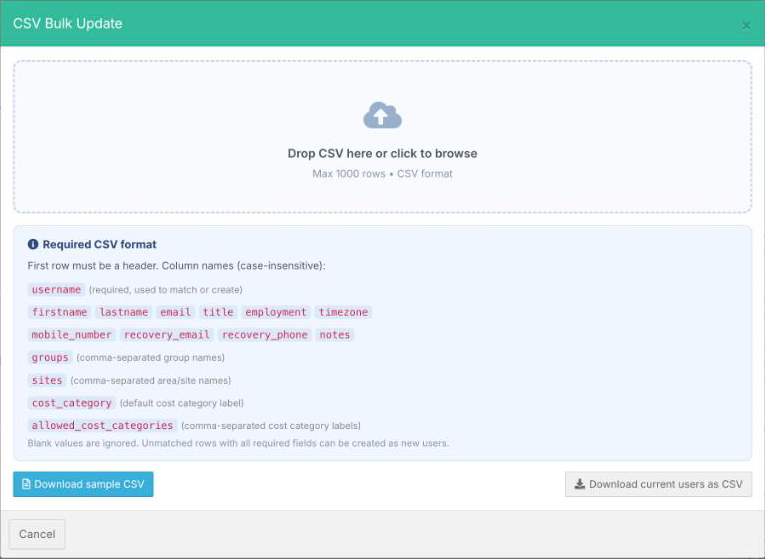
On the Users page, click CSV Update. The CSV Bulk Update box opens with the required CSV format.
Download a file to work from - Download sample CSV for a blank example, or Download current users as CSV for your existing users. The current users file is the easiest starting point because it's already in the correct format.
Fill in your file using the column names shown in the box. The first row must be the header row:
username - required. FlowLogic uses it to match an existing user or create a new one.
Details such as firstname, lastname, email, title, employment, timezone, mobile_number, recovery_email, recovery_phone and notes
groups and sites - separate several names with commas
cost_category (the default cost category) and allowed_cost_categories (separate several with commas)
Blank values are ignored, so you only need to fill in what you want to change.
Save the file as a CSV. Each file can have up to 1,000 rows.
Uploading and Previewing Your File
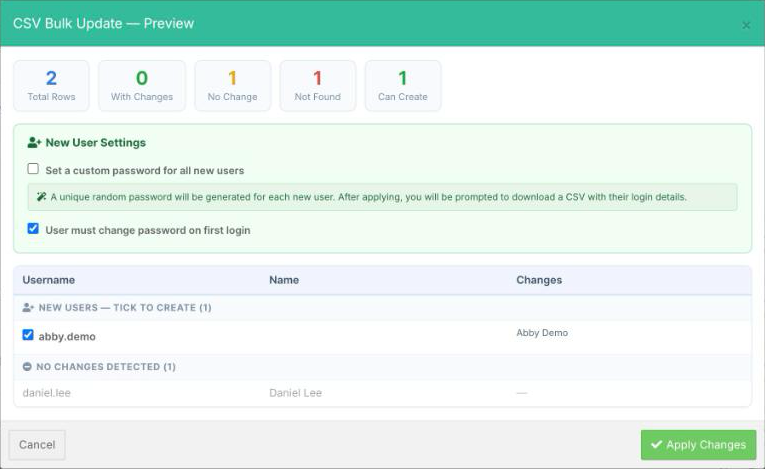
Drop your file onto Drop CSV here or click to browse, or click it to choose your file. FlowLogic reads the file and opens the CSV Bulk Update - Preview.
Check the summary at the top. It shows the Total Rows in your file and how many are With Changes, No Change, Not Found and Can Create. A username that isn't found can only be created as a new user if the row has all the required fields - the preview tells you which fields are missing, such as a title.
Under New User Settings, choose how passwords are set for new users. Tick Set a custom password for all new users to give them all the same password, or leave it unticked to generate a unique random password for each user. With unique passwords, you'll be prompted to download a CSV of each user's login details after applying.
Keep User must change password on first login ticked. We recommend leaving this on.
Review the list of users. New users are listed under New Users - Tick to Create, so untick anyone you want to leave out.
Click Apply Changes. Download the login details when prompted, then close the window. Your new and updated users now appear in the user list.
Changing Settings for Several Users with Bulk Edit
Use Bulk Edit to give a group of existing users the same settings, without preparing a file.
On the Users page, tick the box next to each user you want to change, or tick the box in the header to select everyone on the current page. Bulk Edit only works once at least one user is selected.
Click Bulk Edit. The Bulk Edit Users box shows how many users are selected.
Switch on each section you want to change - Groups, Areas / Sites, Default Cost Category or Allowed Cost Categories. Sections you leave switched off aren't changed.
Choose the new options in each section you switched on. To pick more than one option in a list, hold Shift or Ctrl while you click.
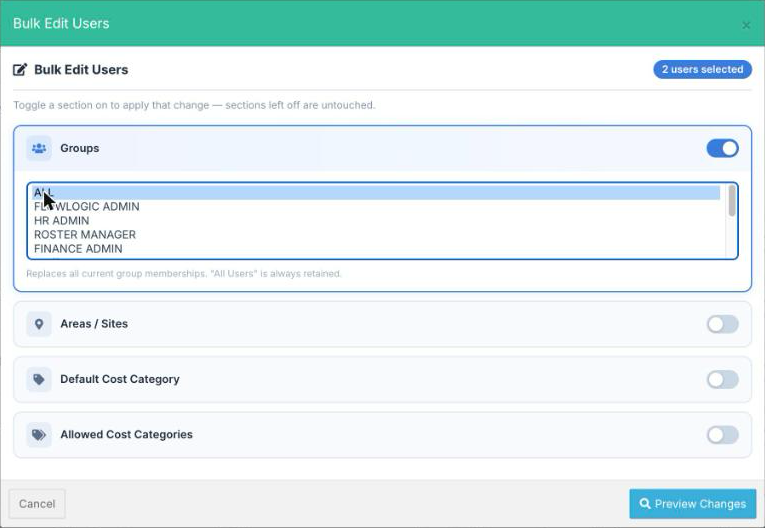
Click Preview Changes. The preview shows what will change for each user, with the old values crossed out, before anything is saved.
If everything looks right, click Confirm & Apply. If not, click Back and adjust your selections.
Bulk Edit Replaces Existing Settings
Bulk Edit overwrites what's already set for the selected users - it doesn't add to it. For example, if a user is in the Staff and Team Leader groups and you bulk edit their Groups to All, they're removed from Staff and Team Leader and left only in All.
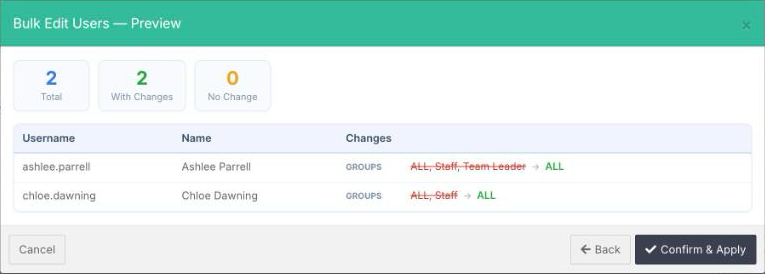
Check the preview for each user before you confirm, so nobody loses access they still need.