
Key Points
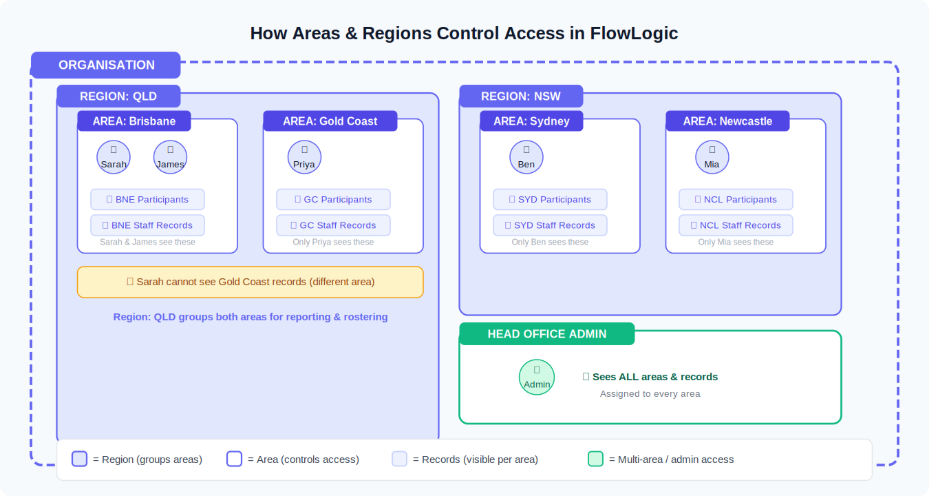
Areas control which records each user can see. Every record belongs to an Area, and users only see records in the Areas they're assigned to.
Regions group Areas together, for example by state. They organise your Areas but don't control access themselves.
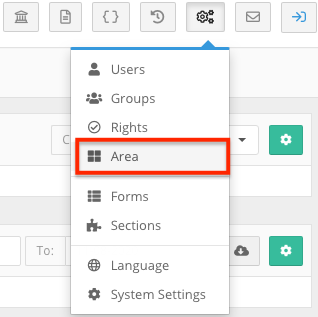
To manage them, click the System Menu (cog icon) and select Area. On the Site / Area Management page you can add, edit and archive Regions and Areas.
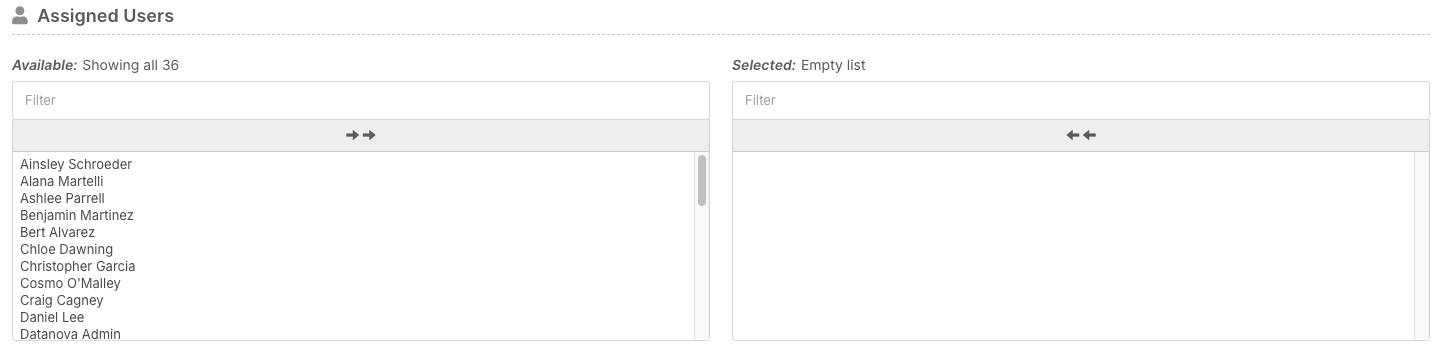
Assign users to an Area under Assigned Users. If a record is in an Area with no users assigned, no one can see it.
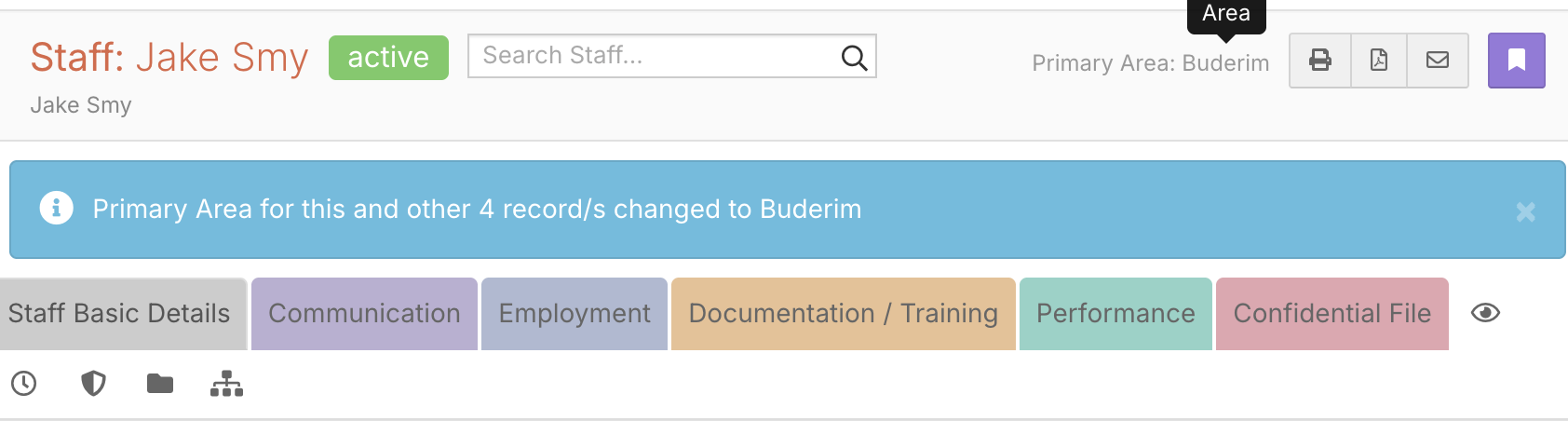
To move a record into an Area, open the record and click Primary Area in the top right.
Areas decide which records each user can see. Every record belongs to an Area, and users only see records in the Areas they are assigned to. Regions group Areas together, for example by state.
What are Areas and Regions?
- Areas organise records and control who can see them. An Area can be a physical location, a department, a service type, a funding stream or a state.
- Regions group Areas together, for example Queensland and New South Wales. Regions organise your Areas but do not control access themselves.
- Users only see records in the Areas they are assigned to. For example, staff assigned to a Queensland Area see Queensland records, and staff assigned to a New South Wales Area see NSW records.
Open Area management
- Click the System Menu (the cog icon in the top right).
- Select Area.
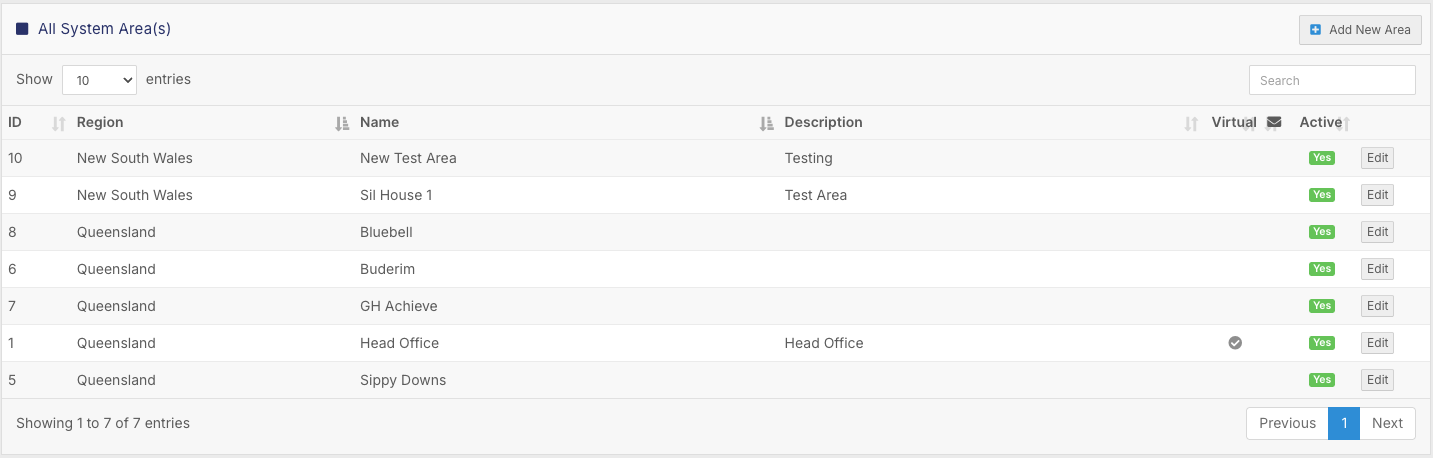
The Site / Area Management page lists your Regions and Areas. From here you can add, edit and archive them.
Add a Region
- Under All System Region(s), click Add New Region.
- Enter the Region's name and a description.
- Click Save.

Add an Area
- Under All System Area(s), click Add New Area.
- Under Area Details, fill in the fields:
- Region - the Region the Area belongs to.
- Name - the Area name that shows on records.
- Virtual - choose Yes if the Area is not a physical location.
- Active - choose No to archive an Area you no longer use.
- Messenger Recipient - choose Show if people should be able to send messages to this Area.
- Description - optional, for example the address.

- If you use them, add the Area's Account Code and Export Code (for example for Xero). These help with timesheet exports, invoice tracking and financial reporting.

- Under Assigned Users, move each user who should see this Area's records from Available to Selected. Click a name to move it, use the double arrows to move everyone, or type in Filter to find someone.
- Click Save.
Important: if a record is in an Area with no users assigned, no one can see it.
Move a record into an Area
- Open the staff or participant record.
- Click Primary Area in the top right of the record and choose the Area. A message confirms how many records were moved.
- Check that the right people can see the record.
Other places Areas are used
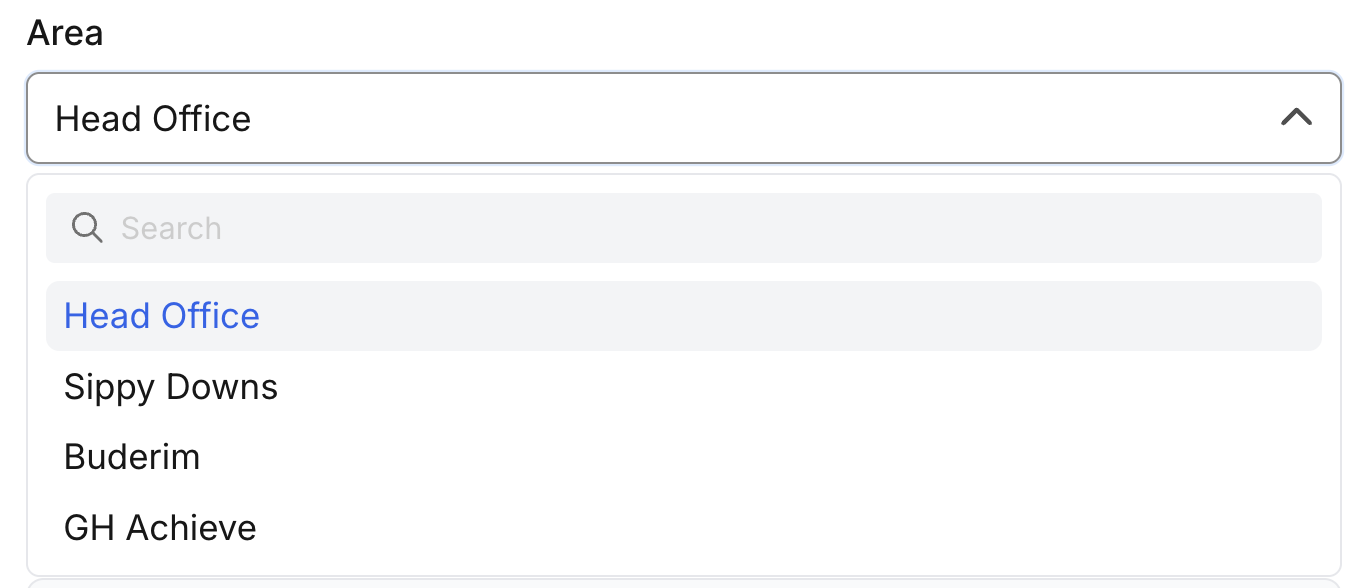
- Roster Schedule - give each shift an Area.
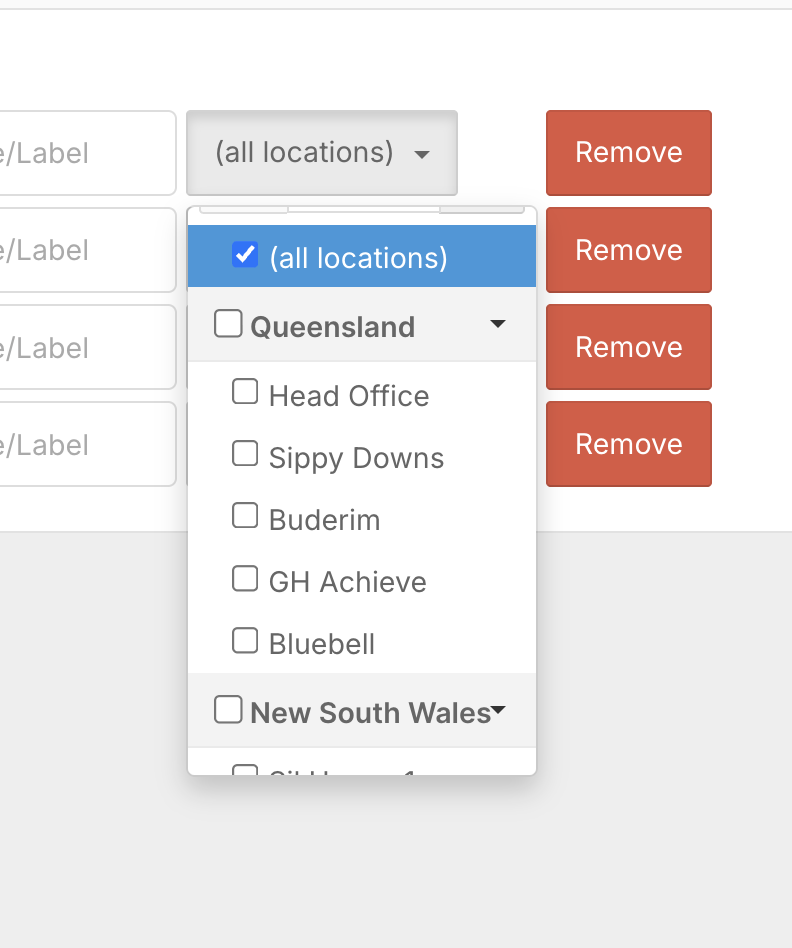
- Public holidays - apply a public holiday to all locations, or only to some Regions and Areas.
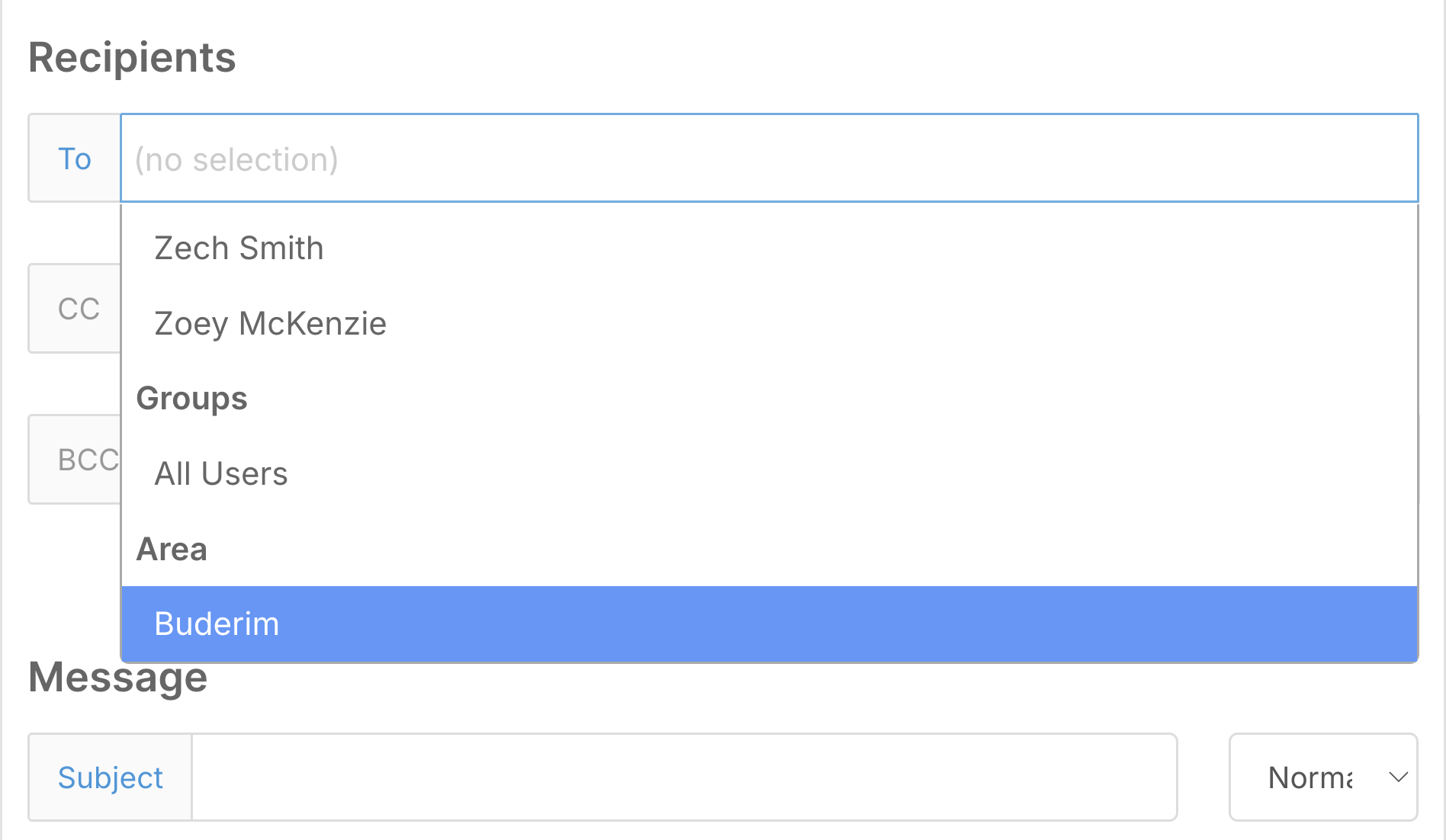
- Messages - send a message to an Area.
- Payroll and finance - Areas carry export codes for finance exports, and the Area shows on exports such as invoices.

Tips for setting up Areas
- There is no single right structure. Common choices are office location, state, department, funding stream or service type.
- Keep it simple and consistent, so staff can easily understand it.
- Use Areas for high-level access. For finer control, use Rights and Groups, and Section and Form permissions.